On this page: Learn how to attach static or personalized PDF files to emails, including the supported campaign types and applicable count, size, and volume limits.
You can attach a static PDF file to the email messages that you send with Journey Optimizer. If you use API-triggered campaigns, you can also attach a personalized PDF file for each recipient.
Note that personalized PDF attachments require additional file retrieval and processing. Campaigns using them may have higher processing latency and lower throughput than campaigns without attachments, particularly when using multiple or larger PDF files.
-
You can send up to 6 messages with a PDF attachment per profile per year, whether the attachment is static or personalized.
-
The maximum allowed file size for each attachment is 5 MB. For emails with personalized attachments, all static and personalized PDF attachments in the email share a combined 5 MB limit by default.
To attach a PDF file to an email message, follow the steps below.
-
Create an email in a journey or a campaign. Learn more
-
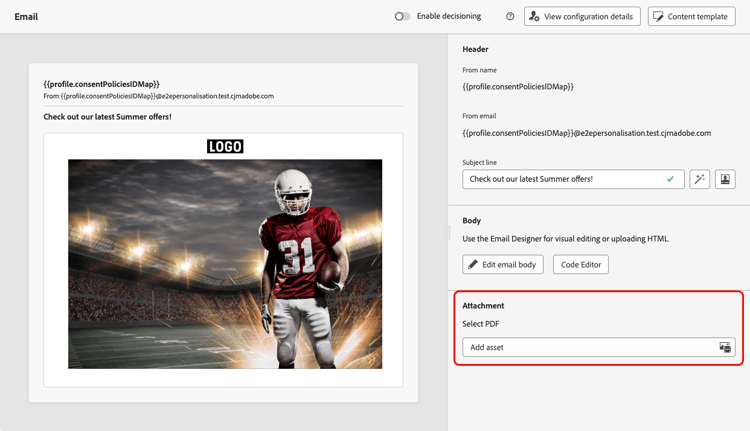
From the journey or campaign Content tab, select Add asset from the Attachment section.
-
The Assets Essentials repository displays.
note NOTE When designing messages, you access the Assets Essentials repository directly from within the Journey Optimizer interface. To learn more about the embedded Assets Essentials user interface, refer to Experience Manager Assets Essentials documentation. -
Use the PDF filter in the MIME Type section to restrict selection to the correct file format.
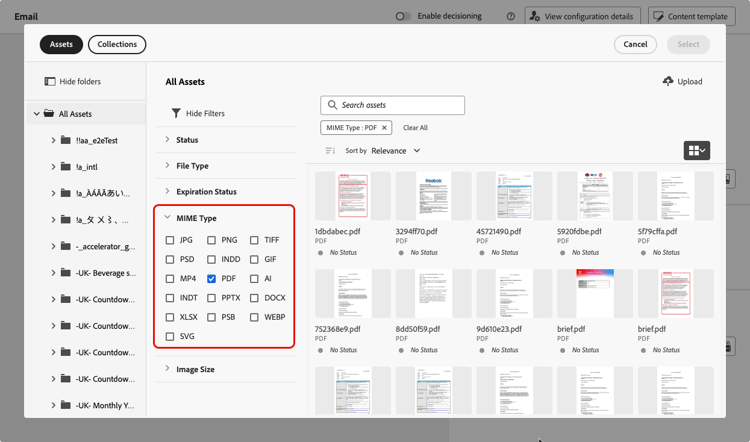
note NOTE Only the PDF format is allowed for attachments. -
Select the file of your choice.
- You can only select one file at a time.
- The maximum allowed file size for each attachment is 5 MB.
-
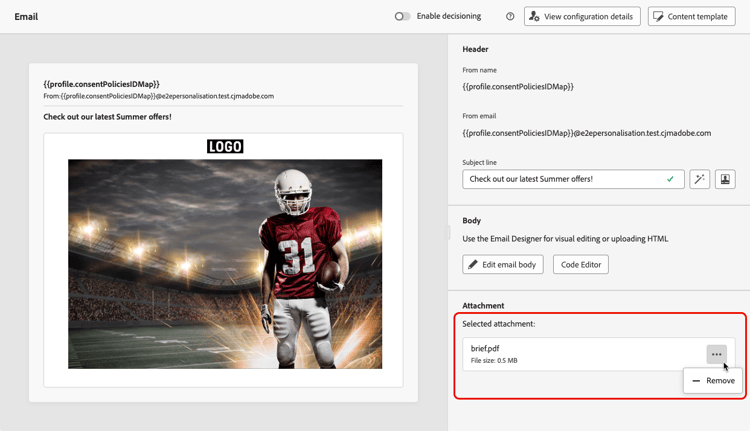
Once done, the name and size of the selected file display in the Attachment section.
You can remove the selected file using the More actions icon next to the file name.
Attach personalized PDF files for API-triggered campaigns personalized-attachments
You can also attach recipient-specific PDF files to a single email sent through an API-triggered campaign. Unlike a static attachment, each recipient can receive a different file, such as an invoice, a boarding pass, a contract, or a shipping label.
The combined size of all static and personalized PDF attachments in an email is limited to 5 MB by default. Organizations with the applicable PDF Attachments add-on can use a combined limit of up to 10 MB.
-
Personalized PDF attachments are supported only for transactional API-triggered email campaigns.
-
You can include up to five PDF attachments in an email. This limit includes both static and personalized attachments. For example, an email containing one static PDF can include up to four personalized PDFs. If you need to send more, split them across multiple communications.
-
Personalized and static PDF attachments count toward the same quota. Learn more
Personalized PDF attachments must be uploaded to the attachment-specific Data Landing Zone container, then referenced in the API payload. Data Landing Zone is currently the only supported storage location for personalized PDF attachments.
-
Retrieve the Data Landing Zone credentials for your sandbox using
type=ajoemailattachmentsfor the same IMS organization and sandbox as the execution request, as described in the Adobe Experience Platform documentation. Depending on the cloud provider, use the Azure container or AWS bucket and folder returned by the API. -
Generate the PDF files with the tool of your choice, and upload them to your Data Landing Zone container.
Note that Data Landing Zone automatically deletes files after seven days, make sure the PDF files remain available in the container until message delivery and any retries are complete.
-
In the API payload, for each recipient, add an
attachmentsarray containing the file name, content type, and Data Landing Zone path of the PDF to send. Learn how to personalize your API-triggered campaign contentcode language-json "attachments": [ { "name": "invoice-12345.pdf", "contentType": "application/pdf", "source": { "type": "dlzPath", "path": "attachments/invoice-12345.pdf" } } ]Note that
source.pathis the object path relative to the attachment-specific Data Landing Zone container retrieved withtype=ajoemailattachments. Do not include the Azure container name, the AWS bucket or folder, credentials, or a full storage URL.
At send time, Journey Optimizer fetches the file from the specified location and attaches it to the message for that recipient. Personalized PDF attachments are supported for High Throughput campaigns in the primary region. They are not supported during regional failover.
For the full API payload reference, see the Interactive Message Execution API documentation.
This section contains structured knowledge intended to support interpretation, retrieval, and question answering related to this topic.
For complete understanding, this information should be combined with the documentation on this page. Neither source is intended to stand alone; the page describes the feature, while this section provides additional context that helps disambiguate terminology, intent, applicability, and constraints.
- TL;DR: This page explains how to attach static PDF files to Journey Optimizer emails, and recipient-specific (personalized) PDF files for API-triggered campaigns, along with the applicable format, count, size, and per-profile volume limits.
Intents:
- Attach a static PDF file to an email in a journey or campaign
- Attach recipient-specific (personalized) PDF files through an API-triggered campaign
- Understand the PDF attachment count, size, and per-profile volume limits
- Set up the Data Landing Zone container and API payload for personalized attachments
- Raise the attachment size limit with the PDF Attachments add-on
Glossary:
- Static PDF attachment: A single PDF file attached to an email that is the same for every recipient (product-specific)
- Personalized PDF attachment: A recipient-specific PDF file (for example an invoice, boarding pass, contract, or shipping label) attached per recipient in an API-triggered campaign (product-specific)
- Data Landing Zone (DLZ): The attachment-specific cloud storage container (retrieved with
type=ajoemailattachments) where personalized PDFs are uploaded and then referenced from the API payload; the only supported storage location for them (product-specific) - PDF Attachments add-on: A purchasable add-on that raises the combined personalized-attachment size limit from 5 MB to 10 MB (product-specific)
Guardrails:
- Up to 6 messages with a PDF attachment per profile per year, whether the attachment is static or personalized.
- Maximum 5 MB per attachment; for emails with personalized attachments, all static and personalized PDFs share a combined 5 MB limit by default. The PDF Attachments add-on raises the combined personalized limit to 10 MB.
- Up to five PDF attachments per email, counting static and personalized together — for example, one static PDF plus up to four personalized PDFs.
- Only the PDF format is allowed for attachments.
- Personalized PDF attachments are supported only for transactional API-triggered email campaigns.
- Personalized PDFs must be uploaded to the attachment-specific Data Landing Zone container; it is currently the only supported storage location for them.
- Data Landing Zone automatically deletes files after seven days — keep the files available until delivery and any retries are complete.
- Personalized PDF attachments are supported for High Throughput campaigns in the primary region and are not supported during regional failover.
- A PDF attachment is not retained when the message is saved as a content template — reattach the file on any new email created from that template.
Terminology:
- Canonical name: PDF attachment — Acronym: n/a — variants: static PDF attachment, personalized PDF attachment
- Synonyms: “Data Landing Zone” = “DLZ”
- Do not confuse: “static PDF attachment” (same file for all recipients) ≠ “personalized PDF attachment” (per-recipient file, API-triggered campaigns only)
FAQ:
- Q: How many PDF attachments can one email include? — Up to five, counting static and personalized together (for example, one static plus up to four personalized).
- Q: What is the maximum PDF attachment size? — 5 MB per attachment; with personalized attachments, all static and personalized PDFs share a combined 5 MB limit by default, which the PDF Attachments add-on raises to 10 MB.
- Q: How many PDF-attachment messages can a single profile receive? — Up to 6 per profile per year, whether the attachments are static or personalized.
- Q: Are personalized PDF attachments available for any email? — No. They are supported only for transactional API-triggered email campaigns, and for High Throughput campaigns in the primary region; they are not supported during regional failover.
- Q: Where must personalized PDF files be stored? — In the attachment-specific Data Landing Zone container (retrieved with
type=ajoemailattachments) and referenced in the API payload; it is the only supported storage location, and files are automatically deleted after seven days. - Q: Is the PDF attachment kept when I save the email as a content template? — No, it is not retained; you must reattach the file on any new email created from the template.