On this page: Learn how to build feedback-based and tracking-based retargeting rules that follow up with recipients according to how they responded to a previous Orchestrated campaign.
Retargeting allows you to follow up with recipients based on how they responded to a previous Orchestrated campaign. For example, you can send a second email to recipients who received but did not click the first one.
Orchestrated campaign provides two main schemas for this:
- Message Feedback: captures delivery-related events, e.g. message sent, opened, bounced, etc.
- Email Tracking: captures user actions, e.g. clicks and opens.

Create a feedback-based retargeting rule feedback-retarget
Feedback-based Retargeting Rule allows you to retarget recipients based on message delivery events captured in the Message Feedback schema. These events include outcomes such as messages being sent, opened, bounced, or marked as spam.
Using this data, you can define rules to identify recipients who received a previous message enabling follow-up communication based on specific delivery statuses.
-
Create a new Orchestrated campaign.
-
Add a Build Audience activity and set the targeting dimension to Recipient (caas). Click Continue.
-
To quickly get started, you can use a built-in Campaign Feedback filter to target recipients based on message delivery events.
accordion Detailed step-by-step -
In the Rule Builder, click Select or save a filter and choose Campaign feedback from the list.
-
Select the filter rule and choose the Behavior you want to target, such as Message sent.
-
Click

-
Select a specific campaign: Choose a particular campaign from your list to retarget recipients who interacted with that campaign.
-
Campaign from transition: Reference a campaign from a previous activity in your Orchestrated campaign.
-
-
-
Alternatively, you can manually build custom rules. In the Rule Builder, click Add Condition and select Message Feedback from the Attributes Picker. Click Confirm to create a Message Feedback Exists such as condition.

-
Choose the Feedback Status attribute to target message delivery events.
accordion Detailed step-by-step -
Add another condition linked to the Message feedback attribute.
-
Search for the Feedback Status attribute and click Confirm.

-
In the Custom condition menu, choose which delivery status to track in the Value drop-down.

-
-
Choose the Orchestrated Campaign Name attribute to target a specific Orchestrated campaign.
accordion Detailed step-by-step -
Add another condition linked to the Message feedback attribute, search for entity, and navigate to:
_experience > CustomerJourneyManagement > Entities > AJO Orchestrated Campaign entity. -
Select Orchestrated Campaign Name.

-
In the Custom condition menu, specify the campaign name in the Value field.
-
-
Choose the Orchestrated Campaign Action Name attribute to target a specific message or activity within an Orchestrated campaign.
accordion Detailed step-by-step -
Add another condition linked to the Message feedback attribute, search for entity, and navigate to:
_experience > CustomerJourneyManagement > Entities > AJO Orchestrated Campaign entity. -
Select Orchestrated Campaign Action Name.

-
In the Custom condition menu, specify the campaign action name in the Value field.
Action names can be found by clicking the

-
-
Alternatively, you can also filter by the Campaign ID (UUID), which can be found in your Campaign properties.
You have now configured a Feedback-based retargeting rule to identify recipients based on the delivery status of a previous message such as sent, opened, bounced, or marked as spam. With this audience defined, you can either add a follow-up email or further refine your targeting by configuring a Tracking-based retargeting rule, which uses user interaction data.

Create a Tracking-based retargeting rule tracking-based
Tracking-based retargeting rule targets recipients based on their interactions with a message, using data from the Email Tracking schema. It captures user actions such as email opens and link clicks.
To retarget recipients based on message interactions (e.g., open or click), use the Email Tracking entity as follows:
-
Create a new Orchestrated campaign.
-
Add a Build Audience activity and set the targeting dimension to Recipient (caas) to focus on previous Orchestrated campaign recipients.
-
To quickly get started, you can use a built-in Campaign Feedback filter to target recipients based on message delivery events.
accordion Detailed step-by-step -
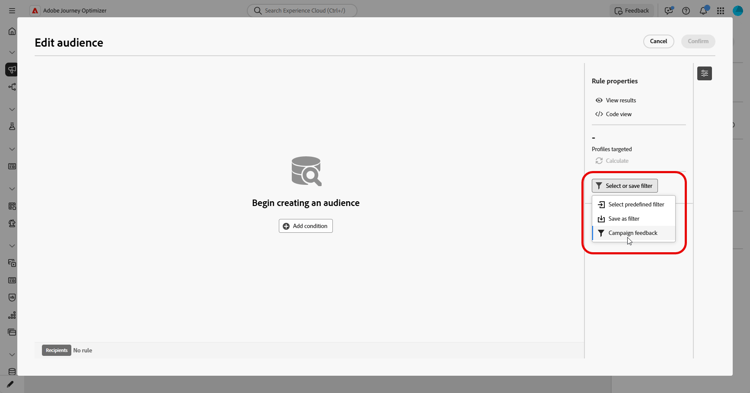
In the Rule Builder, click Select or save a filter and choose Campaign feedback from the list.
-
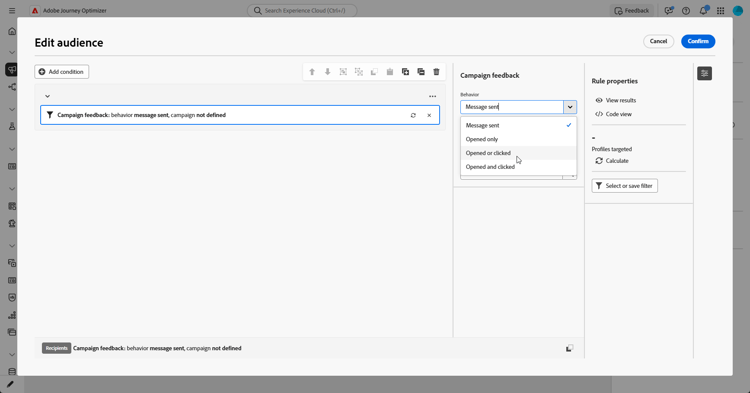
Select the filter rule and choose the Behavior you want to target, such as Message opened, or Message clicked.
-
Click
-
Select a specific campaign: Choose a particular campaign from your list to retarget recipients who interacted with that campaign.
-
Campaign from transition: Reference a campaign from a previous activity in your Orchestrated campaign.
-
-
-
Alternatively, you can manually build custom rules. In the Rule Builder, click Add Condition and select Email Tracking from the Attributes Picker.
Click Confirm to create a Email Tracking Exists such as condition.

-
To target recipients’ interactions with a message, add another condition linked to the Email tracking attribute and search for the Interaction Type attribute.

-
From the custom condition options, use Included in as the operator and select one or more values depending on your use case, e.g. Message Opened or Message Link Clicked.

You have now configured a Tracking-based retargeting rule to target recipients based on their interactions with a previous message, such as email opens or link clicks, using data from the Email Tracking attribute. With this audience defined, you can either add a follow-up action or further refine your targeting by combining it with a Feedback-Based retargeting rule to include message outcomes such as sent, bounced, or marked as spam.

This section contains structured knowledge intended to support interpretation, retrieval, and question answering related to this topic.
For complete understanding, this information should be combined with the documentation on this page. Neither source is intended to stand alone; the page describes the feature, while this section provides additional context that helps disambiguate terminology, intent, applicability, and constraints.
- TL;DR: This page explains how to build feedback-based and tracking-based retargeting rules in an Orchestrated campaign so you can follow up with recipients based on how they responded to a previous Orchestrated campaign.
Intents:
- Create a feedback-based retargeting rule using the Message Feedback schema to target recipients by delivery status (sent, opened, bounced, marked as spam).
- Create a tracking-based retargeting rule using the Email Tracking schema to target recipients by interaction (opens, clicks).
- Use the built-in Campaign feedback filter to quickly target recipients based on message delivery events.
- Target a specific previous campaign by selecting a specific campaign, referencing a campaign from a previous activity (Campaign from transition), or filtering by Campaign ID (UUID).
- Target a specific message or activity within an Orchestrated campaign using the Orchestrated Campaign Action Name attribute.
- Combine a feedback-based retargeting rule with a tracking-based retargeting rule to refine targeting.
Glossary:
- Message Feedback: a schema that captures delivery-related events, such as message sent, opened, bounced, etc. (product-specific)
- Email Tracking: a schema that captures user actions, such as clicks and opens (product-specific)
- Feedback-based retargeting rule: a rule that retargets recipients based on message delivery events captured in the Message Feedback schema (product-specific)
- Tracking-based retargeting rule: a rule that targets recipients based on their interactions with a message, using data from the Email Tracking schema (product-specific)
- Campaign feedback filter: a built-in filter, selectable in the Rule Builder, used to quickly target recipients based on message delivery events by choosing a Behavior (such as Message sent, Message opened, or Message clicked) (product-specific)
- Feedback Status: an attribute of the Message Feedback condition used to target a specific message delivery status (product-specific)
- Interaction Type: an attribute of the Email Tracking condition used to target a specific user interaction, such as Message Opened or Message Link Clicked (product-specific)
- Orchestrated Campaign Name: an attribute used to target a specific Orchestrated campaign by name (product-specific)
- Orchestrated Campaign Action Name: an attribute used to target a specific message or activity within an Orchestrated campaign (product-specific)
Guardrails:
- Feedback-based retargeting rules build custom conditions linked to the Message Feedback attribute; tracking-based retargeting rules build custom conditions linked to the Email Tracking attribute. Both rule types can also use the same built-in Campaign feedback filter as a quick-start option to target recipients based on message delivery events.
- Within the Campaign feedback filter, the Campaign from transition option references a campaign from a previous activity in the same Orchestrated campaign, as an alternative to selecting a specific campaign from the list.
- The Orchestrated Campaign Action Name can also be found by clicking the information icon next to the Label field of the activity.
- The Email Tracking interaction condition uses the “Included in” operator, with one or more values selected depending on the use case.
Terminology:
- Canonical name: Orchestrated campaign retargeting — variants: feedback-based retargeting rule, tracking-based retargeting rule
- Do not confuse: “Message Feedback” (delivery-related events: sent, opened, bounced, spam) ≠ “Email Tracking” (user interaction events: opens, clicks)
- Do not confuse: “Select a specific campaign” (choose a particular campaign from a list) ≠ “Campaign from transition” (reference a campaign from a previous activity in the Orchestrated campaign)
FAQ:
- Q: What is the difference between a feedback-based and a tracking-based retargeting rule? — A feedback-based rule targets recipients using the Message Feedback schema (delivery events such as sent, opened, bounced, or marked as spam); a tracking-based rule targets recipients using the Email Tracking schema (user interactions such as opens and clicks).
- Q: Can I use the same filter to start both types of retargeting rules? — Yes, both rule types can use the built-in Campaign feedback filter to target recipients based on message delivery events, selecting a Behavior such as Message sent, Message opened, or Message clicked.
- Q: How can I target a specific previous campaign? — Select a specific campaign from your list, reference a campaign from a previous activity using Campaign from transition, or filter by Campaign ID (UUID) found in your Campaign properties.
- Q: How do I target a specific message or activity within an Orchestrated campaign? — Use the Orchestrated Campaign Action Name attribute; action names can be found by clicking the information icon next to the Label field of the activity.
- Q: Can I combine feedback-based and tracking-based retargeting rules? — Yes, you can combine a tracking-based retargeting rule with a feedback-based retargeting rule to include message outcomes such as sent, bounced, or marked as spam.
Personas:
- marketer: Can build a feedback-based retargeting rule using the Message Feedback attribute and choose a delivery status to track with the Feedback Status attribute. Can build a tracking-based retargeting rule using the Email Tracking attribute and the Interaction Type attribute with the Included in operator. The page states that a specific campaign can be targeted by selecting a campaign, using Campaign from transition, or filtering by Campaign ID (UUID). Where: “Create a feedback-based retargeting rule”.
Onboarding:
- Level: Intermediate
- First minimal step: Create a new Orchestrated campaign.
- Success check: You have configured a feedback-based retargeting rule to identify recipients by delivery status, such as sent, opened, bounced, or marked as spam.