On this page: Learn how to use the Save audience targeting activity to create or overwrite a reusable audience from the population built earlier in an Orchestrated campaign.
The Save audience activity is a Targeting activity used to create a new audience or update an existing one based on the population generated earlier in the Orchestrated campaign. Once saved, the audience is added to the list of application audiences and becomes accessible from the Audiences menu.
It is commonly used to capture audience segments built within the same campaign workflow, making them available for reuse in future campaigns. Typically, it is connected to other targeting activities, such as Build audience or Combine, to save the final targeted population.
Note that with the Save audience activity you cannot update an existing audience. You can only create a new audience or overwrite an existing one with a new definition.
Configure the Save audience activity save-audience-configuration
Follow these steps to configure the Save audience activity:
-
Add a Save audience activity to your Orchestrated campaign.
-
Enter a Audience label that will identify the saved audience.
note NOTE The audience Label must be unique across all campaigns. You cannot reuse an audience name that has already been used in another campaign’s Save audience activity. -
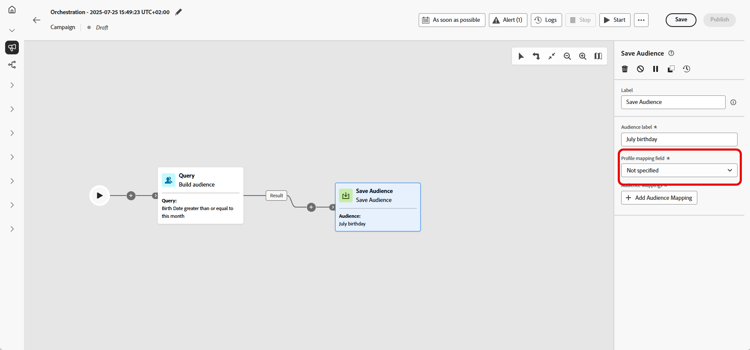
Choose a Profile mapping field from your Campaign Targeting dimension. This mapping defines how profiles in the Saved audience are linked to the campaign’s target dimension during execution.
Only mappings compatible with the current target dimension, i.e. the one from the incoming transition, will be available in the dropdown list to ensure proper reconciliation between the audience and the campaign context.
➡️ Follow the steps detailed in this page to create your Campaign Targeting dimension
-
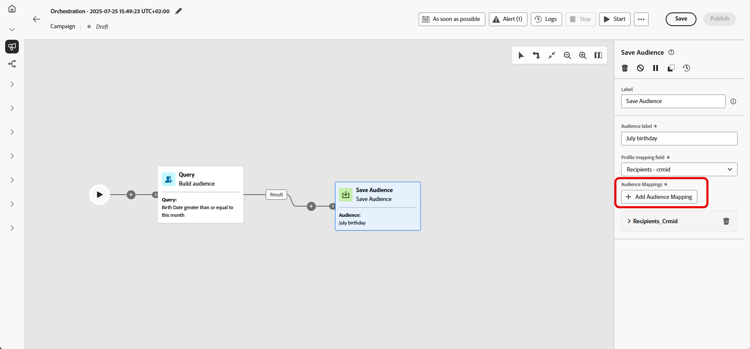
Click Add audience mappings to include additional data from attributes of the Target dimension or enriched Profile attributes.
This allows you to associate more information with the Saved audience activity beyond the primary profile mapping, enhancing targeting and personalization options.
-
Finalize your setup by saving and publishing the Orchestrated campaign. This will generate and store your audience.
-
Publish the campaign for the audience to be created or replaced since the Save audience activity does not execute while the campaign is in Draft mode.
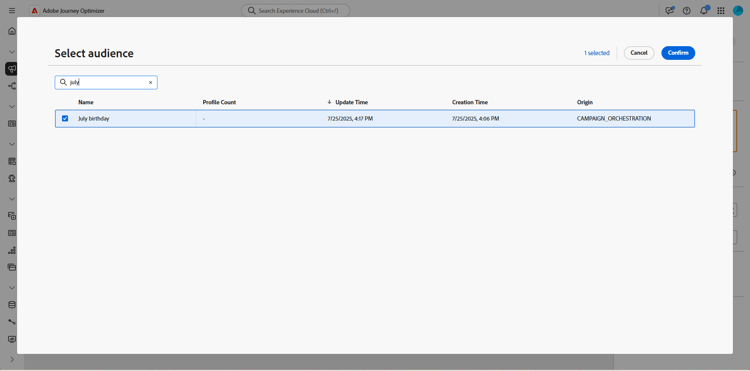
The content of the saved audience is then available in the detail view of the audience, which can be accessed from the Audiences menu, or can be selected when targeting an audience, for example with a Read audience activity.
Example save-audience-example
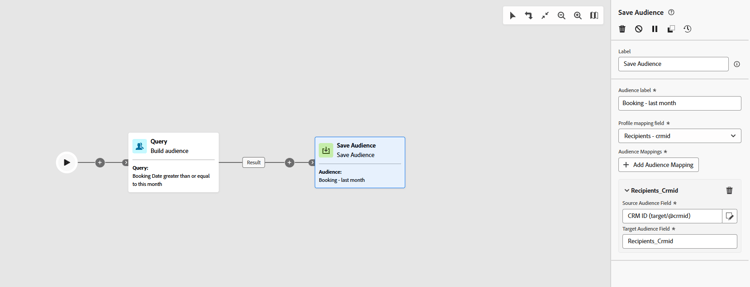
The following example demonstrates how to create a simple audience using targeting. A query identifies all recipients who booked a trip in the last 30 days by filtering this population within your Orchestrated campaign. By choosing Recipients - CRMID as the Targeting dimension, the audience targets each individual booking event rather than just the recipient as a whole. The Save audience activity then captures these profiles to create a reusable audience of recent purchasers.
This section contains structured knowledge intended to support interpretation, retrieval, and question answering related to this topic.
For complete understanding, this information should be combined with the documentation on this page. Neither source is intended to stand alone; the page describes the feature, while this section provides additional context that helps disambiguate terminology, intent, applicability, and constraints.
- TL;DR: This page explains how to configure the Save audience activity in an Orchestrated campaign to create a new audience or overwrite an existing one from the population built earlier in the workflow.
Intents:
- Configure the Save audience activity to create or overwrite an audience.
- Enter an audience label that identifies the saved audience.
- Choose a profile mapping field from the Campaign Targeting dimension to link profiles to the saved audience.
- Add audience mappings to associate additional target dimension attributes or enriched profile attributes.
- Access the resulting saved audience from the Audiences menu or select it in a Read audience activity.
Glossary:
- Save audience activity: a Targeting activity that creates a new audience or overwrites an existing one with a new definition, based on the population generated earlier in the Orchestrated campaign (product-specific)
- Audience label: the identifier entered to name the saved audience (product-specific)
- Profile mapping field: the field, chosen from the Campaign Targeting dimension, that defines how profiles in the saved audience are linked to the campaign’s target dimension during execution (product-specific)
- Audience mappings: additional data added from attributes of the Target dimension or enriched Profile attributes, beyond the primary profile mapping (product-specific)
Guardrails:
- The Save audience activity cannot update an existing audience; it can only create a new audience or overwrite an existing one with a new definition.
- The audience label must be unique across all campaigns; an audience name already used in another campaign’s Save audience activity cannot be reused.
- Only profile mappings compatible with the current target dimension (the one from the incoming transition) are available in the profile mapping field dropdown, to ensure proper reconciliation between the audience and the campaign context.
- The Save audience activity does not execute while the campaign is in Draft mode; the campaign must be published for the audience to be created or replaced.
- At publication time, Save audience activities always execute before any message activities in the workflow: the audience shell is created and profiles begin ingesting into the Audience Portal before any channel activity starts processing.
- If the audience definition uses Experience Platform schema attributes labeled with data usage (DULE), those labels are automatically inherited by the saved audience; reapplying them is not necessary.
Terminology:
- Acronym: DULE — variants: Data usage labels
- Do not confuse: “Save audience” (the Targeting activity that creates or overwrites an audience) ≠ “Saved audience” (the resulting audience object, accessible from the Audiences menu or selectable in a Read audience activity).
FAQ:
- Q: Can the Save audience activity update an existing audience’s content? — No, it can only create a new audience or overwrite an existing one with a new definition.
- Q: Does the audience label need to be unique? — Yes, it must be unique across all campaigns; it cannot reuse an audience name already used in another campaign’s Save audience activity.
- Q: When does the Save audience activity execute? — At publication time, before any message activities in the workflow; it does not execute while the campaign is in Draft mode.
- Q: Where can the saved audience be accessed afterward? — From the Audiences menu, or it can be selected when targeting an audience, for example with a Read audience activity.
- Q: Do data usage labels need to be reapplied on the saved audience? — No, if the audience definition uses Experience Platform schema attributes labeled with data usage (DULE), those labels are automatically inherited by the saved audience.
Examples:
- Save audience: a query filters recipients who booked a trip in the last 30 days within an Orchestrated campaign; by choosing Recipients - CRMID as the targeting dimension, the audience targets each individual booking event rather than just the recipient as a whole, and the Save audience activity captures these profiles to create a reusable audience of recent purchasers.
Related pages:
- To create a Campaign Targeting dimension for the profile mapping field: Create your Targeting dimension (orchestrated/target-dimension.md)
- To understand the publication-time execution sequence of activities: Learn more about the publication-time execution sequence (orchestrated/start-monitor-campaigns.md)
- For data usage (DULE) label inheritance: Learn more on Data Governance (action/action-privacy.md)
Personas:
- marketer: Can select Save audience to create a new audience or overwrite an existing one, using the population built earlier in the campaign. Can enter an Audience label, select a Profile mapping field from the Campaign Targeting dimension, and select Add audience mappings for additional attributes. The page states that Save audience cannot update an existing audience; it can only create or overwrite one. Where: “Configure the Save audience activity”.
Onboarding:
- Level: Intermediate
- First minimal step: Add a Save audience activity to your Orchestrated campaign.
- Success check: The content of the saved audience is available in the detail view of the audience, accessible from the Audiences menu.
- Previous: Creating a Campaign Targeting dimension before choosing a Profile mapping field: Create your Targeting dimension (orchestrated/target-dimension.md)
- Next: Understanding the publication-time execution sequence after publishing the campaign: Start and monitor Orchestrated campaigns with Adobe Journey Optimizer (orchestrated/start-monitor-campaigns.md); Confirming how data usage labels are inherited by the saved audience: Data Governance (action/action-privacy.md)