WhatsApp authoring
Use Adobe Journey Optimizer B2B Edition to send WhatsApp messages to account members on their mobile devices. You can create, personalize, and preview messages using approved Meta message templates from the WhatsApp editor.
Before creating WhatsApp messages for account journeys, make sure that you have the needed WhatsApp channel configured in the Administrator settings.
The following message types are supported in WhatsApp:
| table 0-row-2 1-row-2 2-row-2 3-row-2 4-row-2 5-row-2 6-row-2 7-row-2 8-row-2 | |
|---|---|
| Message element | Description |
| Headers | Optional text that appears above the body of your message. |
| Text | Supports dynamic content through parameters. |
| Images (JPEG, PNG) | Must be in 8-bit RGB or RGBA format and under 5 MB in size. |
| Videos | Must be 3GPP or MP4, under 16 MB, and hosted by URL. |
| Audio | Only available for response messages. Must be AAC, AMR, MP3, MP4 audio, or OGG format, hosted on a URL, and under 16 MB. |
| Documents | Must be under 100 MB, hosted on a URL, and in one of the following formats: .txt, .xls/.xlsx, .doc/.docx, .ppt/.pptx, or .pdf. |
| Body Text | Supports dynamic content through parameters. |
| Footer Text | Supports dynamic content through parameters. |
The following call-to-action options are available for your WhatsApp messages:
| table 0-row-2 1-row-2 2-row-2 3-row-2 | |
|---|---|
| Call to action | Description |
| Visit website | Only one button is permitted, with variable parameters included. |
| Call on WhatsApp | Provides a button that opens a WhatsApp chat with the specified phone number directly from the message. |
| Call phone number | Provides a button that initiates a phone call to the specified number when tapped by the user. |
Add a WhatsApp action in an account journey
You can set up WhatsApp message deliveries in an account journey when you add a Take an action node and do the following:
-
For the Action on target, choose People.
-
For the Action on people, choose Send WhatsApp.
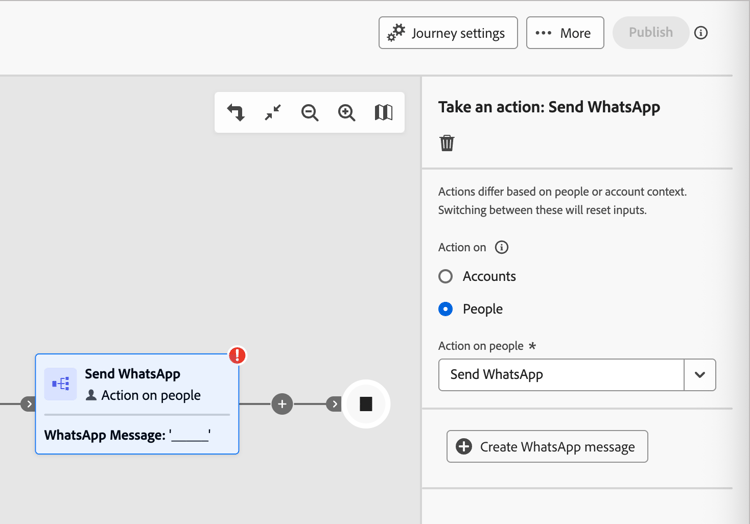
Create the WhatsApp message
-
At the bottom of the Take an action panel, click Create WhatsApp.
-
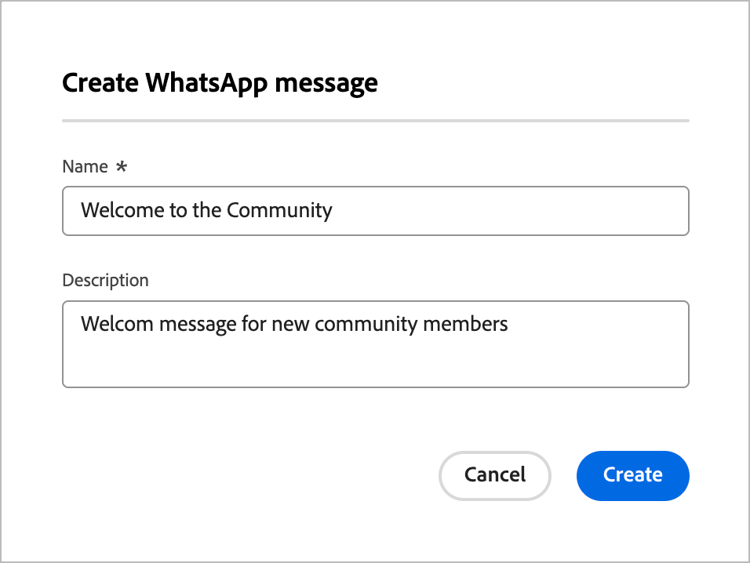
In the dialog, enter a unique Name (required) and Description (optional) for the WhatsApp message.
-
Click Create.
The WhatsApp design space opens where you can define the WhatsApp actions and create the content for sending the message.
Select the actions configuration
-
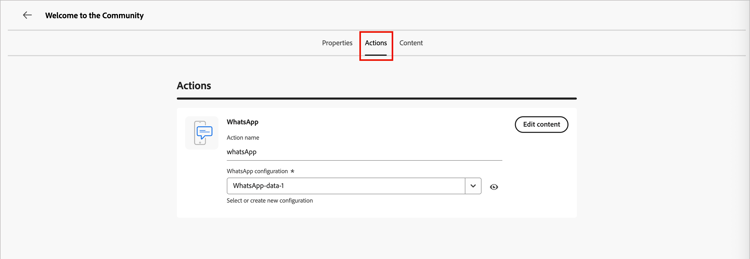
In the WhatsApp design space, select the Actions tab.
-
For WhatsApp configuration, select the configuration that supports the marketing actions and message delivery settings for your needs.
-
Click Edit content to proceed to the message parameters and text.
Select a message template
WhatsApp messages are sent using pre-approved message templates from your Meta WhatsApp Business Account. Templates must be reviewed and approved by Meta before you can use them in Journey Optimizer B2B Edition. To manage and submit templates for approval, work with your Meta Business Manager account administrator.
-
For Select template category, choose one of the following:
- Marketing
- Utility
- Authentication
-
For Select WhatsApp template, choose an approved template for the configuration business account.
The template content loads in the message editor, displaying the template structure and any variable fields available for personalization.
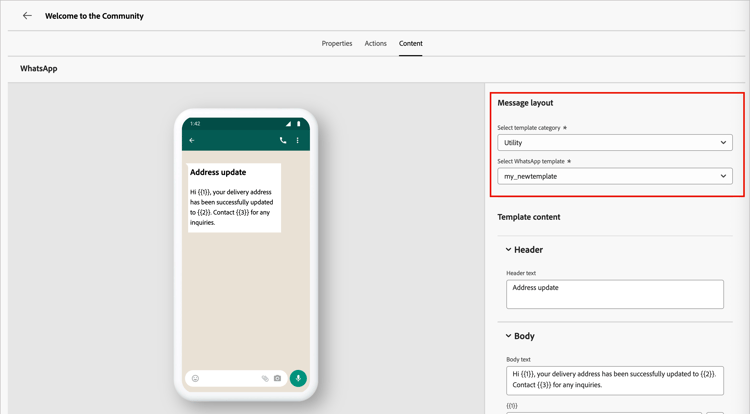
The system organizes templates by category (Marketing, Utility, and Authentication) and status. Only Approved templates are available for selection. For more information about creating WhatsApp templates, see Create message templates for your WhatsApp Business account in the Meta documentation.
Image URLs
If your template includes any images, use the Image URL field to add media URLs to replace any placeholders in your template. Meta’s template media are only placeholders. To display images, audio, or video correctly, you must use external URLs from Adobe Experience Manager or other sources.
Personalize the message content
Approved WhatsApp templates can include variable placeholders that you define using profile data or dynamic values.
For each variable field displayed in the template, click the Personalize icon (

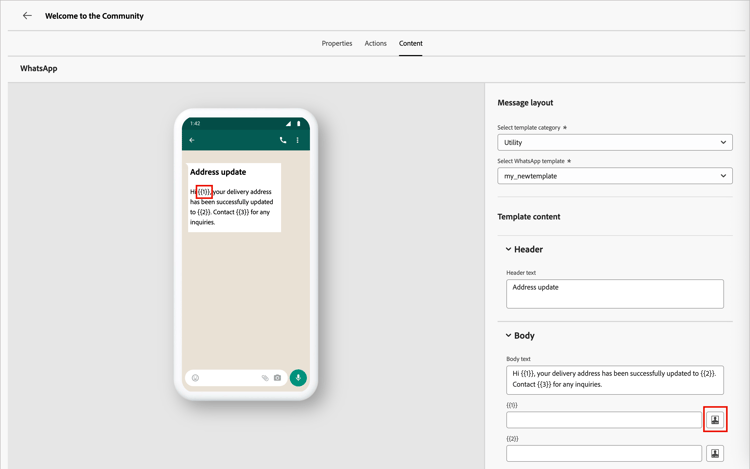
The dialog provides access to the account tokens, person tokens, and system tokens. Both standard and custom tokens are included. You can use the Search bar to locate the token you need, or navigate through the folder tree to find and select any of the tokens.
For detailed information about using tokens for personalization, see Content personalization.
When your personalization tokens are defined, click Save to save changes and return to the main WhatsApp message workspace.