WhatsApp channel setup
Adobe Journey Optimizer B2B Edition sends WhatsApp messages through Meta’s Cloud API. Before marketers can create WhatsApp messages for account journeys, a product administrator must configure a WhatsApp channel.
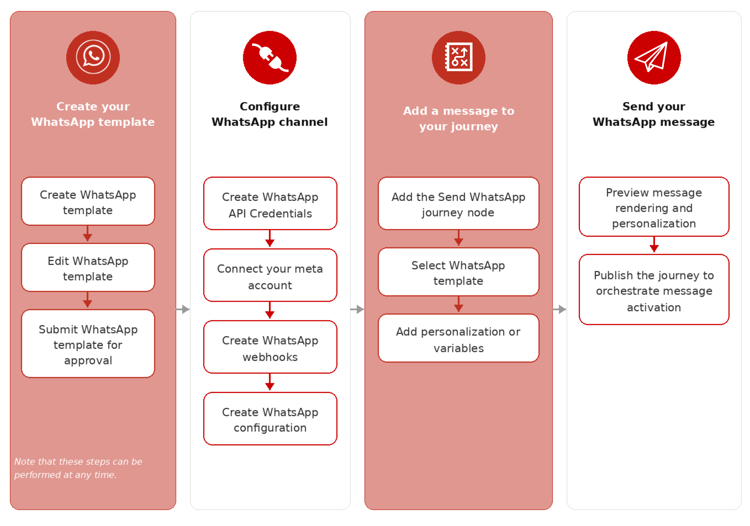
Prerequisites
Before configuring the WhatsApp channel, ensure that you have the following:
Limitations limitations
The following limitations apply to the WhatsApp channel:
-
Adobe Journey Optimizer B2B Edition is not HIPAA compliant and not HIPAA-ready. Additionally, third-party vendors are not covered under Adobe’s BAA. Customers are responsible for their own compliance and vendor validation.
-
Automated or predefined response messages are not yet supported.
-
Starting April 2025, Meta has suspended marketing template messages to WhatsApp users with a United States phone number (+1 dialing code and US area code). Learn more in the Meta documentation
-
The native integration functionality does not allow integration with third-party Business Service Provider (BSP).
Complete the channel configuration
Before sending your WhatsApp message, you must configure your Journey Optimizer B2B Edition environment and connect it with your WhatsApp account.
Complete the following tasks:
Create WhatsApp API credentials
-
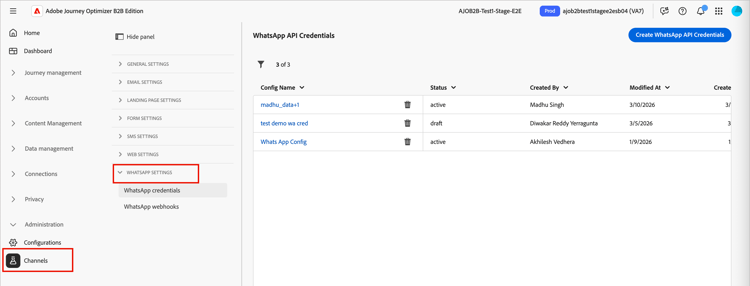
On the left navigation, expand the Administration section and click Channels.
-
In the panel, expand WhatsApp Settings and select API Credentials.
-
Click Create new API credentials at the top right.
-
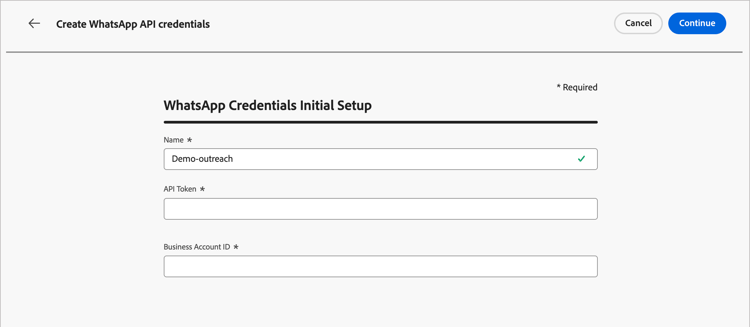
Configure your API credentials, as detailed below:
- Name - Enter a unique name for the credentials
- API Token - Enter your API token. For information, refer to the Meta Documentation.
- Business Account ID - Enter the unique number related to your business portfolio. For information, refer to the Meta Documentation.
-
Click Continue.
-
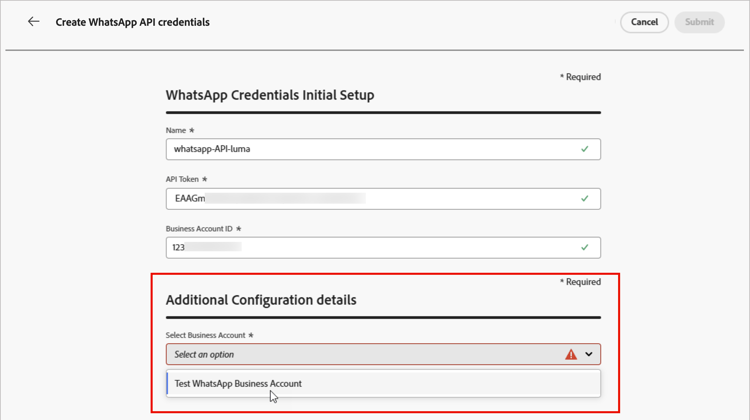
Choose the WhatsApp Business Account that you want to connect to your WhatsApp API credentials.
-
Select the Sender name to use for sending WhatsApp messages.
The phone number settings are automatically populated:
-
Quality Rating - reflects customer feedback for messages sent in the past 24 hours.
- Green: High quality
- Yellow: Medium quality
- Red: Low quality
For more information, see Quality rating in the Meta documentation.
-
Throughput - indicates the rate at which your phone number can send messages.
-
-
Click Submit when you finish the configuration of your API credentials.
When you click Submit, the credentials are immediately validated and saved, redirecting you to the API credentials listing page.
If the submitted credentials are invalid, the system displays an HTTP 500 error message. In this case, you can choose to cancel the configuration or update it and submit again.
If you encounter an HTTP 500 error when configuring WhatsApp API credentials, follow these troubleshooting steps:
-
Verify your Adobe entitlements - Confirm that your organization has the cjm_whatsapp entitlement provisioned.
Without this entitlement, the WhatsApp channel cannot be configured.
-
Validate the business account fields - Ensure that all mandatory fields are correct:
- API Token - Must be a valid Meta access token with appropriate permissions.
- Business Account ID - Must match your Meta Business Account ID exactly.
-
Test the credentials externally - To confirm if the issue involves the credentials or Journey Optimizer B2B Edition credential handling, verify your credentials with the Meta API.
- Contact Adobe - If the environment and entitlements are confirmed valid but the HTTP 500 error persists, contact your Adobe representative.
Add the WhatsApp webhooks configure-webhooks

- B2B Channel Configurations -
Manage B2B Channels - B2B Channel Configurations -
Manage B2B WhatsApp Settings - B2B Channel Configurations -
Manage B2B WhatsApp Presets
Webhooks enable Journey Optimizer B2B Edition to receive inbound messages, consent responses, and delivery notifications from your WhatsApp Business Account. Configure webhooks to ensure proper consent management and message tracking.
When the WhatsApp API credentials are successfully created, you can configure the webhooks.
-
In the navigation panel, select WhatsApp Webhooks.
-
Click Create Webhook.
-
Enter a Name for the webhook configuration.
-
For Configuration, select the API credentials (created in the previous task) to associate with the webhook.
-
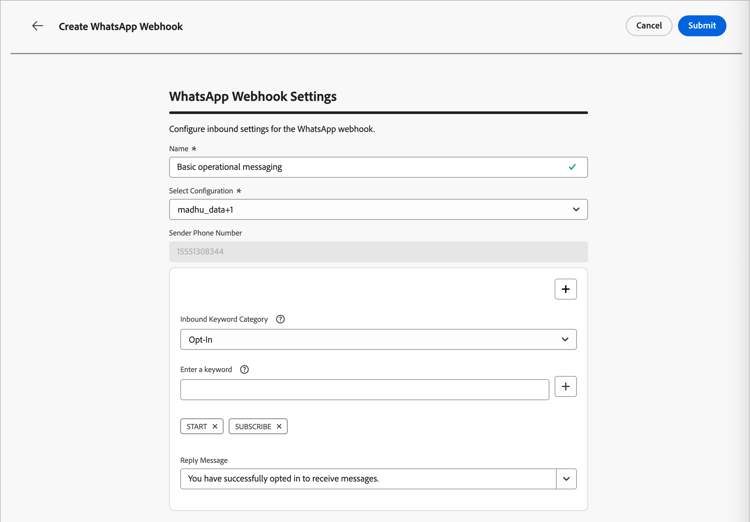
For the Inbound keyword category, choose a category to define keywords and the reply message:
- Opt-in - Users must actively agree to receive WhatsApp messages, often managed through forms on your website or app.
- Opt-out - To mark users as opted-out automatically, configure your webhook to listen for phrases like
StoporNo Message. - Help - Allow automated systems to detect when a user sends
HELP(or similar keywords likeUnknown) and reply with specific information in an automated way, such as service instructions. - Default - Handle incoming messages that do not match specifically defined keywords. It serves as a fallback category to enable tracking events (such as opens and delivery reports) in Adobe Experience Platform datasets.
When you select the keyword category, the default keywords are populated.
-
For Enter a keyword, you can enter a custom keyword and click Add ( + ).
You can add multiple keywords per category.
note NOTE Keywords are not case-sensitive ( stopandSTOPare treated the same). -
Enter the Reply message to send automatically when a received message matches a keyword in this category.
-
For each additional keyword category you want to configure, click Add (+) at the top right corner and repeat steps 5–7.
-
Click Submit to save the webhook configuration.
Copy the token and URL
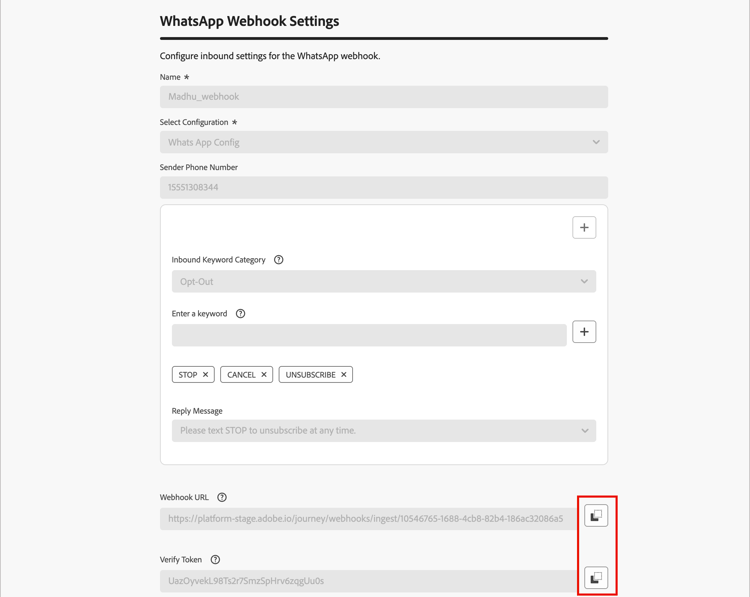
After the webhook is submitted, you can retrieve the token and URL values, and then register it in Meta.
-
In the WhatsApp Webhooks list, click the edit (

-
Copy the Verify Token and Webhook URL values.
-
In the Meta for Developers portal, navigate to your WhatsApp application settings and configure the webhook using the values that you copied.
Create channel configuration create-channel-configuration
- B2B Channel Configurations -
Manage B2B Channels - B2B Channel Configurations -
Manage B2B WhatsApp Settings - B2B Channel Configurations -
Manage B2B WhatsApp Presets
A channel configuration defines the delivery settings used when sending WhatsApp messages from a journey action node.
-
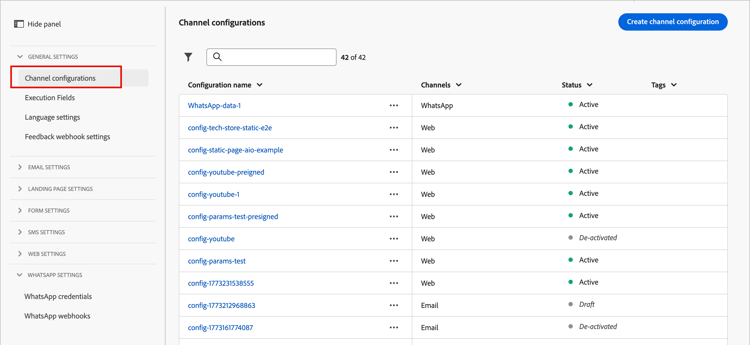
In the navigation panel, under General settings, select Channel configurations.
-
Click Create channel configuration at the top right.
-
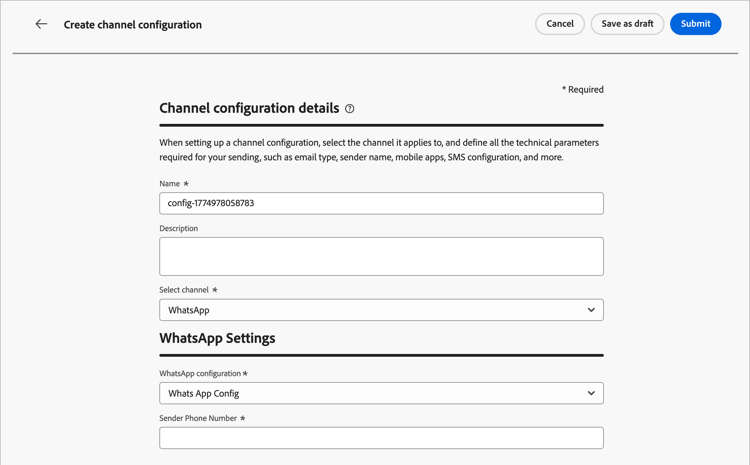
Enter a Name and Description (optional) for the configuration.
note NOTE The name must begin with a letter (A–Z) and can contain only alphanumeric characters, underscores ( _), dots (.), and hyphens (-). -
For Select channel, choose
WhatsApp.All consent policies associated with a selected marketing action are automatically leveraged in order to respect the preferences of your customers. For example, any WhatsApp message using that configuration in a journey is only sent to the profiles who have consented to receive WhatsApp messages from you. Profiles who have not consented to receive these communications are excluded.
-
Under WhatsApp Settings, select the WhatsApp configuration (API credentials) that you created in the previous task.
-
Enter the Sender phone number to use for message delivery.
-
(Not currently applicable for Journey Optimizer B2B Edition) For the WhatsApp Execution Field, select the profile attribute to use as the priority phone number when multiple phone numbers are available for a recipient.
-
Click Submit to save, or Save as draft to complete and submit the configuration later.
The configuration initially displays with a Processing status while validation checks run. When all checks pass, the status changes to Active and the configuration is ready to be selected when marketers author WhatsApp messages in journey actions.