Manage email open tracking
You can disable open tracking for an individual email, or capture each person’s tracking preference in Adobe Experience Platform and use a split path to route people to tracking and non-tracking email variants.
Guidance on email tracking pixels
On April 14, 2026, the Commission nationale de l’informatique et des libertés (CNIL), France’s data protection authority, published a recommendation on the use of tracking pixels within emails. Shortly after, Italy’s independent data protection authority (“Garante”) published Provision No. 284 (the “Garante Provision”) on April 17, 2026. Each guidance, while non-legally binding, clarifies when consent is required and highlights the importance of proper consent practices for email pixel tracking. This policy could impact sending practices for any entity delivering emails to subscribers under applicable EU privacy law.
An email tracking pixel is a 1x1 transparent image embedded in the HTML of an email. When the recipient’s email client loads that image, the pixel pings a server that records data such as a timestamp, device type, email client, and sometimes an IP address for approximate location. That log is then tied to a recipient’s record, allowing marketers to know whether an email is opened.
The Journey Optimizer B2B Edition product capabilities described here are building blocks that, configured and operated appropriately, can help support customer compliance efforts. Customers are solely responsible for determining and complying with their obligations under applicable guidance and other laws.
Disable tracking for a single email disable-tracking-single-email
Use this option when you want a specific email to never report open activity, regardless of who receives it.
-
From the journey node properties on the right, open the email.
-
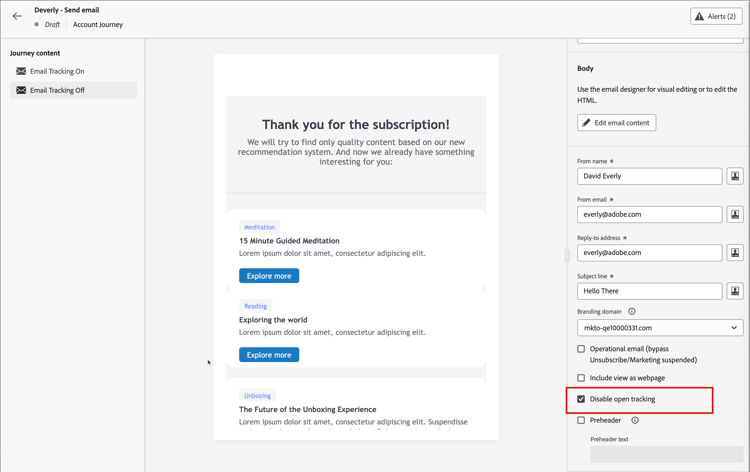
In the email properties, select the Disable open tracking checkbox.
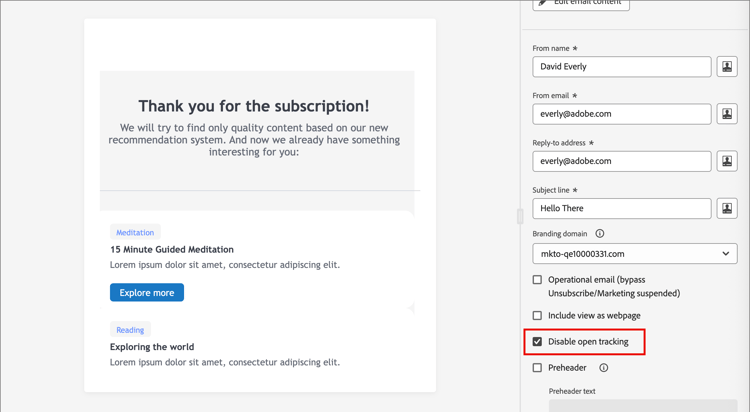
See Define the email settings for the full list of email properties.
Segment people by tracking preference segment-people-tracking-preference
If you want to let each person choose whether their email opens are tracked, capture that preference as a person attribute in Adobe Experience Platform (AEP). You can use this field in a landing page form so that your contacts have the opportunity to opt out of email open tracking. You can then use a Split paths node in your journeys to route tracking and non-tracking people to different email variants. This lets you honor an individual opt-out without disabling open tracking for everyone.
The workflow has three parts:
- Add a custom field for tracking preference in AEP and send an opt-out communication with a form link.
- Add a split path for tracking opt-out in the journey.
- Configure tracking and non-tracking email variants for each path.
Add a custom field for tracking preference add-custom-field-tracking-preference
-
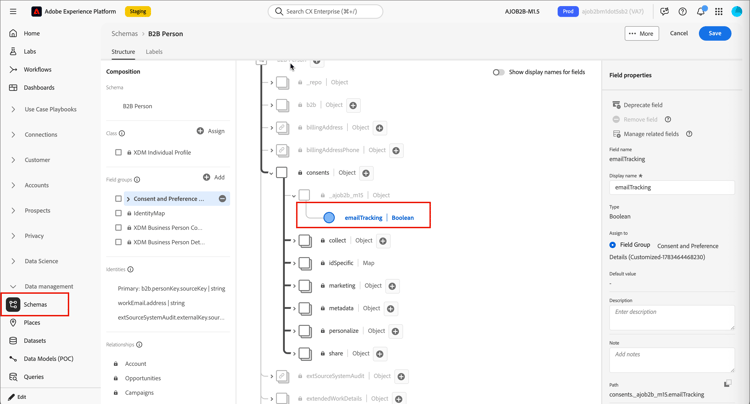
In AEP, open the schema used for your B2B Person profile (for example, B2B Person).
-
Under the tenant ID, locate or create a field group for your organization’s consent management fields (for example,
consents). -
Add a field to the field group, such as a Boolean field named
emailTracking, to represent whether the person has consented to open tracking. -
Enter the field name and display name, set the type, assign it to the field group, and click Apply.
-
Click Save to save the schema changes.
-
Make the field available in Journey Optimizer B2B Edition by selecting it as a Managed field for the XDM Individual Profile class in XDM field management.
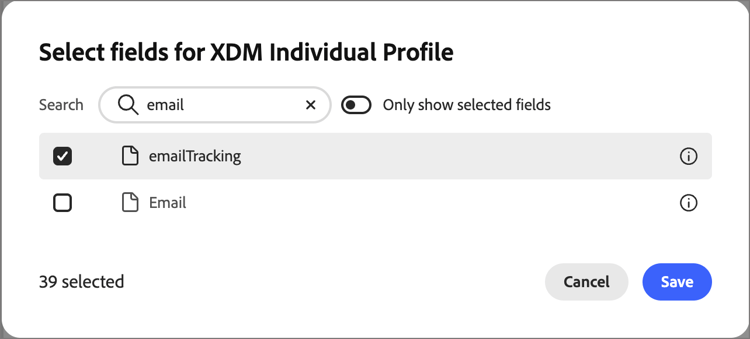
This makes the field available as a condition in split path nodes.
Add a split path for tracking opt-out add-split-path-tracking
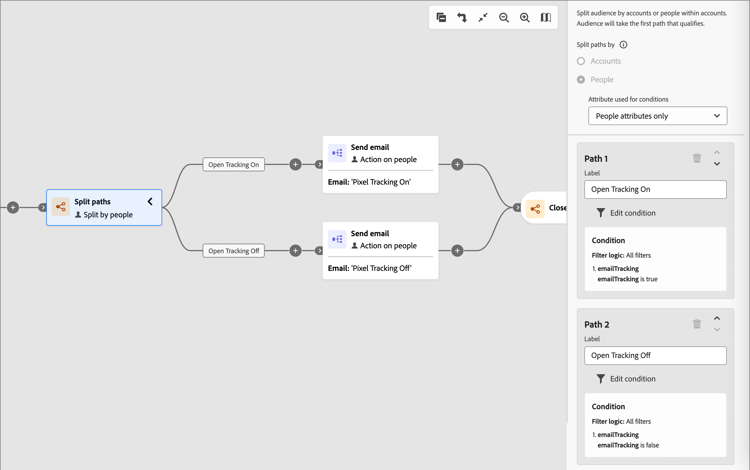
Add a Split paths by people node to your journey and define a path for each tracking preference value.
-
Add a Split paths node and choose People for the split.
-
For the first path, apply a condition using your custom tracking preference field (for example,
emailTrackingistrue) to identify people who allow open tracking.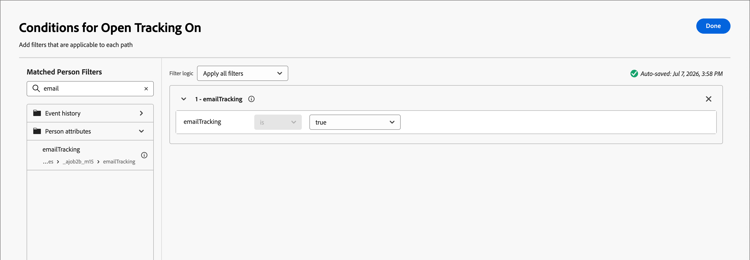
-
Add a second path and apply the inverse condition (
emailTrackingisfalse) to identify people who opted out of tracking.For general steps on adding paths, applying conditions, and reordering paths, see Add a split path by people node.
Configure tracking and non-tracking email variants configure-tracking-and-non-tracking-email-variants
Add a Send email action node to each path so that every person receives the email variant that matches their tracking preference.
-
On the tracking-enabled path, add a Send email action and select or create the email as usual, leaving Disable open tracking cleared in the email properties.
-
On the opted-out path, add a Send email action using the same or a duplicated email, then select the Disable open tracking checkbox in the email properties on the right.
-
People are automatically routed to the email variant that matches the value of their tracking preference field, and any updates they make to their preference are reflected the next time they enter the journey.