Email performance report
The Email performance report gives marketers a unified view of email activity across all journeys in Adobe Journey Optimizer B2B Edition. It aggregates send, delivery, engagement, and opt-out metrics. By surfacing both raw counts and calculated rates, you can monitor campaign health, compare email performance, and identify deliverability or engagement issues at a glance. For journey-level metrics across email and SMS channels, see the Account Journeys dashboard.
Access the report
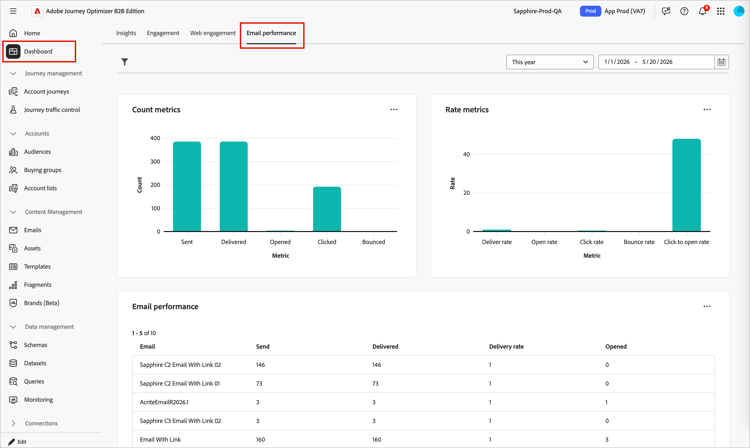
- In the left navigation, select Dashboard.
- Select the Email performance tab at the top of the reporting dashboard.
Filter the data
Click the Filter (

-
Journey - Filters the report to show data for one or more selected journeys. Use this filter to isolate performance for the journeys that matter for your campaign or program.
-
Date range - Restricts all metrics to emails sent within the specified time window. Supports preset ranges and a custom date picker. The date range selector is in the top-right corner of the dashboard.
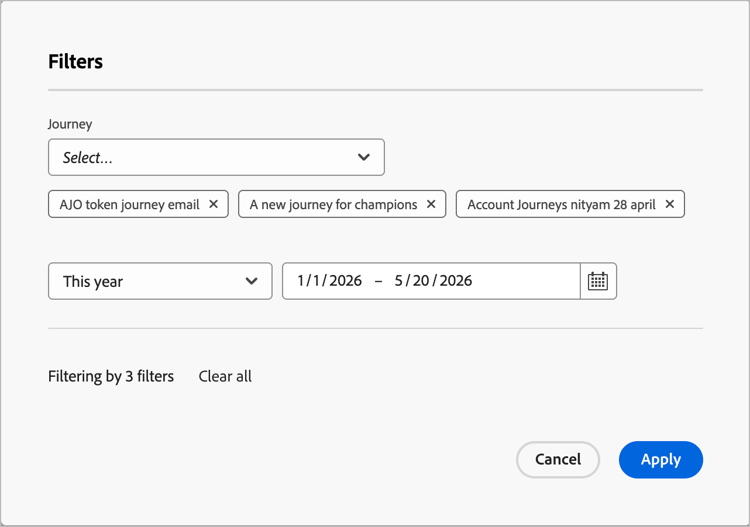
When you change filters in the filters dialog, click Apply.
Count and rate metric charts
The top section of the Email performance report contains two side-by-side bar charts that provide a visual summary of overall email program health across the selected date range and journey.
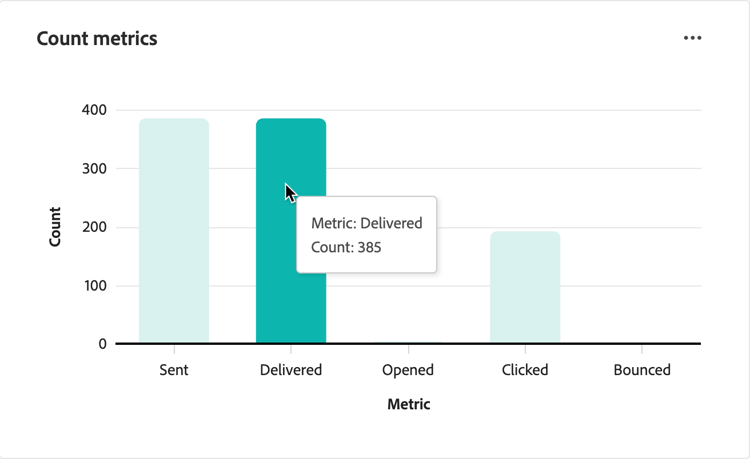
Count metrics — Displays the absolute volume of email activity. Each bar represents the total count of a key email event across all emails in the filtered scope: Sent, Delivered, Opened, Clicked, Bounced, and Unsubscribes.
Rate metrics — Displays calculated percentage rates, enabling you to assess engagement and deliverability quality independently of volume: Deliver rate, Open rate, Click rate, Bounce rate, Click-to-open rate, and Unsubscribe rate.
Hover over the chart to display numeric data.
Email performance table
At the bottom of the page, a detailed table shows per-email metrics for every email asset in the filtered scope. By default, the table displays 10 rows per page.
The Unsubscribe % column is a prioritized metric for monitoring opt-out activity directly in the table view.
Export report data
The Email performance report supports data export for further analysis in external tools or for sharing results with stakeholders. You can export the table data in CSV format, which is compatible with any data analysis or BI tool.
To export report data:
-
Set your date range at the top right and apply Journey filtering as needed.
-
Click the … menu icon in the top-right corner of the Email performance panel and choose View more.
-
Click Download CSV from the menu.
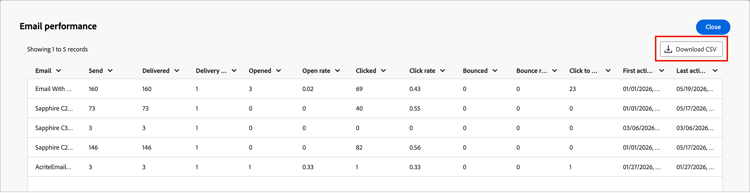
The file downloads automatically to your browser’s default download location.
-
Click Close to return to the Email performance report.