Structure components structure-components
Use the Structure components in the visual design space to define the structure of your content. By adding and moving structural elements with simple drag-and-drop actions, you can quickly define the structure of your content layout. Each structure component spans the horizontal space and you can stack them to build the layout vertically. To form each content block that you need, divide each component into columns.
Structure library
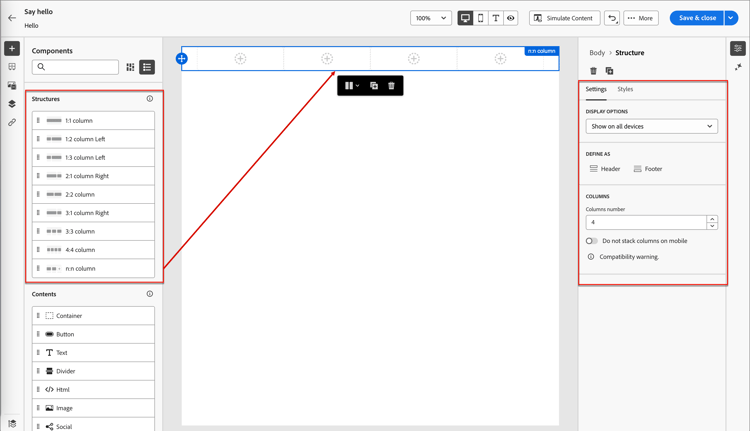
At the top of the Components library, the Structures section displays the available structure components:


Add structure components
When you design the content for your email, landing page, or fragment, add each structure component to construct the layout. Drag an item from the Structures section on the left and drop it onto the canvas. You can use the toolbar to select a column and use the Settings and Styles tabs on the right panel to define the parameters for the selected component or column.
Component toolbar
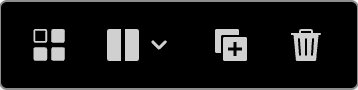
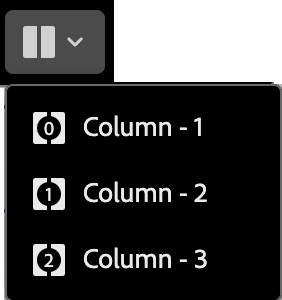
The toolbar is displayed in the canvas when you select it in the canvas. The available tools provide an easy way to select a column and apply component functions.


Component settings
After you add a component, it is selected in the visual design space and its properties are displayed in the right panel. The system displays the Settings tab by default. You can also select a structure component at any time to change the settings.
Display options
If you want to exclude the component from desktop or mobile device display, change the Display Options setting. The default, Show on all devices, enables display across all devices.
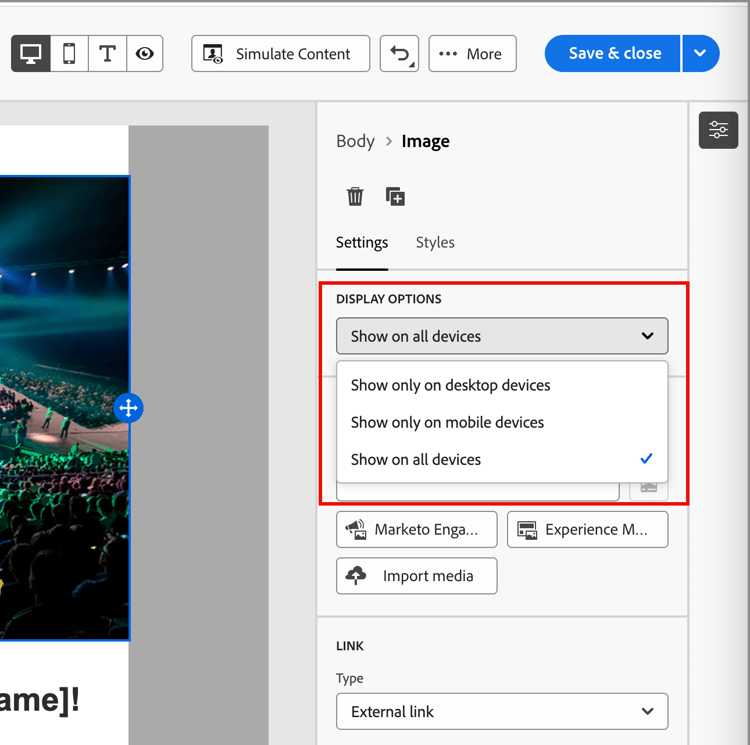
Choose another setting to make the component exclusive by device type:
- Show only on desktop devices - Choose this setting when you want to display the component on desktop devices and exclude it for mobile devices.
- Show only on mobile devices - Choose this setting when you want to display the component on mobile devices, such as phones and tablets, and exclude it for desktop devices.
Header and footer
You can designate a structure component as the HTML header or footer in the email message or landing page. With the structure component selected in the canvas, click the Header or Footer option. There can be only one header or footer, and the option is not available if another component is assigned.
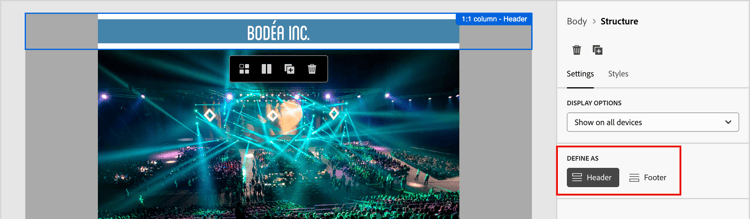
You can remove the header or footer designation by selecting the component and clicking the option to remove it.
Stacked columns
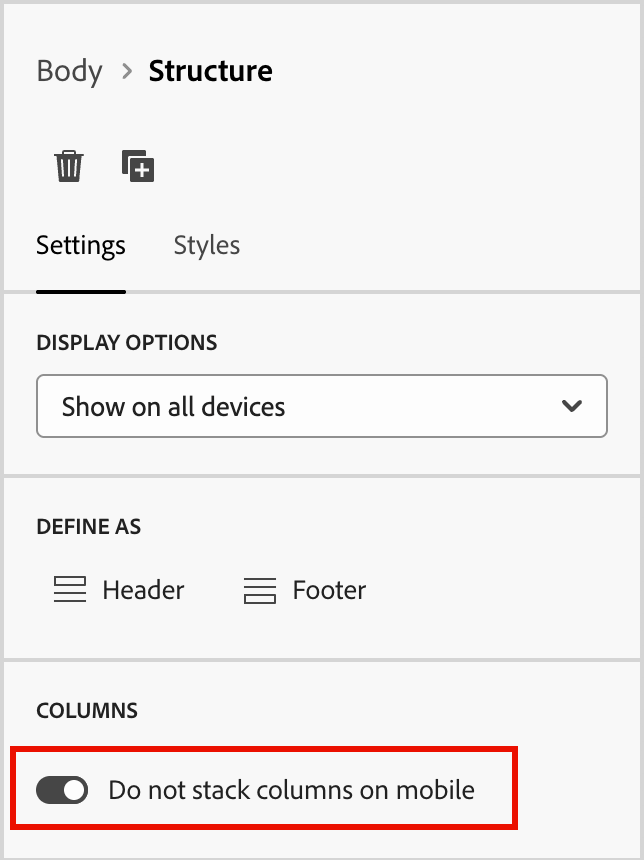
For smaller screens or display windows, the columns in the structure component display as stacked unless you change the default setting. With the multi-column structure component selected, change the Do not stack columns on mobile setting by moving the toggle slider to the right.
Component styles
After you add a component, it is selected in the visual design space and its properties are displayed in the right panel. You can also select a component at any time to change the settings and styles.
Background
With the Styles tab selected in the right panel, use the Background section to define the color and optional image to use as a background for the structure component.
Background color
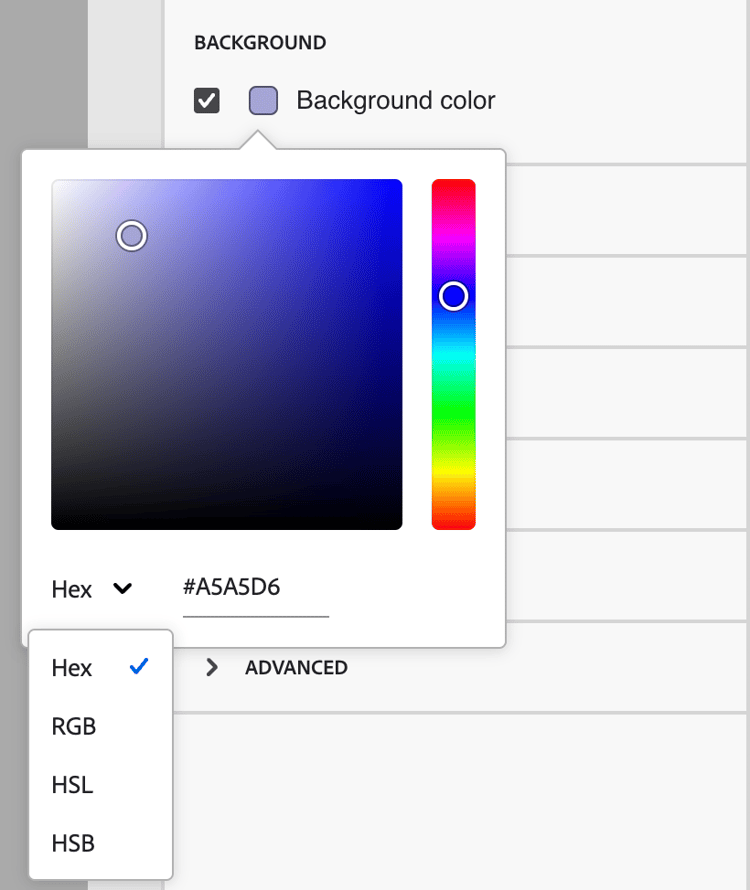
Select the checkbox and click the color square to choose a color from the picker. You can choose a color by entering a known RGB, HSL, HSB, or hexadecimal value. Or, use the color slider and the color field to select the color.
Background image background-image
To enable the background image settings, move the toggle selector.
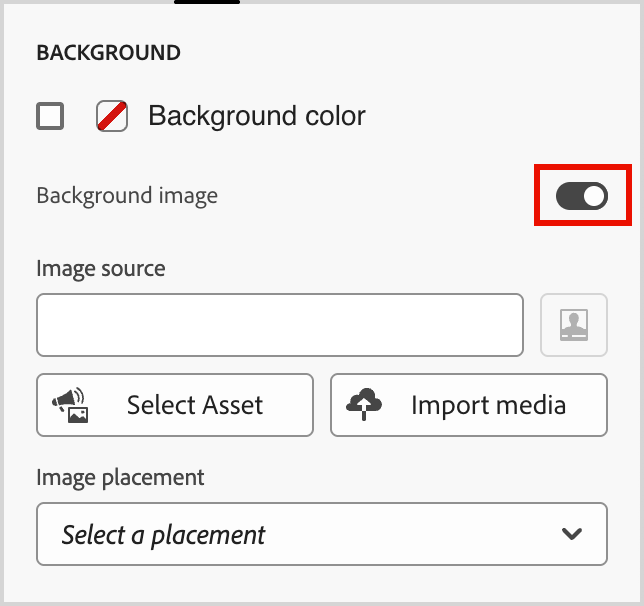
Choose the asset source type and select the image file:
Choose this type to browse and select an image asset from the Journey Optimizer B2B Edition library.
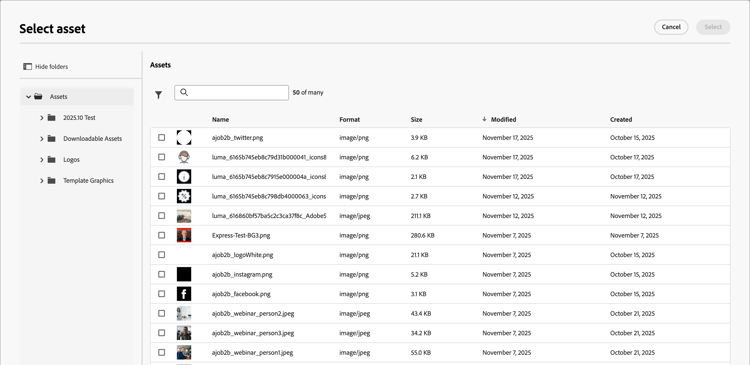
From the dialog, you can choose an image from the selected repository. Click Select to add the asset.
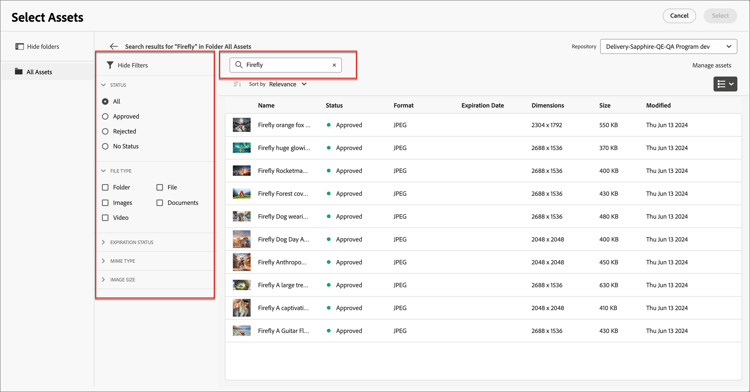
There are tools available to help you locate the asset that you need:
-
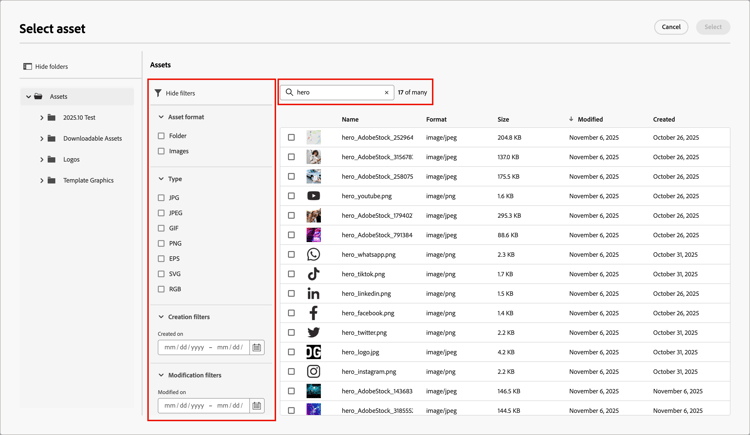
Click the Filter icon on the top left to filter the displayed items according to your criteria.
-
Enter text in the Search field to filter the displayed items for a match of the asset name.
Choose this type to select a file from your system and import it into the Journey Optimizer B2B Edition asset library.
In the Upload image dialog, drag and drop a file from your system to the file box. The maximum file size is 100 MB.
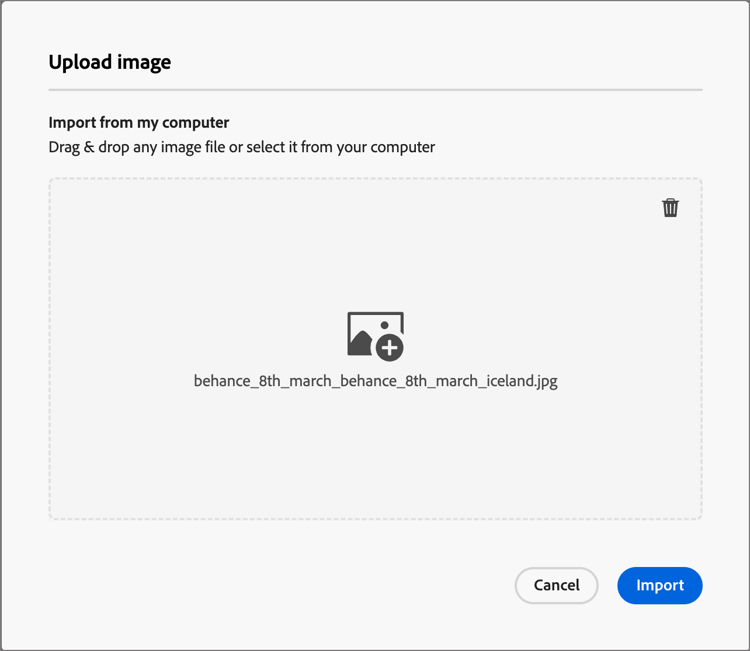
The file names of the selected images are displayed in the dialog. Asset file names must be unique (across folders), and if a file with the name already exists, a message is displayed. Names can have a maximum of 100 characters, and cannot contain special characters (such as ;, :, \, and |).
Click Import.
Choose this type to browse and select an image asset from a configured Experience Manage Assets repository.
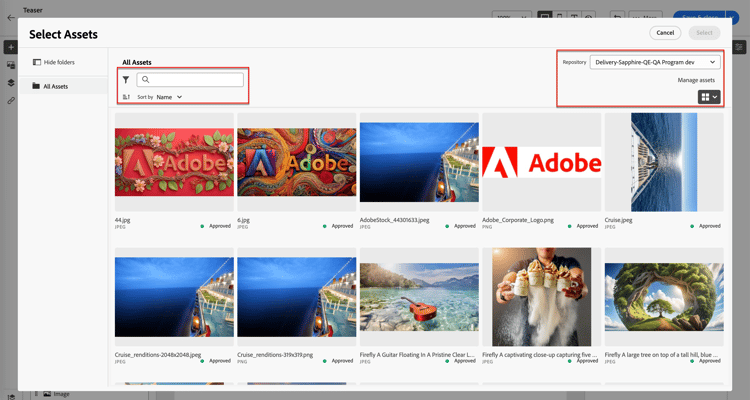
From the Select Assets dialog, choose an image using the available tools to locate the asset that you need and click Select.:
-
Change the Repository at the top right.
-
Click Manage assets at the top right to open the Assets repository in another browser tab and use AEM Assets management tools.
-
Click the View type selector at the top right to change the display to List View, Grid View, Gallery View, or Waterfall View.
-
Click the Sort order icon to change the sort order between ascending and descending.
-
Click the Sort by menu arrow to change the sort criteria to Name, Size, or Modified.
-
Click the Filter icon on the top left to filter the displayed items according to your criteria.
-
Enter text in the Search field to filter the displayed items for a match of the asset name.
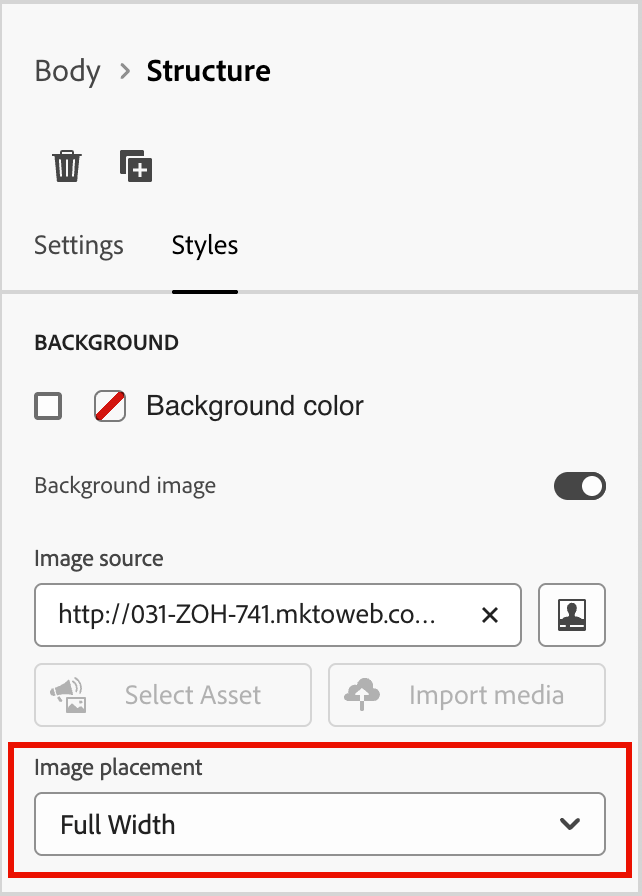
Use the Image placement option to choose how the image fills the structure component. The placement settings follow the standard HTML background image fill and alignment attributes.
Other styles
To adjust its display in the email message or landing page, you can apply other structure component styles.
-
On the right panel with the Styles tab selected, expand the Border section and set the options to display a border for the component:
-
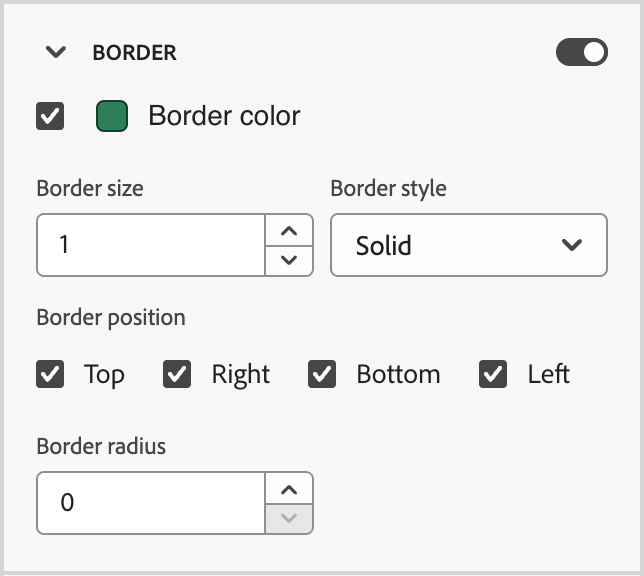
Move the toggle to the right to enable the border display options and set them according to your design criteria:
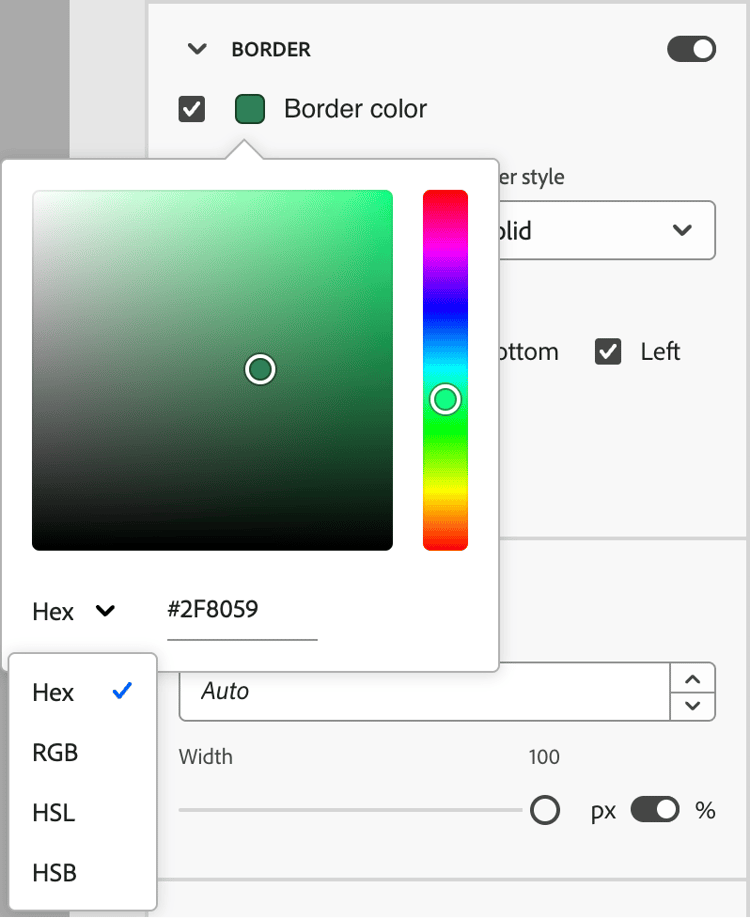
- To set the Border color, select the checkbox and click the color square to choose a color from the picker. You can choose a color by entering a known RGB, HSL, HSB, or hexadecimal value. Or, you can use the color slider and the color field to select the color.
-
To set the Border size (line width), click the up and down arrow icons to increase or decrease the number of pixels.
-
To set the Border style, choose a value from the list of standard CSS
border-stylevalues. -
To determine where the border is displayed, select each Border position checkbox.
-
For the Border radius, set the numerical value according to the curve you want for the corners.
A value of 0 (default) produces a squared corner.
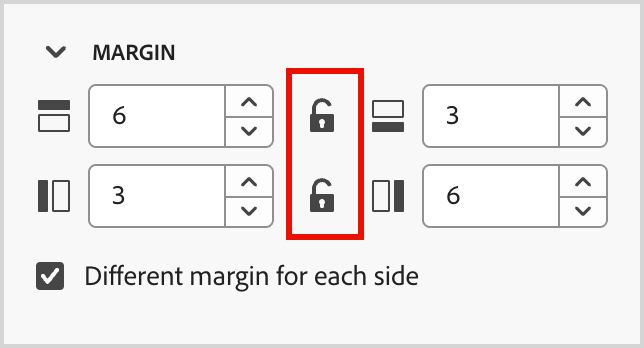
On the right panel with the Styles tab selected, expand the Margin section and set the options for margin spacing within the structural component. This style replicates the CSS margin parameter, which controls to the space outside a component border, separating it from other components. It creates a gap around the component to influence its positioning and the layout of surrounding content.
Set the margin values in pixels according to your design needs. You can set the margin for all sides, the top-bottom, the left-right, or each side of the component independently:
-
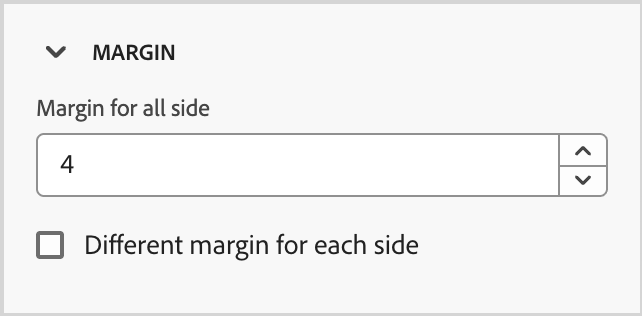
All sides - To set one value to apply to all sides, clear the Different margin for each side checkbox. Click the up and down arrow icons to increase or decrease the number of pixels.
-
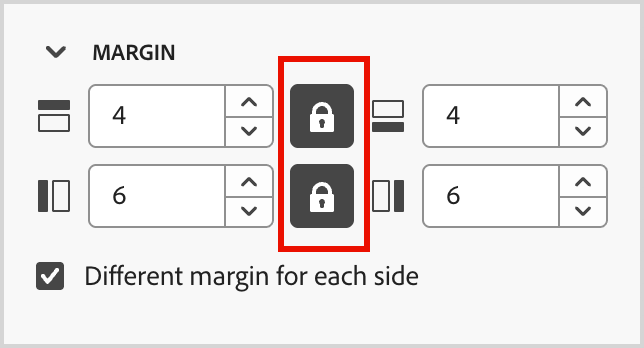
Top-bottom - To set the top and bottom margins to the same value, set the Locked icon between the top and bottom settings. Click the up and down arrow icons for either to increase or decrease the number of pixels.
-
Left-right - To set the left and right margins to the same value, set the Locked icon between the left and right settings. Click the up and down arrow icons for either to increase or decrease the number of pixels.
-
Independent - To set each margin to an independent value, set the Unlocked icon between the top and bottom settings and between the left and right. For each setting, click the up and down arrow icons for either to increase or decrease the number of pixels.
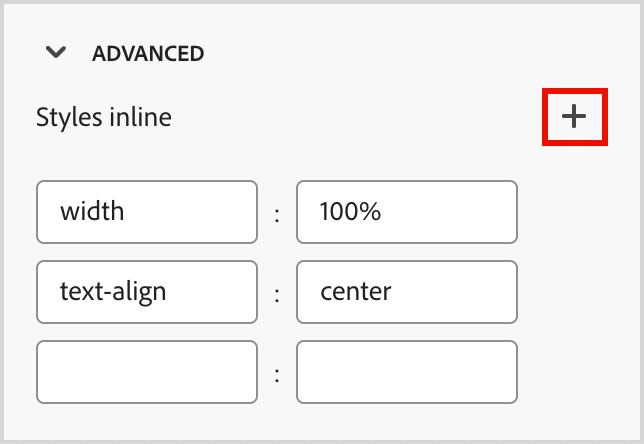
To apply additional CSS-compliant attributes with values, use the Advanced style settings. You can change the values of the existing attributes, or add new ones. The styling is applied to the component using the CSS inheritance model for parent-child components (elements).
The displayed attributes reflect the styles that are currently defined for the component. You can change the values according to CSS definitions. Click the Add (+) icon to add a new style attribute for the component.
Columns
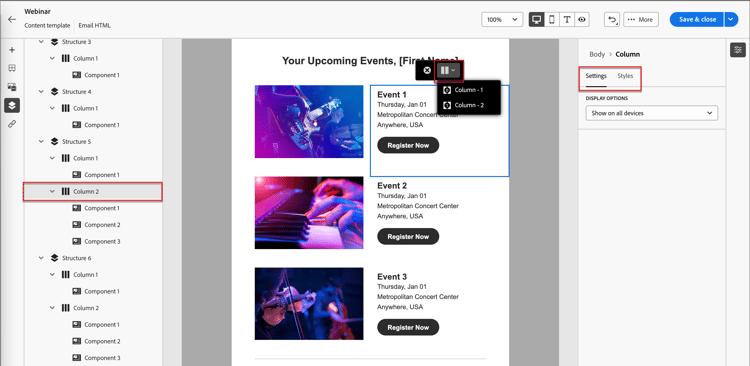
Use the Select a column tool in the component toolbar to select a column. You can then use the column toolbar to change the column selection, remove the column, or apply conditional content variations for the column. The parameters for the column are displayed in the Settings and Styles tabs on the right.


Change n:n columns
The columns widths are static for most of the structure components. When you add the n:n column component, you can change the number of columns and the column sizing. The n:n column component starts with five columns of equal width (20%).
With the component selected in the canvas, use the Columns number option in the right panel to change the number of columns. Click the up and down arrow icons to increase or decrease the number of columns, or enter the number in the field.
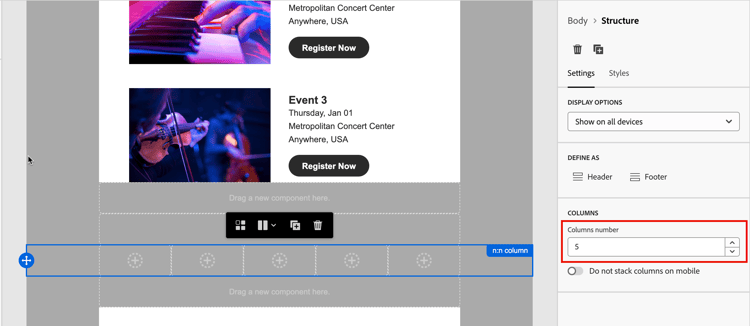
In the canvas, move the column sizing icon to adjust the width of the selected column. As you increase or decrease the width, the adjacent column also adjusts so that all columns occupy 100% of the component width.

Column styles
To set styles to apply to that column, select the column in the canvas.
-
Background color - Select the checkbox and click the color square to choose a color from the picker. You can choose a color by entering a known RGB, HSL, HSB, or hexadecimal value. Or, you can use the color slider and the color field to select the color.
-
Background image - To enable the background image settings, move the toggle selector.
Choose the asset source type and select an image file.
-
On the right panel with the Styles tab selected, expand the Border section and set the options to display a border for the component:
-
Move the toggle to the right to enable the border display options and set them according to your design criteria:
- To set the Border color, select the checkbox and click the color square to choose a color from the picker. You can choose a color by entering a known RGB, HSL, HSB, or hexadecimal value. Or, you can use the color slider and the color field to select the color.
-
To set the Border size (line width), click the up and down arrow icons to increase or decrease the number of pixels.
-
To set the Border style, choose a value from the list of standard CSS
border-stylevalues. -
To determine where the border is displayed, select each Border position checkbox.
-
For the Border radius, set the numerical value according to the curve you want for the corners.
A value of 0 (default) produces a squared corner.
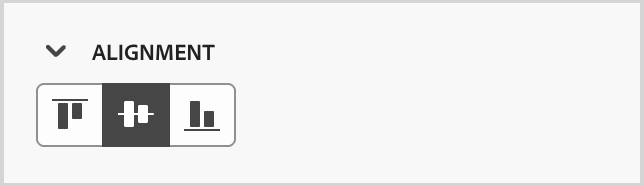
Expand the Alignment section and choose the vertical alignment that you want to use: top, middle, or bottom. This style translates to a standard vertical-align CSS style and affects positioning within the containing component.
On the right panel with the Styles tab selected, expand the Margin section and set the options for margin spacing within the structural component. This style replicates the CSS margin parameter, which controls to the space outside a component border, separating it from other components. It creates a gap around the component to influence its positioning and the layout of surrounding content.
Set the margin values in pixels according to your design needs. You can set the margin for all sides, the top-bottom, the left-right, or each side of the component independently:
-
All sides - To set one value to apply to all sides, clear the Different margin for each side checkbox. Click the up and down arrow icons to increase or decrease the number of pixels.
-
Top-bottom - To set the top and bottom margins to the same value, set the Locked icon between the top and bottom settings. Click the up and down arrow icons for either to increase or decrease the number of pixels.
-
Left-right - To set the left and right margins to the same value, set the Locked icon between the left and right settings. Click the up and down arrow icons for either to increase or decrease the number of pixels.
-
Independent - To set each margin to an independent value, set the Unlocked icon between the top and bottom settings and between the left and right. For each setting, click the up and down arrow icons for either to increase or decrease the number of pixels.
To apply additional CSS-compliant attributes with values, use the Advanced style settings. You can change the values of the existing attributes, or add new ones. The styling is applied to the component using the CSS inheritance model for parent-child components (elements).
The displayed attributes reflect the styles that are currently defined for the component. You can change the values according to CSS definitions. Click the Add (+) icon to add a new style attribute for the component.
Navigation tree
In the visual design space, you can access the structural components, including columns and content, using the navigation tree. Click the Navigation tree icon (

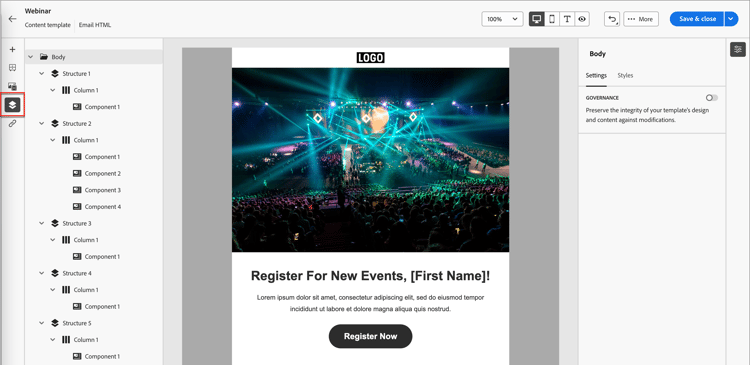
The Body element is the root of the tree structure. Click any of the components or column child elements in the tree to select it on the canvas. The Settings and Styles tabs on the right display the parameters for that component or column.