[Beta]{class="badge informative"}
Create and manage your brands brand-library
Define a brand to provide a detailed set of rules and standards that establish a visual and verbal identity. These guidelines provide a reference to maintain consistent brand representation across all marketing and communication platforms. By leveraging well-defined brand guidelines, organizations can ensure that all content creation efforts are aligned with the strategic goals and overall brand identity. This consistency not only enhances brand recognition and trust, but also contributes to a more cohesive and impactful customer experience across all touchpoints.
In Journey Optimizer B2B Edition, you can manually define and organize your brand definitions and assets or upload brand guideline documents for automatic information and visual asset extraction.
Access your brand library
To access brands kits in Adobe Journey Optimizer B2B Edition, go to the left navigation and click Content Management > Brands. This action opens a page where the created brands are displayed as cards.
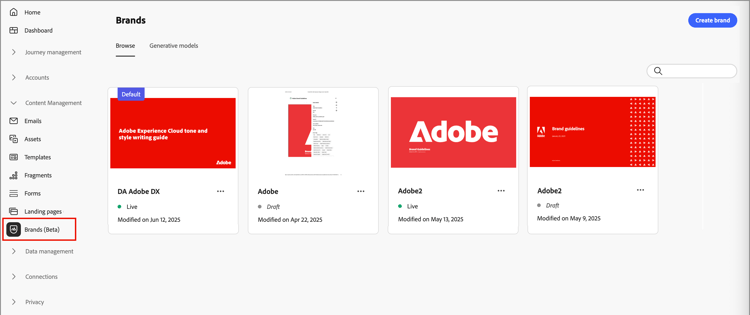
If there are no brands created yet, a single graphic is displayed with a button to create your first brand.
Brand management actions
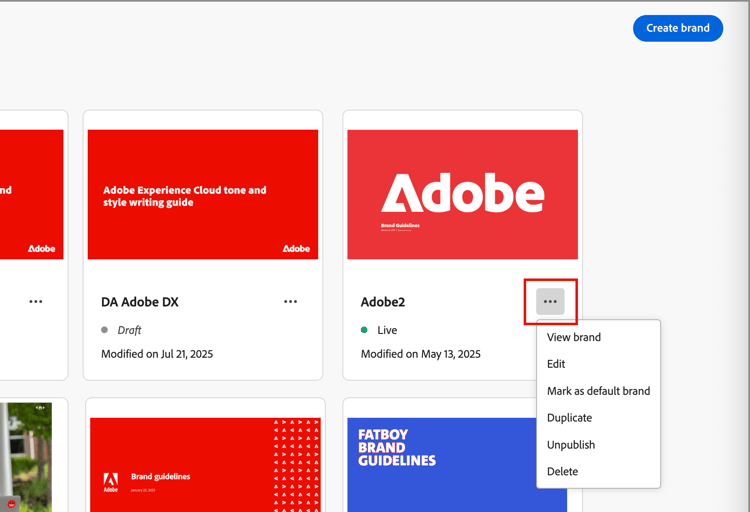
For each card, you can click the More menu (

- View brand - Open the brand page and display the definitions.
- Mark as default brand (Live only) - Mark the brand as the default for content alignment and generation.
- Edit - Open the brand page and edit the brand guidelines, exclusions, and examples.
- Duplicate - Create a copy as a new draft brand.
- Publish (Draft only) - Publish the brand to make it available for use with content alignment and generation.
- Unpublish (Live only) - Unpublish the brand to remove it from use for content alignment and generation.
- Delete - Remove the brand from your brand library.
Default brand
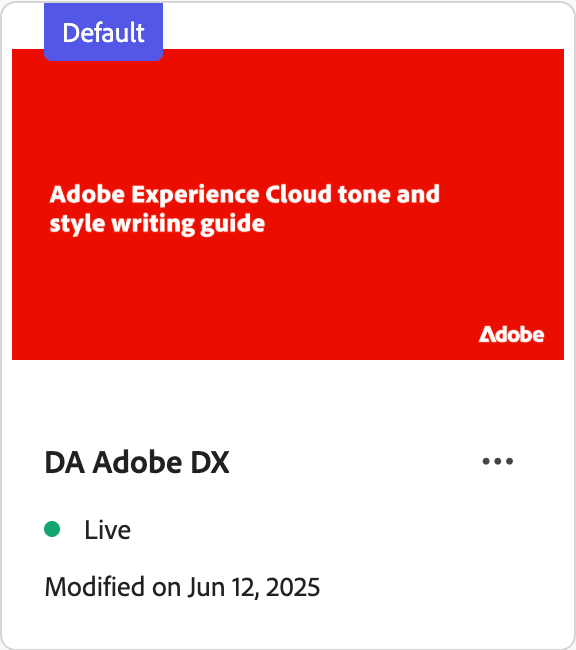
To apply a brand automatically when generating content and calculating alignment scores during content creation, designate a default brand. Only a published (Live) brand can be the default.
In the Brands library, the default brand card is displayed with a flag.
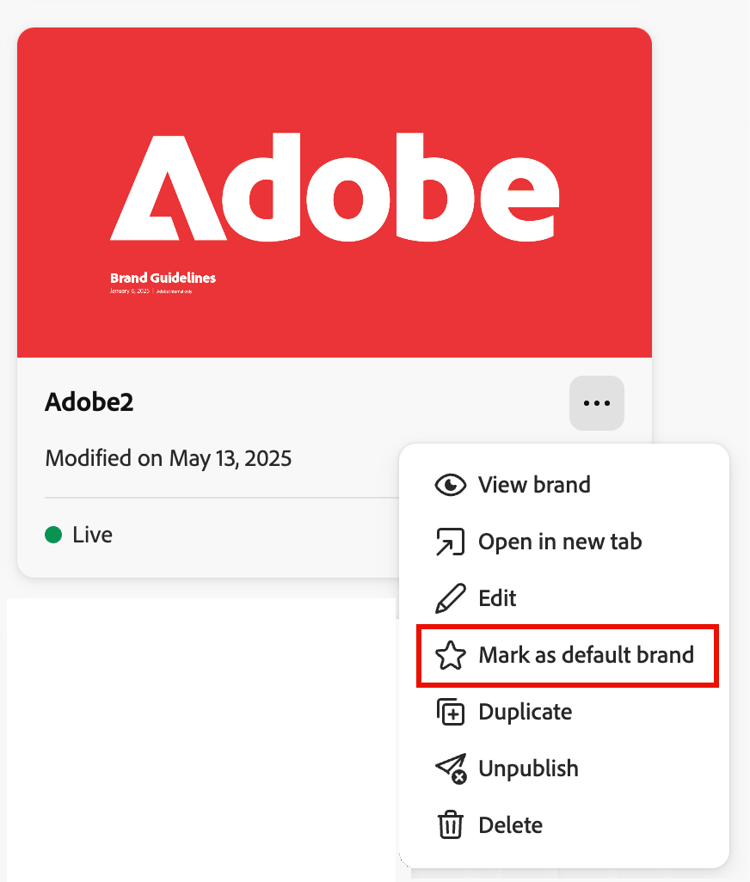
You can set any published (Live) brand as the default brand. On the brand card, click the More menu (
Create and define a brand create-brand
To create and define your brand guidelines, you can either enter the details or upload your brand guideline documents to use for automatic extraction.
Add the brand
-
At the top-right of the Brands page, click Create brand.
-
Enter a Name for your brand.
-
Drag and drop or select your file to upload your brand guidelines and automatically extract relevant brand information.
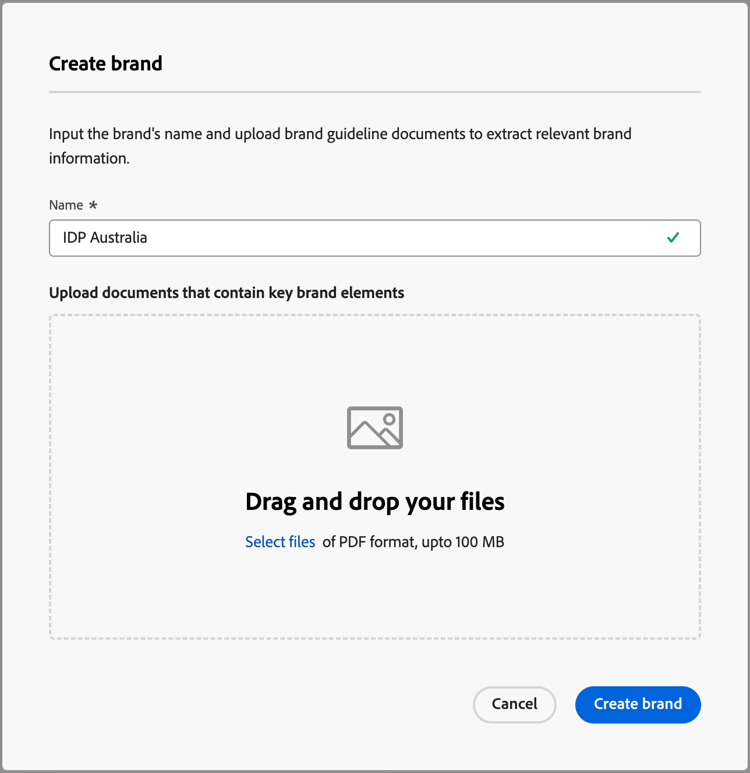
note NOTE If you don’t have a document saved in PDF format, you can manually add the guidelines and upload individual visual assets after brand creation. -
Click Create brand.
If you include one or more files to create the brand, the information extraction process begins. It may take several minutes to complete.
When the extraction process is complete, your content and visual creation standards are automatically populated.
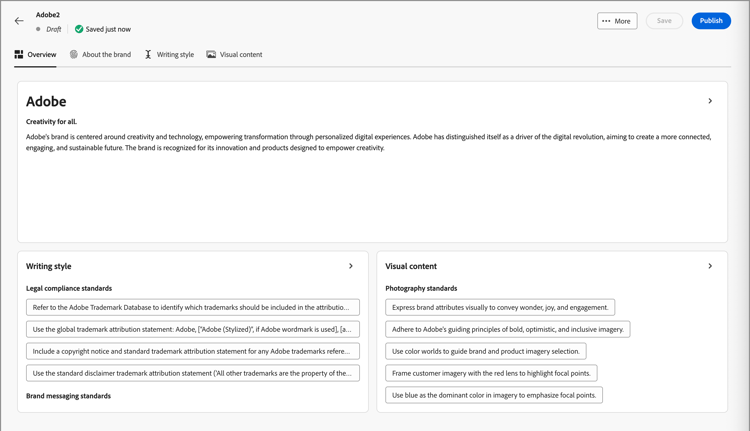
Refine and update the brand guidelines
-
To adapt and define more detailed information as needed, browse through the different tabs.
-
Overview
If you included one or more documents when you created the brand, the information extraction process created definitions for the tabs and sections. The completeness depends on the scope and details included in any documents. As you review the result, you can change or remove any of the information.
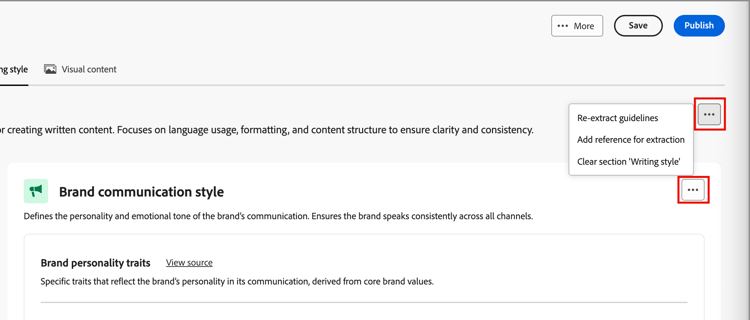
From the More menu (
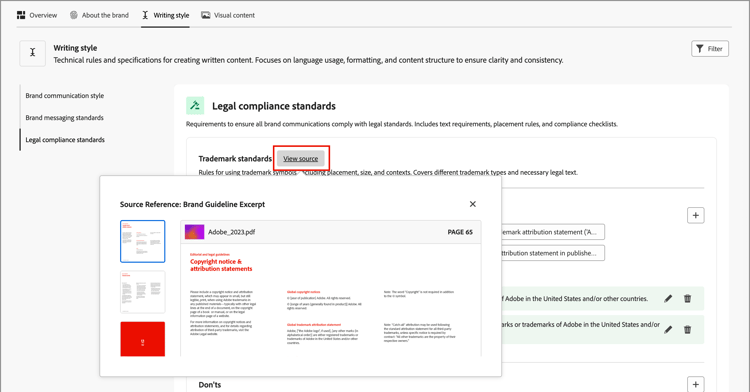
If you want to review the source for the extracted information in a sub-section, click the View source link.
-
-
In each details tab, review the categories and improve the brand by adding, removing, and changing your definitions.
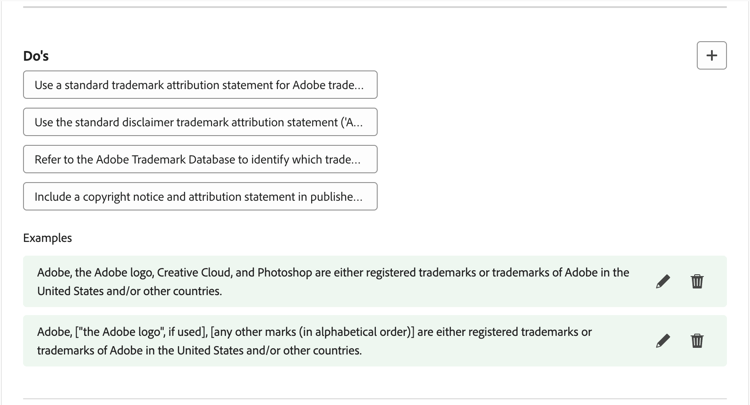
A sub-section labeled Do’s outlines the guidelines for the category. Use this area to add guideline descriptions and examples of the guidelines.
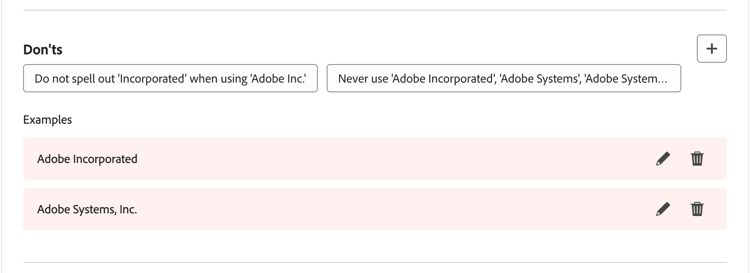
A sub-section labeled Don’ts outlines the exclusions. Use this area to add exclusion descriptions and examples of the exclusions.
-
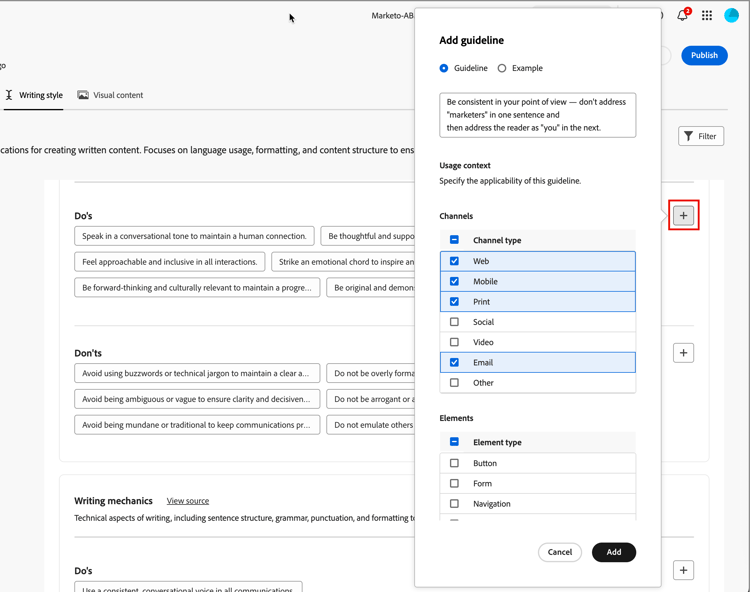
Add a guideline or exclusion.
In the section where you want to add a guideline, click the Add (

-
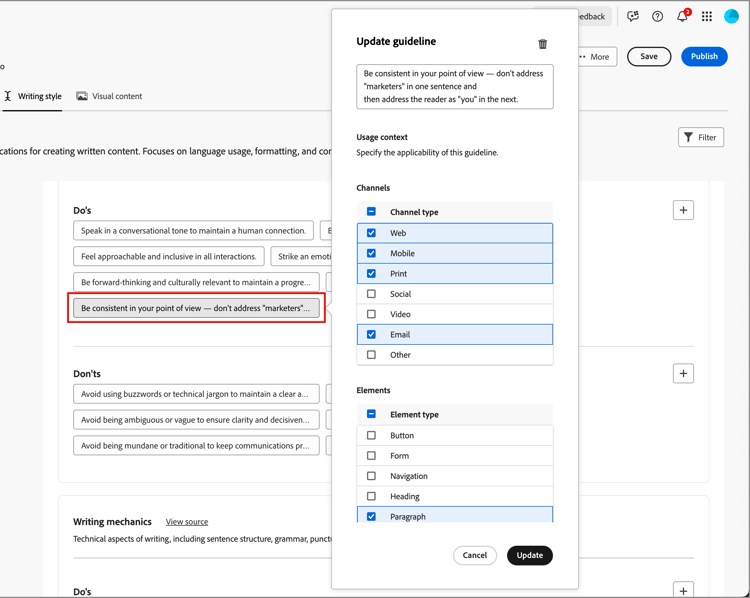
Change a guideline or exclusion.
In the section where you want to remove a guideline, click the guideline widget. In the popup dialog, change the content for the guideline and the selected checkboxes as needed. Then, click Update.
-
Remove a guideline or exclusion.
In the section where you want to remove a guideline, click the guideline widget. In the popup dialog, click the Delete (

-
Add or revise examples of your guidelines and exclusions.
In the displayed example tile, click the Edit (

-
-
When you have everything defined, click Save.
You can continue to make changes to the draft brand. Continue until you decide it is ready to publish.
Publish the brand
When your brand includes a complete set of definitions and meets your requirements, click Publish to make your brand guidelines available for content alignment and generation.
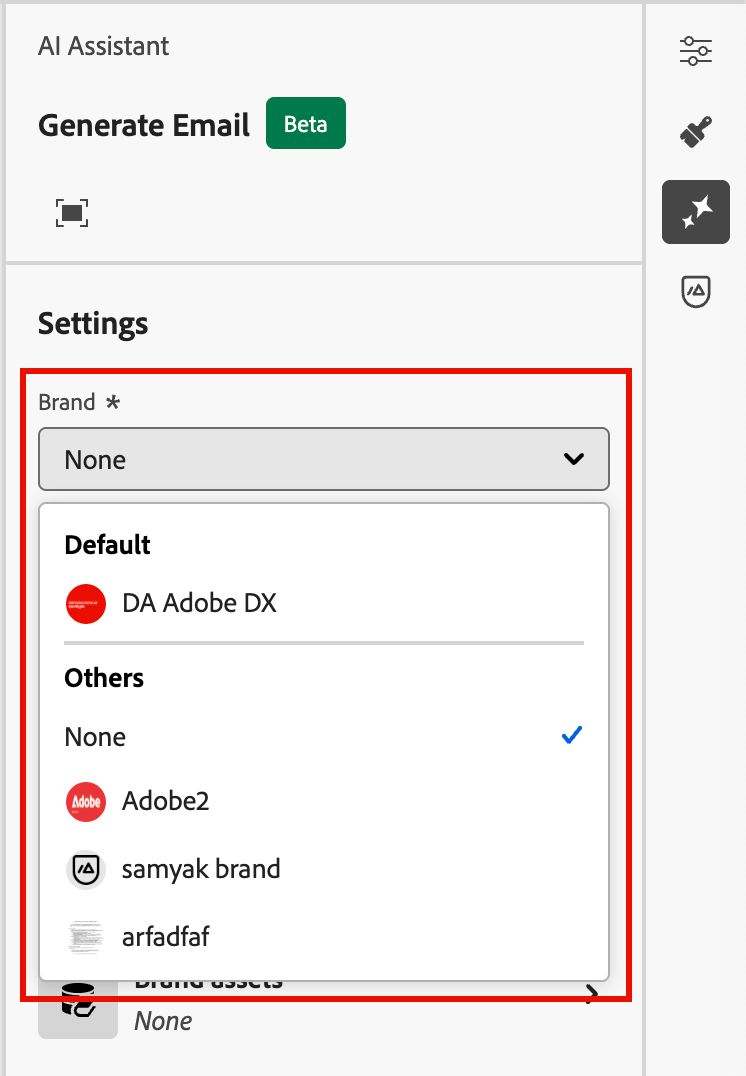
Published brands are accessible from the Brand option in the AI brand alignment score and content generation tools.
Brand definitions
The brand definitions are organized into three categories, displayed as tabs. Select each tab to complete and update the brand guidelines.
About the brand about-brand
Use the About the brand tab to establish the core identity of your brand. This information outlines its purpose, personality, tagline, and other high-level attributes.
-
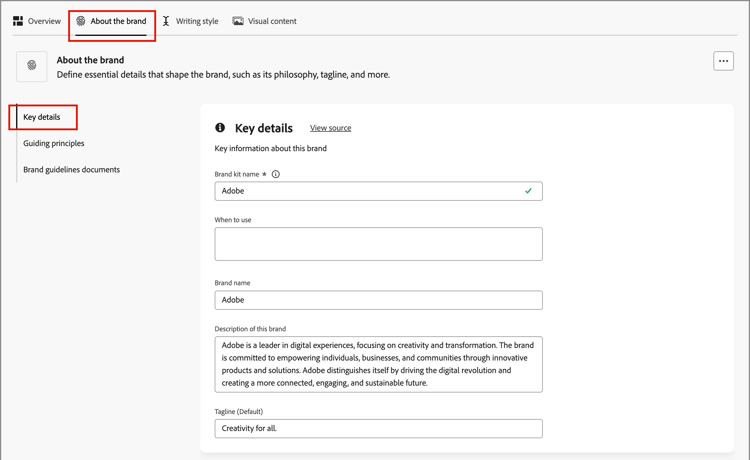
Add the foundational information for your brand in the Key details category:
-
Brand kit name - Update the brand name.
-
When to use - Specify scenarios or contexts where this brand should be applied.
-
Brand name - Enter the official name of the brand.
-
Description of this brand - Provide an overview of what this brand represents.
-
Tagline (Default) - Add the primary tagline associated with the brand.
-
-
In the Guiding principles category, clarify the core direction and philosophy of your brand:
-
Mission - Detail the brand purpose.
-
Vision - Describe the long-term goal or desired future state.
-
Market positioning - Explain how the brand is positioned in the market.
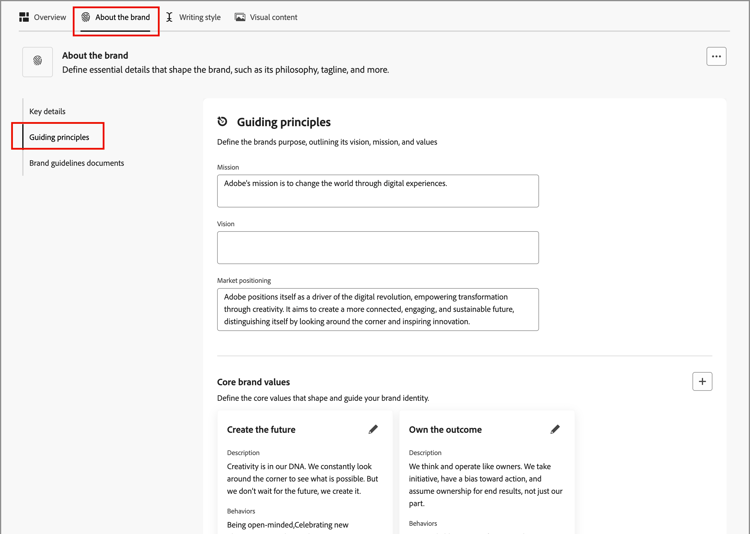
From the Core brand values category, review the defined brand values and adjust them as needed.
-
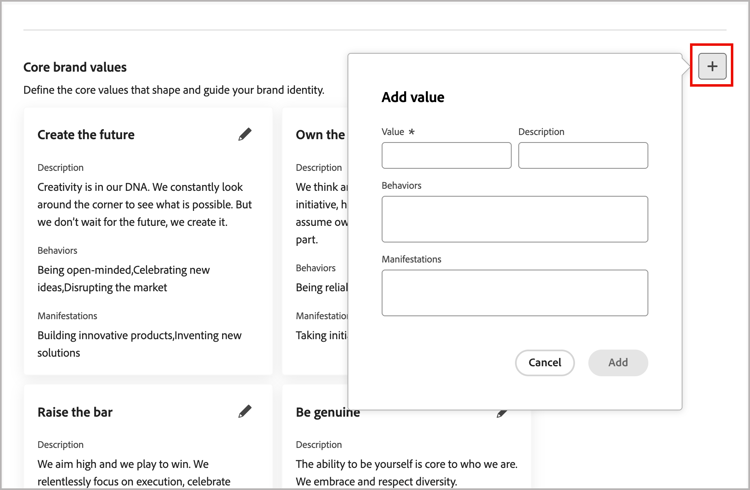
To define a new core value, click the Add (
-
Value - Enter the name for the core brand value.
-
Description - Explain what this value means to your brand.
-
Behaviors - Outline the actions or attitudes that reflect this value in practice.
-
Manifestations - Provide examples of how this value is expressed in real-world branding.
-
-
To change or delete a core value, click the Edit (
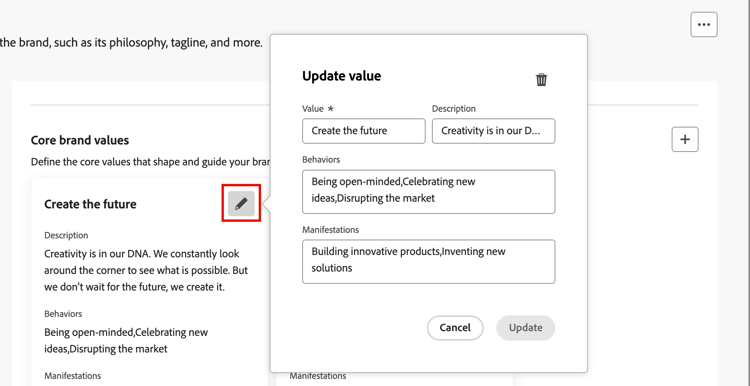
Change the details and click Update. Or, click the Delete (
-
-
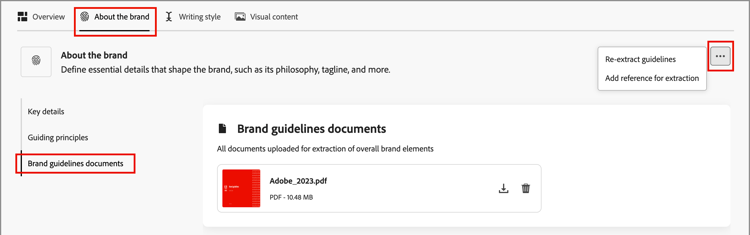
In the Brand guidelines documents category, review the documents used to generate the brand guidelines.
Click the More menu icon and choose an option to update the brand guidelines using uploaded reference documents:
- Re-extract guidelines - Choose this action to run an extraction job using the current documents.
- Add reference for extraction - Choose this action to upload another document and run an extraction job.
You can proceed to refine the writing style or visual content guidelines, exclusions, and examples, or you can publish your brand.
Writing style writing-style
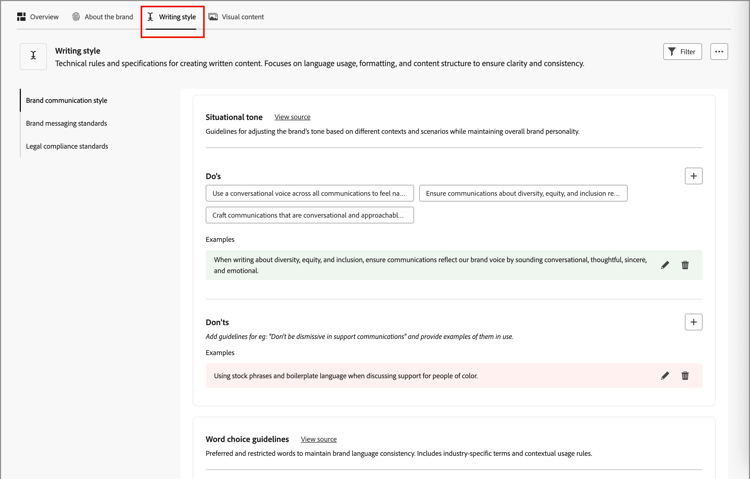
The Writing style definitions outline the standards for writing content, and detail how language, formatting, and structure should be used to maintain clarity, coherence, and consistency across all materials.
Select the Writing Style tab, and review each category.
Visual content visual-content
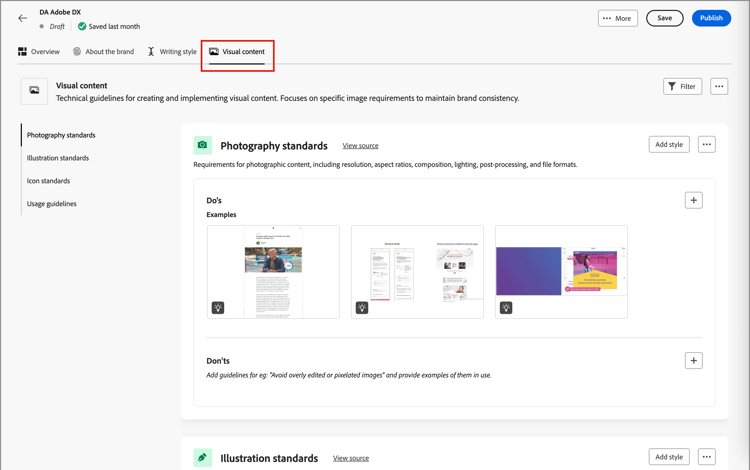
The Visual content definitions outline the standards for imagery and design, and detail the specifications needed to maintain a unified and consistent brand look.
Select the Visual content tab, and review each category.
Example images
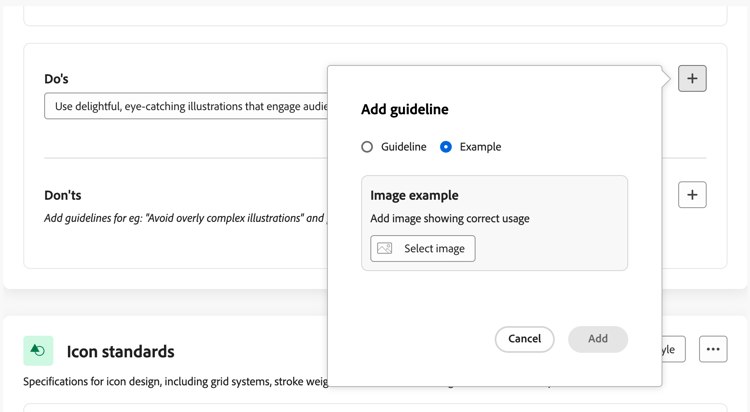
To add an image showing correct or incorrect usage, choose Example in the Add guideline or Add exclusion popup dialog. Click Select image to choose an image file from your system. Click Add to upload the image and display the thumbnail for the area.
Edit a published brand
You cannot make modifications to a published (Live) brand, but you can create a draft copy to edit. When you publish the draft with your edits, that version replaces the live version.
-
Open the brand page and click Edit brand at the top right.
-
In the confirmation dialog, click Edit Brand.
This action creates a draft copy of the brand.
-
Browse through the different tabs and update the brand information as needed.
-
Overview
-
-
Click Save as you work with the draft updates, and then Publish when you are ready to replace the Live version.