Salesforce Marketing Cloud (V2) source overview
The integration between Adobe Real-Time CDP and Salesforce Marketing Cloud is designed to leverage Data Extensions because of the flexibility and control they provide. Unlike Standard System Tables (Data Views and Built-in Objects), which are limited to predefined fields and primarily serve system-level tracking, you can use Data Extensions to define custom fields, organize a wide variety of business-specific data, and tailor your data structures to meet unique requirements.
Because of this level of customization and scalability, the integration between Real-Time CDP and Salesforce Marketing Cloud relies on Data Extensions rather than Standard System Tables. This approach offers a more flexible, scalable, and integrated foundation for managing data, ensuring that it aligns with your business goals
You can use the Salesforce Marketing Cloud source to connect your Salesforce Marketing Cloud account to Real-Time CDP and Adobe Experience Platform. Read the documentation below to learn how to get started.
Use case examples use-case-examples
Personalizing Email Campaigns with Contact Data
A retail brand wants to personalize email campaigns based on customer lifecycle stages (e.g., new customer, repeat buyer, loyal customer). To do this, they create a Contact Data Extension to store key customer information, including name, email, lifecycle stage, and purchase behavior. This data is then ingested into Experience Platform for deeper segmentation and targeting.
By ingesting the data from the Contact Data Extension into Experience Platform, the brand can segment customers based on their lifecycle stage and purchase behavior. For example, they can send a welcome offer to new customers, a loyalty reward to repeat buyers, or even re-engage inactive customers with targeted offers. This approach ensures personalized communication and enables more relevant and effective customer engagement.
Ingesting Campaign Data for Personalized Segmentation
A marketing team wants to optimize their email campaigns by targeting customers based on their engagement with previous campaigns. To do this, they create a Campaign Data Extension in Salesforce Marketing Cloud to store customer engagement data, such as email opens, clicks, and campaign responses. This data is then ingested into Experience Platform for further segmentation and personalization.
By ingesting this data from the Campaign Data Extension into Experience Platform, the marketing team can segment customers based on past engagement, such as those who clicked on product offers or responded positively. Customers who engaged can receive targeted promotions in future emails, while those who responded negatively can be sent customer service follow-ups. This integration with Experience Platform ensures that the marketing team can deliver more personalized and relevant content based on customer behavior.
Targeting Customers Based on Activities Data
A marketing team wants to target customers based on their activities, such as website visits, form submissions, or interactions with previous email campaigns. To achieve this, they create an Activities Data Extension to store information about each customer’s engagement activities. This data is then ingested into Experience Platform for further segmentation and personalized campaign targeting.
By ingesting the data from the Activities Data Extension into Experience Platform, the marketing team can segment customers based on their engagement history. For example, customers who recently visited the website but didn’t complete a purchase can be sent reminder emails with special offers. Similarly, customers who filled out a form can receive personalized follow-up communications. This approach ensures that each customer receives relevant content based on their most recent activities, improving engagement and conversion rates.
Prerequisites prerequisites
Read the sections below for prerequisite set up that you must complete before you can connect your source to Experience Platform.
Set up application for authentication set-up-application-for-authentication
When building an integration with Salesforce Marketing Cloud, one of the first steps is to create an Installed Package within Salesforce Marketing Cloud. The installed package generates the client credentials required to authenticate API calls, defines the integration type and associated permission scopes. Additionally, the installed package provides the correct API endpoints for your tenant. It also serves as a managed container for administering, monitoring, and revoking access, ensuring that all integrations are secure, auditable, and aligned with Salesforce’s recommended authentication model.
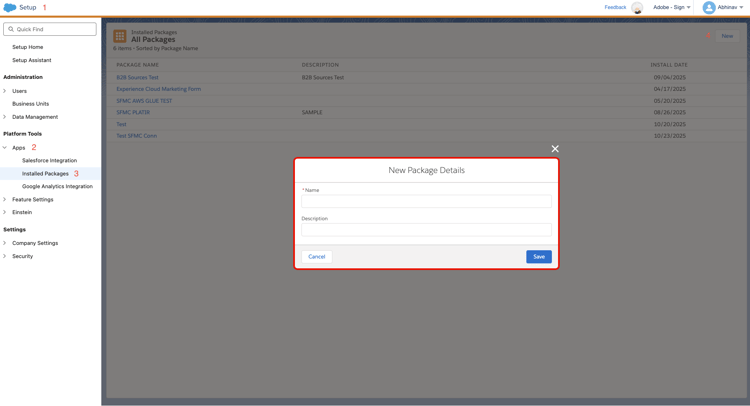
To create an installed package, use the Salesforce Marketing Cloud UI and navigate to Setup > Apps > Installed Packages and then select New. Use the New Package Details interface to provide a name and information for your package. When finished, select Save.
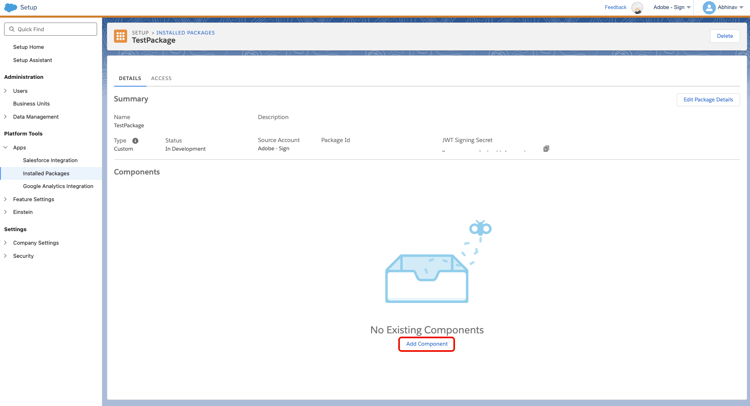
Once the new package is created, select Add Component.
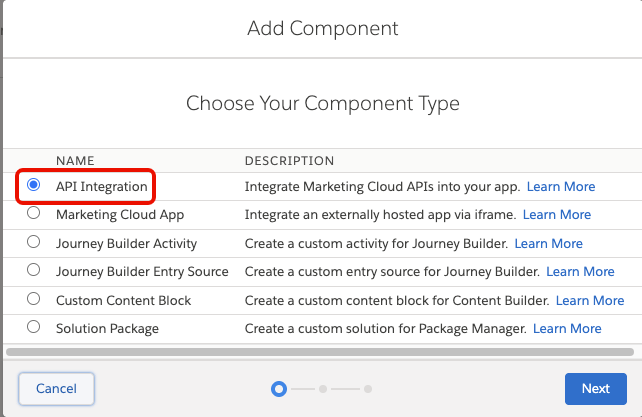
Select API Integration as your component type.
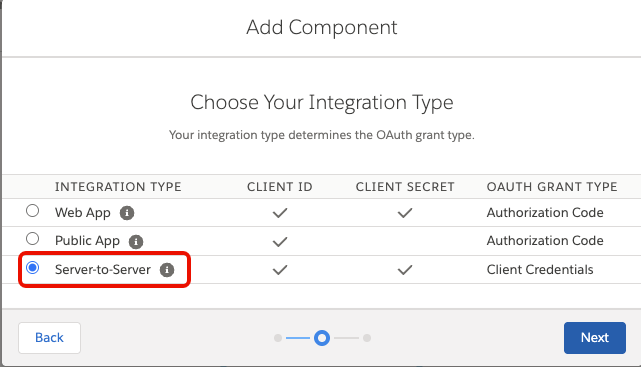
Select Server-to-Server as your integration type.
Finally, navigate to Scope > Data. Under Data Extensions, select Read.
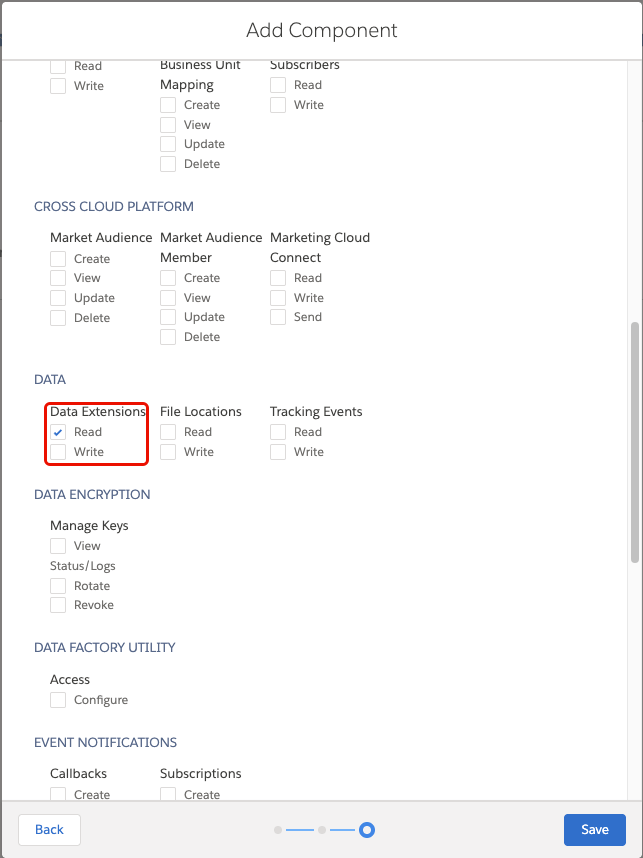
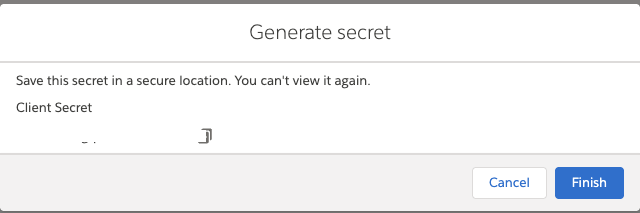
Select Save and then copy and save your client secret. When complete, select Finish.
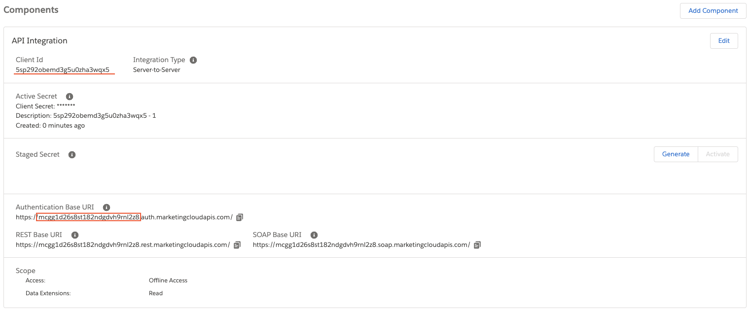
Before leaving the Salesforce Marketing Cloud UI, copy the client ID and unique base URI prefix as you will use both values to create a connection to Experience Platform. For the Authentication Base URI, please ensure you remove everything after .auth.marketingcloudapis.com/
For detailed steps on creating an installed package, read the Salesforce documentation.
Gather required credentials gather-required-credentials
You must provide values for the following credentials to connect Salesforce Marketing Cloud to Experience Platform.
Connect Salesforce Marketing Cloud to Experience Platform
Proceed to configure your Salesforce Marketing Cloud source connection within Experience Platform. For a step-by-step guide on setting up the connection through the UI, refer to the tutorial here. Read this tutorial to learn about connecting your Salesforce Marketing Cloud account, selecting data, mapping fields, scheduling ingestions, and monitoring your dataflows.