Connect Salesforce Marketing Cloud to Experience Platform
Read this guide to learn how to connect your Salesforce Marketing Cloud account to Adobe Experience Platform using the sources workspace in the Experience Platform user interface.
Get started
This tutorial requires a working understanding of the following components of Experience Platform:
-
Experience Data Model (XDM) System: The standardized framework by which Experience Platform organizes customer experience data.
- Basics of schema composition: Learn about the basic building blocks of XDM schemas, including key principles and best practices in schema composition.
- Schema Editor tutorial: Learn how to create custom schemas using the Schema Editor UI.
-
Real-Time Customer Profile: Provides a unified, real-time consumer profile based on aggregated data from multiple sources.
Gather required credentials
Read the Salesforce Marketing Cloud overview for information on authentication.
Navigate the sources catalog
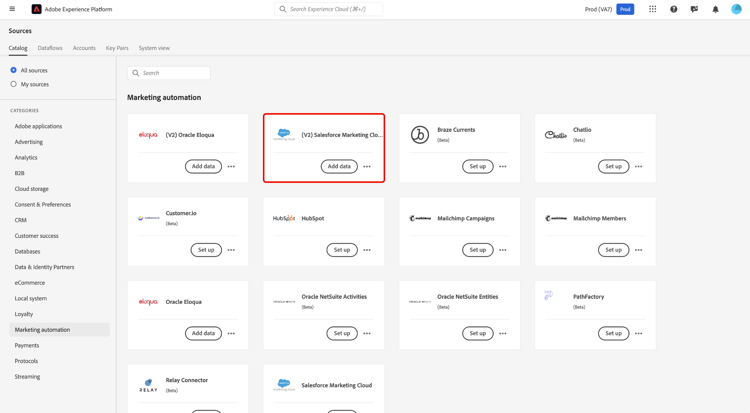
In the Experience Platform UI, select Sources from the left navigation to access the Sources workspace. Choose a category or use the search bar to find your source.
To connect to Salesforce Marketing Cloud, go to the Marketing Automation category, select the (V2) Salesforce Marketing Cloud source card, and then select Set up.
Use an existing account existing
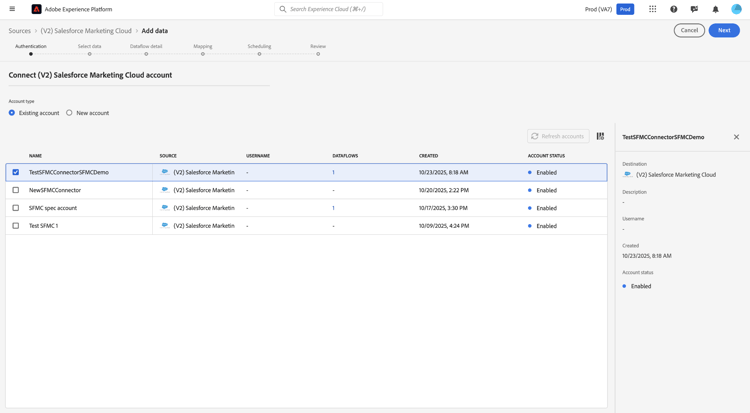
To use an existing account, select Existing account and then select the Salesforce Marketing Cloud account that you want to use.
Create a new account new
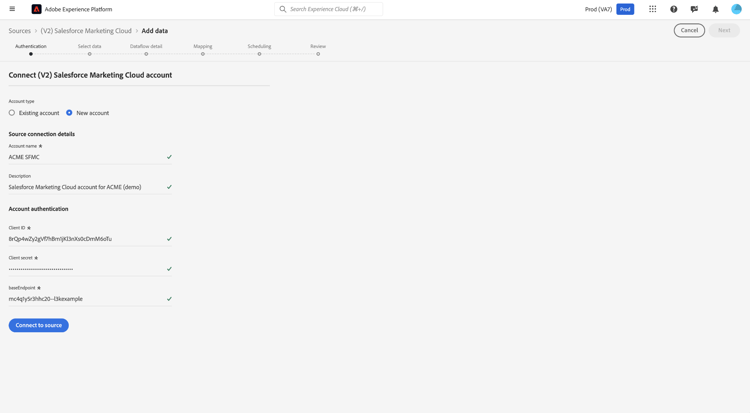
To create a new account, select New account and provide a name and description under your Source connection details. Next, under Account authentication, provide values for your Client ID, Client secret, and Base endpoint. You can read the authentication guide for more information on these credentials. When finished, select Connect to source and allow for a few seconds for your connection to establish.
Select data
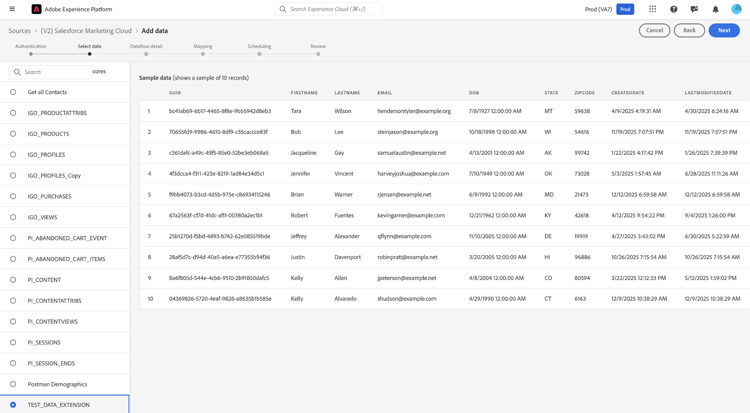
The Salesforce Marketing Cloud source supports data ingestion only from Salesforce Marketing Cloud data extensions.
Use the Select data interface to select the data extension that you want to ingest from your Salesforce Marketing Cloud instance. Once you select the data extension, you can use the preview panel to confirm that the dataset contains the expected fields before proceeding.
Dataset and dataflow details
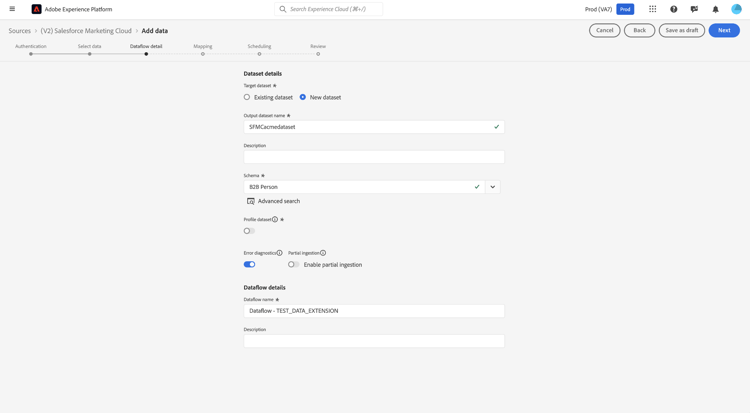
Next, you must provide information on your dataset and dataflow. During this step, you can either use an existing dataset or create a new dataset. Additionally, you can optionally enable your dataset for ingestion to Real-Time Customer Profile during this step.
Mapping
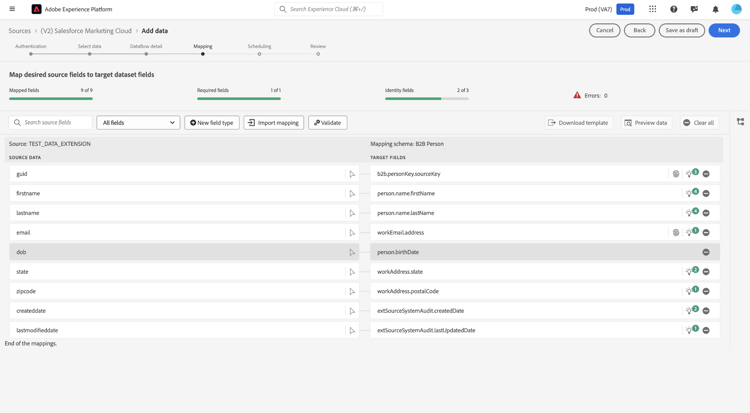
In Salesforce Marketing Cloud, data extensions are not considered as standard objects. Therefore, there are no predefined or fixed mapping fields to an Experience Platform schema. While Data Prep in Experience Platform performs a best-effort alignment between source fields from Salesforce Marketing Cloud and the target Experience Data Model (XDM) schema, there may still be some cases where a manual review or adjustment is required to resolve unmapped or erroneous fields.
Schedule a dataflow
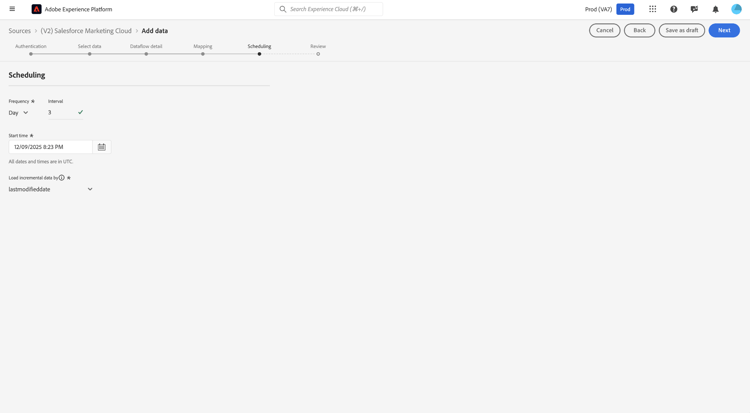
With your mapping complete, you can now configure an ingestion schedule for your dataflow. Set your Frequency to Once to configure a one-time ingestion run. For incremental ingestion, you can set your Frequency to Hour, Day, or Week. When using incremental ingestion, you must also configure the Interval to define the amount of time that occurs between ingestion runs. For example, an ingestion frequency set to Day and an interval set to 15 means that your dataflow is scheduled to ingest data every 15 days.
You must select a delta (date/time) field in your dataset to enable incremental synchronization. If your dataset does not contain a suitable delta field, you will not be able to create the dataflow.
Review
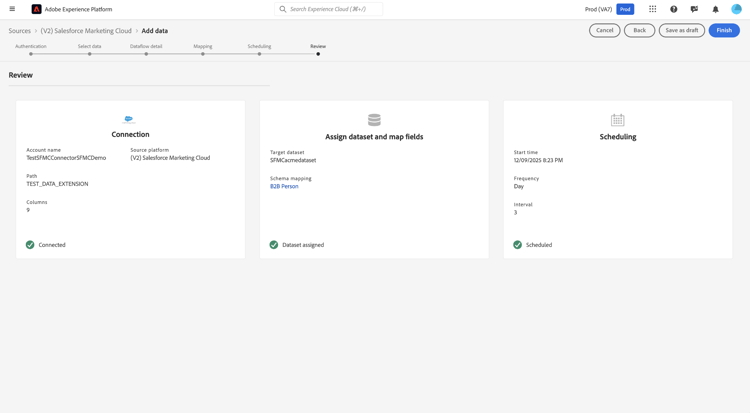
With the ingestion schedule configured, use the Review interface to confirm the details of your dataflow. Select Finish to complete the setup and allow for a few moments for your dataflow to initiate.
Monitor
Once the dataflow is selected it will do a one-time backfill of data and subsequent incremental sync on the schedule specified. The status of sync can be monitored by navigating to the dataflow. For more information, read the guide on monitoring sources dataflows in the UI.
Next steps
This tutorial guided you through connecting your Salesforce Marketing Cloud (V2) account to Experience Platform using the user interface. You learned how to select or create a source account, provide the required credentials, choose data extensions to ingest, specify dataset and dataflow details, map your data, set up a schedule for data ingestion, and monitor your dataflows. By following these steps, you successfully integrated your Salesforce Marketing Cloud data with Experience Platform for activation and analysis.
For additional information, read the following documentation: