License usage and capacities
-
View License Usage Dashboard
- This permission lets you view the capacity home.
-
Manage Sandboxes
- This permission lets you edit your capacity allocations.
- Additionally, you must be assigned access to all sandboxes in order to edit any sandbox capacity.
In Adobe Experience Platform, capacities let you know if your organization has exceeded any of your guardrails and gives you information on how to fix these issues.
For more information about guardrails in Experience Platform, please read the Real-Time CDP guardrails overview.
Capacity behavior behavior
Currently, Capacity supports the following services:
- Batch segmentation
- Streaming segmentation
- Streaming ingestion
- Edge segmentation
Within these services, the following guardrails are tracked:
-
The maximum number of batch audiences is 4000
- An increased maximum number for batch audiences of 10,000 is available under Limited availability.
-
The maximum number of streaming audiences is 500
-
The maximum number of edge audiences is 150
-
The maximum number of schedules is 4
- This means you can have 3 custom schedules, in addition to the system schedule.
-
The maximum number of audiences in a schedule is 3000
-
The initial combined throughput for streaming ingestion is 1500 records per second (rps)
- This combined streaming throughput measures the combined peak inbound events per second for streaming ingestion into Real-Time Customer Profile across your production and development sandboxes.
- You can purchase additional streaming segmentation support of up to 13,500 records per second. More information about purchasing additional entitlements can be found in the Real-Time CDP product description.
-
The combined throughput for edge segmentation is 1500 records per second (rps)
The audience capacity is at a sandbox level. This means that, for every sandbox you have in your organization, you can have 500 streaming audiences, of which 150 of those can be edge audiences.
The streaming throughput capacity is at an organization level and can be distributed to your individual sandboxes. For example, with the 1500 rps for streaming ingestion throughput, you can set your production sandbox to be at 1300 rps and your development sandbox to be at 200 rps.
Experience Platform calculates the sandbox’s throughput in 15 minute rolling intervals. This throughput is measured in real-time, with the data refreshing every 60 seconds.
If your usage reaches 80% and 90% of your licensed capacity, Experience Platform will issue an alert, notifying that you are reaching the maximum of your specified capacity. You can modify the settings to customize the capacity percentage to receive the alert or remove the alert entirely.
If your usage goes above 100% of your licensed capacity, you will be considered in breach of your capacity. If you’re in breach of your capacity, the following limitations will be applied:
-
Event data can be removed from streaming personalization if the event processing queue exceeds 12 hours
-
Removed event data will not be ingested into Profile
- You will be able to see when events were removed
- Events will be available within the data lake, according to your entitlements
- You can use Query Service to directly re-ingest the data, if required
Access access
To access the Capacity overview, select License usage followed by Capacity.
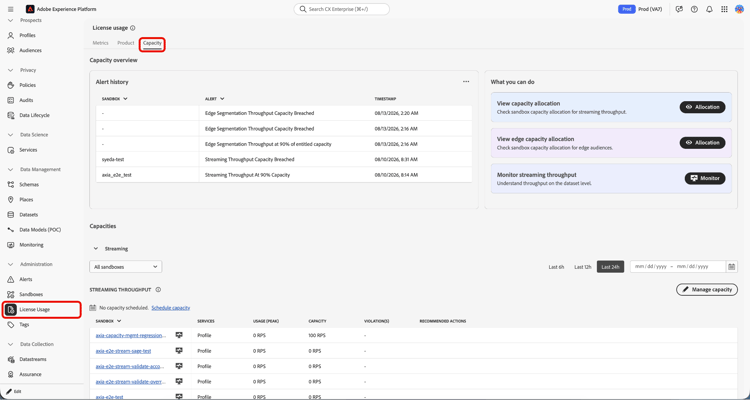
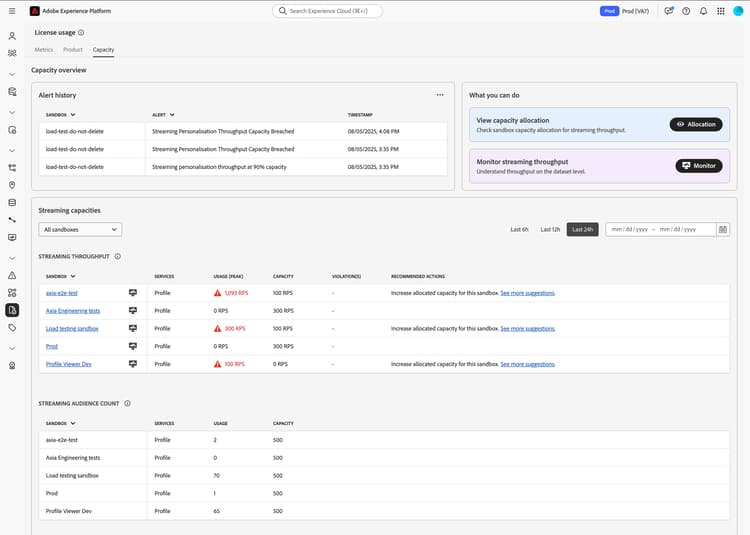
The Capacity overview page is displayed, showing information including a history of alerts as well as details of your organization’s capacities.
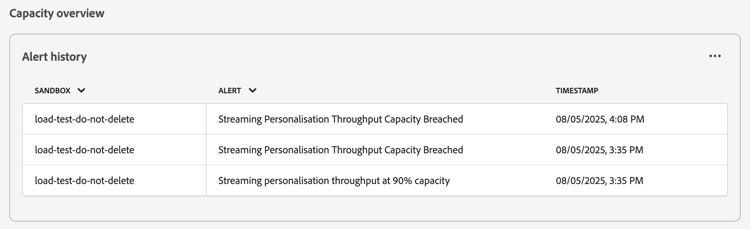
Alert history alert-history
The Alert history section displays a list of the most recent capacity breaches within your organization.
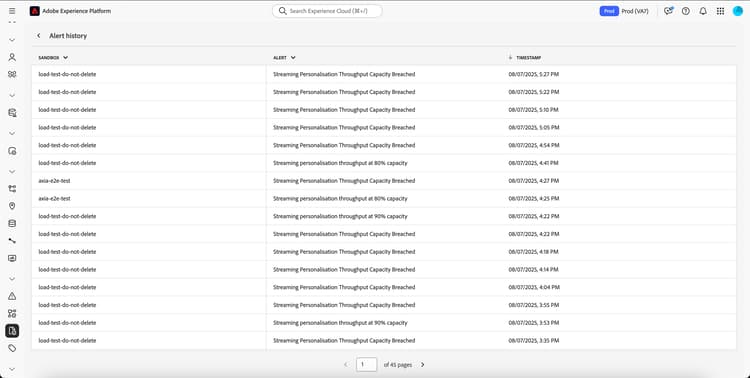
To view a full history of the alerts for your organization, select the

Streaming capacities streaming-capacities
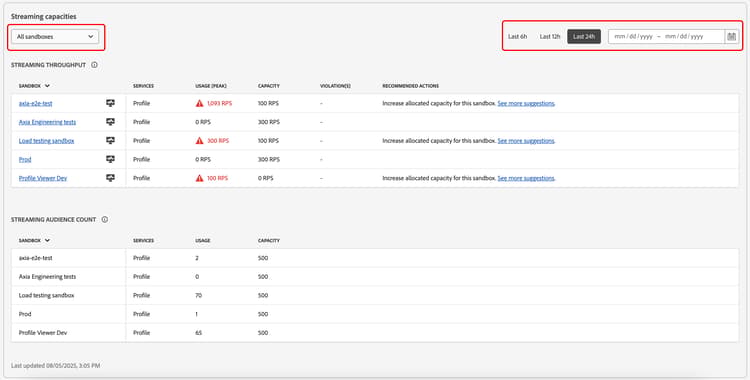
The Streaming capacities section outlines information about your organization’s streaming capacities. Specifically, this section displays capacity information about streaming throughput and streaming audiences. You can filter this information on a per sandbox basis and change the lookback period.
Streaming throughput streaming-throughput
The Streaming throughput section displays information about the streaming throughput within your organization’s sandboxes. The streaming throughput value measures the combined peak inbound events per second for streaming ingestion into Profile.
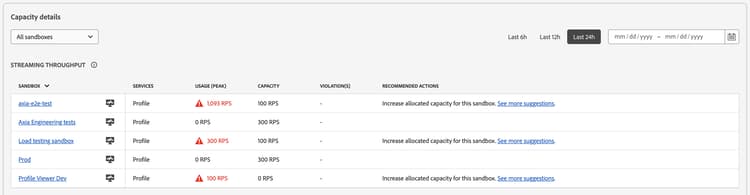
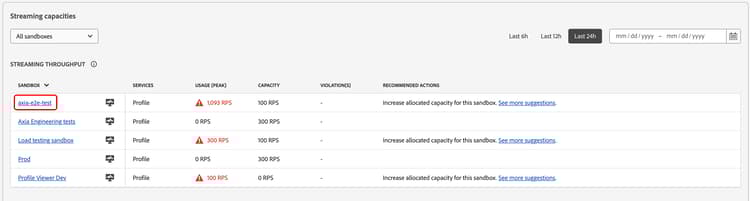
You can select the individual sandbox to see a more detailed view of the sandbox’s streaming throughput.
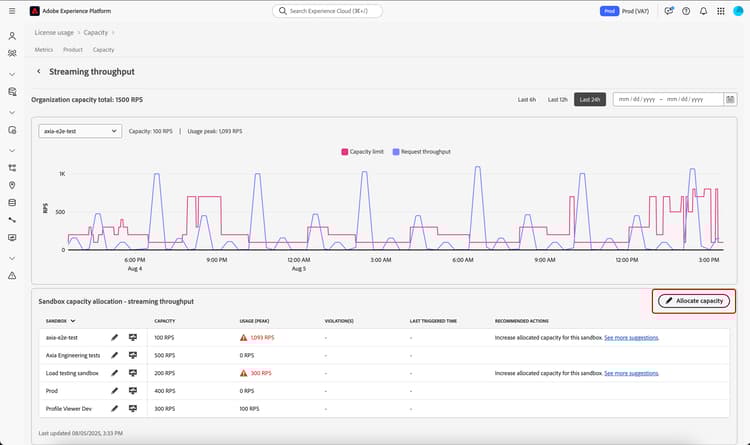
The Streaming throughput details page is displayed. You can see a graph that displays the request throughput compared to the capacity limit, a list of the sandboxes and their throughputs, as well as a button to allocate your organization’s capacities.
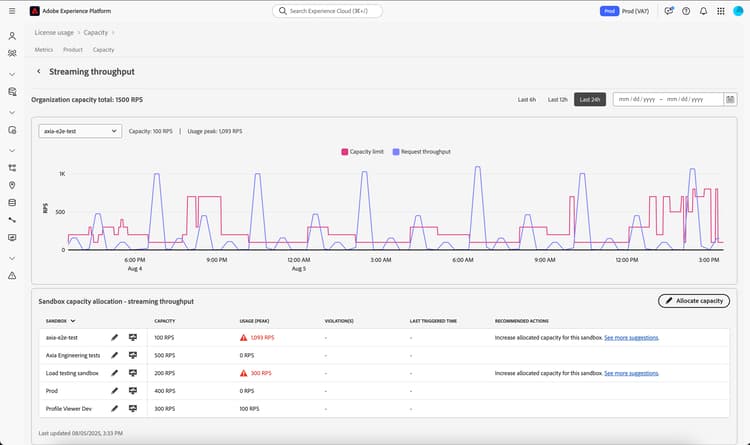
To update the organization’s streaming throughput capacities, select Allocate capacities.
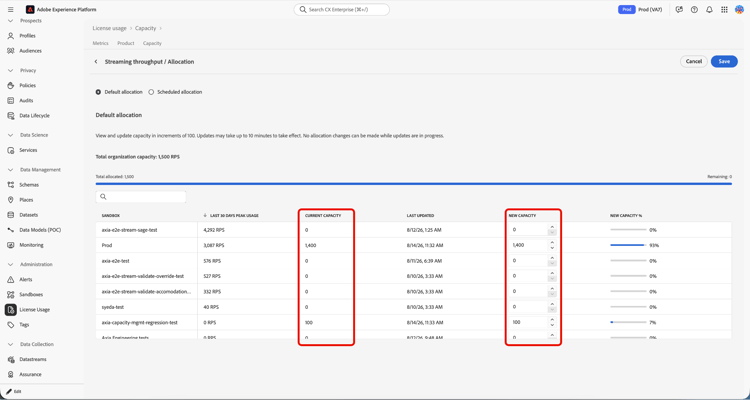
The allocation page appears. On this page, you can set your capacities for your different sandboxes. The sum of all the capacities must equal to the organization’s capacity total.
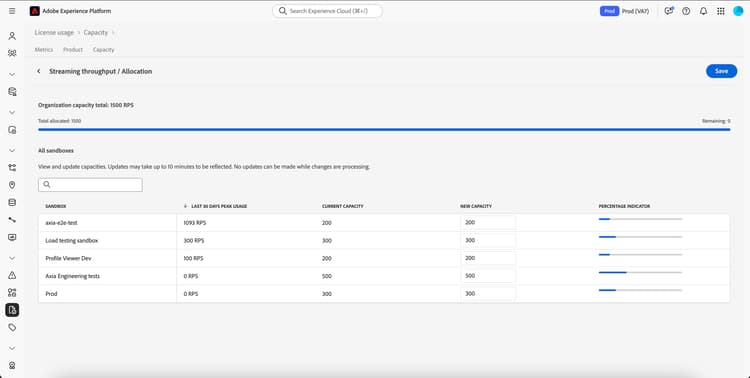
After updating the capacity allocations, select Save to finish the updates. Please note, it may take up to 10 minutes for the changes to be reflected on your organization.
Streaming audience count streaming-audience-count
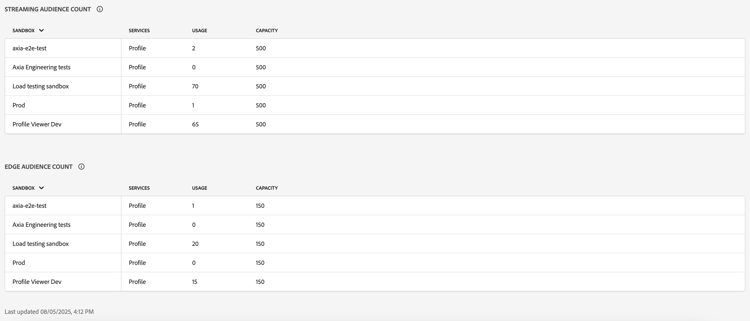
The Streaming audience count section displays the number of streaming audiences within the sandbox as well as the maximum number of streaming audiences allowed within the sandbox.
Edge capacities edge-capacities
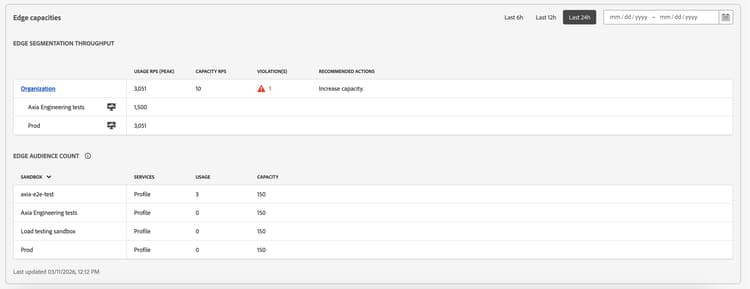
The Edge capacities section outlines information about your organization’s edge capacities. Specifically, this section displays capacity information about edge segmentation throughput and edge audiences. You can change the lookback period for the organization’s edge capacities.
Edge segmentation throughput edge-streaming-throughput
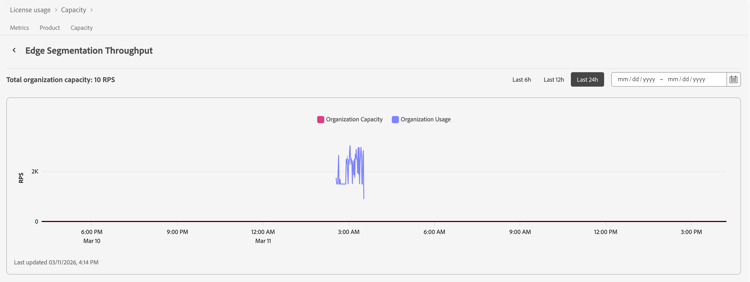
The Edge segmentation throughput section displays information about the edge segmentation throughput within your organization and organization’s sandboxes. The edge segmentation throughput value measures the combined peak inbound events per second for edge ingestion into Profile.

You can select the organization to see a more detailed view of the organization’s edge segmentation throughput.

The Edge Segmentation Throughput page is displayed. You can see a graph that displays the request throughput compared to the capacity limit. Within this page, you can adjust the lookback period for the displayed graph.
Edge audience count edge-audience-count
The Edge audience count section displays the number of edge audiences within each sandbox as well as the maximum number of edge audiences allowed within the sandbox.

Batch capacities batch-capacities
The Batch capacities section shows your organization’s on demand runs, scheduled runs, as well as batch audience counts.
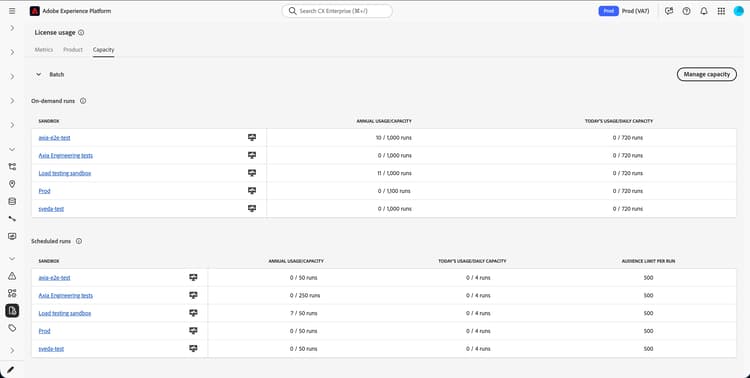
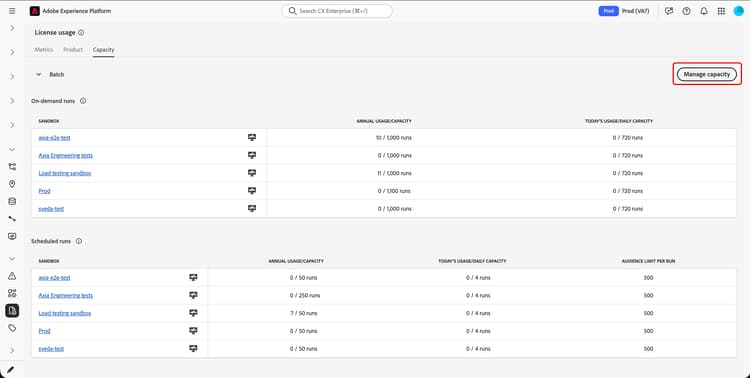
You can also allocate the batch capacities by selecting Manage capacity.
Manage batch capacity manage-batch-capacity
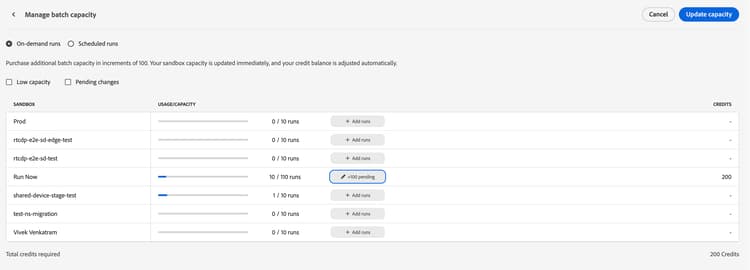
The Manage batch capacity page lets you manage the capacities for both on-demand evaluation and scheduled runs. You can select between On-demand runs and Scheduled runs with the radio selector.
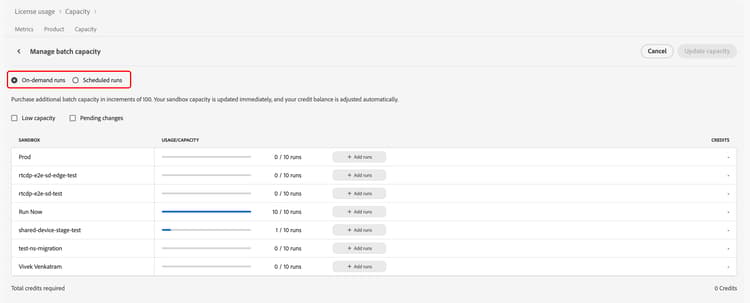
For On-demand runs, you can see a list of sandboxes, as well as the current usage and annual capacity for each sandbox.
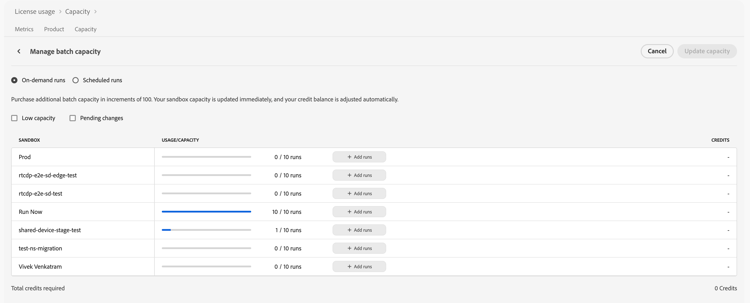
To add additional runs to a sandbox, select Add runs for the sandbox you want to increase the capacity for. You can increase run capacity in increments of 100. Once you add the additional runs, the sandbox row will show the number of credits that will be required to update the capacities.
For Scheduled runs, you can see a list of sandboxes, the current usage and annual capacity for each sandbox, as well as the maximum number of audiences that can be added to a scheduled run for the sandbox.
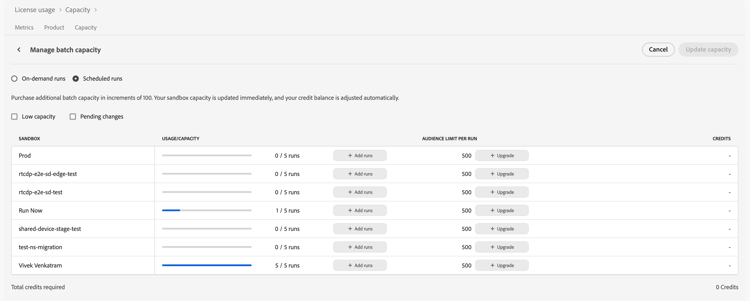
To add additional runs to a sandbox, select Add runs for the sandbox you want to increase the capacity for. You can increase run capacity in increments of 1.
To increase the audience limit for scheduled runs, select Upgrade for the sandbox you want to increase the capacity for. You can select either 1000 or 3000 audiences per scheduled run.
Once you’ve updated your runs or audience limit, the sandbox row will show the number of credits that will be required for these operations.
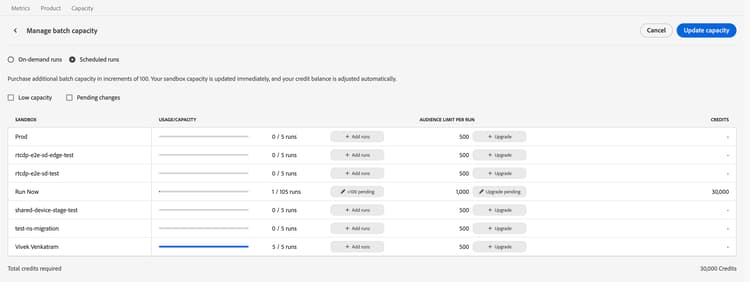
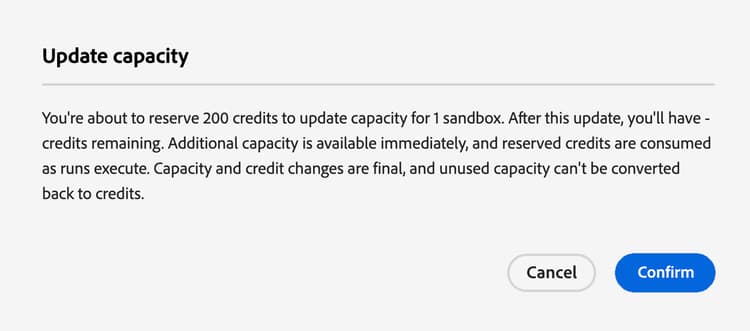
After managing your capacity additions, select Update capacity to finalize your changes. A popover appears stating the total number of credits that the changes need. Select Confirm to finalize your changes.
On-demand runs on-demand-runs
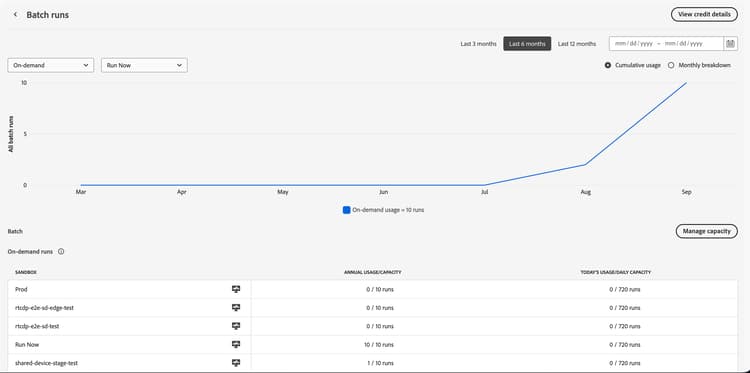
The On-demand runs section displays information about the on-demand evaluation runs within your organization’s sandboxes. For more information, read the on-demand evaluation guide.

If you select the name of the sandbox, you can see a graph displaying either the cumulative usage or the monthly breakdown of the on-demand evaluation runs over the last six month.
Scheduled runs scheduled-runs
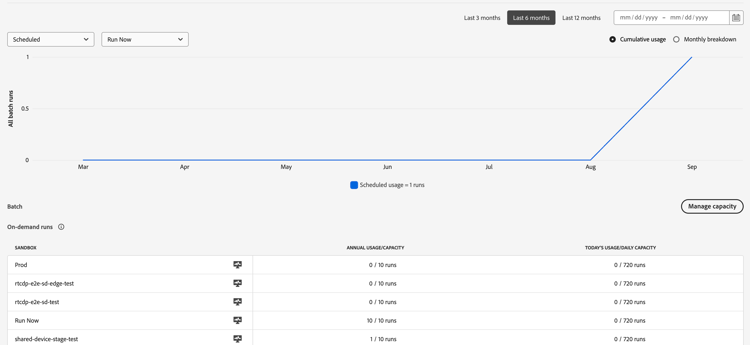
The Scheduled runs section displays information about the scheduled runs within your organization’s sandboxes.

If you select the name of the sandbox, you can see a graph displaying either the cumulative usage or the monthly breakdown of the scheduled runs over the last six month.
Batch audience batch-audience-count
The Batch audience section displays information about the number of batch audiences within your organization’s sandboxes.

Streaming throughput best practices streaming-throughput-suggestions
You can resolve your throughput violations by adopting one of the following recommendations:
- Increase the allocated capacity for the sandbox.
- Identify high throughput dataflows in the monitoring dashboard and apply throttling or filtering against these dataflows if needed.
- Optimize your ingestion by using batch ingestion for lower latency use cases.
Additionally, you can look at your dataflows and see if you can optimize your data strategy.
Ingest only data that is required for your use cases. Ensure that you filter out unnecessary data.
- Adobe Analytics: Use row-level filtering to optimize your data intake.
- Sources: Use the Flow Service API to filter row-level data for supported sources like Snowflake and Google BigQuery. Edge datastream : Configure dynamic datastreams to perform row-level filtering of traffic coming in from WebSDK.
Edge segmentation throughput best practices edge-best-practices
You can resolve your edge segmentation throughput violations by adopting one of the following recommendations:
- Identify high throughput datastreams in the monitoring dashboard and apply throttling or filtering against these datastreams if needed.
- Optimize your ingestion by using batch ingestion for lower latency use cases.
- Contact your Adobe Customer Care representative if issues still persist.
Adobe Experience Platform Growth Credits dashboard growth-credits-dashboard
The Adobe Experience Platform Growth Credits dashboard gives you a single place to view your credit balance, plan capacity, and monitor usage across Experience Platform. You can use it to:
- View your available credits and understand how much headroom remains.
- Schedule capacity changes for planned increases in demand.
- Monitor usage and alerts so you can address potential overages before they affect your workloads.
Access requirements
Access to the Experience Platform Growth Credits dashboard is controlled through role-based access control. You must have the Platform Administrator role, or an equivalent administrator role, to:
- View your organization’s credit position.
- View credit and capacity usage.
- Configure capacity schedules.
- Configure and manage alerts.
Your sandbox-level views are limited to the sandboxes you have permission to access.
Access the Capacity overview
To access the Capacity overview, select License usage and then select the Capacity tab.
As a Platform Administrator, you can review current allocations and schedule capacity changes for upcoming demand.
Select Manage capacity under Streaming or Edge.
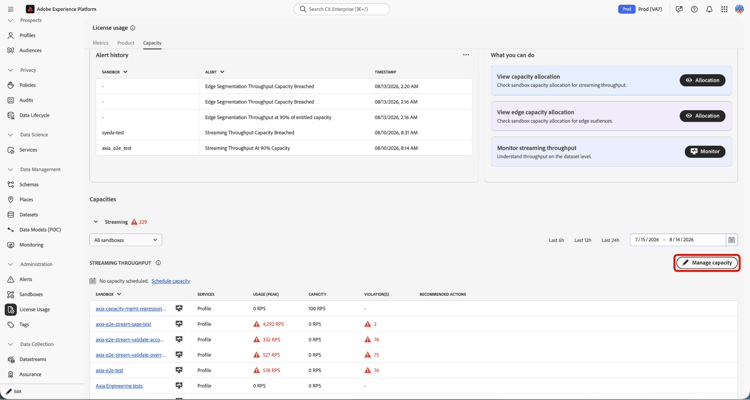
The table shows the Current Capacity allocation for each sandbox. Use the up/down arrows or enter the New Capacity allocations as required.
Understand your credit utilization
Use the Experience Platform Growth Credits dashboard to see how your credits are being used and identify available headroom or potential overages.
Review your credit summary
Select a sandbox, then select View credit details.
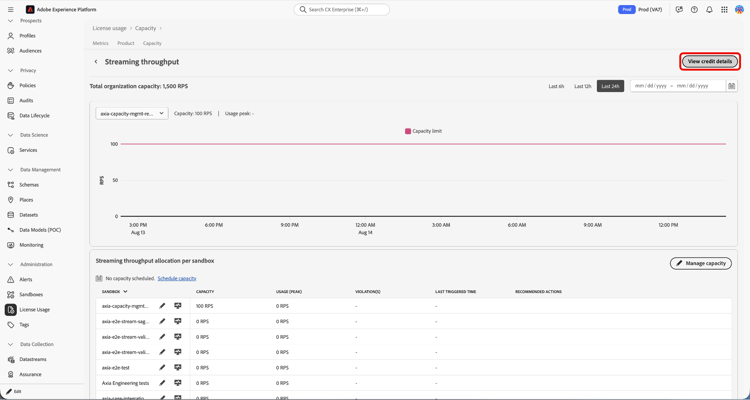
The credit summary shows your current credit position for your organization:
- Licensed credits — The total number of credits included in your contract.
- Credits used — Credits consumed based on your usage.
- Credits reserved — Credits committed to future scheduled capacity or projected Batch overage.
- Credits available — Credits remaining after consumed and reserved credits are deducted.
- Credit period — The contract start and end dates covered by your credit entitlement.
Credits available = Licensed credits − Credits used − credits reserved
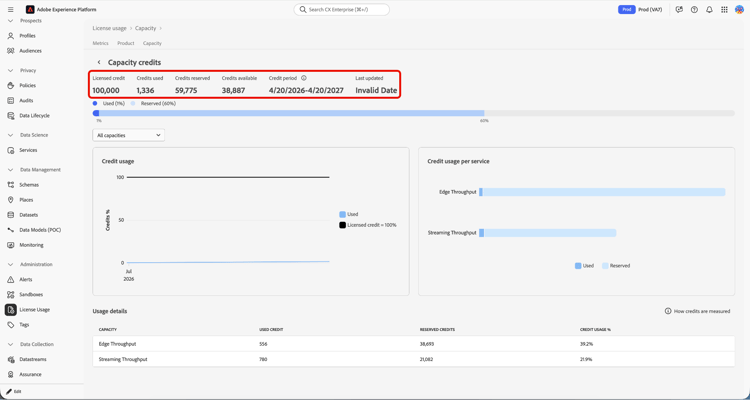
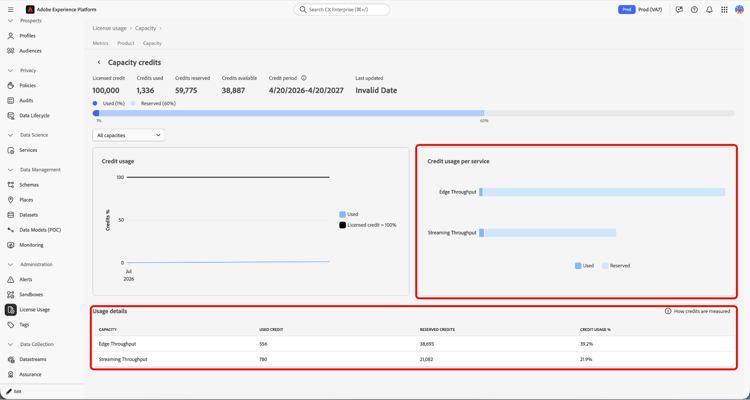
You can view Licensed, Consumed, Reserved, and Available credits by service type Streaming, Edge, and Batch.
For Batch, the system automatically calculates and reserves credits based on projected monthly usage. You don’t need to create reservations manually.
If Credits available is negative, your consumed and reserved credits exceed your licensed credits.
The impact depends on the service type:
- Capacity-based services: You can’t create new capacity schedules while you’re in an overage state.
- Consumption-based services: Operations continue, but usage beyond your licensed credits may result in additional costs.
Understand which services consume credits
The following table shows how each service uses credits and when additional credits are consumed.
Credit usage alerts
Use credit usage alerts to monitor credit consumption and identify potential overages before they affect your business operations or result in unexpected charges.
Credit usage alerts help administrators track organization-level credit usage and take action as consumption approaches licensed limits.
The following credit usage alerts are available at the organization level:
Plan and schedule streaming and edge capacity
For Streaming and Edge, schedule additional capacity when you expect demand to exceed your current capacity. The self-service workflow lets you specify when you need the capacity, review its credit impact, and allocate it across sandboxes.
Determine your capacity needs
Before creating a schedule:
- Review peak usage: Check current peak usage in the capacity detail view at the sandbox level.
- Estimate required RPS: Determine the throughput you’ll need for the upcoming event or workload.
- Determine additional capacity: Calculate how much capacity you need above your baseline.
- Plan the schedule: Define the start and end dates for the capacity increase.
- Review credit impact: Check the credits that will be reserved.
- Plan allocation: For multiple sandboxes, determine how to distribute capacity. For Edge, also review regional allocation.
- Review capacity limits: Understand how the service responds if your workload exceeds the scheduled capacity.
Create a streaming or edge capacity schedule
Navigate to the Capacity tab and select Manage capacity under Streaming or Edge.
Next, select Schedule allocation and specify the target capacity and schedule:
- Target RPS: Enter the throughput you need above your baseline capacity.
- Start date: Select a date at least 7 days from today.
- End date: Optionally specify when the capacity increase should end. If you don’t specify an end date, credits are reserved from the start date through the end of your contract.
Review the automatically calculated credit impact, including:
- Daily credit rate
- Reserved credits for the schedule
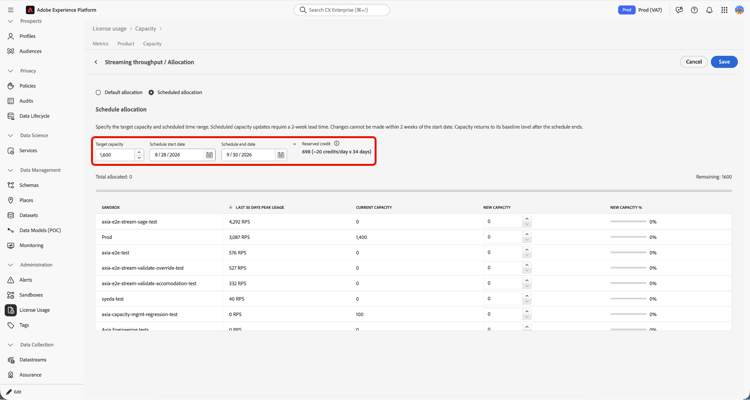
If you have multiple sandboxes, configure the capacity distribution across them. Then select Save and Confirm.
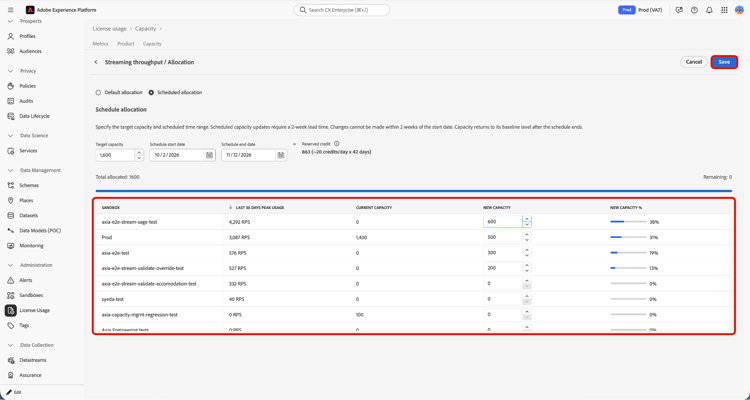
After you confirm the schedule, the schedule appears in the relevant capacity section.
Cancel a capacity schedule
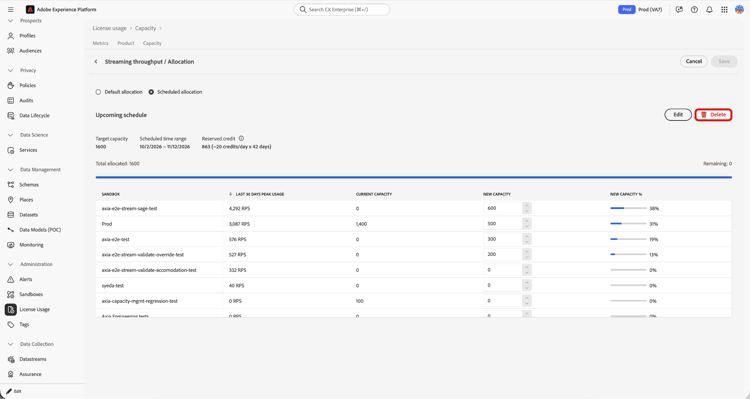
To cancel a schedule, navigate to the Capacity tab and select View schedule.
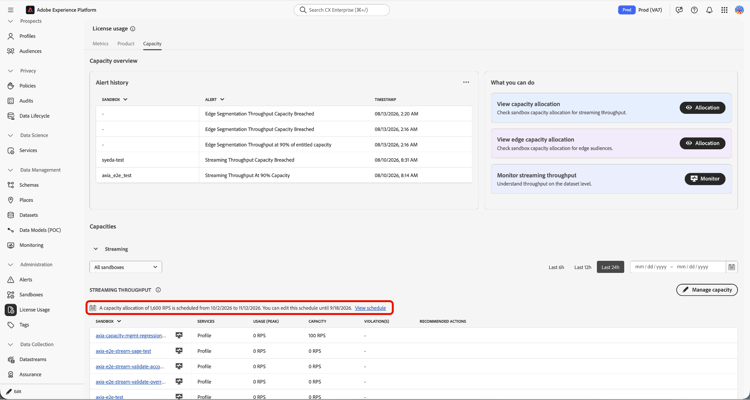
Select Delete, the confirm the cancellation.
Video overview video
The following video provides an overview of Capacity.
Frequently asked questions faq
The following section outlines frequently asked questions about the capabilities of Capacity.
Can I have a maximum combined throughput limit that sums up to less than my target maximum?
What happens if I exceed my maximum capacities?
This depends on which capacity is exceeded.
Currently, if you exceed the maximum number of allowed audiences, your excessive audiences will not be affected. However, the ability to create new audiences may be restricted in the future.
If you exceed your streaming throughput, you will experience performance latency in your ingestion and segmentation.
Why should I adhere to my maximum capacities?
Working within your maximum capacities ensures your data remains consistent and keeps your data integrity intact.
You ensure consistent performance during peak events, avoiding technical issues that could adversely affect system performance and impact your downstream customer experiences, ultimately improving your data hygiene and overall system performance.
What are best practices to manage streaming ingestion throughput?
To best manage your streaming ingestion throughput, you should evaluate your datasets to ensure they are prioritizing data necessary for personalization.
If real-time processing is not required, you should use batch ingestion instead of streaming ingestion.
Can I have more than one active schedule?
What happens if I need to update the default allocation while there is an active schedule?
Will Experience Platform Growth Credits expire after the contract period?
What enforcement applies for Streaming capacity?
Can a scheduled capacity change span across contract periods?
What happens when the schedule ends?
How are credits reserved and released for scheduled capacity?
Credits are reserved upfront for the scheduled window and then consumed daily during the scheduled period. If a schedule is removed, the reserved credits are immediately released back to the available balance:
Available = Licensed − Used − Reserved*
Reservations draw from the included baseline entitlement first and only draw Experience Platform Growth Credits for capacity above the baseline.