Monitor edge segmentation
You can use the monitoring dashboard in the Adobe Experience Platform UI to conduct real-time monitoring of edge segmentation within your organization. Use this feature to access greater transparency into the throughput of your edge data.
Getting started
This guide requires a working understanding of the following components of Experience Platform:
- Datastreams: Datastreams let you connect Experience Platform Edge Network to your dataset.
- Capacities: In Experience Platform, capacities let you know if your organization has exceeded any of your guardrails and gives you information on how to fix these issues.
- Edge segmentation: Edge segmentation is the ability to evaluate segment definitions in Adobe Experience Platform instantaneously on the edge, enabling same page and next page personalization use cases.
Access access
To access the monitoring dashboard for edge segmentation throughput, select Monitoring within the Data management section, followed by Edge.
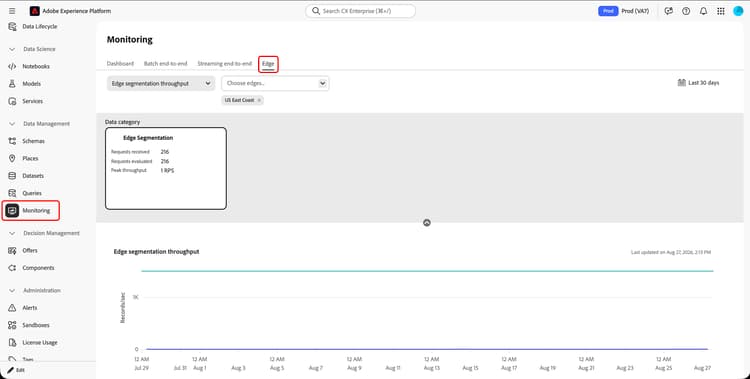
The monitoring dashboard appears. This shows monitoring metrics for edge streaming throughput, a graph displaying the rate of edge streaming throughput, and a datastream view. These metrics can be filtered by service, by edge, and by date.
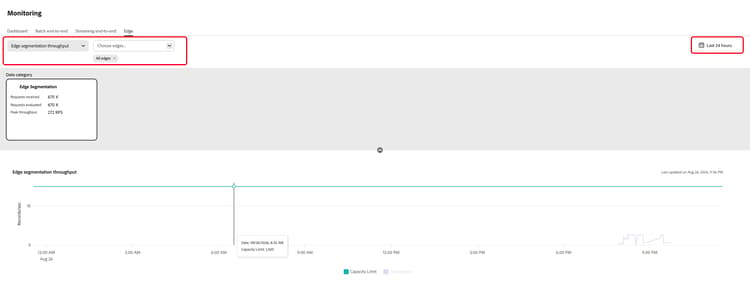
If you filter by service, you can choose which service you want to view the throughput information about. This includes services such as Edge segmentation, Data collection, Target, Adobe Journey Optimizer, Offer Decisioning, Custom personalized destinations, Event forwarding, Adobe Analytics, and Adobe Audience Manager.
If you filter by edge, you can choose which edge you want to view information about. Supported edges include US East Coast, US West Coast, Europe, India, Singapore, Australia, Japan, and Switzerland. You can select multiple edges to view at a time.
If you filter by date, you can choose the timescale to filter your events. This timescale can be set up to 30 days. Alternatively, you can use one of the following preconfigured time scales: Last 6 hours, Last 12 hours, Last 24 hours, Last 7 days, and Last 30 days.
Monitoring metrics for edge throughput monitoring-metrics
The metrics table provides information specific to the selected service’s edge throughput. You can refer to the following table for more details on each column.
Monitoring graph for edge segmentation throughput throughput
The edge segmentation throughput monitoring graph shows the records per second received by the selected edges within the alloted timeframe, compared to the maximum capacity allowed.

Monitoring graph for edge segmentation throughput breakdown throughput-breakdown
The edge segmentation throughput breakdown monitoring graph shows the records received on a per-edge basis within the alloted timeframe, compared to the maximum capacity allowed.

Datastream view datastream-view
The datastream view section displays a list of the latest datastreams that passed through the selected edges.
