Acxiom Real ID™ Audience Connection destination
Use the Acxiom Real ID Audience Connection destination to enhance audiences with Acxiom’s Real ID™ technology. Then activate those audiences across platforms such as Altice, Ampersand, Comcast, and more.
Follow these steps to create an Acxiom Real ID Audience Connection destination connector using the Adobe Experience Platform user interface. Use this connector to build and distribute audiences to selected destinations.
Use cases use-cases
Use this destination if you have Acxiom’s Real ID loaded into Real-Time CDP as an identifier. The following use cases show how you can use the Acxiom Real ID Audience Connection destination.
Send audiences from Experience Platform to your Acxiom account send-audiences
Use this destination connector to send audiences from Experience Platform to your Acxiom account for cross-channel acquisition.
For example, the Marketing Operations department at a global financial services brand is interested in cross-channel customer acquisition through multiple advertising platforms. They can use the Acxiom Real ID Audience Connection destination connector to send audiences from Experience Platform to Acxiom, enhance the audiences with Acxiom’s Real ID technology, and activate the audiences to multiple platforms, such as Altice, Ampersand, Comcast, and more.
Prerequisites prerequisites
Before configuring the Acxiom Real ID Audience Connection destination, complete the following prerequisites.
- Confirm terms of use: Read and sign Acxiom’s Terms of Use Agreement. You receive the link to the agreement once your executed sales order is complete. Until you sign the agreement, the Acxiom Real ID Audience Connection destination card does not appear in the Experience Platform destination catalog. After you accept and sign the agreement, Adobe completes your setup and the Acxiom Real ID Audience Connection destination card becomes visible.
- Know your Adobe organization ID: Your Adobe organization ID is needed to complete your Terms of Use Agreement. See Adobe’s Organizations in Experience Cloud topic for details on how to view your organization ID.
- Obtain a license for Acxiom’s Real ID product: After you obtain a license, make Acxiom’s Real ID available within Real-Time CDP. See Acxiom Data Enhancement for details.
Supported identities supported-identities
Acxiom’s Real ID Audience Connection destination supports the following identity activations. Learn more about identities.
Supported audiences supported-audiences
This section describes which types of audiences you can export to this destination.
This category includes all audience origins outside of audiences generated through the Segmentation Service. Read about the various audience origins. Some examples include:
- custom upload audiences imported into Experience Platform from CSV files,
- look-alike audiences,
- federated audiences,
- audiences generated in other Experience Platform apps such as Adobe Journey Optimizer,
- and more.
Supported audiences by data type supported-audiences-data-type
The following table describes which audience data types you can export to this destination.
Export type and frequency export-type-frequency
The following table describes the destination export type and frequency.
Supported destinations supported-destinations
Activate audiences to the following platforms through the Acxiom Real ID Audience Connection destination.
- Altice
- Amazon
- Ampersand
- Comcast
- Cox
- LG Ads
- Roku
- Samsung Ads
- Spectrum
- The Trade Desk 1st Party
- Viant
- Vizio
- Warner Bros. Discovery
- Yahoo
Connect to the destination connect
Experience Platform handles authentication automatically for your Acxiom Real ID Audience Connection destination.
Destination-specific settings destination-settings
Some Acxiom Real ID Audience Connection destinations require additional information. The following sections provide detailed guidance on how to configure these options.
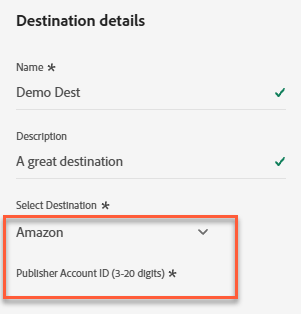
Amazon amazon
To configure details for the destination, complete the following fields.
-
Publisher Account ID: Enter the publisher account ID associated with this destination.
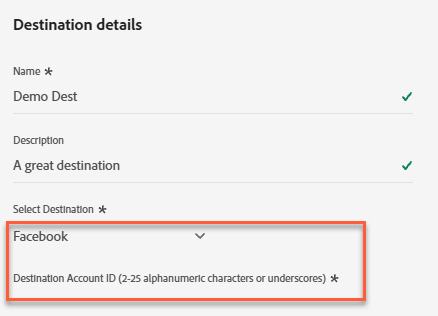
Facebook facebook
To configure details for the destination, complete the following fields.
-
Destination Account ID: Enter the destination account ID for this destination.
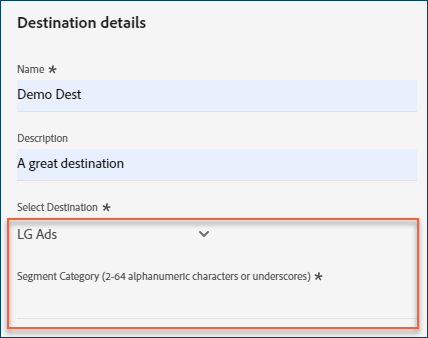
LG Ads lg-ads
To configure details for the destination, complete the following fields.
-
Segment Category: The target category or vertical that your audience falls into. Example: financial services, automotive, or health.
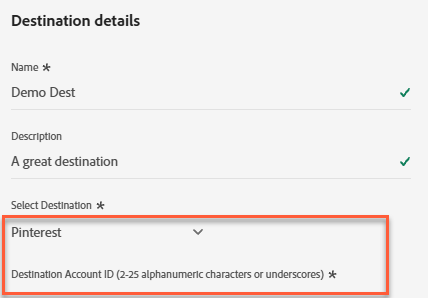
Pinterest pinterest
To configure details for the destination, complete the following fields.
-
Destination Account ID: Enter the destination account ID for this destination.
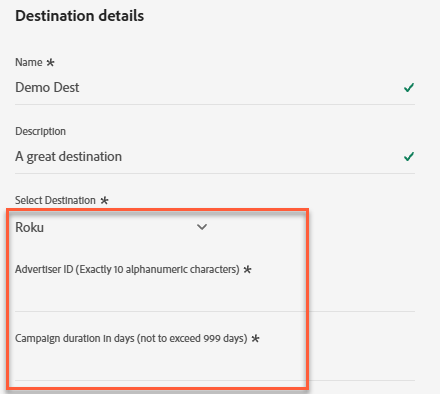
Roku roku
To configure details for the destination, complete the following fields.
-
Advertiser ID: Enter the Advertiser ID for this destination.
-
Campaign duration in days: Enter the campaign run time in number of days.
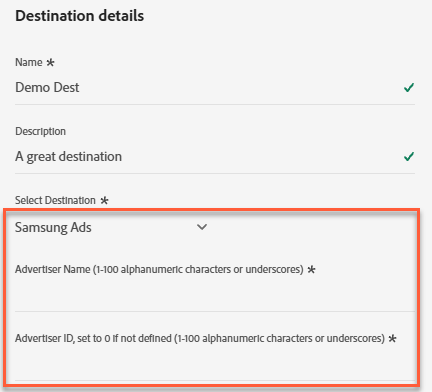
Samsung Ads samsung
To configure details for the destination, complete the following fields.
-
Advertiser Name: Enter the name of the advertiser for this destination.
-
Advertiser ID: Enter the Advertiser ID for this destination.
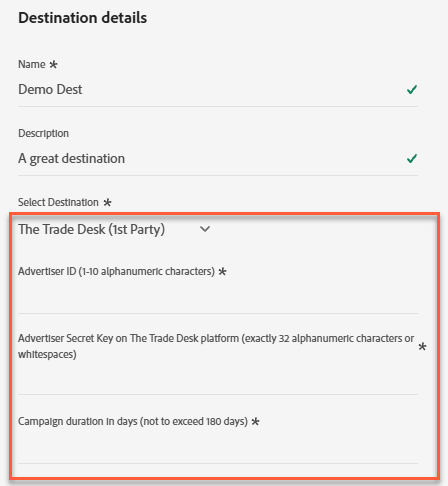
The Trade Desk (1st Party) ttd
To configure details for the destination, complete the following fields.
-
Advertiser ID: Enter the Advertiser ID for this destination.
-
Advertiser Secret Key on The Trade Desk platform: Enter the advertiser’s secret key for this Advertiser ID. Leaving this field blank causes the distribution to fail.
-
Campaign duration in days: Enter the campaign run time in number of days.
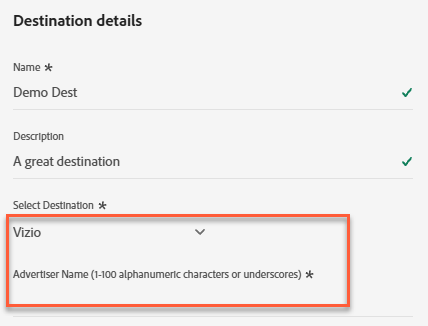
Vizio vizio
To configure details for the destination, complete the following fields.
-
Advertiser Name: Enter the name of the advertiser for this destination.
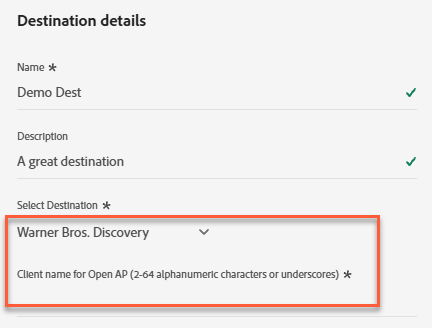
Warner Bros. Discovery warner
To configure details for the destination, complete the following fields.
-
Client name for Open AP: Enter the client name for Warner Bros. Discovery via Open AP. Your Warner Bros. Discovery representative activates your audience on your behalf through coordination with Open AP.
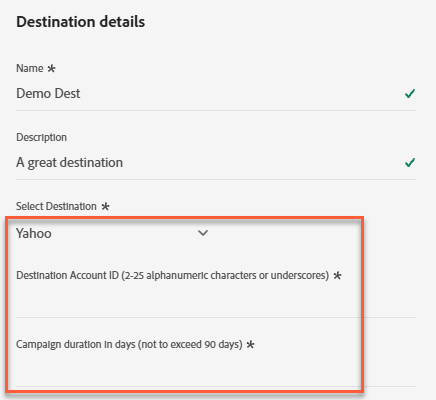
Yahoo yahoo
To configure details for the destination, complete the following fields.
-
Destination Account ID: Enter the destination account ID for this destination.
-
Campaign duration in days: Enter the campaign run time in number of days.
Activate audiences to this destination activate
Read Activate audience data to batch profile export destinations for instructions on activating audiences to this destination.
- To activate data, you need the View Destinations, Activate Destinations, View Profiles, and View Segments access control permissions. Read the access control overview or contact your product administrator to obtain the required permissions.
- To export identities, you need the View Identity Graph access control permission.
Map attributes and identities map
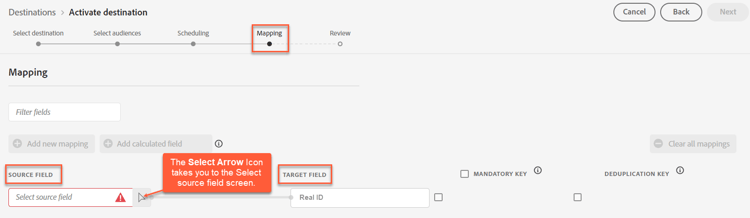
For the Acxiom Real ID Audience Connection destination to correctly receive the audience data, map the source field from Experience Platform to the correct Acxiom Real ID Audience Connection target field.
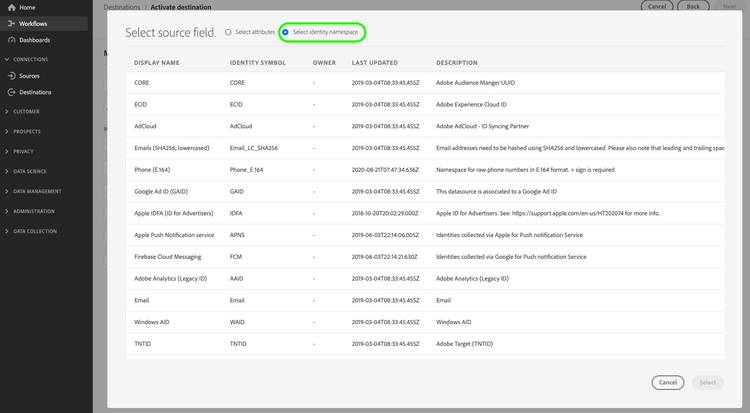
The Real ID target field is prepopulated automatically in the mapping step. Map your source field to it: either a custom identifier namespace or an actual Acxiom Real ID stored in your profile schema.
In the Source Field column, enter the name of the source attribute you want to map to the Real ID target field. Or select Select source field to browse available source fields. Then select Next.
If you are not using Adobe’s standard schema, see the Query Service UI guide to populate the Adobe standard schema with your field names.
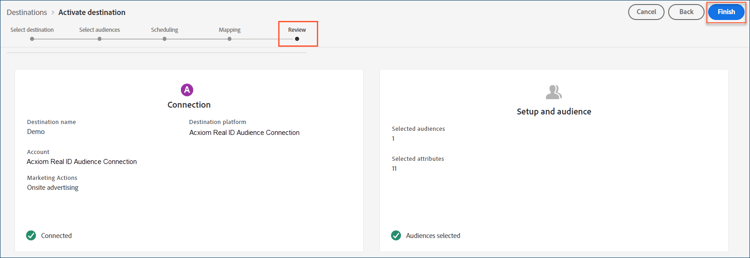
Review your destination review
After you complete all the steps, review your destination connection status and audience details before activating it. The audiences you selected appear in a list. Each audience is a separate call to the Acxiom Real ID Audience Connection API.
When the results look correct, select Finish to activate your destination.
Troubleshooting troubleshooting
If your destination representative is unable to locate your audience, contact your Adobe representative for assistance.
Provide the following information to your Adobe representative:
- Audience name
- Destination name
- Audience activation date
- Exported file name
Next steps next-steps
You have successfully activated an audience to the selected destination platform. Next, contact your destination platform representative to begin setting up your campaign.
Data usage and governance data-usage-governance
All Adobe Experience Platform destinations are compliant with data usage policies when handling your data. For detailed information on how Adobe Experience Platform enforces data governance, read the Data Governance overview.