[Beta]{class="badge informative"}
6sense Account connection sixsense-account
6sense is a go-to-market (GTM) intelligence platform that uses AI to identify in-market accounts and run campaigns against them. Use this destination to send account audiences from Adobe Experience Platform to 6sense as segments.
How the destination works overview
6sense creates an API-origin segment from each activated audience. Then, it matches each audience member to an account by using the 6sense identity graph. You can then use the segment for ad campaigns, AI email campaigns, reporting, and other revenue activations in 6sense.
For more information, read the 6sense documentation for this integration.
Use cases use-cases
To help you better understand how and when you should use the 6sense Account destination, here are sample use cases that Adobe Experience Platform customers can solve by using this destination.
Advertising and campaign activation advertising-campaign-activation
A B2B software company builds an account audience in Experience Platform. The audience contains accounts that recently engaged with its website and webinars. The company sends the audience to 6sense as a segment. The marketing team then targets those accounts in 6sense ad campaigns and AI email. Spend then goes to accounts that both first-party engagement and 6sense intent data rate as high value.
Account prioritization and sales alignment account-prioritization
A marketing team defines its target accounts in Experience Platform and sends them to 6sense. 6sense combines the list with its intent and buying-stage data. Marketing and sales use the combined view to rank accounts. Both teams then work from the same account list.
Prerequisites prerequisites
Before you connect to 6sense, confirm that you have:
- An active 6sense account with Segments API access enabled. Contact your 6sense Customer Success Manager (CSM) to confirm.
- A 6sense user with the Primary Admin role. This user authorizes the connection.
- Account audiences in Experience Platform with the company domain populated.
- Account audience activation enabled for your Experience Platform organization. To enable it, contact your Adobe account team.
Connection authorization connection-authorization
6sense owns the OAuth application and client credentials for this destination. You do not need to create an application or manage client secrets.
The connection uses the OAuth 2.0 Authorization Code flow. When you connect, Experience Platform redirects you to 6sense to sign in and grant access. Experience Platform stores the access and refresh tokens and refreshes the access token when needed.
The connection requests the following 6sense scopes:
segments.api_segment:readsegments.api_segment:writesegments.api_segment:delete
Supported identities supported-identities
The 6sense Account destination supports activating the identities in the following table. Learn more about identities.
primaryIdprimaryId, for example xdm: accountKey.sourceKey. 6sense does not use this identity to match accounts. To set the 6sense external_id, map the xdm: externalId target field. Read Map attributes and identities.Supported audiences supported-audiences
This section describes which types of audiences you can export to this destination.
This category includes all audience origins outside of audiences generated through the Segmentation Service. Read about the various audience origins. Some examples include:
- custom upload audiences imported into Experience Platform from CSV files
- look-alike audiences
- federated audiences
- audiences generated in other Experience Platform apps such as Adobe Journey Optimizer
Supported audience data type restrictions still apply.
Supported audiences by audience data type:
Export type and frequency export-type-frequency
The following table describes the destination export type and frequency.
Connect to the destination connect
To connect to this destination, follow the steps described in the destination configuration tutorial. In the configure destination workflow, fill in the fields described in the following sections.
Authenticate to destination authenticate
To authenticate to the destination, fill in the required fields and select Connect to destination.

- Account name: A name to identify this account.
- Description: A description to help you identify this account. This field is optional.
6sense then prompts you to sign in and authorize the connection. After authorization, 6sense redirects you to Experience Platform. Later activations reuse the stored tokens. Learn about connection authorization.
Fill in destination details destination-details
To configure details for the destination, fill in the following required and optional fields. An asterisk next to a field in the UI indicates that the field is required.

- Name: A name to identify this destination.
- Description: A description to help you identify this destination. This field is optional.
- Segment Name Prefix: Text to add before each audience name in 6sense, for example
Experience Platform -. Use only supported characters. This field is optional.
Enable alerts enable-alerts
You can enable alerts to receive notifications on the status of the dataflow to your destination. Select an alert from the list to subscribe to receive notifications on the status of your dataflow. For more information on alerts, read the guide on subscribing to destinations alerts using the UI.
When you are finished providing details for your destination connection, select Next.
Activate audiences to this destination activate
- To activate data, you need the View Destinations, Activate Destinations, View Profiles, and View Segments access control permissions. Read the access control overview or contact your product administrator to obtain the required permissions.
- To export identities, you need the View Identity Graph access control permission.
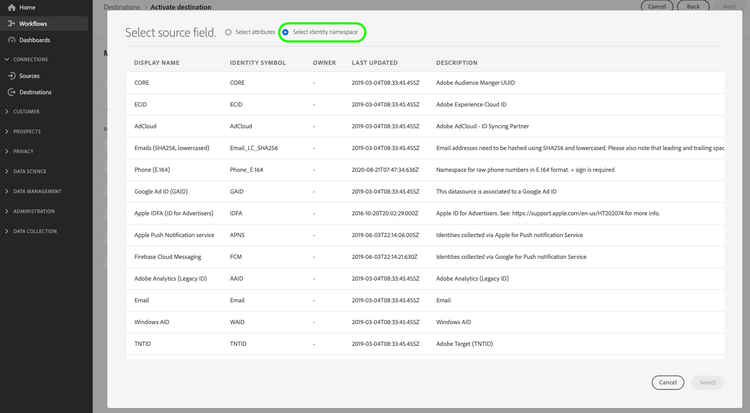
Read Activate account audiences for instructions on activating account audiences to this destination.
Map attributes and identities map
In the mapping step of the activation workflow, map your account fields to the following target fields. You must map an account identity to primaryId. The attribute mappings are optional in the UI. However, 6sense needs a domain to match accounts reliably.
xdm: accountKey.sourceKeyIdentity: primaryIdxdm: accountOrganization.domainxdm: domainxdm: accountNamexdm: namexdm: accountBillingAddress.countryxdm: countryxdm: accountKey.sourceKeyxdm: externalIdexternal_id of the record and uses it to identify the record during removals. 6sense does not use it to match accounts.

Your organization can use the standard B2B schema or a custom schema, so your source field names can differ. Confirm which fields your organization populates before you map them. If you map a field with no data, 6sense cannot use it to match the account. For field definitions, see the account details data type reference.
Validate the data export exported-data
On first activation, 6sense creates a segment from the audience and adds the initial members. After that, Experience Platform sends membership updates to the same segment.
To validate the export, open the Segments tool in 6sense and select the Segments tab. Locate the segment named after your audience, and then open it. The Accounts tab lists the matched accounts.
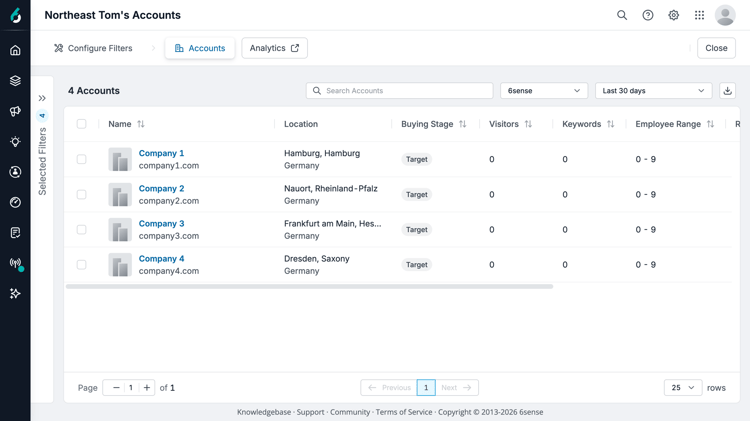
6sense processes requests asynchronously and matches accounts in the segment during its nightly refresh. Accounts that Experience Platform sends during the day appear as matched accounts after the next nightly refresh.
6sense matches accounts by using its own identity graph. Experience Platform does not have visibility into which accounts matched or why an account did not match. Contact 6sense Support about match rates or unmatched accounts.
Segment creation segment-creation
6sense names the segment after the Experience Platform audience, with your optional segment name prefix added in front.
Before Experience Platform creates the segment, it shortens the audience name to 64 characters and replaces unsupported characters with underscores. Supported characters are the letters A-Z and a-z, the numbers 0-9, spaces, and _, -, #, and /. Experience Platform also replaces accented and other non-ASCII letters with underscores.
Experience Platform does not shorten or change the segment name prefix. The prefix also does not count toward the 64 characters. Keep the prefix short and use only supported characters.
You can activate an audience that has no members. 6sense creates an empty segment and adds accounts as they qualify.
Account additions and removals account-additions-removals
When an account qualifies for the audience, Experience Platform adds it to the corresponding 6sense segment.
When an account no longer qualifies for the audience, Experience Platform removes it from the 6sense segment. This change removes only the segment membership in 6sense. Deleting an account or profile in Experience Platform also removes its segment membership.
Audience deletion and renaming audience-deletion
Deleting an activated account audience in Experience Platform does not delete or archive the corresponding 6sense segment. To delete the segment, sign in to 6sense as an administrator and complete the following steps:
- In 6sense, open the Segments tool, and then select the Segments tab.
- Locate the segment, and then open the actions menu for that row.
- Select Delete, and then confirm Delete.
If Delete is unavailable, the segment might have active activations or dependencies, or you might not have edit permissions.
Renaming an audience in Experience Platform does not rename the 6sense segment. Membership updates continue to sync. To keep the names aligned, sign in to 6sense as an administrator and rename the segment:
- In 6sense, open the Segments tool, and then select the Segments tab.
- Locate the segment, and then open the actions menu for that row.
- Select Edit, and then rename the segment.
Troubleshoot the export troubleshooting
If an activated audience does not send data, confirm that the audience is activated, scheduled, and contains accounts. If the dataflow run still does not start, contact Adobe Customer Care.
If accounts reach 6sense but do not match, contact 6sense Support.
Data usage and governance data-usage-governance
All Adobe Experience Platform destinations are compliant with data usage policies when handling your data. For detailed information on how Adobe Experience Platform enforces data governance, read the Data Governance overview.