Password box component
This is a pre-release feature and accessible through our pre-release channel.
A password box component allows users to enter and edit sensitive information, typically masked for privacy. The password component can be configured with various validation rules to ensure data accuracy. Commonly used in forms, the password fields are straightforward and enhance data security.
Example

The user can click the eye icon to toggle the visibility of the entered password text. It enhances security while allowing users to enter confidential information accurately.
Usage
There are several reasons to use Password box component in an Adaptive Form:
-
Secure data collection: The password box field is used to collect sensitive information, such as passwords, PINs, and other confidential entries, displaying masked characters for privacy.
-
User-friendly: The password box field allows users to securely input and edit information without exposing it on the screen.
-
Flexibility: The password box component can be configured to meet security requirements, such as minimum character lengths, special characters, or other custom validations to ensure strong data protection and accuracy.
Technical Details technical-details
Get the latest information on the Adaptive Forms password Core Component in the technical documentation on GitHub. For more on developing Core Components, check out the Core Components developer documentation.
Configure Dialog configure-dialog
You can easily customize your text input experience for visitors with the Configure Dialog. You can also define text input options with ease for a seamless user experience.
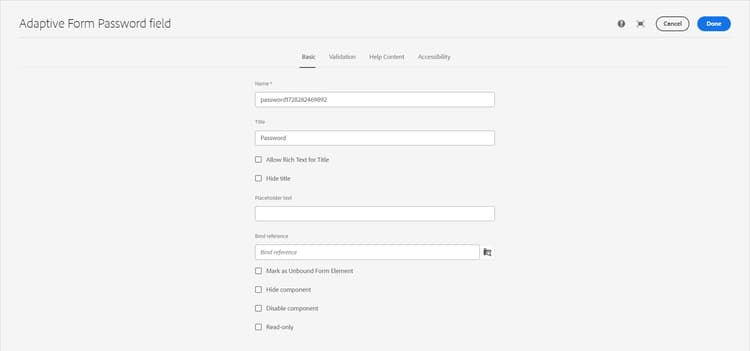
Basic tab
-
Name - You can identify a form component easily with its unique name both in the form and in the rule editor, but the name must not contain spaces or special characters.
-
Title - With its Title, you can easily identify a component in a form and by default, the title appears on top of the component. If you do not add a title, the name of the component is displayed instead of the title text.
-
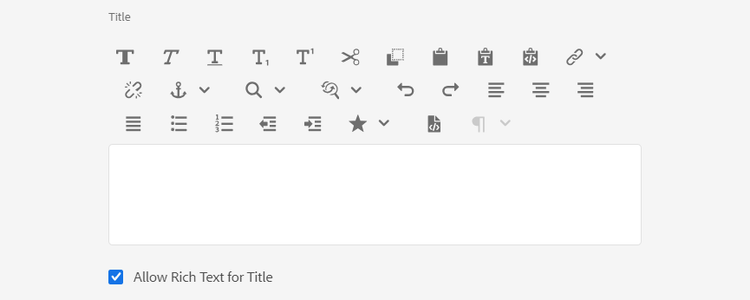
Allow Rich Text for Title - This features enables users to format plain text titles, incorporating features like bold, italic, underlined text, various fonts, font sizes, colors, and additional option to enhance visual presentation and customization. It offers greater flexibility and creative control in making titles stand out within documents, websites, or applications.
Upon selecting the checkbox for Allow Rich Text for Title , formatting options become visible to style the component’s title. To access all available formatting options, you can click on the
-
Hide Title - Select the option to hide the component’s Title.
-
Placeholder Text - Placeholder text in a form component refers to a short label or prompt that appears within an input field as a hint to the user on what type of information is expected to be entered in that field. Placeholder text disappears when the user starts typing into the field and reappears if the field is left empty. It provides a visual cue to the user, but does not act as a permanent label or value for the field.
-
Bind Reference - A bind reference is a reference to a data element that is stored in an external data source and used in a form. The bind reference allows you to dynamically bind data to form fields, so that the form can display the most up-to-date data from the data source. For example, a bind reference can be used to display a customer’s name and address in a form, based on the customer’s ID entered into the form. The bind reference can also be used to update the data source with data entered into the form. In this way, AEM Forms enables you to create forms that interact with external data sources, providing a seamless user experience for collecting and managing data.
-
Mark as Unbound Form Element: Select the option to configure a form field not linked to any schema. This option allows you to save data without updating the data source. It also enables you to handle data in a custom way, separate from standard database integration.
-
Hide Component - Select the option to hide the component from the form. The component remains accessible for other purposes, such as using it for calculations in the Rule Editor. This is useful when you need to store information that doesn’t need to be seen or directly changed by the user.
-
Disable Component - Select the option to disable the component. The disabled component is not active or editable by the end user. The user can see the value of the field but cannot modify it. The component remains accessible for other purposes, such as using it for calculations in the Rule Editor.
-
Read-only - Select the option to make the component non-editable. The user can see the value of the field but cannot modify it. The component remains accessible for other purposes, such as using it for calculations in the Rule Editor.
Validation Tab validation-tab
-
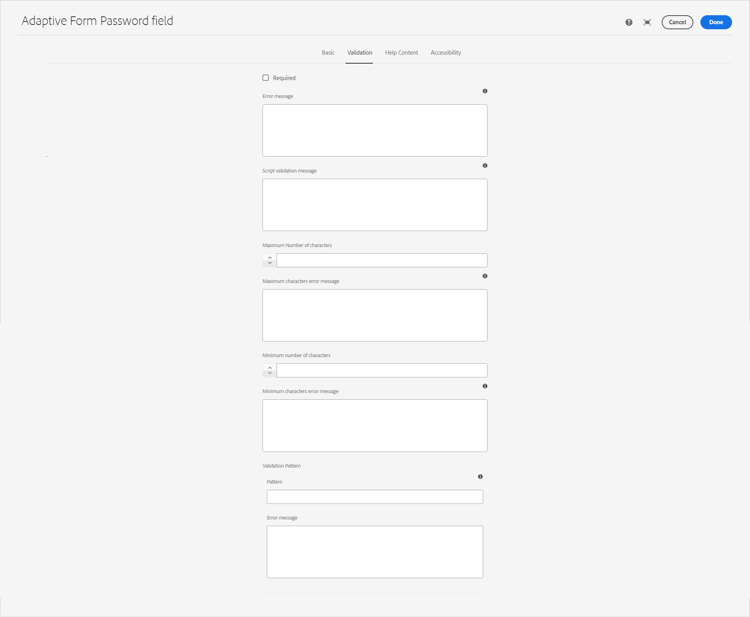
Required - Select this option, if you want to display the component in an Adaptive Form. After selecting the option, you must enter a value before proceeding with a form submission. You cannot select the Hide Component or Disable Component in the Basic tab when this option is selected.
-
Error Message - This option allows you to enter a message that is displayed if the Required checkbox is checked and the field is left blank.
-
Script Validation Message - This option allows you to enter a message to be displayed if the script validation fails.
-
Maximum Number of characters - This option allows you to specify the maximum number of characters allowed in the component. If you enter characters greater than the value specified in Maximum Number of characters, an error message appears on the screen. The Maximum characters error message dialog box allows you to add a custom error message.
-
Maximum characters error message - The Maximum characters error message dialog box allows you to add a custom error message if you enter characters greater than the value specified in the Maximum Number of characters option.
-
Minimum Number of characters - This option allows you to specify the minimum number of characters allowed in the field. If you enter characters less than the value specified in Minimum Number of characters, an error message appears on the screen. The Minimum characters error message dialog box allows you to add a custom error message.
-
Minimum characters error message - The Minimum characters error message dialog box allows you to add a custom error message if you enter characters less than the value specified in the Minimum Number of characters option.
The Validation Pattern option allows you to enter a pattern to validate the entered text. In case the text fails to validate with the value entered in Pattern option , the error message appears on screen.
-
Pattern - This option allows you to enter the allowed verification patterns for text. Regular expressions are also allowed.
-
Error Message - This option allows you to enter a message that is displayed on the screen if the entered text fails to validate with the value entered in the Pattern option
Help Content Tab help-content-tab
-
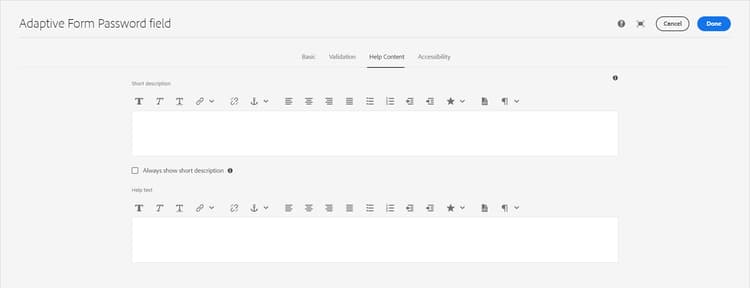
Short description - A short description is a brief text explanation that provides additional information or clarification about the purpose of a specific form field. It helps the user understand what type of data should be entered into the field and can provide guidelines or examples to help ensure that the information entered is valid and meets the desired criteria. By default, short descriptions remain hidden. Enable the Always show short description option to display it below the component.
-
Always show short description - Enable the option to display the Short description below the component.
-
Help text - Help text refers to additional information or guidance that is provided to the user to assist them in filling out a form field correctly. It appears when the user clicks the help icon (i) placed next to the component. Help text provides more detailed information than a form field’s label or placeholder text, and is designed to help the user understand the requirements or constraints of the field. It can also offer suggestions or examples to make filling out the form easier and more accurate.
Accessibility Tab accessibility-tab
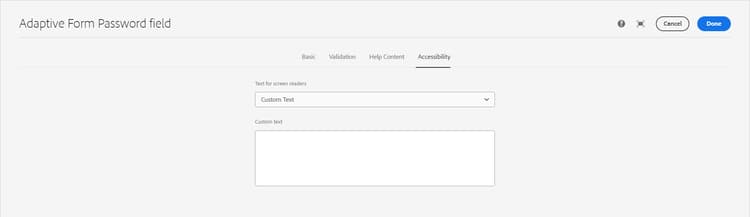
-
Text for screen readers - Text for screen readers refers to additional text that is specifically intended to be read by assistive technologies, such as screen readers, used by visually impaired individuals. This text provides an audio description of the form field’s purpose, and can include information about the field’s title, description, name, and any relevant messages (Custom text). The screen reader text helps ensure that the form is accessible to all users, including those with visual impairments, and provides them with a complete understanding of the form field and its requirements.
- Custom text: Select this option to use the custom text for ARIA accessibility labels. Selecting this option displays the Custom Text dialog box. You can add relevant information in the Custom Text dialog box.
- Description: Select this option to use the description for ARIA accessibility labels.
- Title: Select this option to use the title for ARIA accessibility labels.
- Name: Select this option to use the name for ARIA accessibility labels.
- None: Select this option if you do not want to add for ARIA accessibility labels.
Design Dialog design-dialog
Design Dialog is used to define and manage CSS styles for the Text box component.
Styles Tab styles-tab
The tab is used to define and manage CSS styles for a component. The Adaptive Forms Text box Core Component supports the AEM Style System.
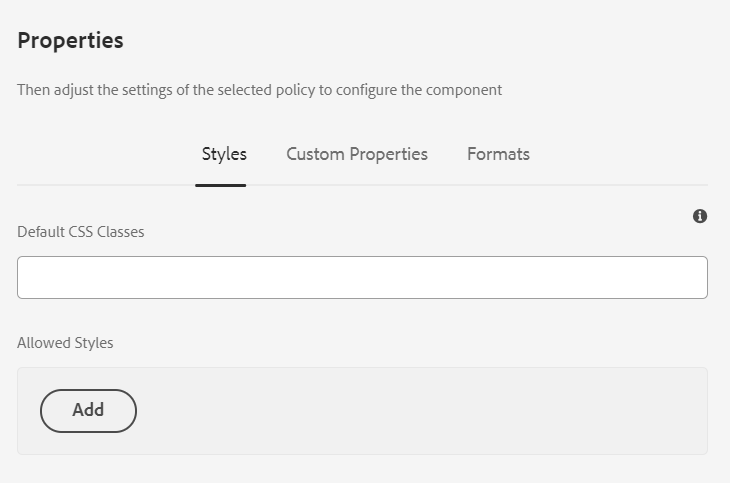
-
Default CSS Classes: You can provide a default CSS class for the Adaptive Forms Text Box Core Component.
-
Allowed Styles: You can define styles by providing a name and the CSS class that represents the style. For example, you can create a style named “bold text” and provide the CSS class “font-weight: bold”. You can use or apply these styles to an Adaptive Form in Adaptive Forms editor. To apply a style, in Adaptive Forms editor, select the component you want to apply the style to, navigate to the properties dialog, and select the desired style from the Styles drop-down list. If you need to update or modify the styles, simply return to the Design Dialog, update the styles in the styles tab, and save the changes.
Custom Properties
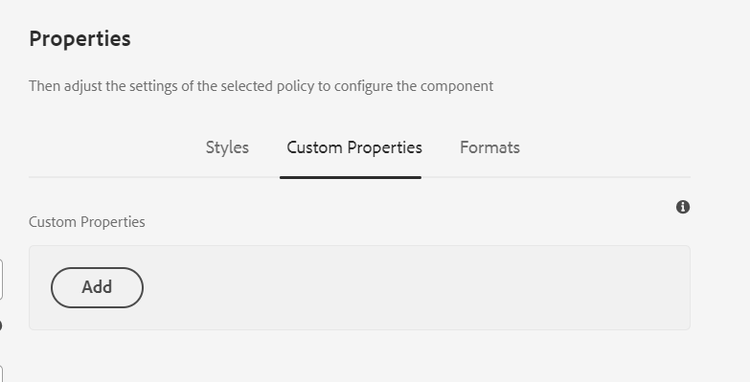
Custom properties allows you to associate custom attributes (key-value pairs) to an Adaptive Form core component using the form template. The custom properties are reflected in the properties section of the headless rendition of the component. It allows creating dynamic form behavior that adapts based on the custom attributes values. For example, developers can design various renditions of a Headless Forms component for mobile, desktop, or web platforms, significantly enhancing the user experience across a wide array of devices.
-
Group Name: You can provide a name to identify the custom property group. You can add, delete, or rearrange multiple custom property groups. After adding the custom property group, you can see the following options:
-
Key-Value Pairs: You can add multiple custom property names and custom property values by clicking the Add button for each custom property group.
-
Delete: Tap or click to delete the custom property name and custom property value.
-
Rearrange: Tap or click and drag to rearrange the order of the custom property name and custom property value.
-
Formats Tab formats-tab
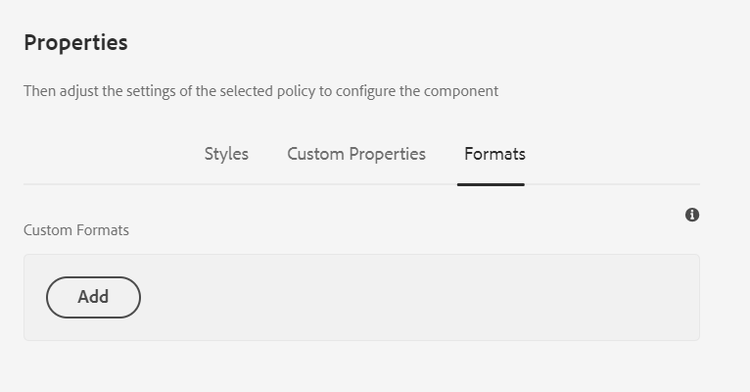
The formats tab allows you to specify default and custom date formats.
Related Articles related-articles
See Also see-also
- Create an AEM Adaptive Form
- Add an AEM Adaptive Form to AEM Sites page
- Apply themes to an AEM Adaptive Form
- Add components to an AEM Adaptive Form
- Use reCAPTCHA in an AEM Adaptive Form
- Generate PDF version (DoR) of an AEM Adaptive Form
- Translate an AEM Adaptive Form
- Enable Adobe Analytics for an Adaptive Form to track form usage
- Connect Adaptive Form to Microsoft SharePoint
- Connect Adaptive Form to Microsoft Power Automate
- Connect Adaptive Form to Microsoft OneDrive
- Connect Adaptive Form to Microsoft Azure Blob Storage
- Connect Adaptive Form to Salesforce
- Use Adobe Sign in an AEM Adaptive Form
- Add a new locale for an Adaptive Form
- Send Adaptive Form data to a database
- Send Adaptive Form data to a REST endpoint
- Send Adaptive Form data to AEM Workflow
- Use Forms Portal to list AEM Adaptive Forms on an AEM website