[AEM Forms]{class="badge positive" title="Applies to AEM Forms."}
Mask numeric values in AEM Forms mask-numeric-values
Numeric display masking in the Interactive Communication Editor in Adobe Experience Manager (AEM) Forms replaces selected digits with asterisks (*) on the design canvas. It changes the displayed presentation, not the underlying numeric value. Apply a display pattern to a Numeric Field to keep selected trailing digits visible or mask all significant digits.
This is useful for communications that contain numeric identifiers, such as credit card numbers, account numbers, or numeric policy references. For example, a customer with multiple cards can recognize the relevant card from its last four digits without seeing the full card number. An account statement can use the same approach to identify the account associated with a balance or transaction.
The following examples use the synthetic value 1234567812345678:
**** **** **** 5678************5678****************You configure masking through the Numeric Field’s display type. The predefined masking option provides a grouped format with trailing digits visible. A custom pattern lets you specify which digit positions to mask or display. Check the canvas result against your intended output, especially when your data contains values of different lengths.
Display masking is not encryption and does not protect stored or transmitted data. This article shows how to apply the predefined option, create custom partial and full masks, and verify the results using synthetic values.
1. Prerequisites prerequisites
Before you begin, make sure you have:
- Access to an Interactive Communication Editor build that includes numeric masking.
- An Interactive Communication containing a Numeric Field component.
- A synthetic numeric value in the field, entered through its Value property or supplied through data binding.
Use synthetic test data rather than real credit card details.
2. Apply numeric masking apply-the-masking-pattern
Choose the predefined pattern for its default masked presentation, or use a custom pattern to control which digit positions remain visible.
2.1 Select the predefined pattern select-the-predefined-pattern
Use the predefined option to apply a masking pattern without entering a picture clause.
- Select the Numeric Field on the design canvas.
- Open Properties.
- In Display type, select **** 1234.
- Check the masked value on the canvas.
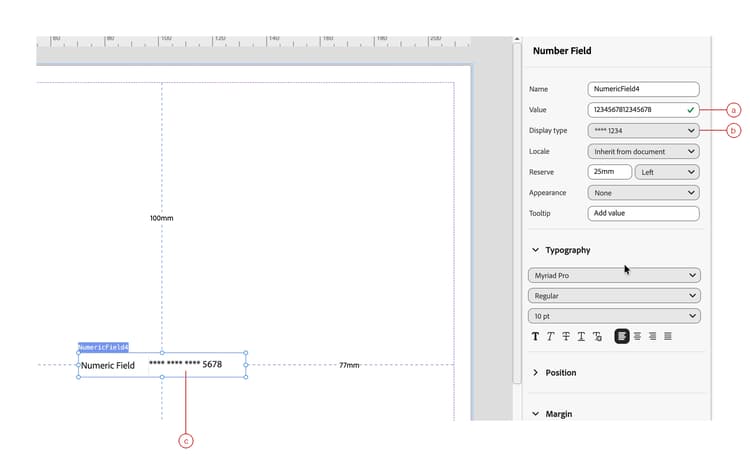
1234567812345678.**** 1234.**** **** **** 5678, with the last four digits visible.2.2 Enter a custom pattern enter-a-custom-pattern
Use a custom numeric display pattern (picture clause) to leave selected trailing digits visible or mask all significant digits.
- Select the Numeric Field on the design canvas.
- Open Properties.
- In Display type, select Custom.
- In Pattern, enter a numeric picture clause from the examples below. Enter only the expression, without surrounding backticks or quotation marks.
- Check the masked value on the canvas.
For a 16-digit value, use num{mmmmmmmmmmmmzzzz} to show only the last four digits. For example, 1234567812345678 displays as ************5678.
The following table compares custom patterns for the same synthetic value:
num{mmmmmmmmmmmmzzzz}************5678num{mmmmmmmmmmmmmmm9}***************8num{mmmmmmmmmmmmmmmm}****************Custom partial masking
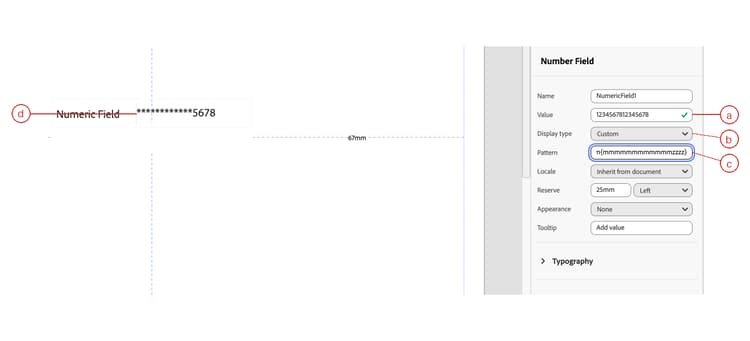
The Pattern field is horizontally scrolled in this screenshot. The complete expression is num{mmmmmmmmmmmmzzzz}.
num{mmmmmmmmmmmmzzzz} to mask the first 12 digits and display the last four.************5678.Custom full masking
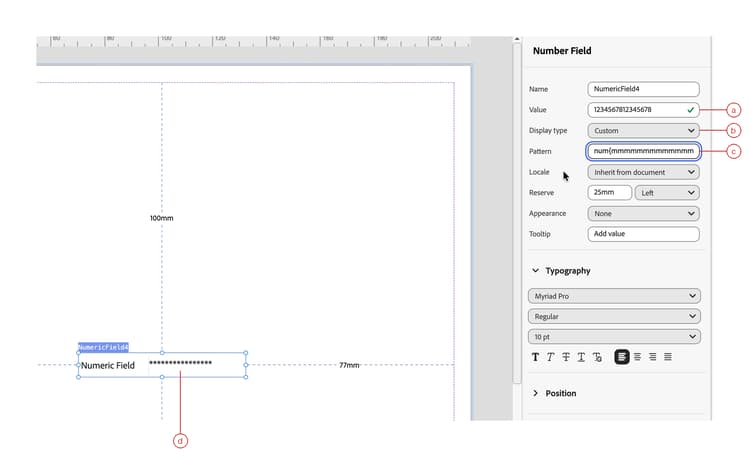
num{mmmmmmmmmmmmmmmm} to mask all 16 digits.****************.3. Verify the masked value verify-the-masked-value
Compare the canvas value with the expected result for your custom pattern. For the predefined pattern num{mmmm mmmm mmmm mmmm zzz9}, the synthetic value 1234567812345678 displays as **** **** **** 5678.
Check representative values from your data, including the shortest and longest values, before using the pattern.
4. Numeric masking symbols and limits pattern-considerations
The symbols in a numeric picture clause determine which digit positions are masked or displayed. In num{mmmmmmmmmmmmzzzz}, the 12 m positions mask the first 12 digits of a 16-digit value, and the four z positions display the last four digits once a significant digit has been reached.
The z positions are optional and suppress leading zeros until a significant or required digit is reached. Use 9 when a digit position must always be displayed, as in the last-digit example num{mmmmmmmmmmmmmmm9}. The predefined pattern, num{mmmm mmmm mmmm mmmm zzz9}, uses both symbols.
m*; suppresses leading zeros until the first significant or required digit9zKeep these considerations in mind when choosing a pattern:
- Include enough digit positions for the longest value. Values exceeding the pattern’s capacity display unchanged in the canvas.
- Leading zeros can be suppressed. The result for an all-zero value depends on required digit positions and literal separators. For example,
num{mmmmmmmmmmmmzzzz}displays0, while a pattern with four required digit positions,num{mmmmmmmmmmmm9999}, displays0000. - Spaces and hyphens in a pattern remain in the displayed result.
- If the preset is unavailable for the selected locale, enter its picture clause using Custom.
- These examples mask integer values, not decimal digits.
5. Numeric masking FAQs numeric-masking-faqs
These answers clarify custom pattern entry and common masking checks.
5.1 Where do custom patterns go? where-do-custom-patterns-go
Enter the complete numeric picture clause in the Pattern field after selecting Custom in Display type. See Enter a custom pattern for instructions and examples.
5.2 Why is the value unmasked? why-is-the-value-unmasked
Check that the pattern contains only the intended expression, without copied backticks or quotation marks. Enter the complete expression, for example num{mmmmmmmmmmmmzzzz}. Values exceeding the pattern’s digit capacity display unchanged. Check the input length against the available digit positions. See Numeric masking symbols and limits.
5.3 How do I mask every digit? how-do-i-mask-every-digit
Use a custom pattern with an m position for each integer digit you want to mask. Match the pattern to the expected input length and check the canvas result. See the full-masking example in Enter a custom pattern.
5.4 Does masking change the stored value? does-masking-change-the-stored-value
No. Numeric display masking changes the displayed presentation, not the underlying numeric value. It is not encryption and does not protect stored or transmitted data.
6. Related tasks related-tasks
For related field configuration tasks, see: