[AEM Forms]{class="badge positive" title="Applies to AEM Forms)."}
Table Component in Interactive Communication Editor
1. Introduction
The Table Component in the Interactive Communication (IC) editor enables authors to insert customizable tables into communication templates with ease. This component supports tabular data representation for use cases such as summaries, item listings, structured input, or comparison layouts.
Authors can drag and drop the table component into the canvas, configure the number of rows and columns, and choose options like including header and footer rows, or setting the layout direction. Tables can be defined as default templates for consistency across multiple communications.
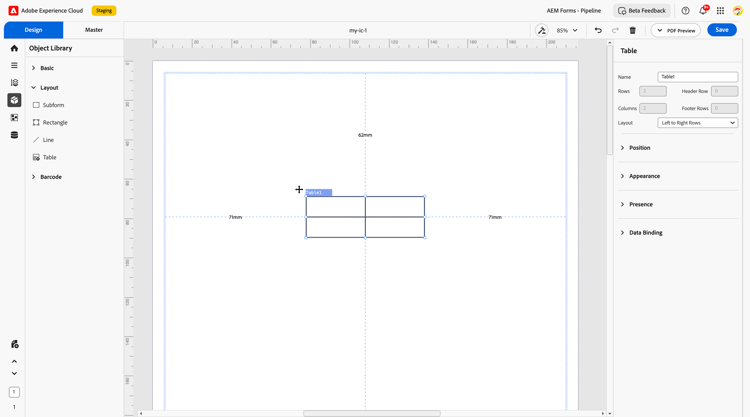
2. Properties
The Table Component includes several configurable properties to help authors customize the behavior and appearance of the table:
2.1 Basic Field
-
Name: A unique identifier for the table. This name is used internally for referencing the table in data models and logic.
-
Rows: Specifies the number of content rows (excluding header and footer).
-
Columns: Defines the number of columns in the table.
-
Header Row: Option to include a header row at the top of the table for column labels.
-
Footer Row: Option to include a footer row for totals or summary values.
-
Set as Default: Allows users to save the current configuration as a default table template for future use.
-
Layout Direction: Defines how rows are populated — typically set to Left to Right.
2.2 Position
-
Description: Controls the placement of the table within the layout.
-
Settings:
-
X and Y Coordinates: Sets the horizontal (X) and vertical (Y) positions of the table on the canvas.
-
Height and Width: Defines the overall size of the table (in mm), allowing flexible space allocation.
-
2.3 Appearance
Appearance: Sets the visual styling of the table. Authors can choose from pre-defined presets such as bordered, flat, or elevated.
-
Fill: Background color of the table or cells.
-
Stroke: Border color around the table or specific cells.
-
Width: Thickness of the border lines.
-
Style: Choose edge types — rounded corners or sharp corners.
-
Edges: Configure visibility of cell borders and corner radius.
2.4 Presence
-
Description: Determines the visibility of the table at runtime.
-
Options:
-
Visible: Display the table normally in the output.
-
Hidden: Hide the table but retain space within the layout.
-
2.5 Data Binding
Data Binding: Connect the table with a data source (e.g., JSON, XML schema) to dynamically populate rows and columns with values during generation. This is useful for itemized billing, transaction records, or product listings.
3. Usage
The Table Component is ideal for displaying structured or repetitive information. Typical use cases include:
-
Invoices and bills with item rows
-
Policy or plan comparisons
-
Profile or account data summaries
-
Product catalogs or feature matrices
Authors can configure the number of rows and columns, apply conditional visibility, or bind data to display dynamic information.
4. Best Practices
-
Use header rows to clearly label each column for better readability.
-
Apply footer rows for totals or important notes where applicable.
-
Leverage data binding to populate rows dynamically based on structured input.
-
Maintain consistent styling and spacing using the appearance and margin settings.
-
When hiding a table, ensure layout continuity by choosing whether or not to retain space.
-
Use default templates to standardize tabular content across documents.
The Table Component in the IC editor is a flexible, data-friendly component designed to support structured content in your communications. With customizable layout options, styling features, and powerful data binding, it empowers authors to present information clearly and effectively.
See also
- Merge and Split Table Cells in Interactive Communication Editor — Learn how to combine adjacent cells into a single cell or split a merged cell to create flexible table layouts.
- Create Dynamic Table in Interactive Communication Editor
- Configure Data Binding in Interactive Communication Editor