[AEM Forms]{class="badge positive" title="Applies to AEM Forms."}
Merge and Split Table Cells in Interactive Communication Editor
Standard table grids are uniform by default every row has the same number of equally sized cells. Many real-world layouts require more flexibility: a spanning header above multiple columns, a summary row that occupies the full table width, or grouped cells that visually tie related data together. You can merge adjacent cells in a row to achieve these layouts, and split any previously merged cell back into individual columns whenever you need to revise the structure.
Merge cells
-
In the Interactive Communication Editor, click the first cell you want to include in the merge.
-
Hold Shift and click the last cell in the range to select all consecutive cells within the same row.
-
Right-click the selection, select Merge, then choose Merge Cells.
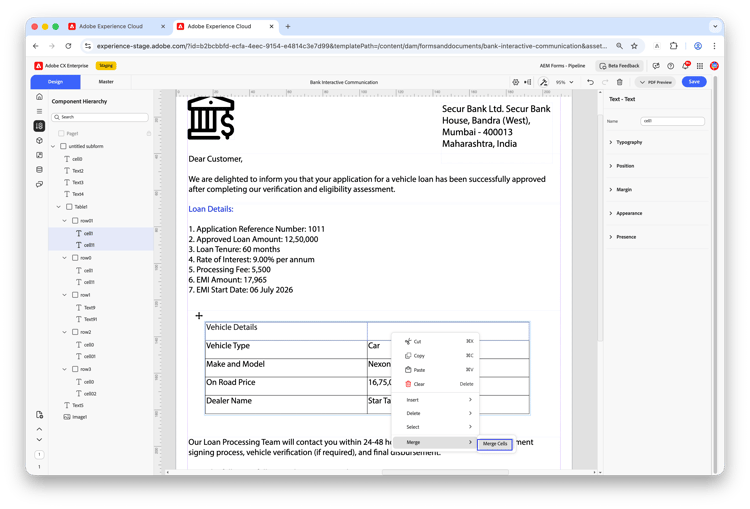
The selected cells are combined into a single merged cell. Content and formatting from the first cell in the selection are preserved; content from subsequent cells is discarded.
For example, in a Vehicle Details table, you can merge consecutive cells in the header row to create a spanning label such as Vehicle Details.
What to keep in mind:
- You can only merge cells that are consecutive and within the same row. Selecting cells across multiple rows is not supported.
- Only the first cell’s content and formatting are retained after the merge.
Split a merged cell
-
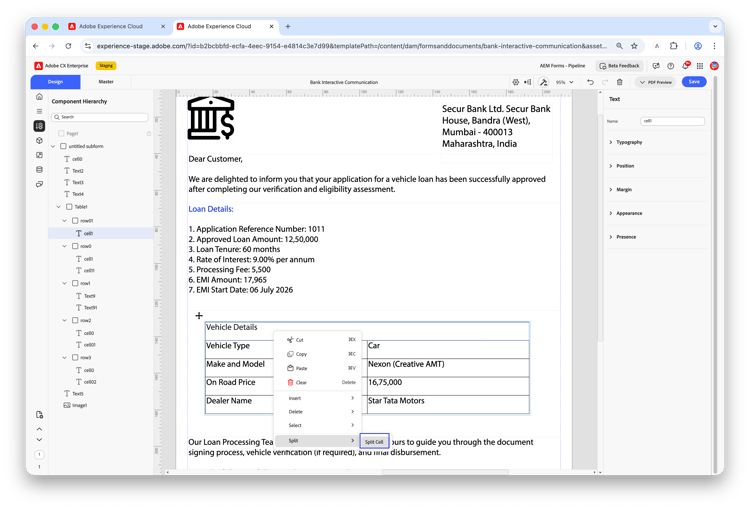
Right-click the merged cell you want to split.
-
Select Split, then choose Split Cell.
-
In the Split Cell dialog, enter the number of columns to split the cell into.
-
Click OK to apply.
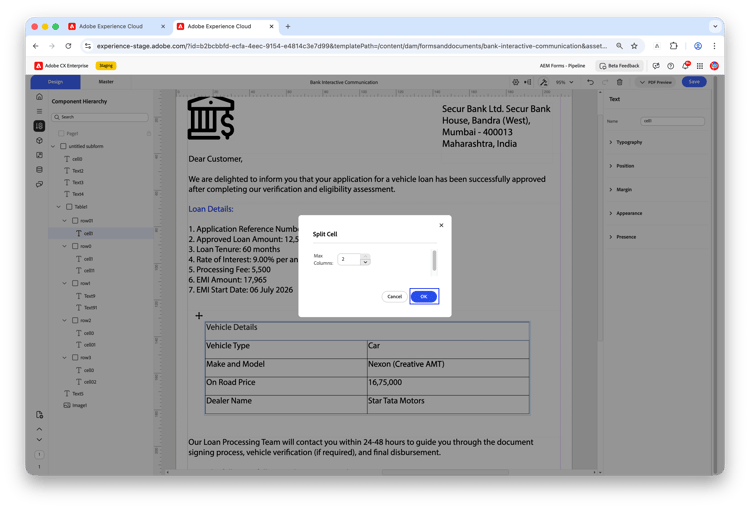
The Max Columns value shown in the dialog represents the maximum you can split into — equal to the number of cells that were originally merged. For example, if two cells were merged, Max Columns is 2.
table 0-row-2 1-row-2 2-row-2 Split value Result 2 Cell splits back into 2 individual cells 1 Cell remains as a single cell (no change) The table structure updates automatically. Any value between 1 and the Max Columns value is valid.
Consideration
Merging cells that span multiple rows is not fully supported and may produce unexpected results. Perform merge operations only on consecutive cells within the same row.
Frequently asked questions
Can I merge cells across rows as well as columns?
No. Only consecutive cells within the same row can be merged. Cross-row (row-spanning) merges are not fully supported and may produce unexpected results.
What happens to the content of cells I merge?
Content and formatting from the first cell in the selection are preserved. Content from the remaining cells is discarded when the merge is applied.
How do I know the maximum number of columns I can split a merged cell into?
The split dialog shows the Max Columns value, which equals the number of cells that were originally merged to create the cell.