[AEM Forms]{class="badge positive" title="Applies to AEM Forms)."}
Create Dynamic Table in Interactive Communication Editor
Overview
The Interactive Communication Editor provides a Dynamic Table
feature that allows authors to create data-driven tables whose content is populated automatically at runtime from structured data sources.
Unlike static tables where rows must be manually created, dynamic tables automatically expand or contract based on the records returned from a bound data source. This makes them useful for scenarios such as billing statements, transaction histories, product lists, or policy schedules.
This article explains how to insert and configure a dynamic table with data binding, manage multi-page table flow, and validate row counts.
Insert a Dynamic Table
- Open the Interactive Communication Editor.
- From the Component panel, drag the Table component to the
canvas. - Specify the number of columns and initial rows in the dialog box, ensure the header row is included, and then click OK to create the table.
Bind Data to the Dynamic Table
Dynamic tables populate rows automatically by binding to a repeatable data source.
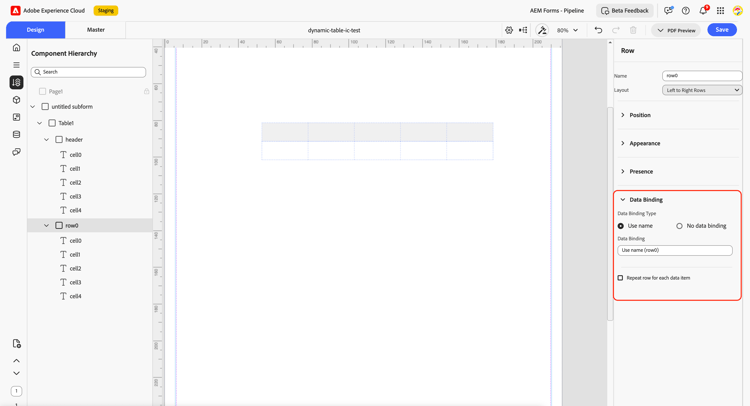
To bind data to the table:
-
Select the table row from the hierarchy panel.
-
Open the Data Binding from the side panel.
-
Ensure the selected data schema is of array type.
-
Drag and drop the array data schema onto the selected table row to bind the data.
Enable Page Flow
Dynamic tables may expand beyond a single page. To allow the table to grow and continue across pages, place it inside a Flowed Content container.
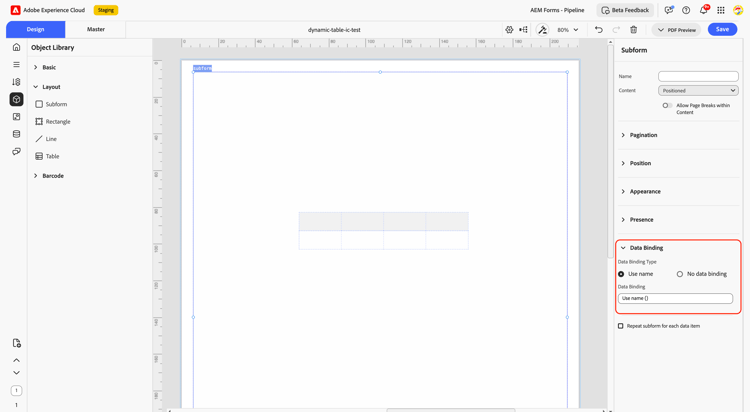
To enable page flow:
-
Select the parent layout container of the table.
-
Open the Properties panel and set the Content Type to Flowed.
-
Select the table, and ensure it is also configured to support flowed content.
-
Preview the communication to verify that the table continues onto the next page as additional rows are rendered.
Allow Page Break Within Table
To ensure the table splits properly across pages:
- Select the table in the canvas.
- Open the Properties panel.
- Enable Allow Page Break Within Content.
When enabled, the table automatically breaks at the end of a page and continues on the next page, with the header row repeated.
Configure Row Validation
You can control how many rows the dynamic table can render.
- Minimum Rows: Ensures the table renders at least the specified number of rows.
- Maximum Rows: Limits the total rows rendered from the data source.
- Initial Rows: Defines how many rows appear in the editor during design-time preview.
Key Capabilities
-
Column data binding: Bind each column to a field in the data model.
-
Flowed content: Allows the table to expand and continue across pages.
-
Page break support: Enables row-level page breaks within the table.
-
Minimum rows: Ensures a minimum number of rows are rendered.
-
Maximum rows: Limits the total rows rendered from the data source.
-
Initial rows: Defines the default rows shown during design-time preview.
The Dynamic Table feature in the Interactive Communication Editor enables authors to create flexible, data-driven tables without writing custom code. By binding the table to a data array, enabling Flowed Content, allowing page breaks, and configuring row validation, authors can produce structured communications that adapt smoothly to varying volumes of data while maintaining a consistent layout.