[AEM Forms]{class="badge positive" title="Applies to AEM Forms)."}
Image Field Component in Interactive Communication Editor
1. Introduction
The Image Field component in the Interactive Communication editor allows authors to insert images into a communication layout. It is ideal for use cases such as photo identification, document verification, or visual validation where displaying an image to the end user is essential.
Supporting common formats like JPEG and PNG, this component offers flexible configuration options to define how the image is displayed, stored, and styled. Authors can also assign a name or label to the image field, enhancing layout clarity and organization.
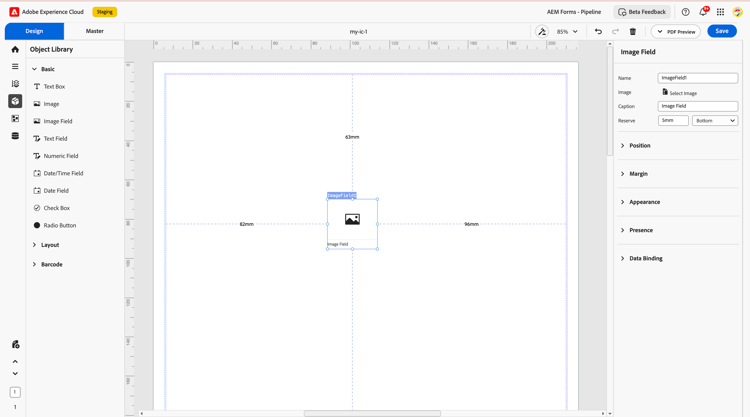
2. Properties
The Image Field component includes several configurable properties:
2.1. Basic Field
-
Name: Define a unique identifier for the field, used for referencing data models and rules.
-
Caption: Display the label shown to users on the interface.
-
Select Image: Allow the author to upload an image using this property—commonly used for logos, IDs, or other visual elements.
-
Reserve Image: Define the alignment of the image, left, right, top, or bottom or specify a custom position using units like millimeters (e.g., 20 mm).
2.2. Position
Controls the spatial placement of the image in the layout.
-
X and Y coordinates
-
Height and width (in mm)
2.3. Margin
Define spacing around the text box:
-
Top (Up)
-
Bottom (Down)
-
Left
-
Right
2.4. Appearance
Appearance: Defines the visual style of the image field, choose presets like bordered, flat, or elevated, and customize with fill color, stroke width, and corner style (rounded or sharp).
2.5. Presence
Determines visibility of the image component at runtime.
-
Visible
-
Hidden (keeps space)
2.6. Data Binding
Link the image field to a data source to retrieve and display dynamic image content within the communication.
Data Binding Type: Defines how the image field connects to the underlying data structure or schema.
Use Name: Binds the image field using the field name specified in the data model or schema, allowing the image to be populated dynamically at runtime.
Use Global Data: Connects the image field to global data that is shared across the entire communication, ensuring consistency in visual content.
No Data Binding: Keeps the field disconnected from any backend data, ideal for cases where a static image is shown or when the image is controlled purely through UI settings.
3. Usage
The Image Field is useful in contexts where visual content submission is required. Common use cases include:
-
Uploading ID proof (passport, license)
-
Submitting profile or personal photos
-
Attaching supporting documents visually
Authors can place the field within subforms or layout containers for alignment and use custom validation rules to control accepted file types and sizes.
4. Best Practices
-
Use clear labels or instructions when prompting image uploads.
-
Limit file size and formats through validation for performance.
-
Ensure fallback (reserve) images for accessibility.
-
Bind the field to a meaningful schema path if integration with back-end
The Image Field component in interactive communication editor is a versatile component that enhances form interactivity by enabling visual content uploads. When designed with styling, validation, and data binding, it supports a seamless user experience and efficient data capture for image-based submissions.