[AEM Forms]{class="badge positive" title="Applies to AEM Forms)."}
Check Box Component in Interactive Communication Editor
1. Introduction
The Check Box component in the Interactive Communication (IC) editor allows users to make single or multiple binary selections (yes/no, true/false). Commonly used for terms & conditions, preferences, consent fields, and opt-ins, it provides a quick way to capture boolean input within a communication form.
The Check Box supports flexible styling, data binding options, and visibility rules, making it a lightweight but powerful tool in designing interactive, user-friendly forms.
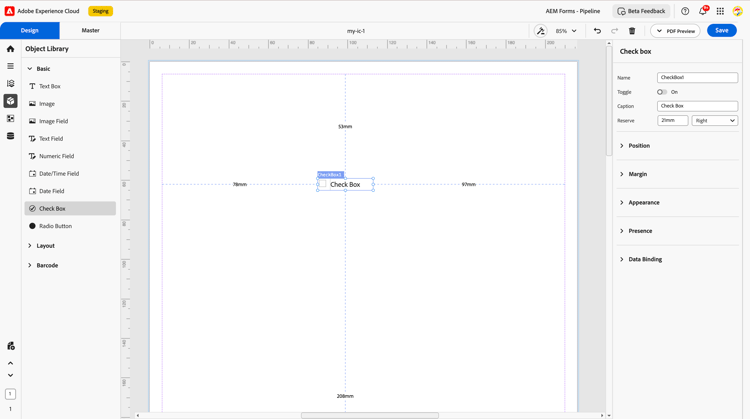
2. Properties
2.1 Basic Field
-
Name: A unique identifier used for referencing the checkbox in data models, rules, or scripts.
-
Toggle: Allows the checkbox to be toggled on/off when clicked. This can be used in single or grouped mode.
-
Caption: The descriptive label displayed next to the checkbox, guiding users on what they are agreeing to or selecting.
-
Reserve: Optional placeholder text or symbol shown in read-only or fallback modes when no interaction is made.
2.2 Position
Defines where the checkbox is placed in the layout:
-
X and Y coordinates: Set the location of the checkbox within the layout grid.
-
Height and Width: Defines dimensions of the checkbox (in mm or px), especially important when using custom visual styles or icons.
2.3 Margin
Allows spacing around the checkbox for layout adjustments:
-
Top (Up)
-
Bottom (Down)
-
Left
-
Right
2.4 Appearance
Controls the visual styling of the checkbox and its frame:
-
Fill: Background color of the checkbox (when selected or unselected).
-
Stroke: The outline color of the checkbox border.
-
Stroke Width: Thickness of the border line.
-
Style: Solid, dashed, or custom outline pattern.
-
Edges: Defines the corner styling of the checkbox: rounded or sharp edges depending on design preference.
2.5 Presence
Determines how and when the checkbox appears at runtime:
-
Visible: Displayed normally and occupies space.
-
Hidden (keeps space): Hidden from the UI but the layout space is retained. Useful for conditional visibility without layout breakage.
2.6 Data Binding
Enables the checkbox to interact with external or internal data sources:
Data Binding Type:
Use Name: Binds the value using the component’s field name.
Use Global Data: Connects to a global data model shared across the communication.
No Data Binding: Checkbox remains standalone and is not stored in the data model.
3. Usage
Check Boxes are commonly used in scenarios like:
-
Consent fields: e.g., “I agree to the terms and conditions”
-
User preferences: e.g., “Subscribe to newsletter”
-
Multiple choice selections: e.g., “Select all applicable options”
-
Form acknowledgements: e.g., “I confirm that the above details are correct”
Check boxes can be placed inside layout grids or panels and grouped together for better organization in forms.
4. Best Practices
-
Use clear, concise captions to help users understand what they’re selecting.
-
Avoid clutter by using checkboxes only for binary inputs—use radio buttons for exclusive options.
-
Ensure proper spacing using margin and layout settings for a clean UI.
-
Bind checkboxes to a meaningful data model reference when the captured choice needs to be stored or processed.
-
Use visibility rules when checkboxes are dependent on prior inputs or conditions.
The Check Box component in the Interactive Communication editor is a simple yet essential component for binary inputs. With support for styling, conditional presence, and flexible data binding, it plays a key role in enhancing interactivity and user control in smart digital forms. When implemented with thoughtful labels, consistent styling, and meaningful data integration, checkboxes contribute significantly to a smooth and intuitive form experience.