[AEM Forms]{class="badge positive" title="Applies to AEM Forms."}
Configure Bound and Unbound Variables for Associate UI
Bound and unbound variables in Text components let associates enter or confirm values in the Associate UI. A bound variable is linked to a field in the Form Data Model. An unbound variable is defined in the document and is not tied to the data model.
Authors enable associate editing with Allow Editing By Associate either on the Text component or on individual variables — not both in the same Text component.
Before you begin
Enable Associate View on the interactive communication before configuring variables for the Associate UI. See Associate UI in Interactive Communication Editor.
Associates must be members of the forms-associates group.
Bound variables
A bound variable maps to a field in the Form Data Model (for example, deptName under GMFletter).
- Insert by dragging a field from the Data Model panel into a Text component.
- The Field properties panel shows Name, Value, Display type, and Binding.
Unbound variables
An unbound variable is created directly in a Text component and is not linked to the Form Data Model (for example, unboundvar).
- The Field properties panel shows Name, Value, Display type, and Binding.
- Under Associate Properties, you can configure Tooltip and Validations.
Edit the whole Text component in the document preview
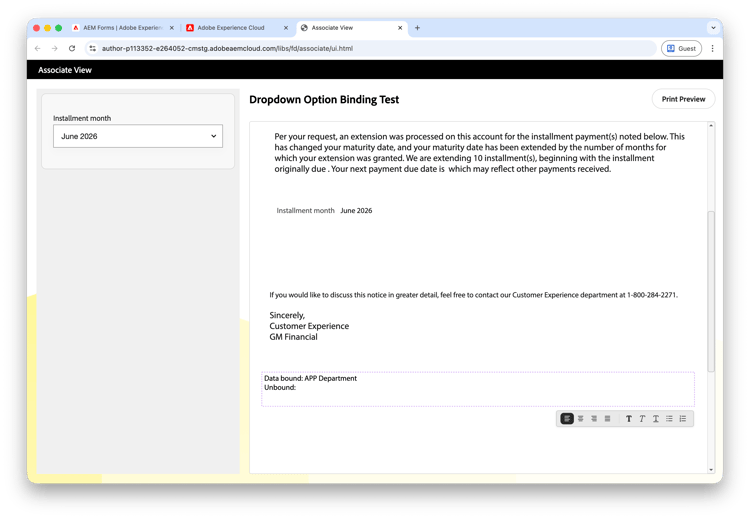
Turn on Allow Editing By Associate on the Text component and leave it off for each bound and unbound variable inside the text. In Associate View, the associate selects the text block in the document preview. The entire Text component appears with a purple boundary and a formatting toolbar.
Configure
-
Open the interactive communication in the Interactive Communication Editor on the Design tab.
-
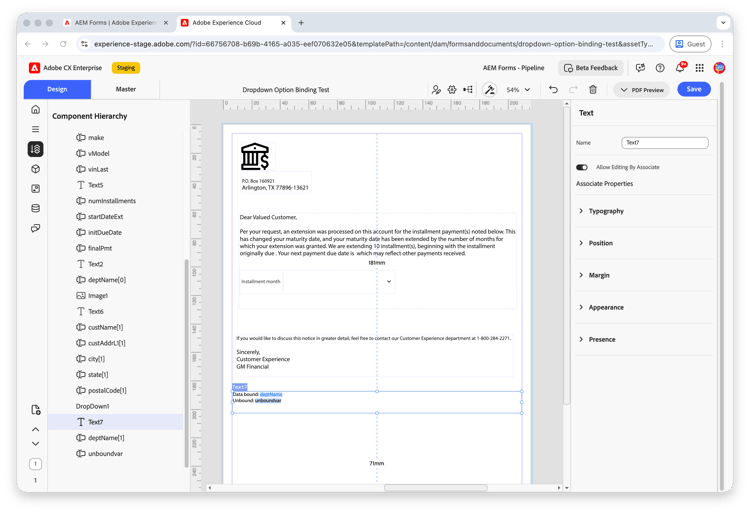
In the Component Hierarchy panel, select the Text component that contains your bound and unbound variables — for example, Text7.
-
Confirm the text includes bound and unbound variables. For example:
- Data bound: deptName
- Unbound: unboundvar
-
In the Text properties panel, confirm Allow Editing By Associate is off for each bound and unbound variable inside the text.
-
With the Text component still selected, turn on Allow Editing By Associate in the Text properties panel.
-
Click Save and publish the interactive communication.
Verify in Associate UI
-
Open the interactive communication in Associate View.
-
Select the text block in the document preview. Confirm the Text component appears with a purple boundary and a formatting toolbar.
-
Edit content directly in the preview — for example, update Data bound: APP Department and enter a value after Unbound:. Confirm bound and unbound variables update in place.
-
Optionally select Print Preview to confirm the generated output matches the preview.
Edit individual variables in the data entry panel
Turn off Allow Editing By Associate on the Text component. Turn it on for each bound or unbound variable you want associates to edit. In Associate View, each enabled variable appears as a separate field in the left-hand data entry panel.
Configure
-
Open the interactive communication in the Interactive Communication Editor on the Design tab.
-
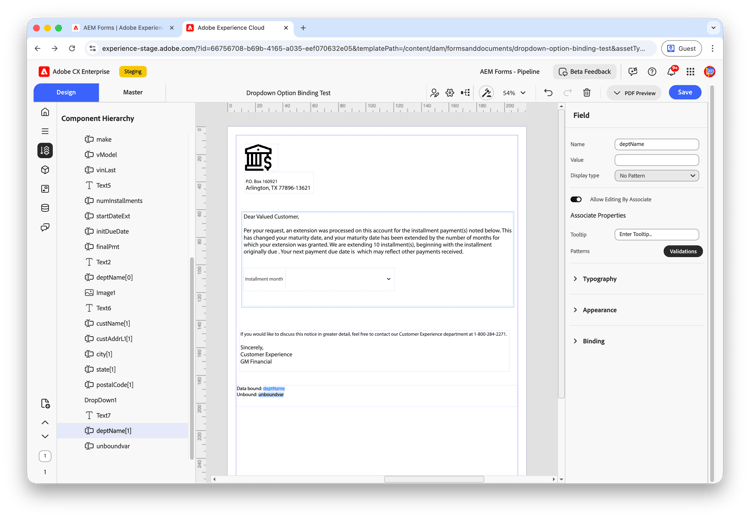
In the Component Hierarchy panel, select the bound variable — for example, deptName[1].
-
In the Field properties panel:
- Confirm Name is set to
deptName. - Set Display type as needed (for example, No Pattern).
- Turn on Allow Editing By Associate.
- Confirm Name is set to
-
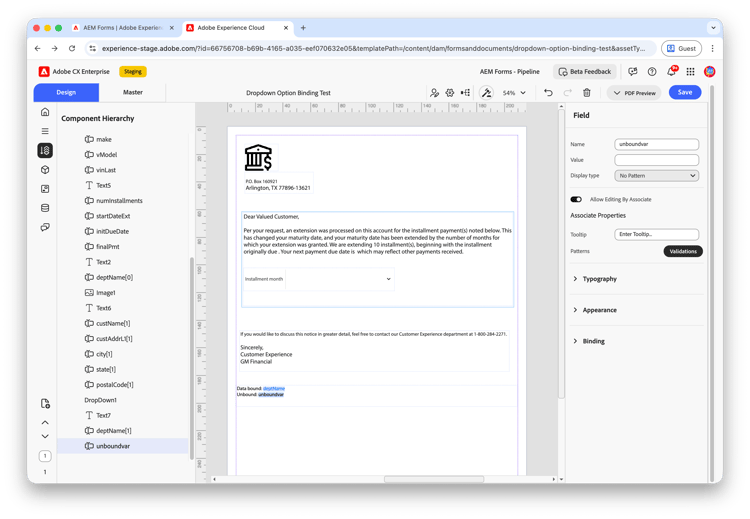
In the Component Hierarchy panel, select the unbound variable — for example, unboundvar.
-
In the Field properties panel:
- Confirm Name is set to
unboundvar. - Turn on Allow Editing By Associate.
- Optionally configure Tooltip and Validations under Associate Properties.
- Confirm Name is set to
-
Confirm Allow Editing By Associate is off on the parent Text component.
-
Click Save and publish the interactive communication.
Verify in Associate UI
-
Open the interactive communication in Associate View.
-
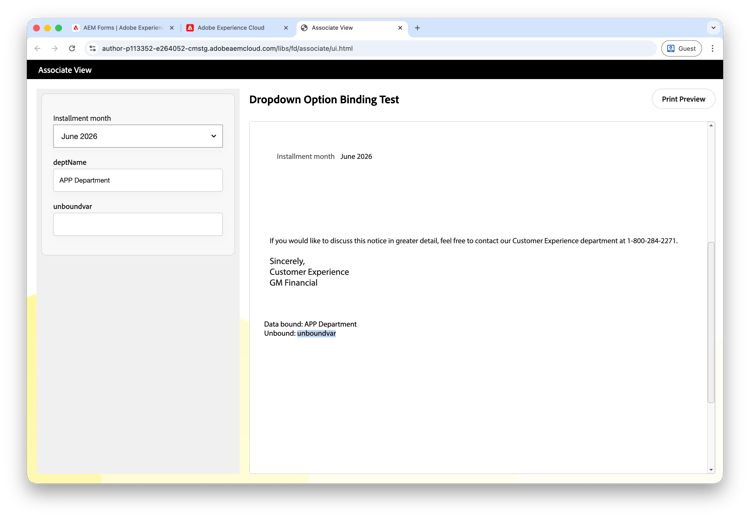
Confirm each variable with Allow Editing By Associate enabled appears in the left-hand data entry panel — for example, deptName and unboundvar.
-
Enter APP Department for deptName. Leave unboundvar empty and confirm the document preview shows the variable name as a placeholder — for example, Unbound: unboundvar.
-
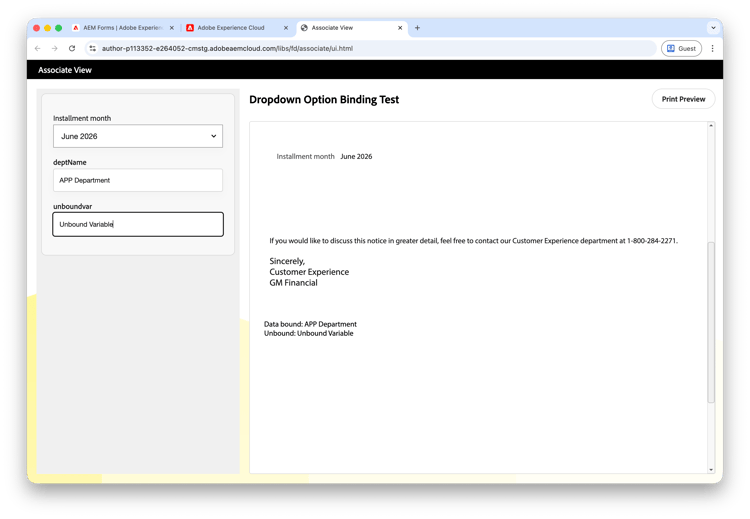
Enter Unbound Variable for unboundvar and confirm the document preview updates in real time:
- Data bound: APP Department reflects the value entered for the bound variable.
- Unbound: Unbound Variable reflects the value entered for the unbound variable.
-
Optionally select Print Preview to confirm the generated output matches the preview.
Duplicate variable names (bound and unbound)
When bound and unbound variables with the same name appear in multiple locations on the design canvas, only one instance of each variable name appears in the left-hand data entry panel. The associate enters each value once; it propagates automatically to all corresponding occurrences in the document preview.
Configure
-
Open the interactive communication in the Interactive Communication Editor on the Design tab.
-
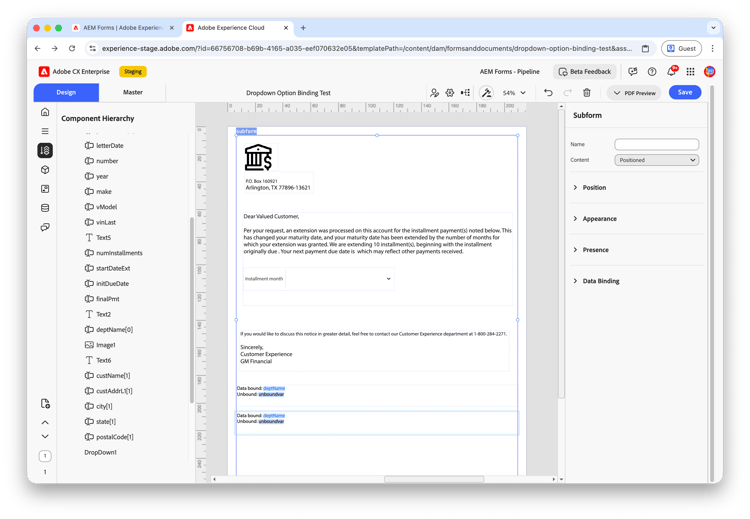
Add a subform or additional Text components on the design canvas and insert duplicate bound and unbound variables in each location. For example, add two blocks that each contain:
- Data bound: deptName
- Unbound: unboundvar
-
In the Component Hierarchy panel, select each bound and unbound variable and turn on Allow Editing By Associate in the Field properties panel.
-
Confirm Allow Editing By Associate is off on the parent Text components.
-
Click Save and publish the interactive communication.
Verify in Associate UI
-
Open the interactive communication in Associate View.
-
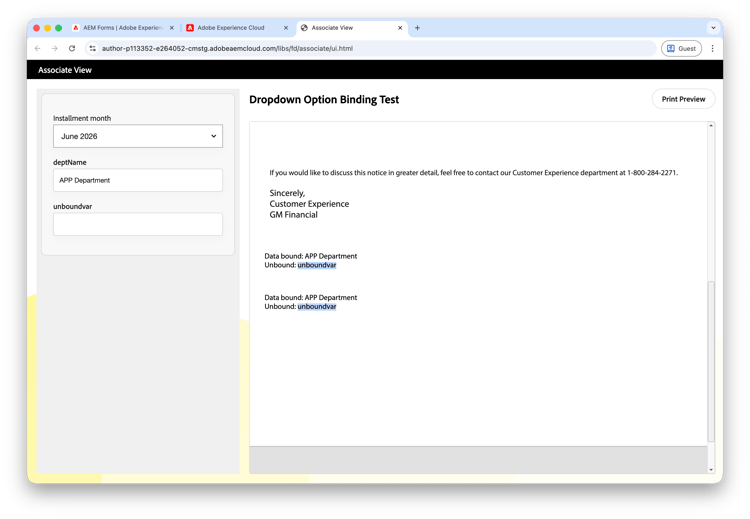
Confirm only one deptName field and one unboundvar field appear in the left-hand data entry panel, even when each variable occurs in multiple locations on the design canvas.
-
Enter APP Department for deptName. Leave unboundvar empty and confirm both occurrences in the document preview update — for example, each block shows Data bound: APP Department and Unbound: unboundvar.
-
Optionally select Print Preview to confirm the generated output matches the preview.
Considerations
Duplicate variable names (bound and unbound)
When bound and unbound variables share the same variable name:
- Only one instance appears in the left-hand data entry panel.
- Only variables for which associate editing is enabled are updated in the document preview.
- The associate enters the value once in the data entry panel; it propagates automatically to all corresponding occurrences in the document preview.
Unbound variables with the same name but different default values
When multiple unbound variables share a variable name but use different default values, the Associate UI displays the default value of the first variable for which associate editing is enabled in the left-hand data entry panel.
Bound variables with the same name but different data reference paths
When multiple bound variables share a variable name but use different data reference paths, the left-hand data entry panel displays the value of the first variable for which associate editing is enabled. Any value entered or updated by the associate in the data entry panel propagates to all variables with that name, regardless of their data reference paths.
Mutual exclusivity
Allow Editing By Associate on the Text component and on individual bound or unbound variables inside it are mutually exclusive. Enable one approach per Text component.
Unbound variables without a value
When an unbound variable has associate editing enabled but no value is entered, the document preview may show the variable name (for example, unboundvar) until the associate provides a value in the data entry panel.
Frequently asked questions
What is the difference between editing the whole Text component and editing individual variables?
When you enable associate editing on the Text component, the associate edits the entire text block inline in the document preview (purple boundary). When you enable associate editing on individual variables, each enabled variable appears as a separate field in the left-hand data entry panel.
Why can I not enable associate editing on both the Text component and individual variables?
Associate editing on the Text component and on bound or unbound variables inside it is mutually exclusive. Enable editing on the whole text block or on individual variables — not both.
Why does my unbound variable show the variable name instead of a value in the preview?
The associate likely has not entered a value yet. With associate editing enabled on individual variables and no default Value configured, the preview may display the variable name until data is entered in the data entry panel.
What is the difference between a bound and an unbound variable?
A bound variable is linked to a Form Data Model field through the Binding configuration. An unbound variable is defined in the document and is not tied to the data model.
What happens when two variables share the same name?
Only one instance appears in the left-hand data entry panel. The associate enters the value once in the data entry panel, and it propagates automatically to all corresponding occurrences in the document preview.