[AEM Forms]{class="badge positive" title="Applies to AEM Forms."}
Configure Dropdown Options for Associate UI
Dropdown fields in the Interactive Communication Editor use a focused Options Binding model for dynamic, data-driven choices in the Associate UI. Data Binding is no longer supported for dropdown fields — authors configure either Bind from Data (bound data source) or manual static options in the Properties panel.
Before you begin
Enable Associate View on the interactive communication before configuring dropdown behaviour for the Associate UI. See Associate UI in Interactive Communication Editor.
Associates must be members of the forms-associates group.
Bind from Data enabled (dynamic options)
When Options Source is set to Bind from Data:
- Dropdown options are driven entirely by the bound data source configured in Options Ref.
- Options are rendered and available for selection in the Associate UI.
- Default Value is not available — the first value from the bound options is automatically pre-selected when the form is presented to the associate.
Manual options (static options)
When Options Source is not set to Bind from Data:
- Authors add options manually through the Properties panel.
- Default Value remains available — the form designer can explicitly select which option appears as the pre-selected value in the Associate UI.
Configure dropdown options
-
Open the interactive communication in the Interactive Communication Editor.
-
On the Design tab, select the Drop Down component on the design canvas.
-
Open the Properties panel.
-
Configure the dropdown for the Associate UI:
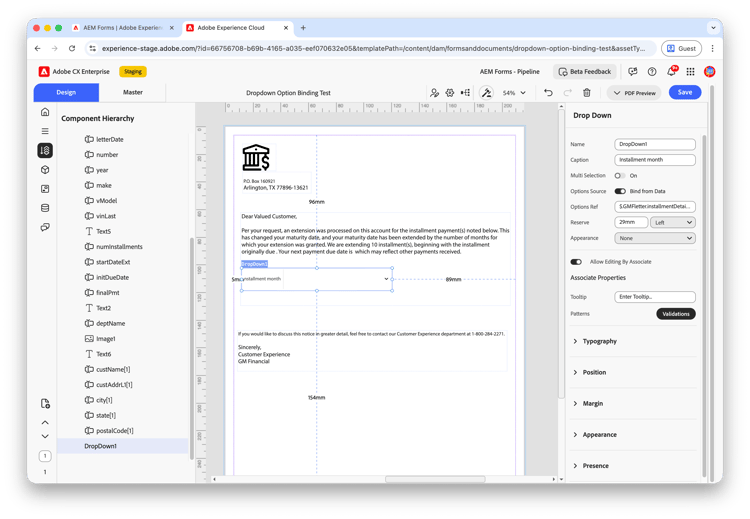
- Set Caption to the label associates see in the left-hand data entry panel. For example, enter Installment month.
- Under Options Source, choose Bind from Data to populate options from your data model, or add manual options for a static list.
- If you selected Bind from Data, set Options Ref to the data path that supplies the option list. For example, bind to
$.GMFletter.installmentDetails.installmentMonth.
Do not configure Data Binding on dropdown fields — use Bind from Data or manual options only.
-
Turn on Allow Editing By Associate so associates can select a value in the Associate UI.
-
Optionally configure Tooltip and Validations under Associate Properties.
-
If using manual options, set Default Value as needed.
-
Click Save and publish the interactive communication.
Verify in Associate UI
-
Open the interactive communication in the Associate View.
-
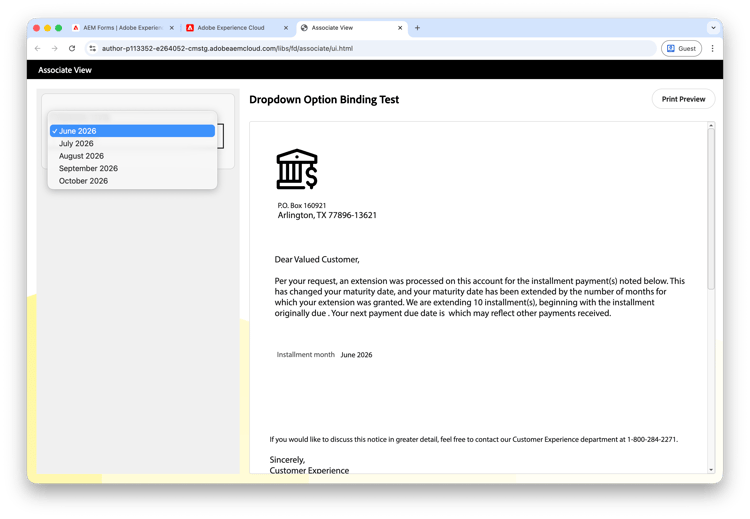
Confirm the dropdown appears in the left-hand data entry panel with the caption you configured. For example, Installment month shows the bound options such as June 2026, July 2026, and August 2026.
-
Verify that the first bound option is pre-selected when the Associate UI loads.
-
Select a different option and confirm the value updates in the right-hand preview. For example, selecting June 2026 updates the document text to Installment month June 2026.
Considerations
- Data Binding is not supported for dropdown fields. Use Bind from Data for dynamic lists or manual options for static lists.
- With Bind from Data enabled, associates cannot set a custom default — the first bound option is always pre-selected.
- With manual options, test the Default Value in the Associate UI preview to confirm the expected option appears before publishing.
- Allow Editing By Associate must be enabled for the dropdown to appear as an editable field on the left-hand side of the Associate UI.
Frequently asked questions
Why is Default Value unavailable for my dropdown?
Default Value is disabled when Options Source is set to Bind from Data. The first value from the bound data source is pre-selected automatically in the Associate UI.
Can I use Data Binding and Options Binding together on a dropdown?
No. Dropdown fields support Bind from Data or manual options only. Data Binding is not supported for dropdown fields.
What is Options Ref?
Options Ref is the data reference path that supplies the list of choices when Options Source is set to Bind from Data. Select the path that points to the collection of option values in your Form Data Model.
How do I verify dropdown options before associates use the interactive communication?
Publish the interactive communication and open the Associate UI preview. Confirm that bound or manual options appear in the left-hand data entry panel and that the pre-selected value matches your configuration.