Catch journey issues before they affect customers
Select to zoom.
Journey issues that go undetected can reach customers before anyone notices. This walkthrough shows how to stay ahead of them by checking active AJO journeys, reviewing campaign configuration, and surfacing operational issues through an AI client, using the Adobe Journey Optimizer MCP Server to get answers in plain language without opening Adobe Journey Optimizer.
Each step shows one representative prompt and an example AI response. A More you can accomplish section follows for additional exploration in the same session.
Before you begin
The fastest way to get these answers is CX Enterprise Coworker, which requires no server setup or AI client configuration. Try CX Enterprise Coworker
If you’d rather connect your own AI client directly to Adobe Journey Optimizer, see the tabs below.
Connect the Adobe Journey Optimizer MCP Server as a custom connector.
- Go to Settings > Integrations in Claude.ai.
- Select Add custom connector and enter the server URL:
https://ajo-mcp.adobe.io/mcp - Select Connect and sign in with your Adobe ID.
Full setup: Claude.ai Custom Connectors documentation
Connect the Adobe Journey Optimizer MCP Server using ChatGPT Developer Mode (Pro, Plus, Business, Enterprise, or Education plan required).
- Enable Developer Mode in ChatGPT Settings.
- Go to Settings > Integrations and select Add custom connector > Remote MCP server.
- Enter the server URL:
https://ajo-mcp.adobe.io/mcp - Select Connect and sign in with your Adobe ID.
Full setup: ChatGPT MCP documentation
Using Gemini, Microsoft Copilot, Cursor, Claude Code, or another MCP-compatible environment? Connect to the Adobe Journey Optimizer MCP Server using this endpoint:
| code language-none |
|---|
|
Full setup instructions for all supported clients: Connect to your AI client
Step 1: Discover active journeys and their purpose
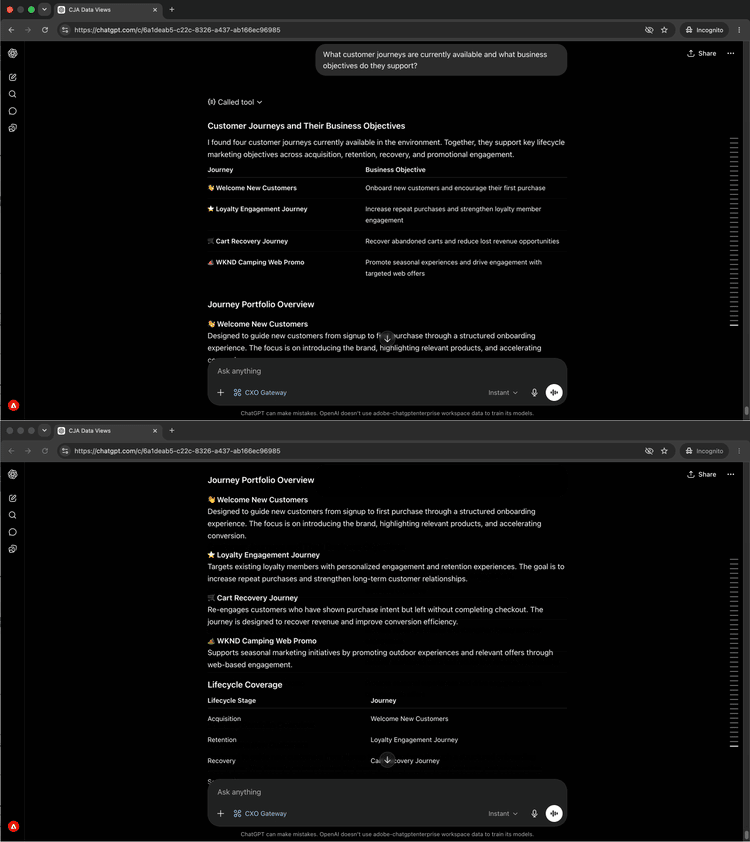
Start by asking for an inventory of active journeys and the business objectives behind them. This gives you the full picture before diving into any specific journey.
What customer journeys are currently available and what business objectives do they support?
Select to zoom.
Step 2: Review a journey’s steps and customer experience
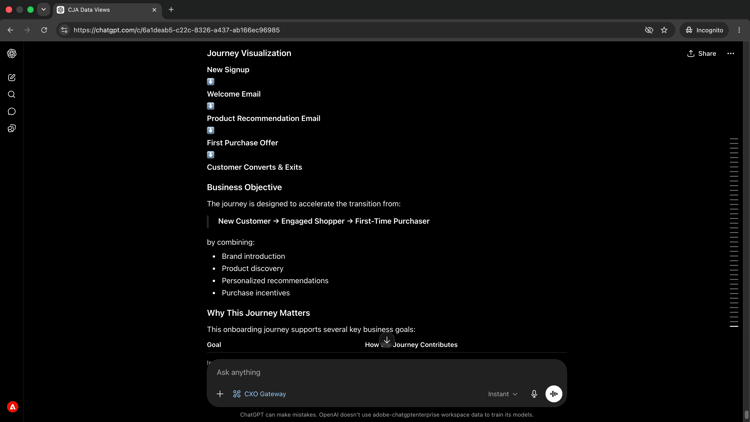
With the journey list in view, ask your AI client to walk through a specific journey’s steps and explain what the customer experiences at each stage.
Walk me through the [journey name] journey and explain the customer experience.
Select to zoom.
[journey name] with the name of a journey from your step 1 results.Step 3: Review campaigns, audiences, and objectives
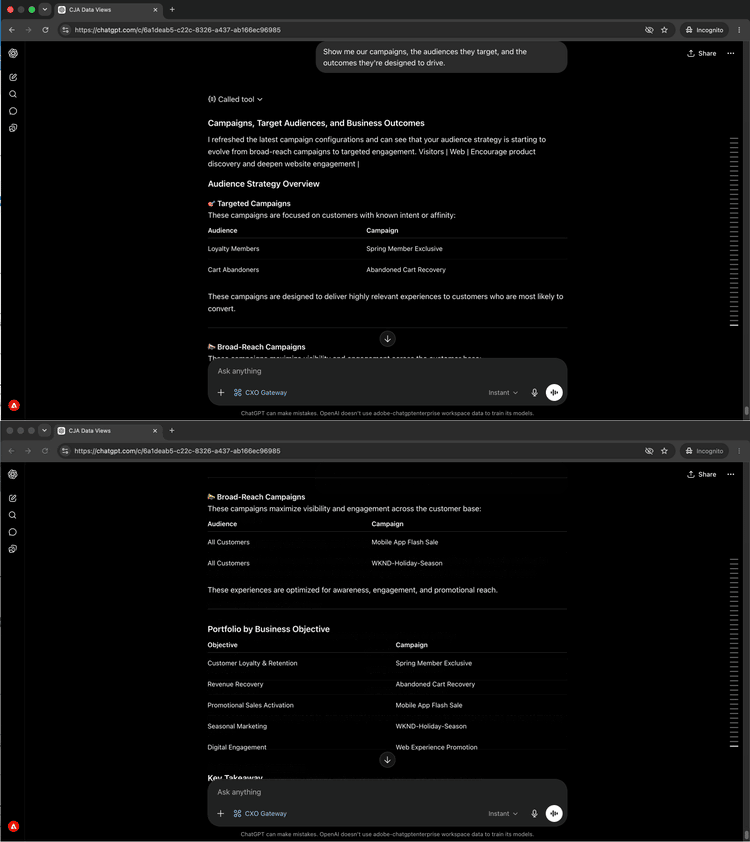
Shift from journeys to campaigns. Ask for a summary of what campaigns are active, who they target, and what outcomes they are designed to drive.
Show me our campaigns, the audiences they target, and the outcomes they're designed to drive.
Select to zoom.
Step 4: Understand how campaigns and journeys connect
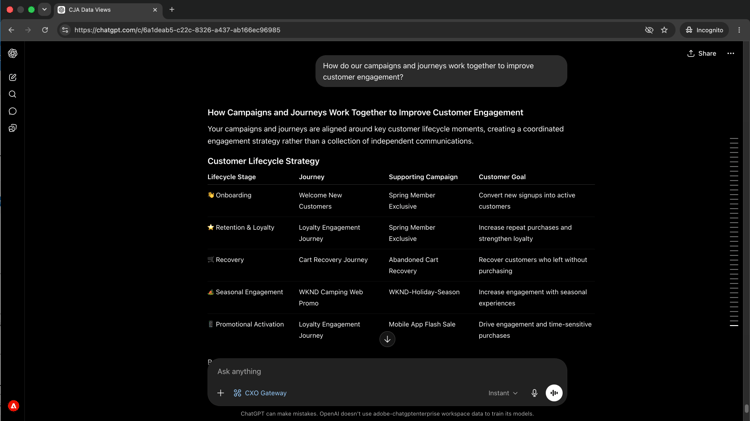
Ask your AI client to connect the dots between campaigns and journeys and explain how they work together toward shared engagement goals.
How do our campaigns and journeys work together to improve customer engagement?
Select to zoom.
Step 5: Get prioritized recommendations
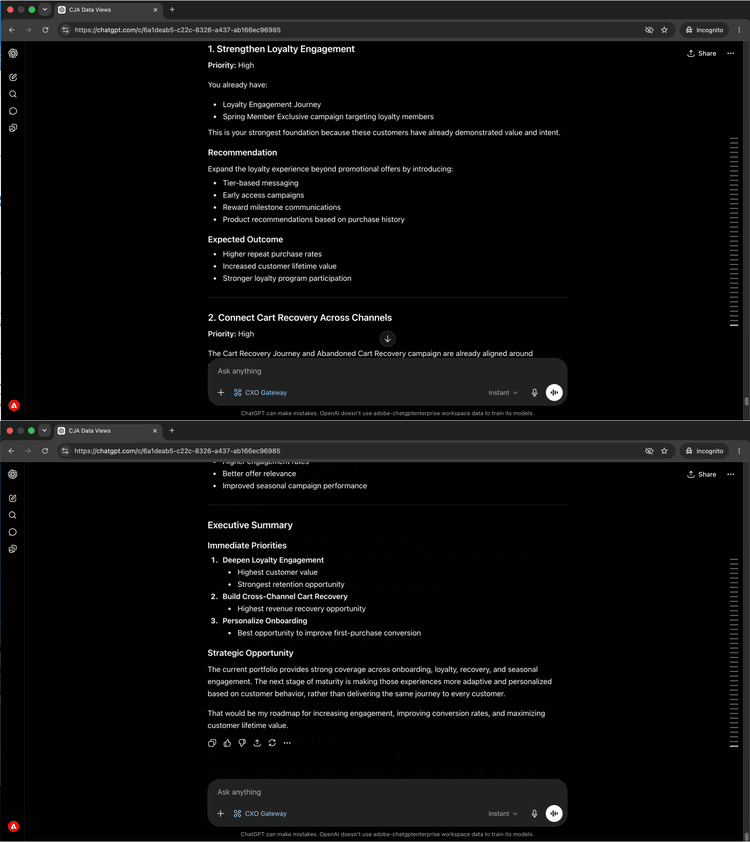
Ask for prioritized recommendations on what to focus on next, framed from the perspective of a lifecycle marketing manager. This surfaces the most impactful gaps and opportunities from everything reviewed in the session.
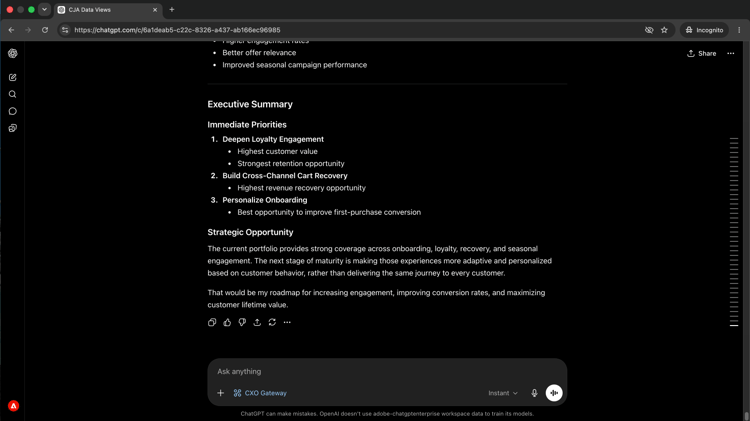
If you were our lifecycle marketing manager, what would you prioritize next and why?
Select to zoom.
What you accomplished
You connected an AI client to Adobe Journey Optimizer and built a complete picture of your journey and campaign portfolio through five prompts. You inventoried active journeys and their business objectives, reviewed the step-by-step customer experience for a specific journey, mapped active campaigns to their audiences and intended outcomes, understood how campaigns and journeys work together, and received prioritized recommendations on where to focus next. This gives lifecycle marketing and campaign managers strategic visibility without opening the AJO interface.
More you can accomplish
The Adobe Journey Optimizer MCP Server can surface a wide range of AJO journey and campaign details. Expand a scenario below to see prompts you can try in the same session.
Making changes to a journey without knowing what else is running is risky. These prompts give you a current inventory of what’s active, what’s been modified recently, and how campaigns are configured.
Prompts
| code language-none |
|---|
|
| code language-none |
|---|
|
| code language-none |
|---|
|
| code language-none |
|---|
|
When you need to review, approve, or hand off a journey, having the full logic in front of you without opening AJO saves time. These prompts surface conditions, schedules, and segment rules on demand.
Prompts
| code language-none |
|---|
|
| code language-none |
|---|
|
| code language-none |
|---|
|
| code language-none |
|---|
|
When you need to review a campaign’s full configuration before approving, handing it off, or making changes, these prompts surface audience rules, channel settings, and schedule details without opening AJO.
Prompts
| code language-none |
|---|
|
| code language-none |
|---|
|
| code language-none |
|---|
|
| code language-none |
|---|
|
| code language-none |
|---|
|