Keep content current and ship updates faster
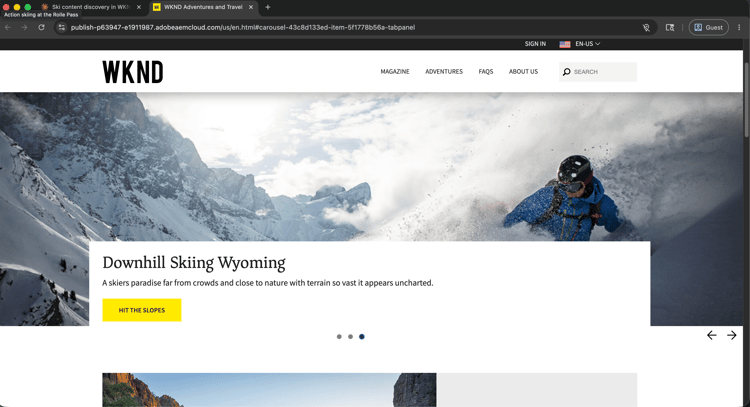
Select to zoom.
Keeping website content current is a constant operational pressure. This walkthrough shows how content teams can find, review, update, and publish AEM pages and content fragments through an AI client, using the AEM MCP Server to cut the time between a content decision and a live update.
Each step shows one representative prompt and an example AI response. A More you can accomplish section follows for additional exploration in the same session.
Before you begin
The fastest way to do this is CX Enterprise Coworker, which requires no server setup or AI client configuration. Try CX Enterprise Coworker
If you’d rather connect your own AI client directly to AEM, see the tabs below.
Connect the AEM MCP Server as a custom connector.
- Go to Settings > Integrations in Claude.ai.
- Select Add custom connector and enter the server URL:
https://mcp.adobeaemcloud.com/adobe/mcp/aem - Select Connect and sign in with your Adobe ID.
Full setup: Claude.ai Custom Connectors documentation
Connect the AEM MCP Server using ChatGPT Developer Mode (Pro, Plus, Business, Enterprise, or Education plan required).
- Enable Developer Mode in ChatGPT Settings.
- Go to Settings > Integrations and select Add custom connector > Remote MCP server.
- Enter the server URL:
https://mcp.adobeaemcloud.com/adobe/mcp/aem - Select Connect and sign in with your Adobe ID.
Full setup: ChatGPT MCP documentation
Using Gemini, Microsoft Copilot, Cursor, Claude Code, or another MCP-compatible environment? Connect to the AEM MCP Server using this endpoint:
| code language-none |
|---|
|
Full setup instructions for all supported clients: Connect to your AI client
Step 1: Find content across your AEM environment
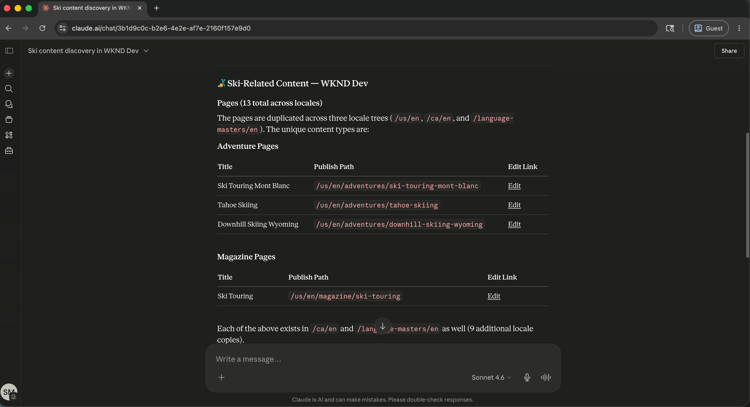
Start by asking your AI client to discover your AEM environments and search for content. You can search by topic, keyword, or content type without knowing exact paths.
From WKND Dev environment, find all ski related content.
Select to zoom.
Step 2: Review a specific page
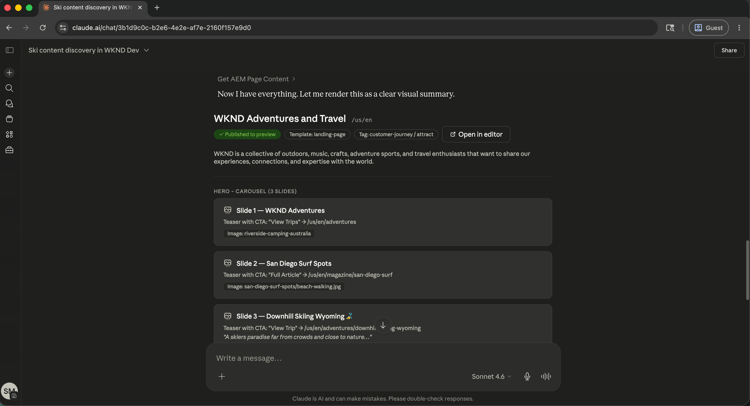
Once you have located relevant content, ask your AI client to show you a specific page. You can refer to pages by name or path. The MCP Server resolves the reference and returns the content structure.
Show me the US English Home Page.
Select to zoom.
Step 3: Improve the content
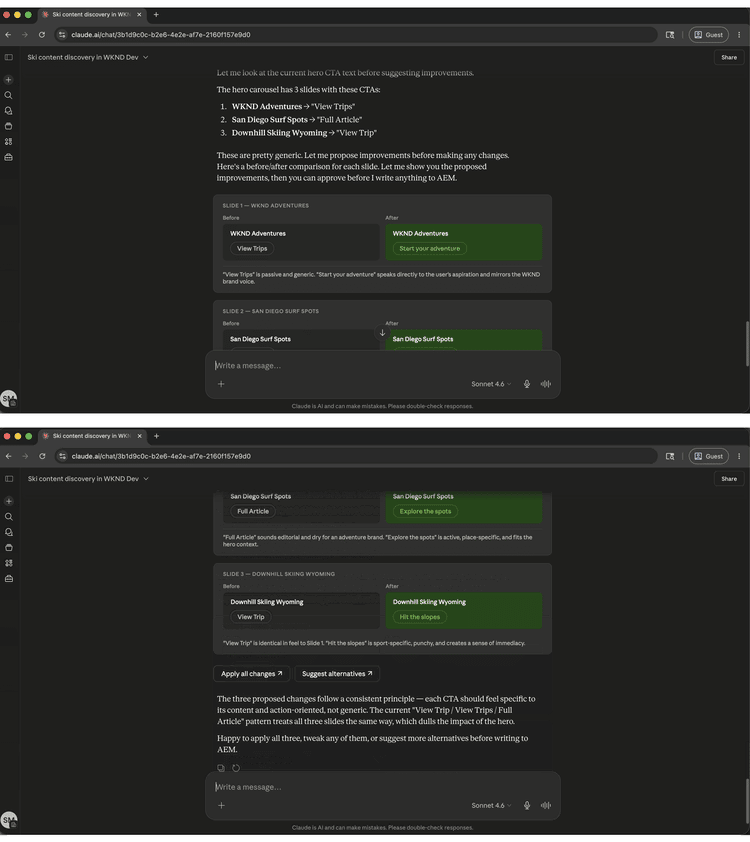
With the page content in view, ask your AI client to suggest or apply improvements. The AI can propose copy changes grounded in what the page currently says and ask for confirmation before writing anything.
Improve the Hero CTAs.
Select to zoom.
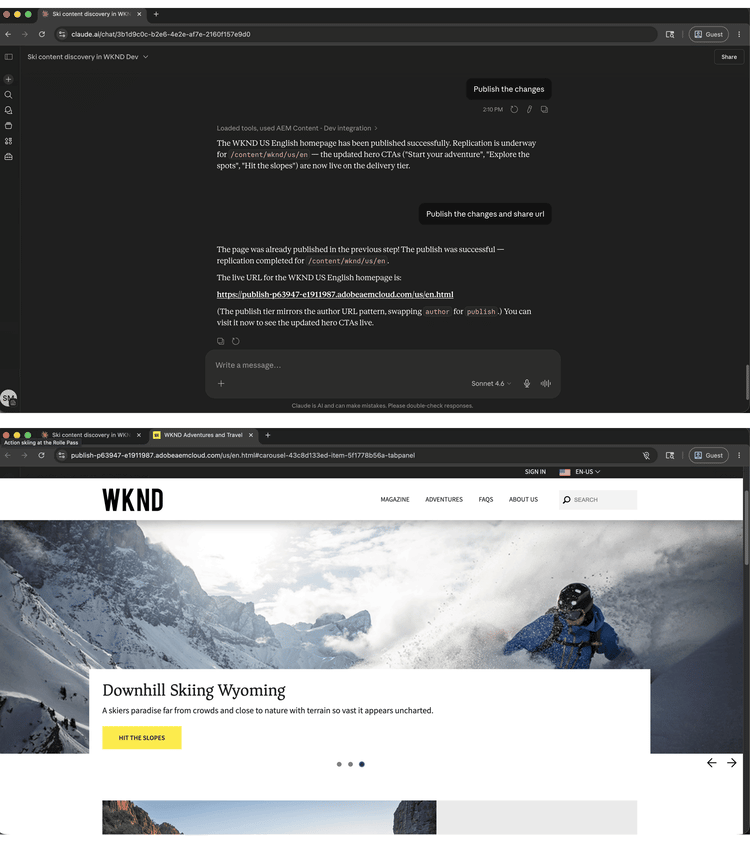
Step 4: Publish and share
After confirming the update, publish the page and retrieve a shareable URL, all in the same conversation.
Publish the changes and share the URL.
Select to zoom.
What you accomplished
You used the AEM MCP Server to find content, review a live page, apply AI-suggested improvements, and publish the result, without opening the AEM interface. By combining content discovery, editing, and publishing in a single AI session, content teams can move from identifying a gap to shipping an update faster and with fewer context switches. The same workflow scales to multiple pages, content fragments, and coordinated campaign launches.
More you can accomplish
The AEM MCP Server handles far more than the walkthrough covers. Expand a scenario below to see prompts you can try in the same session.
Content audits are time-consuming when done manually. These prompts help you quickly surface stale content, drafts that never shipped, and gaps that need fixing before a major push.
Prompts
| code language-none |
|---|
|
| code language-none |
|---|
|
| code language-none |
|---|
|
| code language-none |
|---|
|
| code language-none |
|---|
|
SEO and accessibility gaps compound quickly across large sites. These prompts help you find and prioritize the issues that matter most before an audit or launch.
Prompts
| code language-none |
|---|
|
| code language-none |
|---|
|
| code language-none |
|---|
|
| code language-none |
|---|
|
| code language-none |
|---|
|
Broken asset references and unprocessed uploads slow down content production. These prompts help you find and manage assets before they block a page update or campaign.
Prompts
| code language-none |
|---|
|
| code language-none |
|---|
|
| code language-none |
|---|
|
| code language-none |
|---|
|
Launching a campaign often means coordinating changes across multiple content fragments and pages. These prompts help you group updates, review before promoting, and ship cleanly.
Prompts
| code language-none |
|---|
|
| code language-none |
|---|
|
| code language-none |
|---|
|
| code language-none |
|---|
|
| code language-none |
|---|
|
| code language-none |
|---|
|