Default automatic matching
The AEM Assets integration for Commerce provides a default automatic matching mechanism (Match by product SKU) based on the AEM Assets metadata configuration. This rule enables seamless synchronization between Adobe Commerce and AEM Assets, ensuring that assets are automatically linked to the correct merchandising entities.
Configure the automatic matching mechanism
-
From the Commerce Admin, navigate to Stores > Settings > Configuration > ADOBE SERVICES > AEM Assets Integration.
-
Specify Match by product SKU as the matching rule.

-
In Match by product SKU attribute name, enter the metadata property name that stores product SKUs in AEM Assets, not an actual SKU value.
note NOTE If the standard onboarding process was followed, this value should be set to commerce:skus.
How the automatic matching mechanism works
When the Match by product SKU matching rule is configured in the Commerce Admin, Commerce asset files synchronize automatically from AEM Assets to your Commerce project based on the asset metadata configured for each file. You configure the metadata from the AEM Commerce tab in the AEM Assets author environment:
-
Open your AEM Assets author instance (the URL is provisioned for your project in the same IMS organization as Adobe Commerce).
-
From the main navigation screen, click Assets to access the Digital Asset Management (DAM) interface.
-
In AEM Assets, update the image metadata to add the Adobe Commerce association by setting the
Eligible for Commercefield toYes.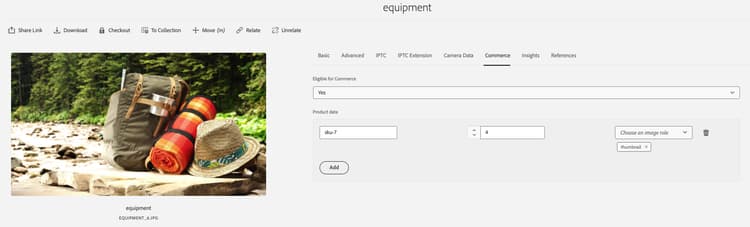
-
Configure the metadata (SKU, position, and role) that links the asset to the associated product SKU.
The four standard roles are
image,small_image,thumbnail, andswatch_image. With AEM Assets Integration extension version 1.4.6 and later, you can also enter a custom image role, such asheroorcustom_role_1. See Custom automatic matching for details.note NOTE If an asset is used for multiple products, configure the metadata for each associated SKU. -
In the
Basictab, set the default value for the Review Status field toapproved.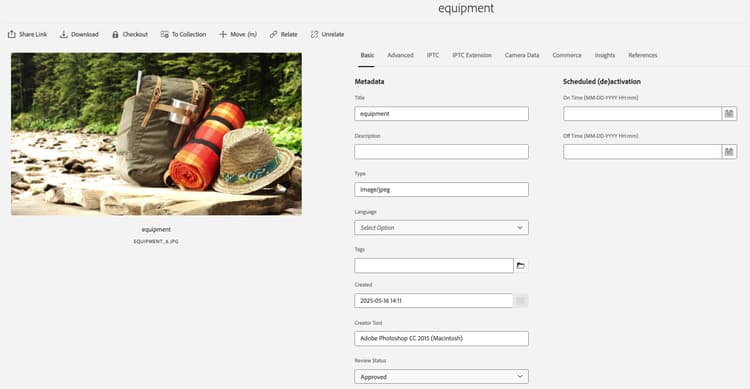
After approving the asset, verify the product association, synchronization result, and storefront display. If the asset does not appear, review Sync Status. For Adobe Commerce Optimizer, use the Optimizer verification workflow instead; Sync Status is not available.
[PaaS only]{class="badge informative" title="Applies to Adobe Commerce on Cloud projects only (Adobe-managed PaaS infrastructure)."} For additional synchronization troubleshooting, review the integration logs.