Commerce metadata in AEM Assets
Commerce metadata is the contract between AEM Assets and Commerce. It tells Commerce which assets are for Commerce, which products they belong to, and how they should be used or displayed. This metadata enables the AEM Assets Integration to map and synchronize asset files correctly.
Commerce metadata enables the following capabilities:
- Mark an asset as Commerce-eligible via the
commerce:isCommercefield. - Associate an asset with one or more product SKUs via the
commerce:skusfield. - Define how the asset appears in Commerce via the
commerce:rolesandcommerce:positionsfields. - Add Commerce-specific alt text keyed by store view via the
commerce:altTextStoreViewsandcommerce:altTextValuesfields. - Expose these fields in the AEM Assets properties UI through a Commerce tab and schema form.
To configure these resources in your AEM project, see Configure the AEM Assets project. The rest of this topic describes how the metadata is provided.
AEM Commerce assets-commerce package contents
Adobe provides the assets-commerce AEM Commerce code package to add Commerce namespaces and metadata schema resources to the Experience Manager Assets as a Cloud Service configuration.
This package code adds the following resources to the AEM Assets authoring environment:
-
A custom namespace,
Commerceto identify Commerce-related properties.-
A custom metadata type
commerce:isCommercewith the labelEligible for Commerceto tag Commerce assets associated with an Adobe Commerce project. -
A custom metadata type
commerce:skusand a corresponding UI component to add a Product Data property. Product Data includes the metadata properties to associate a Commerce asset with product SKUs.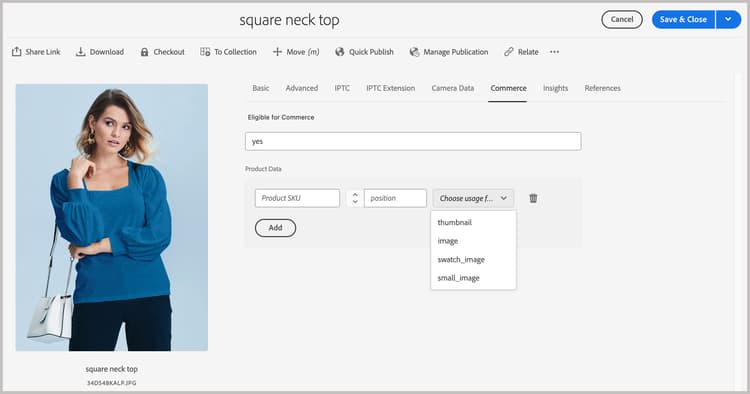
-
A custom metadata type
commerce:rolesandcommerce:positionsattributes that show how the asset is visualized in Commerce. The four standard roles (image,small_image,thumbnail, andswatch_image) remain supported. As of AEM Assets Integration extension version 1.4.6, you can also set a custom image role incommerce:roles, such asheroorcustom_role_1, to synchronize a role that Commerce does not define by default. See Custom automatic matching for how custom image roles are ingested.note NOTE Commerce automatically creates a missing media_image-style attribute for a custom role. -
Alternative text multifield (Alt texts) metadata so editors can enter alternative text for each Commerce store view code. The multifield persists in two index-aligned
String[]properties:commerce:altTextStoreViews— store view code for each row.commerce:altTextValues— matching alt text at the same index as each entry incommerce:altTextStoreViews.
App Builder implementations using an external matcher can intercept these properties when transforming asset payloads. This does not change how product images are assigned or scoped in the catalog. See Localized alt text in AEM Assets metadata.
-
-
A metadata schema form with a Commerce tab that includes the
Eligible for CommerceandProduct Datafields for tagging Commerce assets. The form also provides options to show or hide therolesandpositionfields from the AEM Assets UI.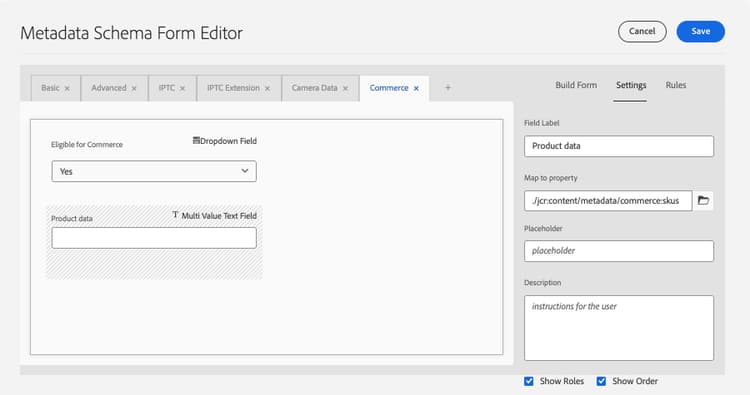
-
A sample tagged and approved Commerce asset
equipment_6.jpgto support initial asset synchronization. Only approved Commerce assets can be synchronized from AEM Assets to Adobe Commerce.

Localized alt text in AEM Assets metadata
The Alt texts multifield is available in the AEM Assets asset metadata editor on the Commerce tab when you edit an eligible image.
The multifield contains one row per Commerce store view. Each row has two inputs:
-
Store View Code — The store view identifier (for example
defaultoren_US). -
Alt Text — Alternative text for that store view, limited to 255 characters.
Select Add to add more rows for additional store views. To remove a row, select the Delete icon on that row to remove it.
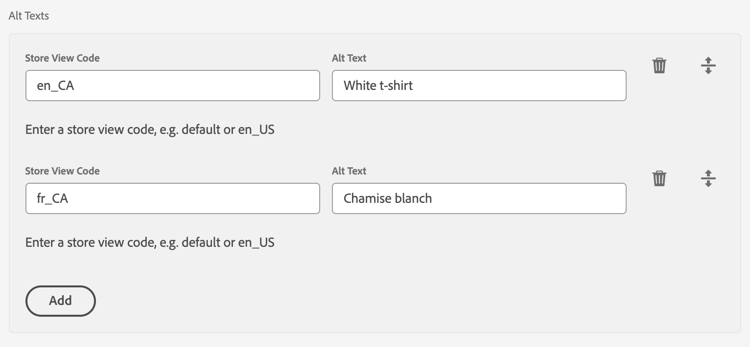
When you save, client-side validation blocks submission if any row has an empty Store View Code or if two rows use the same store view code (case-insensitive).
Alternative text entries are persisted in JCR asset metadata as two index-aligned String[] properties:
commerce:altTextStoreViews: Store view code for each row.commerce:altTextValues: Matching alt text at the same index as each entry incommerce:altTextStoreViews.
When these assets synchronize to Adobe Commerce, per-store view alt text is written to the product media gallery for the matching store view codes. The underlying image mapping is unchanged.
Example metadata values:
commerce:altTextStoreViews = ["en_US", "fr_FR"]
commerce:altTextValues = ["Running shoe", "Chaussure de course"]
When these assets synchronize to Adobe Commerce, each alt-text value is written to Commerce’s standard image Label field for the matching store view code. The integration does not populate a customer-created alt_text database column.
Alt text is localized per store view, but the underlying product-image assignment and gallery mapping remain unchanged. A single image assignment continues to apply according to the existing Commerce gallery behavior.