View AEM Assets sync status
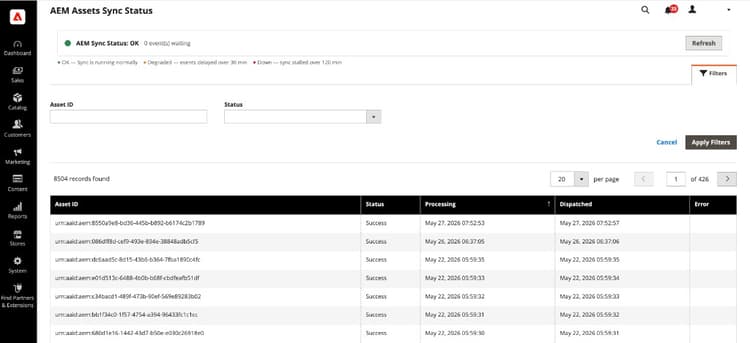
The Sync Status view provides an asset-centric list of assets synchronized through the AEM Assets integration. Use it to find, review, and troubleshoot assets by their own attributes instead of navigating product-by-product in the catalog.
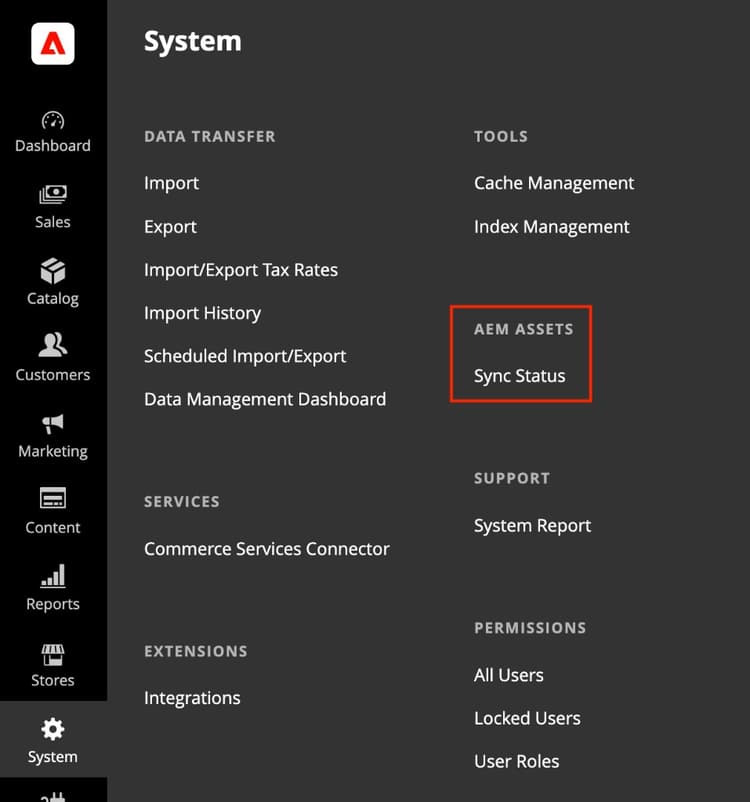
Open Sync Status
On the Admin sidebar, navigate to System > AEM Assets > Sync Status.
Integration sync health
At the top of the page, the AEM Sync Status banner summarizes pipeline health and how many events are waiting to be processed. Select Refresh to update the sync health banner.
Asset list
The grid lists assets processed by the AEM Assets sync pipeline and their current sync state. Each row represents one asset and its sync state in Commerce. It does not represent a product record.
urn:aaid:aem:…).Filter assets
-
Select Filters to expand the filter panel.
-
Enter an Asset ID or choose a Status value.
-
Select Apply Filters to update the grid or Cancel to close the panel without applying changes.
Filters apply to asset-level data, enabling you to isolate failed syncs or to trace a specific asset without opening individual products.
Failed synchronizations
When Status shows a failure, review the Error column in the grid for the message returned by the sync pipeline.
Review the full error message and last sync attempt details to diagnose the failure.
[PaaS only]{class="badge informative" title="Applies to Adobe Commerce on Cloud projects only (Adobe-managed PaaS infrastructure)."} For additional troubleshooting, see Default automatic matching. Integration log files are available at /var/log/aem-assets-integration.log and /var/log/aem-assets-integration-errors.log on your Commerce instance.