Editorial guidance for Experience League authors
This page provides editorial standards for product documentation sourced from GitHub Enterprise or AdobeDocs. Infrequent authors using Universal Editor (browse pages, Perspectives, courses) should follow the same rules unless a workflow doc says otherwise. (For information about available publishing formats and contacts, see the Experience League Content Authoring Hub (internal).)
At a glance
Scope. This page covers page types, headings, first paragraphs, TOC behavior, SEO metadata, lists and procedures, cross-references, punctuation, clarity, visuals, file naming, UI vocabulary, branding, DNL/UICONTROL/code markup, and writing for AI discovery.
Deep SEO tactics are in Get started with SEO. Extended TOC guidance is in Table of contents - editorial guidelines. Step mechanics are in Steps and lists. Markup syntax is in Markdown syntax (contact Bob Bringhurst).
How to use this page
- Authors: Skim Quick rules, then open the section that matches what you want to learn under On this page.
- Automation and reviewers: Treat Quick rules and Must bullets under each heading as hard requirements. Should and May are guidance.
Quick rules quick-rules
UICONTROL tag for interface strings (bold in steps). Use the DNL tag for must-not-translate names. Use backticks for code, paths, and user-typed values.action-topic.md for tasks, topic-overview.md for overviews).On this page on-this-page
- Authoring extensions
- Concepts and tasks
- Headings
- First paragraphs
- Subheadings
- Table of contents
- SEO
- Tags & taxonomy
- Title metadata
- Description metadata
- Taxonomy metadata
- Steps and bullet lists
- Cross-references
- Capitalization
- Punctuation and emphasis
- Clarity, voice, and style (RedPen Scoring)
- Notes, tips, and warnings
- Write for AI discovery
- Screenshots and images
- Alt-text
- File names
- User input (inline code)
- Keyboard actions
- Words for UI actions
- Brands and product names
- Do not localize (DNL)
- UI control (UICONTROL)
- Code (inline)
Authoring extensions authoring-extensions
Purpose. These extensions support different parts of the authoring workflow. Use the right one for the task.
Should
- Install and use the AdobeDocs Chrome extension, Adobe Markdown Authoring, and Adobe ExL Authors extensions. See Authoring extensions for what each one does and how to install it.
Concepts and tasks content-types
Purpose. Classify content so headings, metadata, and layout match reader intent.
Definitions
- Concept — Explains what something is and why it matters: overviews, introductions, conceptual paragraphs before procedures. Use nouns and noun phrases in headings and related TOC/SEO strings. Examples: Overview of segmentation, Campaign integrations.
- Task — Explains how to do something; usually includes numbered steps. Use imperative verbs in headings. Examples: Create a Target activity, Run a Page Views report.
Must
- Separate concept copy from procedural steps. Do not bury procedures in a concept-only heading without a clear task heading.
- Give every task a preceding concept (same page H1, parent section, or parent topic).
Should
- Keep concept topics free of step-by-step procedures, navigation micro-steps, and interface tours unless the goal is a broad UI showcase. Prefer screenshots that show a feature in context, not full-page chrome, unless a task requires it.
May
- Combine a concept H1 with several task H2s on one page when that matches the reader journey.
See also — Create a page, Headings.
Headings headings
Purpose. Headings structure the page and appear in search, TOCs, and cross-references. They must read well in isolation (such as search results and cross-reference lists).
Must
- Paragraph text should immediately follow a first-level heading. (Do not begin a page with notes, warnings, lists, etc.). Orient the reader to the page topic before anything else.
- The first-level heading (
#) is the article’s primary topic. Topically, it should closely match the article’s title metadata. However, title metadata serves a different purpose with different editorial requirements (for style, character length, and case). - Use sentence case (see Capitalization). Exception: title metadata uses title case. Capitalize proper nouns like product names.
- Use imperative verbs for task headings; avoid gerunds (Managing → Manage).
- Use nouns or noun phrases for concept headings.
- Leave at least one sentence of body text between adjacent headings (no stacked headings).
- Keep headings short and descriptive. Avoid commas that signal overload.
- Omit product names from headings unless omission hurts clarity (product often appears in title metadata).
- Do not put badges or non-text markup inside heading text.
Should
- Keep headings to roughly five words or fewer when possible.
- Prefer singular nouns for consistency (Save a workspace vs. Save workspaces).
- Avoid turning verbs into abstract nouns (Create a roadmap vs. Roadmap creation).
- Avoid numbered headings as stand-ins for steps in standard product topics; for long multi-page tutorials, prefer spelled-out labels such as Step 1: ….
May
- Use a question mark only when the heading is a real question (rare in body content; FAQs often use bold lead-ins instead of question headings).
See also — Subheadings, Table of contents, Capitalization.
First paragraphs paras
Purpose. The opening paragraph states the topic and what the reader gains. It answers, “Why am I here?” It supports SEO and scanning.
Must
- An opening sentence or paragraph must follow the H1. Do not paste raw description metadata as your only introduction, though wording can overlap.
Should
- Align with search language: product names, feature names, and tasks customers look for.
- Introduce synonyms or former names once (for example, ECID vs. visitor ID) to connect search terms.
May
- Video tutorials may start with Learn about… or Learn how to… as the first paragraph (match the content type).
SEO notes for first paragraphs seo-paras
- Put important terms in body text and link text. Avoid hiding them only in complex tables or images (search and some assistive flows rely on text).
See also — Description metadata, SEO.
Subheadings subheadings
Purpose. H2 and H3 headings break long topics into scannable sections.
Must
- Follow the same rules as H1s (Headings).
Should
- Use conventional labels when they help readers (Prerequisites, Before you begin, What you’ll learn, More help on this topic).
Table of contents toc
Purpose. TOC entries name topics for navigation. They should parallel headings and read cleanly next to sibling entries.
Must
- Follow syntax rules for
TOC.md: section headers vs. article links, anchors on section rows, no duplicate file entries that cause navigation issues. - Keep guide folders parallel when a repo has multiple guides (see User Guide Setup).
Should
- Keep entries brief, parallel in form, and aligned with the H1 (exact match not required, but clearly the same topic).
- Omit product names from TOC labels unless they remove ambiguity.
- Use child entries that rely on the parent name when it helps (Segments → Overview / Create / Share).
Example
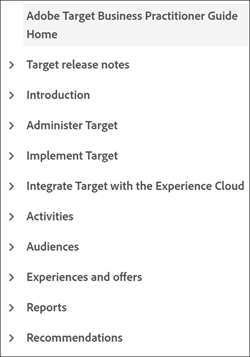
Parallel TOCs use noun phrases for concepts, imperative verbs for tasks, and sentence case throughout.
See also — Headings, authoring-toc.md.
SEO seo
Purpose. Connect readers and systems to the right topic; technical SEO depth lives in the dedicated guide.
Should
- Apply the practices in Get started with SEO for ongoing work.
Tags & taxonomy tags
Purpose. Tags (such as product, role, and feature) are V2 taxonomy metadata that connect articles to products, roles, and features so readers can find them through search and filtering. Unlike V1 tags, V2 tags are both machine- and human-readable.
Should
- Before requesting a new tag, confirm it doesn’t already exist by browsing the Taxonomy Glossary.
- If the tag you need doesn’t exist, request one using this Jira ticket template. See Create a tag.
Title metadata requirements title-metadata-requirements
Purpose. Title metadata is the SEO title (often shown in search results), not necessarily identical to the on-page H1.
Must
- Use title case.
- Stay within 60 characters.
- Do not embed the product name in the string on standard pipelines (pipe and product come from solution metadata). Universal Editor may require you to add pipe and product manually where automation differs.
- Treat title metadata as distinct from the page H1. They can differ by intent (question-style title vs. Overview of… H1).
Examples
- Date Ranges | Adobe Analytics
- How to Add a Date Range | Adobe Analytics
Should
- For playlist home pages, omit redundant product naming when solution metadata supplies it.
See also — Metadata
Description metadata requirements description-metadata-requirements
Purpose. Descriptions summarize scope and intent for search snippets and discovery surfaces. First sentence sets context, second invites action.
- First sentence: The feature or concept you’ll learn.
- Second sentence: A call to action.
Must
- Write one or two concise sentences, aiming for roughly 150–160 characters total (slightly shorter is acceptable; treat ~160 as a practical upper bound).
- Match intent: concepts often start with Learn about… (or close variants). Tasks begin with Learn how to… or a strong imperative (Create…, Configure…).
Should
- Use the space for meaningful keywords without stuffing; two tight sentences beat three loose ones.
Examples
-
Learn how to use a date range in Analysis Workspace. Create date ranges and use them a dimensions in all your projects.
-
Learn about calculated metrics in Analytics. Discover ways to create custom metrics and use them in segmentation.
-
Landing page: Search for self-help articles and tutorials on CX Enterprise Coworker. Learn strategies and best practices from experts in live and on-demand video events.
See also — First paragraphs.
Taxonomy metadata metadata
Purpose. Metadata ties articles to products, roles, features, and filters on Experience League and helps search and recommendations.
Must
- Know precedence: article-level values override TOC.md; TOC.md overrides repo-level
metadata.md.
Shouldf
- Set
feature,role,level, and related tags deliberately—they surface in UI (for example TOPIC, CREATED FOR) and power features such as recommendations.
Example
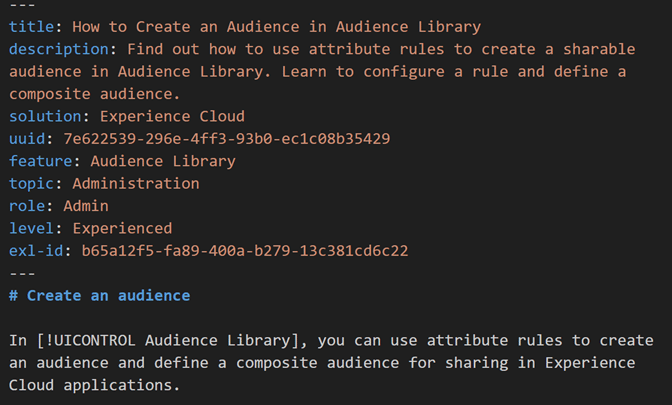
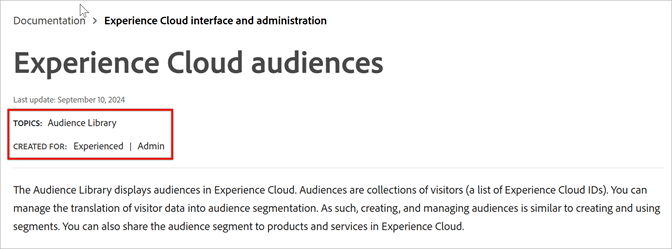
See also — Metadata and tag reference, using-metadata.md.
Steps and bullet lists steps
Purpose. Bullets group related items; numbered lists are sequential procedures.
Bullets — must
- Use bullets when order is unimportant.
- Keep items short and parallel. If one entry is a full sentence, use sentences for all entries in that list and end with periods.
- Place lengthy supporting text on an indented line below the bullet it supports.
Steps — must
- Write each step as a single command in a brief, complete sentence ending in a period. You can end a step with a colon if the step introduces a sub-list. For a one-step procedure, use a bullet instead of
1.. - Start each step with the action (verb-first or goal-then-action: To run the report, click …).
- Combine small actions into one sentence; split when a step tries to cover more than about three clicks or decisions.
- Avoid using headings as numbered steps in standard articles. Long tutorials may use Step 1: style headings when your content model allows.
Steps — should
- Break tasks longer than about seven to ten steps into subtasks or substeps.
- Place step info (notes) indented under the step. Place screenshots on the next line after the action that reveals the UI, with short explanatory text after the image as needed.
See also — Steps and lists, Microsoft: Writing step-by-step instructions.
Cross-references references
Purpose. Point readers to related topics without clumsy repetition.
Must
- Link to targets when you reference another topic. Use italics for in-page heading references that are not linked.
Should
- Introduce related-topic lists with More help on this topic when that matches your template.
- Keep list items parallel. Omit end punctuation on simple cross-reference lines.
- Avoid numeric prefixes in headings used in recommendation surfaces when numbers look out of place next to other titles.
Example
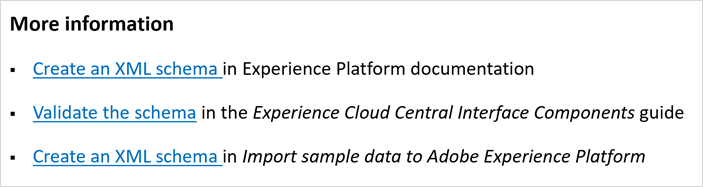
Capitalization capitalization
Purpose. Consistent casing reduces noise in navigation and matches Adobe style.
Must
- Use sentence case for headings, subheadings, TOC entries, and navigation labels.
- Use title case only for title metadata.
- Capitalize Adobe product names and proper nouns.
- Match feature tag casing to YAML values (case-sensitive).
- Match product, feature, and UI casing to official strings and the live interface.
Should
- After a colon, capitalize the next word when it starts a complete sentence; for lists introduced by a colon, capitalize the first word of each item per your list style.
See also — Adobe capitalization.
Punctuation and emphasis punctuation
Purpose. Keep punctuation predictable for readers and localization.
Must
- Avoid using the apostrophe (especially in headings). They can make instructions less clear, less consistent, and harder to translate.
- Reserve quotation marks for quoting people. Do not quote UI strings (use UICONTROL and bold in steps).
- Avoid em dashes in technical prose; prefer commas or colons.
- Use colons to introduce lists. Capitalize after a colon only when a full sentence follows (or the word is a proper noun).
- Use italics for emphasis, foreign terms, error messages when cited, and heading titles cited without links.
- Use bold with UICONTROL for interface elements in steps. Do not bold arbitrary words for emphasis. Bold lead lines are acceptable in FAQ layouts that do not use heading-level questions.
Should
- Use en dashes where hyphenation rules require them.
May
- Use a question mark in a heading only when it is truly a question. What’s new headings are statements, not questions.
Clarity, voice, and style style
Purpose. Clear, direct prose improves comprehension, translation, and quality scores.
Must
- Prefer active voice and present tense for product behavior.
- Write in a user-centered voice. Tell the reader what they can accomplish rather than describing what the product does. See Use a user-centered voice.
Should
- Cut filler (in order to → to; avoid utilize unless the precise meaning matters).
- Avoid semicolons in customer-facing prose when a period plus new sentence is clearer.
- Use the Oxford comma.
- Keep sentences under about 35 words.
- Prefer descriptive link text over raw URLs unless the URL itself is the information.
- For navigation verbs, prefer go to or navigate to when orientation matters.
- Run Redpen Scoring in your editor when available.
Use clear references
Make it clear what pronouns and demonstratives refer to. Words such as it, this, that, these, those, and they should have a single, obvious antecedent.
If a reader or AI system could reasonably interpret the reference in more than one way, repeat the noun instead of using a pronoun or demonstrative.
Avoid
- Upload the file to Experience Manager. It validates the content before publishing.
- What validates the content—the file or Experience Manager?
Preferred
- Upload the file to Experience Manager. Experience Manager validates the content before publishing.
Avoid
- The API returns an error when the request exceeds the limit. This can occur during bulk imports.
- Does This refer to the error or exceeding the limit?
Preferred
- The API returns an error when the request exceeds the limit. This error can occur during bulk imports.
Preferred
- When the request exceeds the limit, the API returns an error. This limit commonly affects bulk imports.
Use a user-centered voice user-centered-voice
Write from the reader’s perspective rather than the product’s perspective. Meaning, state what the reader can accomplish when using an application, not just what the application does.
The drawback of product-centered sentences is that they describe the tool in isolation. User-centered sentences connect the feature to the reader’s goal.
This applies to both human readers and AI systems that summarize or quote the page. User-centered phrasing keeps the reader’s goal in the sentence, so it survives being lifted out of context.
Avoid (product-centered)
- Workfront Fusion automates repetitive tasks across systems.
- The Segments panel lets users build audience rules.
Preferred (user-centered)
- Use Workfront Fusion to automate repetitive tasks across systems.
- Use the Segments panel to build audience rules for your audiences.
Should
- Lead with you can or an imperative verb aimed at the reader (Use, Create, Configure) rather than the product name as the sentence subject.
- Reserve product-as-subject sentences for statements about what the product is (concept definitions), not for what the reader can do with it.
Tips for clarity tips
See also — Adobe writing guide, Microsoft Manual of Style, Heading names and page titles.
Notes, tips, and warnings admonitions
Purpose. Note, Tip, Important, Caution, and Warning blocks pull content out of the normal reading flow. Use the wrong one and readers either skip something critical or get trained to skip the block type altogether.
Should
Avoid
- Starting a page, or immediately following a heading, with an admonition. Lead with at least a sentence of body text so the reader has context before hitting a callout.
- Needless indentation. A validation error occurs if notes are improperly indented. Indent an admonition only if it’s nested in list items. Ensure that the spacing of the indented content between list items is consistent and correct.
See also — Notes / admonitions syntax for syntax.
Write for AI discovery ai-discovery
Purpose. AI assistants and search tools increasingly surface Experience League content in generated answers. Writing with AI discovery in mind improves both human readability and the accuracy of AI-generated responses.
Must
- Put key terms—product names, feature names, tasks—in body text and link text, not only in images or complex tables. AI systems rely on readable text to understand and cite content.
- Write clear, self-contained headings and first paragraphs. AI tools often extract these in isolation. They should make sense without surrounding context.
Should
- Keep sentences short and direct (see Clarity and style). Concise prose is easier for AI to parse and quote accurately.
- Use structured formats—numbered steps, short bullets, definition-style headings—when presenting procedures or comparisons. Structure helps AI identify the correct answer and reduces misquotation.
- Include synonyms or alternate terms on first use (for example, ECID (Experience Cloud ID)) to improve retrieval for varied query phrasing.
- Ensure metadata fields (title, description, feature tags) are complete and accurate. AI discovery surfaces often use metadata to filter and rank results before reading page content.
May
- Use AI tools to help review your content for clarity, parallel structure, metadata completeness, and reading level. Always verify AI suggestions against Quick rules and product style before publishing.
See also — First paragraphs, SEO, Description metadata.
Screenshots and images assets
Purpose. Visuals should clarify a feature without unnecessary noise.
Must
- Capture Light theme for Experience Cloud product UI unless documenting dark mode explicitly.
Should
- Crop to the relevant control or panel with enough surrounding context to orient readers.
- See Screenshots for sizing, borders, and accessibility expectations.
May
-
See Snagit (Adobe discount; manager approval) when your team standardizes on it.
-
See Third-party interfaces for guidance on documenting third-party apps.
Alt-text alt-text
Purpose. Alt-text describes images for accessibility and can support discovery.
Should
- Describe the user goal, the feature shown, or the icon meaning—not decorative fluff.
- Follow Writing with visuals (Spectrum) for tone and brevity.
File names filenames
Purpose. File names appear in URLs. They should be readable and stable.
Note. File name (two words) is correct in prose; filename is common in developer contexts.
Must
- Use lowercase, hyphens (no underscores), and descriptive slugs:
create-calculated-metric.md,calculated-metric-overview.md. - Avoid meaningless tokens (
calc-over-01.md) and bare words such asoverview.mdorintroduction.mdexcept where the IA requires a fixed name.
Should
- Use
home.mdfor guide documentation home pages andoverview.mdfor tutorial home pages when your repo follows that convention. - Avoid digits in filenames unless they carry meaning.
User input (inline code) input
Purpose. Distinguish what users type from narrative text.
Must
- Use inline code syntax for paths, file names, folders, URLs in monospace contexts, literals, and user-supplied values.
Keyboard actions keyboard
Purpose. Show chorded shortcuts clearly.
Must
- Bold each key: cmd + shift + p
Words for UI actions words
Purpose. Consistent verbs reduce mistranslation and reader hesitation.
Should
Must
- Say file name (two words) in prose.
Should
- Avoid naming control types (radio button, listbox) unless required for disambiguation.
See also — Describing interactions with UI, In product word list, Adobe Writing Guide.
Brands and product names brands
Purpose. Protect trademarks and keep naming consistent across ExL.
Must
- Change Experience Cloud to CX Enterprise. Do not make this change to programmatical elements and metadata (exception: title and description metadata).
- Use Adobe CX Enterprise on first mention, then CX Enterprise thereafter.
- Do not translate CX Enterprise.
- Do not use application icons to stand in for product names in authored text (icons in captures are fine).
- Follow corporate first and second mention rules: often include Adobe on first mention at guide scope. Subsequent mentions may drop Adobe where policy allows. Some names (Adobe Audition, Adobe Premiere Pro) require Adobe on first or most prominent mention every time.
Should
-
Writers should pull product logos from approved sources such as Marketing Hub.
-
Avoid leading the before product names unless the official name includes it.
- Correct: Get started with AI Assistant. Learn about audiences in Experience Cloud.
- Incorrect: Get started with the AI Assistant. Learn about audiences in the Experience Cloud.
May
- Use acronyms when they help SEO or shorten overloaded headings—define on first use when needed.
Brands and acronyms
- Use the official product name list.
See also — Brand Guidelines and FAQ (Inside Adobe).
DNL (do not localize) dnl-tag
Purpose. The [!DNL] marker keeps proper nouns and fixed English strings from being translated incorrectly.
Must
- Wrap strings that must stay in English (product names, legal labels, or org-defined terms) per your localization workflow.
See also — Apply DNL and UICONTROL to interface strings, Localization overview.
UICONTROL uicontrol-tag
Purpose. [!UICONTROL] marks interface text for localization tooling and reader scanning.
Must
- Apply UICONTROL to on-screen labels exactly as rendered (no added punctuation or quotes).
- In procedures, wrap UICONTROL terms with bold so steps scan clearly.
Example
1. Click **File** > **Print**. **Element name**
See also — Apply DNL and UICONTROL to interface strings, Localization overview.
Universal Editor
- To submit Universal Editor content (for example Perspectives) to translation, follow How to submit items for Translations (internal wiki).
Code (inline) code-tag
Purpose. Monospace styling signals literals the user copies or that must not be translated as prose.
Must
- Use backticks for file names, code tokens, paths, URLs (when shown as literals), directory names, error messages, and user-typed values.
See also — Markdown: inline code.