Panels overview panels-overview
A panel is a collection of tables and visualizations. You can access panels from the top-left icon in Workspace or a blank panel. Panels are helpful when you want to organize your projects according to time periods, data views, or analysis use case.
Panel types
The following panel types are available in Analysis Workspace for Customer Journey Analytics:
Quick insights, Blank and Freeform panels are great places to start your analysis, while Attribution lends itself to more advanced analyses. A

The default starting panel is the Freeform panel, but you can make the Blank panel or Quick insights your default as well. See Projects & Analysis preferences.
Create a panel
To create a panel :
-
Drag and drop a panel from the Panels left panel onto your canvas.
-
Select a panel from the Blank panel.
-
Use Insert menu in Workspace and select your panel. Alternatively, you can use any of the shortcuts to insert a panel.

You can:
-
Select

table 0-row-2 1-row-2 2-row-2 3-row-2 4-row-2 5-row-2 6-row-2 7-row-2 8-row-2 9-row-2 10-row-2 11-row-2 12-row-2 13-row-2 14-row-2 15-row-2 16-row-2 Select… To create a… 
Freeform table 
Line 
Bar 
Summary number 
Text 
Fallout 
Flow 
Area stacked 
Cohort table 
Bullet 
Donut 
Summary change 
Histogram 
Scatter 
Venn 
Treemap -
Select
Manage a panel
You can manage a panel in the following ways:
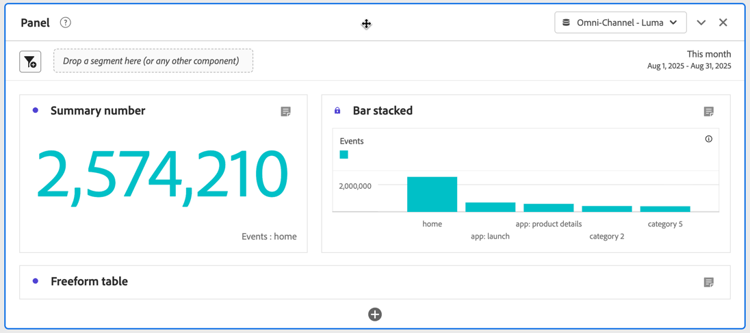
- To collapse a panel, select

- To reveal a collapsed panel, select

- To delete a panel, select

- To move a panel, drag and drop the panel whenever a

Data view
Each panel is associated with a data view. You can identify the

When you create a Blank Workspace project, the default data view for the initial panel is the data view you last worked on in Customer Journey Analytics.
When you create a new panel, the default data view is based on the data view of the panel you last worked on in the Workspace project.
- This panel contains components that are not enabled in the selected data view. Please change the data view or enable the required components in the data view.
- Unable to render visualization: Please check your columns and rows to ensure they contain valid components.
Calendar
The panel calendar controls the reporting date range for tables and visualizations within a panel.


-
Select a date range by selecting first the start date and then the end date.
Alternatively, you can select a Preset from the Select a preset drop-down menu. -
Optionally, select Show advanced settings to:
-
Specify Start time and End time other than the default
12:00 AM(0:00) and11:59 PM(23:59). End times always include 59 seconds. For a date range that spans many days, the start time applies to the first day of the date range and the end time applies to the last day in your date range. Use (Reset time values) to reset start and end time to their defaults. -
Make date range components relative to panel calendar. If disabled, date range components that are used in the panel are relative to the current time. If enabled, date range components that are used in the panel are relative to the panel calendar.
-
Use rolling dates. If enabled, preset date ranges like Last 7 full days dynamically update as the current date and time progress. If disabled, such presets are not updated once applied.

You can select the text in brackets (for example fixed start - rolling daily) to extend the panel and specify details for Start and End.
-
Select Start of, End of, or Fixed day.
-
When you have selected Start of or End of, you can build a full expression. For example: End of current year plus
1day. Pick the appropriate value for each individual part of the expression.- Select a value for current. For example, current year.
- Select a value for additional calculation. For example, plus.
- When you have specified an additional calculation, specify a value. For example,
1. - When you have specified an additional calculation, select the time period to use for the calculation. For example, day.
Select Hide details to hide the details for rolling dates calculation.
-
-
-
Select Apply to apply the date range to the panel from which you invoked the calendar.
Select Apply to all panels to apply the date range to all panels in the Workspace project.
Drop zone dropzone
The panel drop zone, labeled Drop a component to filter or break down the data, enables you to filter or break down the data for the panel. The segments or breakdowns you use to filter or break down the data applies to all freeform tables and visualizations within the panel.
Segments and breakdowns allow you to interact with the data in a controlled way. For example, you can add a segment drop-down menu for Mobile Device Types so that you can filter the panel by selecting Tablet, Mobile Phone, or Desktop.
Segments can also be used to consolidate many projects into one. For example, if you have different versions of the same project with each a different country segment applied, you can consolidate all versions into a single project and add a Country segment drop-down menu.
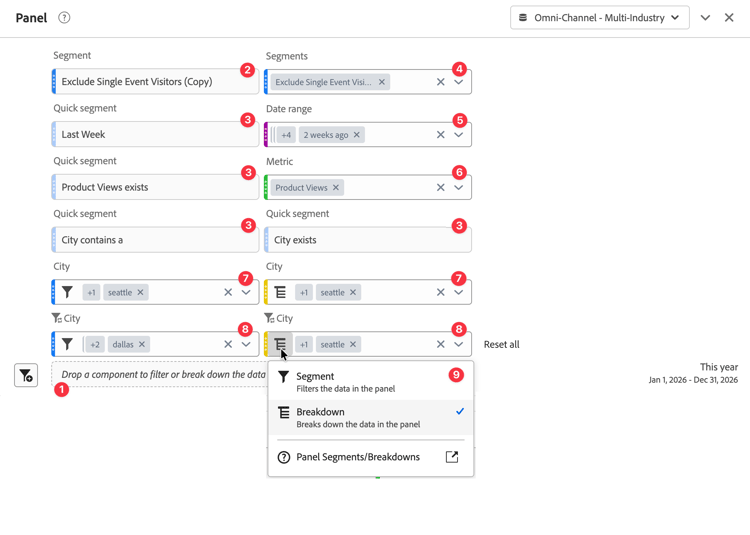
The illustration below shows the different variations of (quick) segments or breakdowns that result when you add components to the drop zone.
Add or replace
To add or replace (quick) segments or breakdowns:
-
Select one or more components from the Components rail. Use ⇧+

-
Drag the selection to the drop zone, labeled Drop a component to filter or break down the data ❶, or over an existing component already placed nearby the drop zone.
-
You have two options when you see



-
Drop the selection to create the following components:
- Segment for any segment components that you drop ❷.
- Quick segment for any non-segment components (date ranges, metrics, dimensions, dimension items) that you drop ❸.
-
Drop the selection while you hold ⇧ (shift) to create the following components:
- Static segment drop-down menu with items to filter on for the selected segments that you drop ❹.
- Static segment drop-down menu with items to filter on for the selected date ranges that you drop ❺.
- Static segment drop-down menu with items to filter on for the selected metrics that you drop ❻.
- Static segment drop-down menu or breakdown drop-down menu with items to filter on or break down on for the selected dimension items that you drop ❼.
- Dynamic segment drop-down menu or breakdown drop-down menu with items to filter on or break down on for the selected dimensions that you drop ❽.
-
Segment
Any segment component that you drop is used to segment the panel. Use segments to gain segmented insights into the data and visualizations of your panel.
Quick segment
Any non-segment component (dimension, dimension item, metric, date range) that is dropped defines a quick segment to segment the panel. Use any non-segment component to create a quick segment without using the Segment builder. A segment that is created in this way is automatically defined as an event-level segment and labeled Quick segment by default.
Alternatively, you can use

See Quick segments for how to create and manage quick segments.
Drop-down menu
A drop-down menu that is created while you hold ⇧ can:
- contain a static or dynamic list of items.
- behave to filter a panel or to break down a panel.
Static
Static drop-down menus are created for selected dimension items, metrics, segments, and date ranges. The items in a static drop-down menu are based on the selected components you drop and the items do not change when you add or replace components.
Dynamic
Dynamic drop-down menus are created only when you drop dimensions components. Dynamic drop-down menus are indicated with

The available items in a dynamic drop-down menu are based on:
- the data resulting from selected items in other drop-down menus, segments and quick segments within the panel’s drop zone, and
- the data available within the panel’s reporting range.
For example, you can add two dynamic drop-down menus using a countries dimension and a cities dimension. When you select a country from the Countries drop-down menu, the Cities drop-down menu dynamically adjusts to show only cities within the selected country. When you have additional static drop-down menus, items selected in those drop-down menus also affect the available items in the dynamic drop-down menus. Items that are selected in dynamic drop-down menus do not affect available items in static drop-down menus.
Filter a panel
For any metric, segment, or date range component that you drop while you hold ⇧, a segment drop-down menu is created. That drop-down menu allows you to filter the panel based on items available for the dropped component.
For any dimension component that you drop while you hold ⇧, segment drop-down menu is created. That drop-down menu allows you to filter the panel based on the items available for the dropped dimension items (static segment drop-down menu) or dimension component (dynamic segment drop-down menu). To configure the drop-down menu explicitly to filter a panel using segments:
- Select


Break down a panel
For any dimension component that you drop while you hold ⇧, a segment drop-down menu is created. You can configure that drop-down menu to break down the panel based on the items available for the dropped dimension items (static breakdown drop-down menu) or dimension component (dynamic breakdown drop-down menu). To configure the drop-down menu explicitly to break down a panel using breakdowns:
- Select
Segments versus breakdowns
Consider to break down a panel instead of to filter a panel (using segments) in the following scenarios:
-
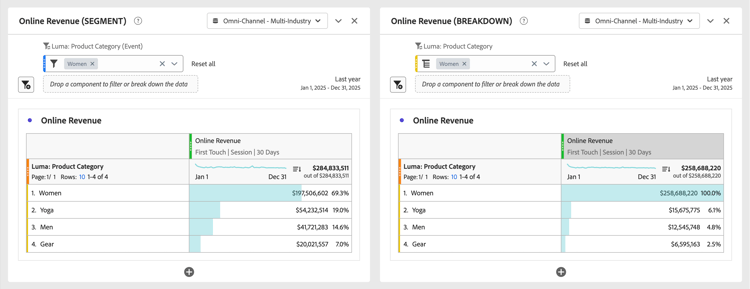
If you are using attribution-enabled metrics within your panel, segments often clear out your attribution-enabled metrics. Breakdowns are applied at a different point within the query that is executed to retrieve the data for your panel. As a result, breakdowns do not clear out these attribute-enabled metrics.
As an example, see the difference between the attribute based Online Revenue metric when using a Luma: Product Category
-
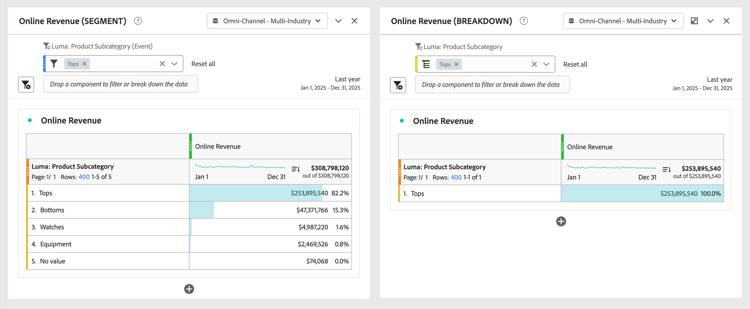
If you are using a sub-event level dimension within a breakdown drop-down menu, the breakdowns execute at that sub-event level. Instead, segments within a segments drop-down menu execute at the event level.
As an example, see the difference between the Online Revenue metric when using a Luma: Product Subcategory
Manage
You can manage the components in the drop zone as follows:


See

This video demonstrates the functionality using Adobe Analytics. However, the functionality is similarly available in Customer Journey Analytics. Be aware of the differences in terminology between Adobe Analytics and Customer Journey Analytics (for example visits versus sessions).
See
Context menu
Additional functionality for a panel is available through a context menu (right-click) on the panel header.

The following options are available:
Configuration
Some panels (like Attribution, Experimentation, Media average minute audience, and others) have a configuration dialog to assist you in building the visualization. Use
