Manage audience analysis configurations manage-audience-analysis
After you create audience analysis configurations, you can view, edit, or delete them.
Only system administrators can manage audience analysis configurations.
For information about audience analysis, see Audience analysis overview.
View and filter existing configurations
To view your existing audience analysis configurations:
-
In Customer Journey Analytics, select Data Management > Audience analysis configuration.
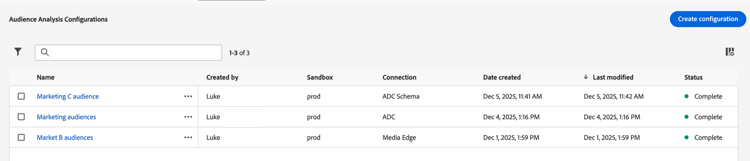
The following columns of information are available about each configuration:
-
Created by: The user who created the configuration.
-
Sandbox: The Experience Platform sandbox that contains the profile dataset that you added to your connection.
-
Connection: The connection that you added to your configuration.
-
Date created: The date that the configuration was created.
-
Last modified: The date the configuration was last modified.
-
Status: The status of the configuration. Possible statuses are Complete, In Progress, or Failed.
You can hide any columns by selecting the Column icon

-
-
(Optional) To filter the list of configurations, select the Filter

-
Connection
-
Created by
-
Sandbox
-
Status
-
Edit a configuration
To edit an existing audience analysis configuration:
-
In Customer Journey Analytics, select Data Management > Audience analysis configuration.
-
Select the name of the configuration that you want to edit.
Or
Select the checkbox next to the configuration that you want to edit, then select Edit.
-
Make any desired changes to the configuration, then select Save.
Delete a configuration
To delete an existing audience analysis configuration:
-
In Customer Journey Analytics, select Data Management > Audience analysis configuration.
-
Select the checkbox next to the configuration that you want to delete, then select Delete.