Configure audience analysis configure-audience-analysis
Audience analysis allows you to ingest audience membership data from Experience Platform Profile datasets into a Customer Journey Analytics connection. Audiences become available as new dimensions for use in Analysis Workspace. For more detailed overview information about audience analysis, see Audience analysis overview.
Create an audience analysis configuration
When creating an audience analysis configuration, you select the sandbox and merge policy associated with the Experience Platform audiences that you want to analyze. Customer Journey Analytics creates a new lookup dataset, then automatically adds the lookup dataset and the profile dataset to the connection you choose.
Only system administrators can create audience analysis configurations.
To create an audience analysis configuration:
-
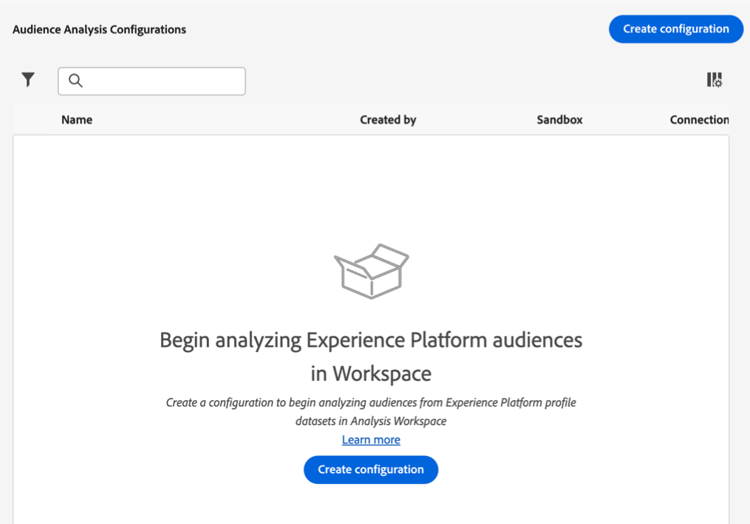
In Customer Journey Analytics, select Data Management > Audience analysis configuration.
-
Select Create configuration.
-
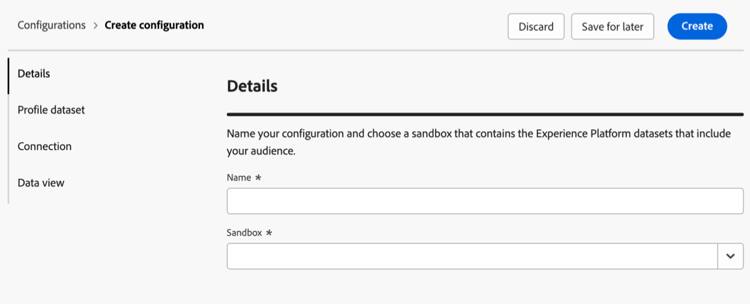
In the Details section, specify the following information:
table 0-row-2 1-row-2 2-row-2 Field Description Name Specify a name for the configuration. Sandbox Select the Experience Platform sandbox that contains the profile dataset that you want to add to your connection. A single sandbox can support up to 100 audience analysis configurations.
Adobe Experience Platform provides sandboxes which partition a single Platform instance into separate virtual environments to help develop and evolve digital experience applications. You can think of sandboxes as “data silos” that contain datasets. Sandboxes are used to control access to datasets.
-
In the Profile dataset section, specify the following information:
table 0-row-2 1-row-2 2-row-2 Field Description Merge policy Select the merge policy that corresponds to the profile dataset that you want to use for audience analysis.
Merge Policies determine how Adobe Experience Platform combines profile data from multiple datasets into unified customer profiles used for audience creation. The merge policy you select affects which profile’s attributes are included in your audiences. Each day, a snapshot of this data is generated in Experience Platform. This snapshot provides a static view of the data at a specific point in time and does not include any event data.
Select the Default Timebased merge policy if you see multiple merge policies and you are unsure which one to choose. You can also consult your data team to better understand which audiences are associated with each merge policy.
Profile dataset The profile dataset that is associated with the merge policy you selected. This profile dataset includes the Experience Platform audience data that you want to analyze. This profile dataset is added to the connection that you select.
After you choose a merge policy, the profile snapshot export is shown. For example:
Profile-Snapshot-Export-abbc7093-80f4-4b49-b96e-e743397d763f.For more information, see Profile attribute datasets in the Experience Platform Dashboards Guide.
-
In the Connection section, click Select a connection.
-
In the Connections dialog, select the checkbox next to the connection where you want to add the profile dataset, then select Use connection.
A connection can be associated with only one audience analysis configuration.
-
Specify the following information to configure the connection:
table 0-row-2 1-row-2 2-row-2 3-row-2 Field Description Person ID Select a field from the schema that represents the Person ID.
The selection is limited to the list of fields in the schema that are marked as Identity and do have an identity namespace. IdentityMap is selected by default and is appropriate for most configurations.
If there are no Person IDs to choose from, it means one or more Person IDs have not been defined in the schema. See Define identity fields in the UI for more information.
Use primary identity namespace This option shows if you select Identity Map for the Person ID.
Enable this option if you want Customer Journey Analytics to find the identity in the Identity Map that is marked with a primary=true attribute, and then use that identity as the Person ID for that row. This identity is the primary key that is used in Experience Platform for partitioning. And this identity is also the prime candidate for usage as Customer Journey Analytics Person ID (depending on how the dataset is configured in a Customer Journey Analytics connection).
Identity namespace This option shows if you select Identity Map for the Person ID. This option is disabled if you use the Primary ID Namespace.
Identity namespaces are a component of the Experience Platform Identity Service. Namespaces serve as indicators of the context to which an identity relates. If you specify a namespace, Customer Journey Analytics searches each row’s Identity Map for this namespace key and uses the identity under that namespace as the Person ID for that row. Because Customer Journey Analytics cannot do a full dataset scan of all rows to determine which namespaces are present, all possible namespaces are displayed in the drop-down menu. You must know which namespaces are specified in the data; these namespaces are not auto-detected.
-
In the Data views section, click Select data views.
-
In the Data views dialog, select the checkbox next to one or more data views that you want to use when analyzing Experience Platform audience data within Analysis Workspace. These data views are automatically configured with Experience Platform audience data for reporting.
-
Select Use data views.
-
Select Create to create the configuration.
note important IMPORTANT Because the profile dataset is updated once per day, audiences are available in Customer Journey Analytics data views on the day after you create the audience analysis configuration. -
After 24 hours, view audience dimensions in the data view to verify that the audience dimensions are available in the data views that you selected.
View audience dimensions in the data view
After you create an audience analysis configuration, you can verify that audience dimensions were added to the data views that you selected during the configuration.
To view audience dimensions in the data view, you must be a product profile administrator for the product profile that the data view is assigned to. For more information, see Access control.
To view the audience analysis dimensions in the data view:
-
In Customer Journey Analytics, select Data Management > Data views.
-
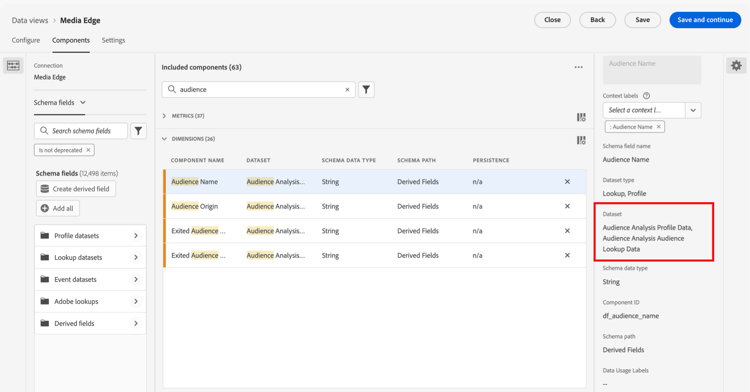
In the Dimensions section, the following dimensions should now be available:
-
Audience Name
-
Audience Origin
-
Exited Audience Origin
-
Exited Audience Name
Note that each of these dimensions was added to the profile dataset that is associated with the merge policy that you selected during the audience analysis configuration, and each was added to the new lookup dataset that was created.
-
-
Use the audience analysis dimensions in Analysis Workspace.
Users who have access to use the data view in Analysis Workspace can now see the new dimensions and use them in their analyses. For information about how to use the audience analysis dimensions in Analysis Workspace, see Analyze Experience Platform audiences in Customer Journey Analytics.