在此頁面上:瞭解如何存取忠誠度挑戰、檢閱挑戰與工作清單、探索挑戰的詳細資訊與效能,以及管理現有的挑戰與可重複使用的工作。
存取和管理挑戰與任務
若要存取忠誠度挑戰,請導覽至Journey Optimizer,並在「歷程管理」區段下選取「忠誠度挑戰」。 「忠誠度挑戰」介面提供一個集中位置,讓您檢視、管理及組織所有挑戰和任務。
介面提供兩個主要存貨的存取權:
- 挑戰:檢視及管理所有忠誠度挑戰、監控其狀態,並執行快速動作,例如檢視、編輯、複製或刪除挑戰
- 任務:瀏覽可用於多個挑戰的可重複使用任務,並獨立管理任務定義
挑戰詳細目錄 challenges-tab
挑戰索引標籤會依上次修改日期顯示所有挑戰,最近修改的挑戰會先出現。
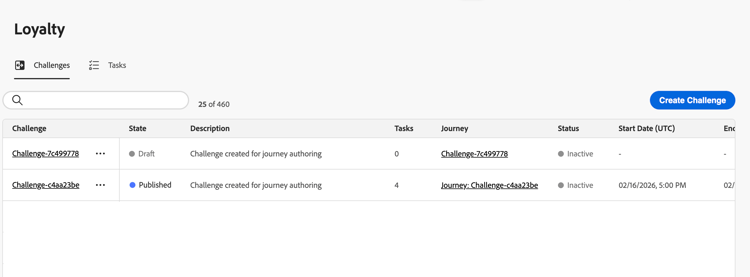
顯示的關鍵資訊:
- 狀態:挑戰目前的狀態(草稿或已發佈)
- 任務:挑戰中設定的任務數
- 歷程:連結到與挑戰關聯的自動產生歷程
- 狀態:傳送質詢的自動產生歷程的目前狀態。
- 開始/結束日期(UTC):挑戰變成使用中且到期的時間
在「挑戰」標籤中,您可以對挑戰執行動作:
-
檢視挑戰:選取挑戰名稱以開啟其詳細資訊頁面。
-
複製挑戰:選取

-
刪除挑戰:選取
note important IMPORTANT 即使挑戰已發佈,您也可以將其刪除。 在刪除前先考量影響。 -
編輯挑戰:選取挑戰名稱以開啟其詳細資訊頁面,並進行想要的變更。
當您開啟已發佈的挑戰以進行編輯時,您首先需要將其恢復為草稿狀態。 直接對自動產生的歷程進行的任何自訂都將遺失。 進行變更後,再次儲存並發佈挑戰,然後發佈關聯的歷程。 瞭解如何發起挑戰
note important IMPORTANT 將已發佈的質詢還原為草稿無法復原。 在繼續之前,請先考慮對您作用中歷程的影響。
挑戰詳細資料 challenge-details
在 挑戰 詳細目錄中選取挑戰名稱以開啟其詳細資訊頁面。 此頁面彙集挑戰設定和效能,讓您無需開啟編輯器即可檢閱特定挑戰。
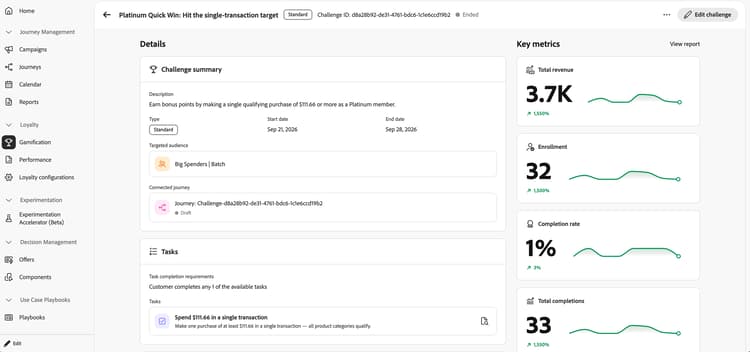
標題會顯示挑戰名稱、型別、ID和狀態。 選取 編輯挑戰 以修改挑戰。
詳細資料區域包含下列區段:
- 挑戰摘要:檢閱挑戰說明、型別、開始和結束日期、目標對象和已連線的歷程,包括歷程的狀態。
- 任務:檢閱任務完成需求,以及每個任務的名稱和描述。 選取任務旁的詳細資訊圖示,以檢閱該個別任務。
- 獎勵:檢閱與挑戰相關的獎勵詳細資料。
關鍵量度區域顯示總收入、註冊、完成率和總完成率,以及趨勢走勢圖和百分比變化。 選取 檢視報告 以更詳細地探索挑戰效能。 進一步瞭解忠誠度績效報告。
loyalty-insights.read)可控制 關鍵量度 和 趨勢 區段的存取權。 這些區段只會顯示給具有此許可權的使用者。 進一步瞭解忠誠度挑戰許可權。任務詳細目錄 tasks-tab
任務索引標籤會顯示可用於多個挑戰的所有可重複使用任務。 建立或編輯任何挑戰時,可選取此處建立的任務。
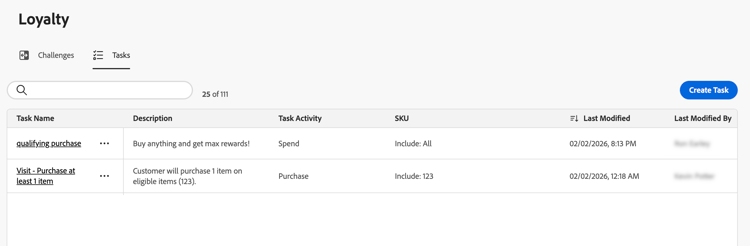
顯示的關鍵資訊:
- 描述:工作所需內容的簡短描述
- 任務活動:活動型別(購買、支出)
- SKU:符合資格及/或排除的專案
- 用於挑戰:目前使用此任務的挑戰數
在「工作」標籤中,您可以對工作執行動作:
-
檢視/編輯任務:選取任務名稱以檢視完整設定並編輯任務
-
複製任務:選取
-
刪除工作:選取
note important IMPORTANT 即使任務用於一個或多個挑戰,您也可以將其刪除。 在刪除前,請考慮對參考任務的挑戰的影響。
This section contains structured knowledge intended to support interpretation, retrieval, and question answering related to this topic.
For complete understanding, this information should be combined with the documentation on this page. Neither source is intended to stand alone; the page describes the feature, while this section provides additional context that helps disambiguate terminology, intent, applicability, and constraints.
- TL;DR: This page explains how to access and manage loyalty challenges and reusable tasks, review challenge details and performance, and edit published challenges.
Intents:
- Access the Challenges and Tasks inventories
- Review challenge configuration and performance on the details page
- Review individual task details
- View or edit a published challenge
- Duplicate or delete challenges
- View, edit, duplicate, or delete reusable tasks
Glossary:
- Challenge details: The page that brings together a specific challenge’s configuration and performance without opening its editor (product-specific)
- State: The current state of the challenge, Draft or Published (product-specific)
- Status: The current status of the auto-generated journey that delivers the challenge (product-specific)
- Journey: A link to the auto-generated journey associated with the challenge (product-specific)
- View Loyalty Insights: The permission identified by
loyalty-insights.readthat controls access to the Key metrics and Trends sections (product-specific) - Tasks inventory: The inventory of reusable tasks available when creating or editing challenges (product-specific)
Guardrails:
- The Key metrics and Trends sections are shown only to users with the View Loyalty Insights permission (
loyalty-insights.read). - Editing a published challenge requires reverting it to Draft state first. Reverting a published challenge to draft cannot be undone, and customizations made directly to the auto-generated journey are lost.
- After editing a published challenge, save and publish the challenge again, then publish its associated journey.
- A challenge can be deleted even when published. Consider the impact before deleting.
- A task can be deleted even when used in one or more challenges. Consider the impact on challenges that reference it before deleting.
Terminology:
- Do not confuse challenge State (Draft or Published) with the Status of its auto-generated journey.
- Challenge summary, Tasks, and Rewards are sections of the Details area; Key metrics displays challenge performance.
- Tasks in the challenges inventory is the number of tasks configured in a challenge; the Tasks inventory lists reusable task definitions.
FAQ:
- Q: How do I open a challenge’s details? - Select the challenge name in the Challenges inventory.
- Q: What does the details page show? - The header displays the challenge name, type, ID, and status. The Details area shows the challenge description, type, dates, targeted audience, connected journey and its status, task completion requirements, task names and descriptions, and reward details.
- Q: Which performance metrics can I review? - Total revenue, enrollment, completion rate, and total completions, with trend sparklines and percentage changes. Select View report to explore challenge performance in more detail.
- Q: Who can view Key metrics and Trends? - Users with the View Loyalty Insights permission (
loyalty-insights.read). - Q: How do I edit a published challenge? - Select Edit challenge on the details page. A published challenge first needs to be reverted to Draft state, which cannot be undone. Customizations made directly to the auto-generated journey are lost. After making changes, save and publish the challenge again, then publish the associated journey.
- Q: What is preserved when I duplicate a challenge? - A copy is created with all tasks, content, and messaging intact.