移轉內容和歷程 migrate-content-and-journeys
如果您從另一個行銷平台移至Journey Optimizer,您不必從空白顯示窗開始。 Journey Optimizer包含專用工作區,可匯入您現有的電子郵件內容和歷程。 它會將其轉換為Journey Optimizer內容範本和歷程,以便您可以擷取離開的位置,而不是從頭開始重建所有內容。
若要將您的內容和歷程移轉至Journey Optimizer,您需要下列許可權:管理行銷活動、管理歷程、管理訊息、管理區段、管理程式庫專案、檢視和管理沙箱,以及管理AJO整合設定。 進一步瞭解角色和許可權
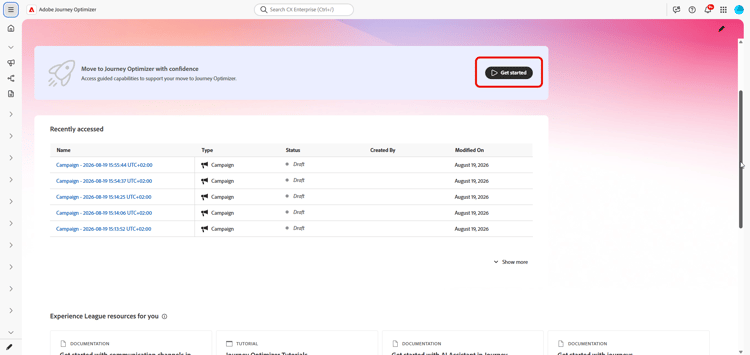
您可以直接從Journey Optimizer首頁存取此工作區。
設定連線 set-up-a-connection
若要透過API匯入內容或歷程,請先將Journey Optimizer連線至您的來源平台:
-
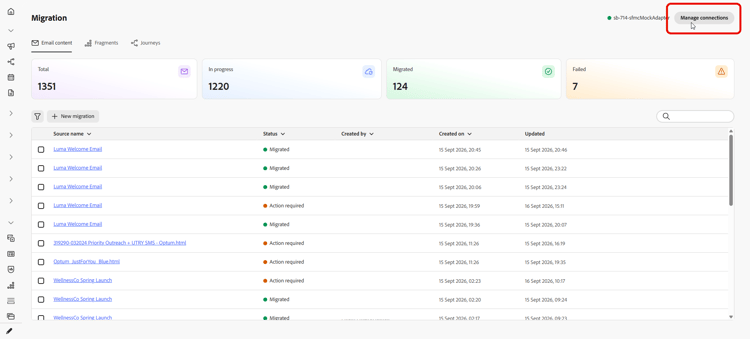
在工作區中,選取管理連線。
-
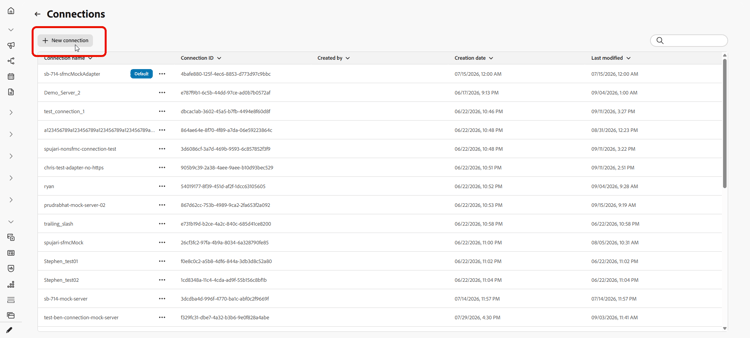
按一下新連線。
-
請填寫以下詳細資料:
-
連線名稱:識別來源系統的名稱,例如
Marketing-Automation-Prod。 名稱必須以字母開頭,並且只能包含字母、數字、底線或連字型大小,長度介於4到50個字元之間。 -
基本API URL:來源系統API的根URL,不含任何資源路徑或查詢字串,例如
https://api.example.com。 -
描述:可協助您和其他使用者識別此連線用途的可選內容。
-
驗證方法: Journey Optimizer如何驗證來源系統。 選擇 API金鑰 以傳送每個要求的單一認證。 選擇 OAuth 2.0 以使用更適合企業與協力廠商API的權杖型通訊協定。
-
使用者端識別碼:您在授權伺服器註冊應用程式時,指派給應用程式的公用識別碼。 OAuth 2.0連線的必要專案。
-
使用者端密碼:與您使用者端識別碼相關聯的機密認證。 請保密,因為只有您的應用程式和授權伺服器才知道。 OAuth 2.0連線的必要專案。
-
權杖URL:發行使用者端認證流程存取權杖的授權伺服器端點,通常以
/oauth/token或/token結尾。 OAuth 2.0連線的必要專案。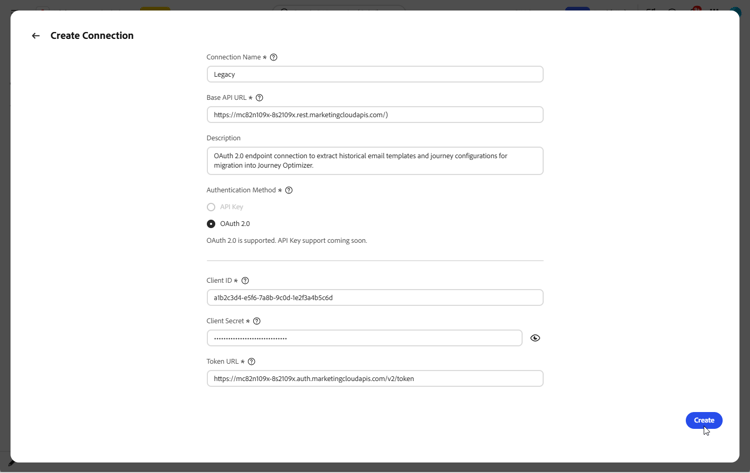
-
-
選取「建立」。
-
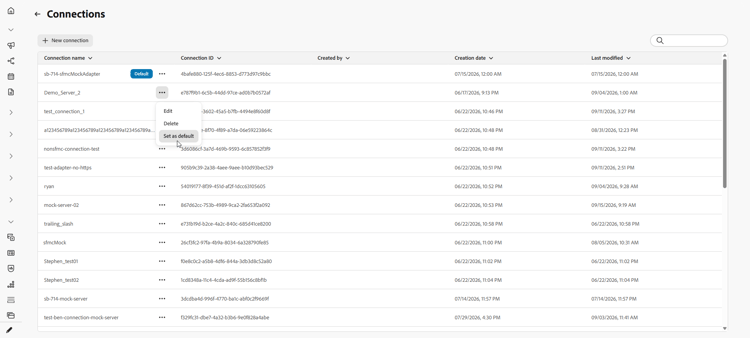
設定連線後,請使用進階功能表將其刪除,或標示為預設值,以便在您下次匯入內容或歷程時預先選取。
匯入電子郵件內容 import-email-content
當您擁有內容的來源(HTML檔案或來源平台的連線)後,請將其匯入工作區以將其轉換為Journey Optimizer內容範本。
-
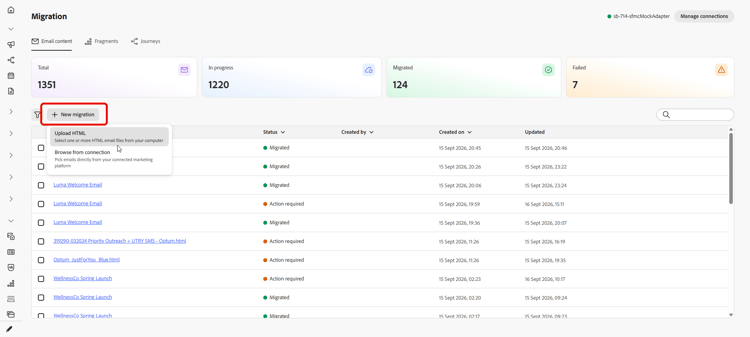
從 電子郵件內容 索引標籤,選擇您要如何匯入電子郵件內容:
-
上傳HTML:從電腦中選取一或多個HTML電子郵件檔案。
-
從連線瀏覽:直接從您連線的行銷平台瀏覽及選取電子郵件,不需要手動匯出及上傳檔案。
-
-
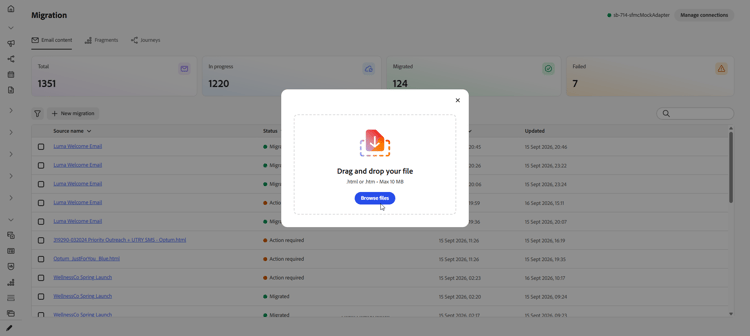
如需HTML上傳,請瀏覽您的檔案或將其拖放至上傳區域。 按一下上傳。
檔案必須是
.html或.htm格式,而且不能超過10 MB。電子郵件內容的
-
若要從連線匯入,請從[電子郵件]清單中選擇,然後按一下[匯入]。
-
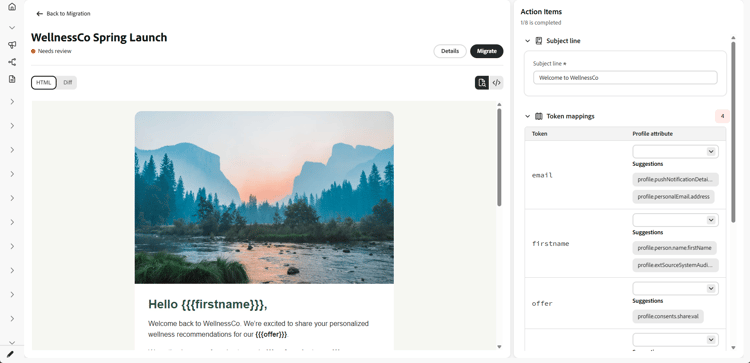
存取您匯入的電子郵件,並檢閱匯入的HTML。
-
新增您的主旨列,並將每個個人化預留位置對應至對應的設定檔屬性。
工作區會自動將來源指令碼語法轉換為Handlebars語法。 如需支援的運運算元清單,請參閱運運算元。
note NOTE 某些來源日期權杖會自動對應,而不會顯示為要對應的個人化預留位置。 權杖探索和對應也已改善,以更準確。 -
如果電子郵件參考任何內容區塊,請將其解析為片段。 請參閱匯入片段。
-
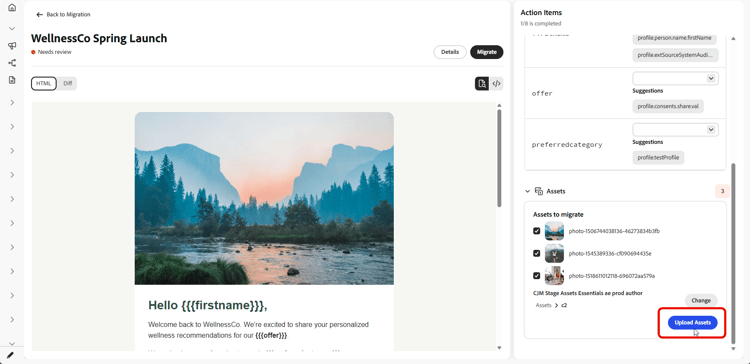
選取要上傳電子郵件影像至Experience Manager Assets的資料夾,然後按一下上傳資產。
-
電子郵件準備就緒後,請選取移轉,然後選取 檢視電子郵件 以開啟新的內容範本。
已完成電子郵件的
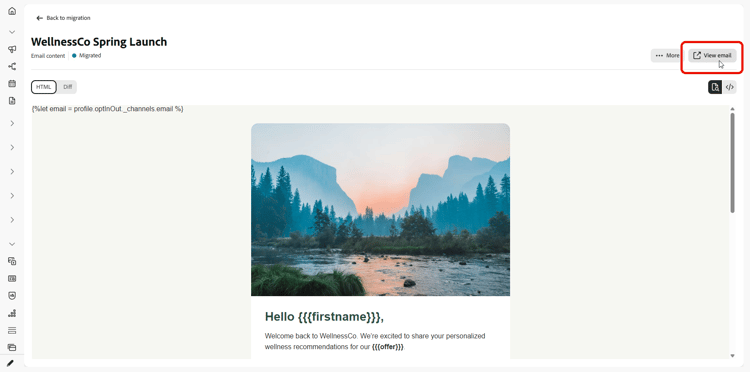
您的內容範本現在可在Journey Optimizer中使用,並準備用於您的歷程。
➡️ 進一步瞭解內容範本
匯入片段 import-fragments
片段是電子郵件中可重複使用的建置區塊,例如頁首、頁尾或促銷區塊,您只需建置一次,即可在多封電子郵件中重複使用,以達到一致性和加快編寫速度。 當您移轉電子郵件時,Journey Optimizer會識別其參考的任何內容區塊,並將其顯示為行動專案,以便您可與電子郵件一併移轉。
-
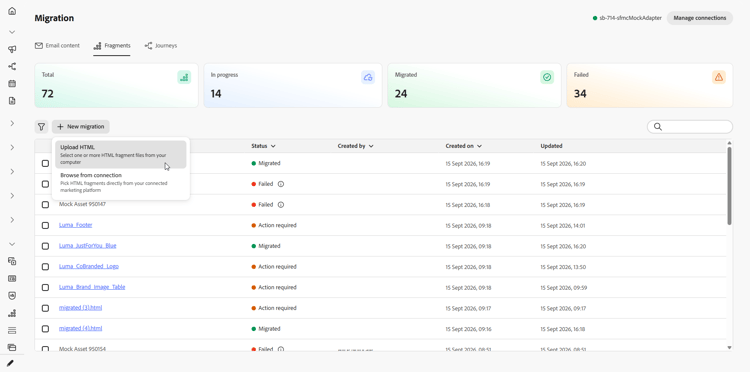
從 片段 索引標籤,選擇您要如何匯入片段:
-
上傳HTML:從您的電腦中選取一或多個HTML片段檔案。
-
從連線瀏覽:直接從您連線的行銷平台瀏覽及選取片段,不需要手動匯出及上傳檔案。
-
-
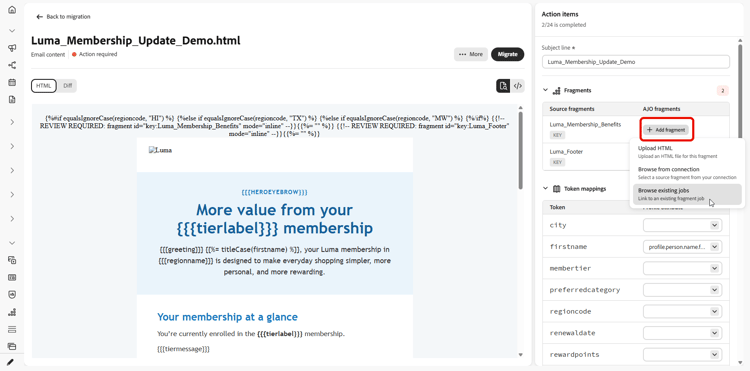
您也可以在移轉電子郵件時匯入片段。 當它移轉電子郵件時,Journey Optimizer會掃描它、識別任何參考的內容區塊,並在電子郵件上顯示為片段動作專案,因此您可以在不離開電子郵件移轉流程的情況下解析它們。
-
若要從連線匯入,請從[片段]清單中選擇,然後按一下[匯入]。
-
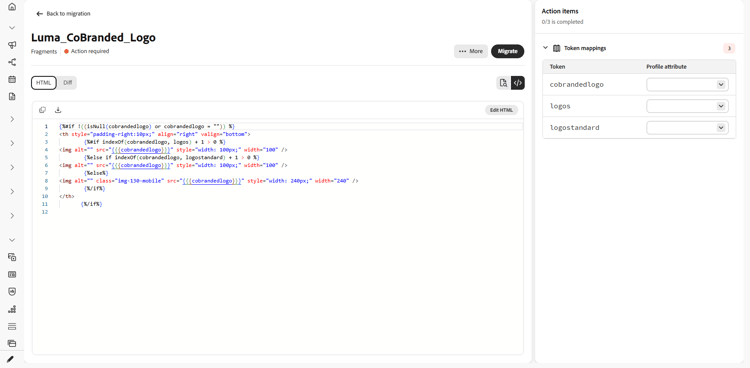
開啟您匯入的片段並解析其剩餘的動作專案,例如,資產或對應的設定檔屬性。
-
您的片段準備就緒後,請選取移轉,然後選取 檢視片段 以開啟。
匯入歷程 import-journeys
透過匯入歷程流程的熒幕擷圖或連線到您的來源平台來重新建立您的歷程。 歷程會準備為可編輯的草稿,您可以在視覺畫布上檢閱草稿再進行移轉,這樣您就能夠獲得先需要您輸入的所有內容的引導式檢查清單,而不是盲目移轉。
-
從 歷程 索引標籤,選擇您要如何匯入歷程:
-
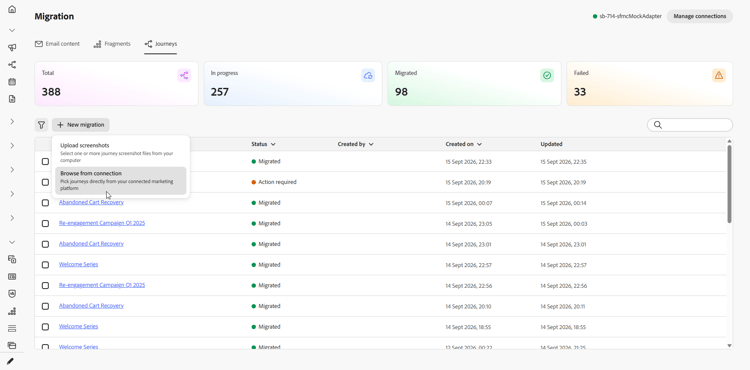
上傳熒幕擷取畫面:從電腦中選取一或多個歷程熒幕擷取畫面。
-
從連線瀏覽:直接從您連線的行銷平台瀏覽並選取歷程,不需要手動匯出並上傳熒幕擷取畫面。
-
-
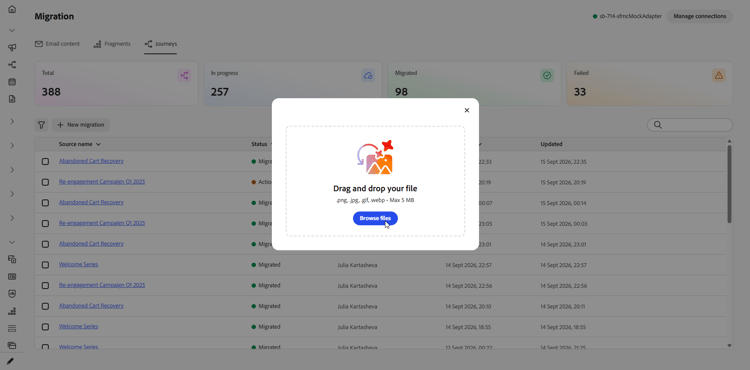
若要上傳熒幕擷圖,請瀏覽您的檔案或將其拖放到上傳區域。 按一下上傳。
檔案必須是.png、.jpg、.gif、.webp格式,而且不能大於5 MB。
-
若要從連線匯入,請從歷程清單中選擇,然後按一下[匯入]。
-
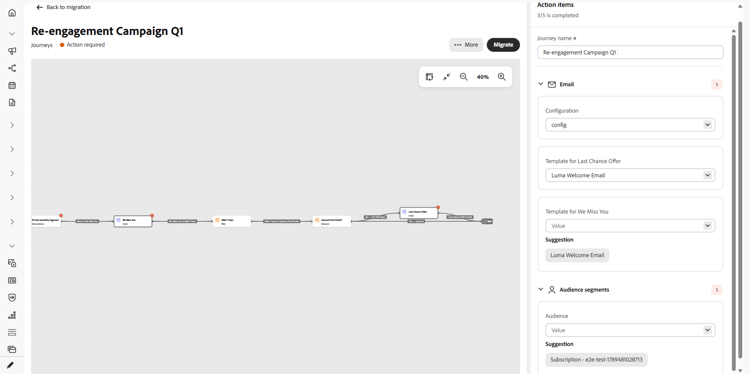
開啟歷程以在互動式畫布上預覽。 完整歷程會呈現為節點和邊緣畫布,而需要注意的節點會內嵌標籤。
-
從 動作專案 面板,在移轉前先解析每個專案。 面板標題會顯示總計中已解析專案的即時計數,選取行動專案會醒目顯示畫布上的相符節點。 行動專案包括:
- 歷程名稱:在移轉前設定歷程名稱。
- 內容範本:請為需要範本的歷程動作選取適當的內容範本。 電子郵件範本在選取時就會經過驗證,而任何驗證問題都會直接顯示在行動專案上。
- 頻道設定:選取電子郵件和行動裝置等頻道所需的設定。
- 對象區段:將來源對象對應至適當的Journey Optimizer對象。
-
解析每個動作專案後,請選取移轉。
Journey Optimizer對歷程執行最終檢查,重新驗證電子郵件範本並確認歷程名稱已設定。 任何遺失或無效的資訊會封鎖移轉,並內嵌於相關動作專案上。 檢查通過後,確認步驟會防止意外移轉,然後頁面會反映處理狀態。
-
如果您不再需要歷程移轉,請從歷程清單或開啟歷程內的功能表將其刪除。
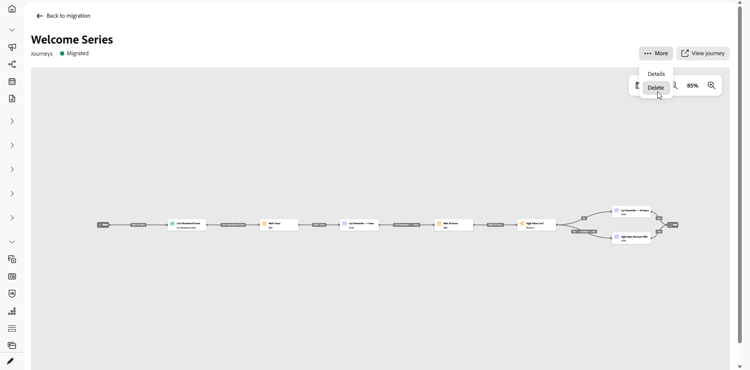
您的歷程現在可在Journey Optimizer中使用,您可以在其中檢閱畫布、進行任何最終調整,以及在準備好上線時啟用它。 選取 檢視歷程 以直接在Journey Optimizer中開啟移轉的歷程。 如果移轉完成,但無法套用某些動作專案,系統會告知您確切的數量,並指向Journey Optimizer以完成這些專案。
➡️ 進一步瞭解歷程建立
追蹤移轉 track-migration-progress
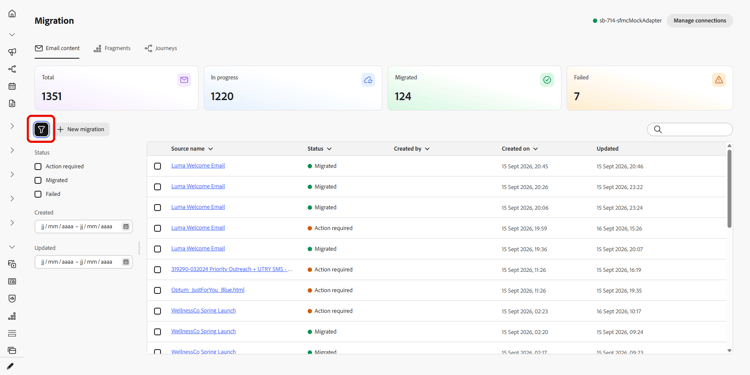
工作區概觀可協助您追蹤已匯入的每封電子郵件或歷程,並快速找到仍在等待動作的電子郵件或歷程。 畫面頂端的一組KPI讓您一目瞭然地瞭解每種狀態的專案計數:
- 總計:匯入工作區中的專案總數。
- 進行中:在移轉之前,仍在稽核或對映的專案。
- 已移轉:已成功轉換且可在Journey Optimizer中使用的專案。
- 失敗:無法移轉且需要注意的專案。

一組篩選器可讓您縮小匯入內容的清單,以便聚焦於特定子集,而非捲動每個專案。 結合下列一或多個篩選器,以找出您要尋找的內容:
- 需要動作:專案有未解析的動作專案,需要您的輸入才能移轉。
- 正在處理:專案目前正在移轉。
- 已移轉:專案已成功移轉,可在Journey Optimizer中使用。
- 失敗:移轉無法完成,需要注意。
This section contains structured knowledge intended to support interpretation, retrieval, and question answering related to this topic.
For complete understanding, this information should be combined with the documentation on this page. Neither source is intended to stand alone; the page describes the feature, while this section provides additional context that helps disambiguate terminology, intent, applicability, and constraints.
- TL;DR: This page explains how to migrate email content and journeys from another marketing platform into Journey Optimizer using a dedicated workspace that converts them into Journey Optimizer content templates and journeys.
Intents:
- Set up a connection from Journey Optimizer to a source marketing platform for API-based import
- Import email content by uploading HTML files or browsing from a connection
- Import journeys by uploading screenshots or browsing from a connection
- Map personalization placeholders and add a subject line to imported email content
- Track migration progress using KPIs, statuses, and filters in the workspace overview
Glossary:
- Migration workspace: A dedicated workspace, accessible from the Journey Optimizer homepage, that imports existing email content and journeys and converts them into Journey Optimizer content templates and journeys (product-specific)
- Connection: A configured link between Journey Optimizer and a source platform’s API, used to browse and import content or journeys without exporting files manually (product-specific)
- Authentication Method: How Journey Optimizer authenticates to the source system, either API Key (a single credential sent with each request) or OAuth 2.0 (a token-based protocol) (product-specific)
- Content template: The Journey Optimizer object that imported email content is converted into and made available for use in journeys (product-specific)
- Action items pane: The pane where each unresolved activity of an imported journey is resolved, such as selecting a channel configuration and content template for message steps, or selecting the audience for Audience activities (product-specific)
Guardrails:
- This capability is only available for a set of organizations (Limited Availability); to gain access, contact your Adobe representative.
- Migrating content and journeys requires the following permissions: Manage Campaigns, Manage Journeys, Manage Message, Manage Segments, Manage Library items, View and Manage sandboxes, and Manage AJO integration configuration.
- A connection is not required if you upload HTML files or screenshots instead of importing through an API.
- Connection Name must start with a letter and can only contain letters, numbers, underscores, or hyphens, between 4 and 50 characters long (hard limit).
- Client ID, Client Secret, and Token URL are required for OAuth 2.0 connections.
- Email content HTML files must be in .html or .htm format and no larger than 10 MB (hard limit).
- Journey screenshots must be in .png, .jpg, .gif, or .webp format and no larger than 5 MB (hard limit).
Terminology:
- Canonical name: Migration workspace — Acronym: n/a — variants: workspace, migration workspace
- Synonyms: “Base API URL” = “root URL of the source system’s API”
- Do not confuse: “In Progress” (KPI for items still being reviewed or mapped) ≠ “Needs review” (imported item status and Status filter value) ≠ “Migrated” (successfully converted item) ≠ “Failed” (item that could not be migrated)
FAQ:
- Q: Do I need a connection to import content? — No. A connection is not required if you upload HTML files or screenshots; a connection is needed only to import content or journeys through an API.
- Q: What file formats and sizes are accepted? — Email content must be an .html or .htm file no larger than 10 MB, and journey screenshots must be .png, .jpg, .gif, or .webp no larger than 5 MB.
- Q: What happens to the source personalization syntax when I import an email? — The workspace converts the source scripting syntax to Handlebars syntax automatically, and you map each personalization placeholder to the corresponding profile attribute.
- Q: How do I know which authentication method to choose? — Choose API Key to send a single credential with each request, or choose OAuth 2.0 to use a token-based protocol better suited to enterprise and third-party APIs; OAuth 2.0 also requires Client ID, Client Secret, and Token URL.
- Q: How can I track the status of imported items? — The workspace overview shows KPIs for Total emails or Total journeys, In Progress, Migrated, and Failed, and you can combine Status, Created, and Updated filters to narrow the list.