在此頁面上:依頻道和通訊型別設定頻率上限,以便您可以限制設定檔接收多少訊息,並避免客戶因類似通訊而感到不知所措。
管道規則集套用上限規則至通訊管道。 例如,每天傳送的電子郵件或行動訊息請勿超過 1 則。
運用管道規則集,可讓您根據通訊型別設定頻率上限,以防止訊息相似的客戶超載。 例如,您可以建立規則集以限制傳送給客戶的 促銷通訊 數目,以及建立另一個規則集以限制傳送給客戶的 電子報 數目。 視您建立的促銷活動型別而定,您可以選擇套用促銷通訊或電子報規則集。
建立管道頻率上限規則
若要建立管道規則集,請遵循下列步驟:
-
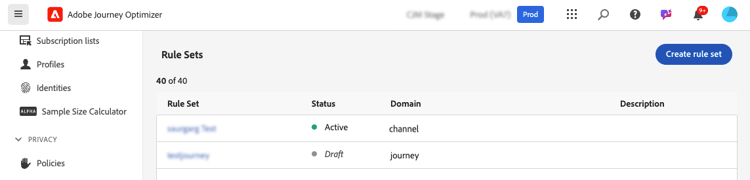
存取 規則集 清單,然後按一下建立規則集。

-
選取您要新增上限規則的規則集,或建立新規則集:
-
若要使用現有的規則集,請從清單中選取它。 管道上限規則只能新增到具有「管道」網域的規則集。 您可以在 網域 欄的規則集清單中檢查此資訊。
-
若要在新規則集內建立上限規則,請按一下[建立規則集] ,指定規則集的唯一名稱,並從[規則集網域] 下拉式清單中選取[管道],然後按一下[儲存]。

-
-
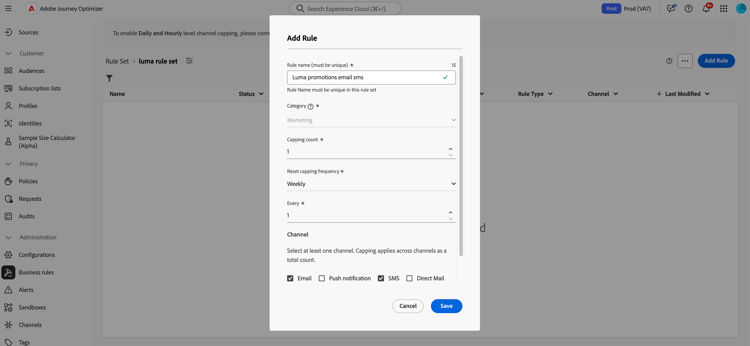
在規則集畫面中,按一下 新增規則 按鈕,並為規則定義唯一名稱。
-
類別欄位指定規則套用的訊息類別。 目前,此欄位是唯讀的,因為只有 行銷 類別可用。
-
在 上限計數 欄位中,根據您在下列欄位中的選擇,設定規則的上限,也就是每個月、每週、每天或每小時可傳送給個別使用者設定檔的訊息數上限。
-
從 重設上限頻率 下拉式清單中,選取是否要每小時、每日、每週或每月套用上限。 頻率上限是根據所選的日曆期間。 它會在對應的時間範圍開始時重設。
每個期間的計數器到期日如下:
- 小時 — 頻率上限對所選小時數有效。 計數器會在每個時間範圍的開頭自動重設。 對於1小時的頻率上限,它每小時會重設一次,與UTC一小時的結尾重合。
- 每日 — 每日頻率上限在23:59:59 UTC之前的該日有效,並在隔天的開頭重設為0。
- 每週 — 頻率上限有效至該周星期六23:59:59 UTC。 無論規則是在何時建立,有效期都適用。 例如,如果規則是在星期四建立,則此規則的有效期直到星期六的23:59:59。
- 每月 — 頻率上限在每月最後一天23:59:59 UTC之前有效。 例如,1月的每月到期日為01-31 23:59:59 UTC。
note important IMPORTANT -
為確保準確性,請確保在編寫行銷活動或歷程時選擇最高優先順序的名稱空間。 在平台身分識別服務指南
之中進一步了解命名空間優先順序 -
一旦傳遞通訊後,設定檔計數器值就會更新。 當您傳送大量通訊時,請注意這一點,因為輸送量可能導致收件者在啟動通訊後數分鐘甚至數小時收到電子郵件(若您同時傳送數百萬封通訊)。 如果收件者收到兩則緊密相連的通訊,則這一點很重要。 我們建議將通訊間隔至少兩小時,讓收件者有充足的時間接收通訊,並相應地更新計數器值。
-
Every欄位可讓您根據指定的持續時間,重複數小時、數天、數週或數月的頻率限定規則。 範例:套用頻率限定規則2週。
請務必輸入符合所選期間型別的值:每小時1-23、每日1-30、每週1-4及每月1-3。
當新的時間範圍開始時,計數器會自動重設為0。 對於2天的頻率上限,此重設會每兩天的UTC午夜發生。
-
選取要用於此規則的頻道: 電子郵件、行動訊息、推播通知、直接郵件、WhatsApp或您建立的任何自訂頻道。
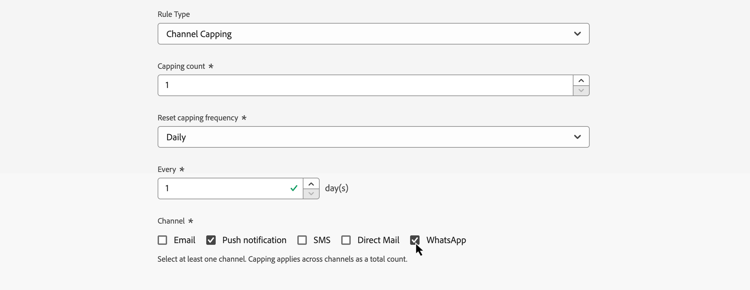
如果您要將上限套用至所有選取的色版總數,請選取數個色版。
例如,將上限設為5,然後同時選取電子郵件和行動裝置訊息頻道。 如果設定檔在選定期間內已收到3封行銷電子郵件和2封行銷行動訊息,則下次傳送行銷電子郵件或行動訊息時,將會排除此設定檔。
-
按一下 儲存 以確認建立規則。 您的訊息已新增至規則集,狀態為草稿。

-
重複上述步驟,視需求將任意數量的規則新增至規則集。
-
當上限規則已準備好套用至訊息時,請啟動規則集及其加入所在的規則。 瞭解如何啟用規則集
套用規則集至訊息 apply-frequency-rule
若要將規則集套用至訊息,請遵循下列步驟:
-
建立歷程或行銷活動訊息時,選取您為規則集定義的其中一個管道,並編輯訊息的內容
-
在內容版本畫面中,按一下 新增商業規則 按鈕。
-
選取您建立的規則集。
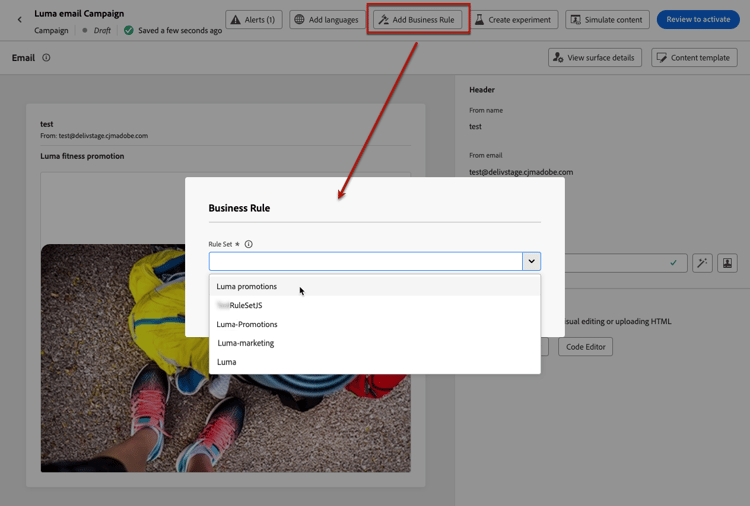
note NOTE 只有個已啟動的規則集會顯示在清單中。 -
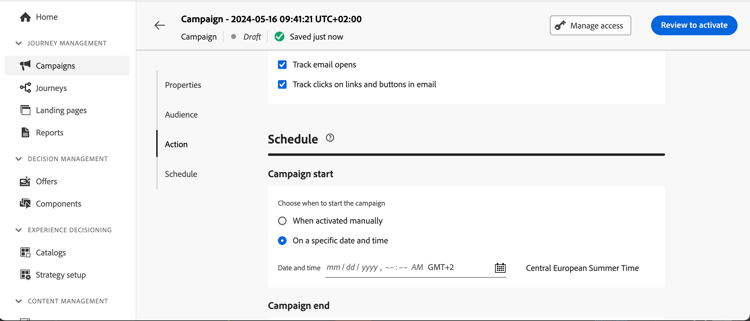
在啟用您的歷程或行銷活動之前,請務必將其排程在日後至少10分鐘執行。
這樣就有足夠的時間在您選取之商業規則的設定檔上填入計數器值。 如果您立即啟用行銷活動,規則集計數器值將不會填入收件者的設定檔中,且訊息將不會計入其自訂規則集的頻率限定規則中。 此外,上限可能無法正確用於立即啟用的歷程和行銷活動以及API觸發的行銷活動。
-
您可以在Customer Journey Analytics報告和即時報告中檢視從傳送中排除的設定檔數目,其中頻率規則會列為使用者從傳送中排除的可能原因。
測試頻率規則時,建議使用新建立的測試設定檔,因為一旦達到設定檔的頻率上限,就無法在下一個期間之前重設計數器。 停用規則將允許限定設定檔接收訊息,但不會移除或刪除任何計數器增量。
作法影片 video
➡️ 在實務中檢視:瞭解如何在此社群使用案例中在Adobe Journey Optimizer中實作每日頻率上限。
This section contains structured knowledge intended to support interpretation, retrieval, and question answering related to this topic.
For complete understanding, this information should be combined with the documentation on this page. Neither source is intended to stand alone; the page describes the feature, while this section provides additional context that helps disambiguate terminology, intent, applicability, and constraints.
- TL;DR: This page explains how to create channel rule sets that apply frequency capping rules by channel and communication type, limiting how many messages a profile receives per hour, day, week, or month, and how to apply them to journey and campaign messages.
Intents:
- Create a channel capping rule inside a channel-domain rule set
- Set a Capping count and a Reset capping frequency (hourly, daily, weekly, or monthly)
- Apply capping across several channels as a single total count
- Apply an activated rule set to a journey or campaign message with Add Business Rule
- Understand how and when frequency counters reset and update
- Test frequency rules and view profiles excluded from delivery in reporting
Glossary:
- Channel rule set: A rule set whose Domain is “channel”; it applies capping rules to communication channels (product-specific)
- Capping rule: A rule defining the maximum number of messages sent to a profile for the selected period (product-specific)
- Capping count: Field setting the maximum number of messages that can be sent to an individual user profile each month, week, day, or hour (product-specific)
- Reset capping frequency: Drop-down that selects whether the capping is applied hourly, daily, weekly, or monthly, reset at the beginning of the corresponding time frame (product-specific)
- Every: Field that repeats the frequency capping rule over multiple hours, days, weeks, or months (product-specific)
- Communication type: A category of message (for example promotional communications, newsletters) that a rule set can be built to limit (product-specific)
- Category: Field specifying the message category the rule applies to; read-only, with only Marketing available (product-specific)
Guardrails:
- You can create up to 10 active local rule sets for each channel domain and for the journey domain.
- The Every field value must match the selected duration type: 1-23 for Hourly, 1-30 for Daily, 1-4 for Weekly, and 1-3 for Monthly.
- The Category field is read-only, as only the Marketing category is available.
- Selecting several channels applies capping across all selected channels as a total count.
- Frequency caps reset on calendar periods in UTC: hourly caps are valid for the selected number of hours and reset at the beginning of each time window (for a 1-hour cap, at the end of a UTC hour), daily until 23:59:59 UTC, weekly until Saturday 23:59:59 UTC, and monthly until the last day of the month 23:59:59 UTC.
- Before activating, schedule the journey or campaign execution at least 10 minutes into the future so counter values populate; activating immediately means the capping may not work correctly for journeys, campaigns, and API-triggered campaigns.
- The profile counter value updates once the communication is delivered; spacing communications at least two hours apart is recommended so the counter can update.
- Frequency capping rules also apply when sending proofs; if a test profile has reached the cap, proofs show as finished but no email is delivered.
- Once a profile’s frequency cap is reached, there is no way to reset the counter until the next period; deactivating a rule lets capped profiles receive messages but does not remove or delete counter increments.
- To ensure channel-level capping works correctly, choose the highest priority namespace while authoring a campaign or journey.
Terminology:
- Canonical name: channel capping — variants: frequency capping by channel and communication type, channel rule set, frequency capping rules
- Do not confuse: “rule set” (a group of rules) ≠ “capping rule” (a single rule inside a rule set)
- Do not confuse: “Reset capping frequency” (the period unit: hourly, daily, weekly, or monthly) ≠ “Every” (how many of those periods the rule spans)
FAQ:
- Q: How many channel messages can a profile receive? — Whatever you set in the Capping count for the selected Reset capping frequency; if several channels are selected, the count is shared as a total across those channels.
- Q: When do frequency counters reset? — At the start of the next calendar period in UTC (hourly, at the beginning of each time window; daily until 23:59:59 UTC, weekly until Saturday 23:59:59 UTC, or monthly until the last day of the month 23:59:59 UTC).
- Q: Can I reset a profile’s counter once its cap is reached? — No, there is no way to reset the counter until the next period; deactivating a rule lets capped profiles receive messages but does not remove counter increments.
- Q: Why might capping not work for an immediately activated campaign? — Counter values do not populate on the profiles of the recipients if you activate immediately, so capping may not work correctly; schedule execution at least 10 minutes into the future.
- Q: Do frequency caps apply to proofs? — Yes; if a test profile has reached the cap, the proof shows as finished but no email is delivered.
- Q: Where can I see profiles excluded by frequency rules? — In the Customer Journey Analytics report and the Live report, where frequency rules are listed as a reason for exclusion.