在此頁面上:瞭解如何在電子郵件Designer中產生並調整電子郵件的專屬版本,以便AI輔助收件匣使用者端將其摘要和回答納入您的優惠方案及行動號召中。
Adobe Journey Optimizer隨附電子郵件通道功能,可協助您建構訊息的特定版本,以改善AI輔助收件匣體驗,例如Gmail中的Apple Intelligence和Google Gemini,讓他們能更準確地回答問題,並根據您的內容摘要郵件,獲得更好的結果。
您可以使用此功能來產生和調整訊息的專屬版本,這樣AI輔助收件匣體驗就更有可能呈現您想要的選件、行動號召和詳細資訊,而不是精簡自動產生的文字或不相關內容。
運作方式 how-it-works
收件者在AI輔助收件匣體驗中可能會詢問的常見問題是此電子郵件是關於什麼的? 或這些選件是什麼?。
-
這些AI助理提供的答案可能是簡短摘要(例如,訊息為促銷、提及VIP搶先使用權和促銷,並包含產品類別的連結)。 不過,他們仍會忽略行銷人員關心的目標,因為助理從他們有效看到的任何文字中推斷出來,不一定是您打算的完整故事。
-
此外,助理可能會主動搜尋與品牌相關的折扣或優惠券,並將這些內容摺疊成答案,因此使用者不再只檢視您實際承諾的訊息。 此行為對一般使用者很有用,但若行銷人員需要回答來追蹤傳送中的真實辭彙,此行為會稀釋他們的控制權。
為防止這些問題,Journey Optimizer會建立您訊息的其他特定版本,好讓優惠券、折扣範圍、行動號召以及其他優先順序都顯示在清晰的線性副本中。
目標是讓收件匣AI將您定義的優惠方案和動作中的摘要和問答置於基礎位置,而非依賴較薄的預設文字部分或不相關的網頁結果。
建議的使用案例 use-cases
-
密集或片段式內容 — 當電子郵件內容難以掃描時,最佳化可以透過明確的優惠方案與連結,產生更清晰的線性敘述。
-
控制收件匣問答 — 當您預期收件者會詢問助理時 電子郵件內容為何 或選件為何,AI版本的強大最佳化功能可減少部分摘要,並避免依賴與您核准的復本無關的網頁補充答案。
針對AI收件匣體驗最佳化 optimize-with-ai
若要針對Journey Optimizer的AI收件匣體驗最佳化您的電子郵件內容,請遵循下列步驟。
-
在電子郵件Designer中開啟您的電子郵件(來自行銷活動、歷程或範本,視您的工作流程而定)。
-
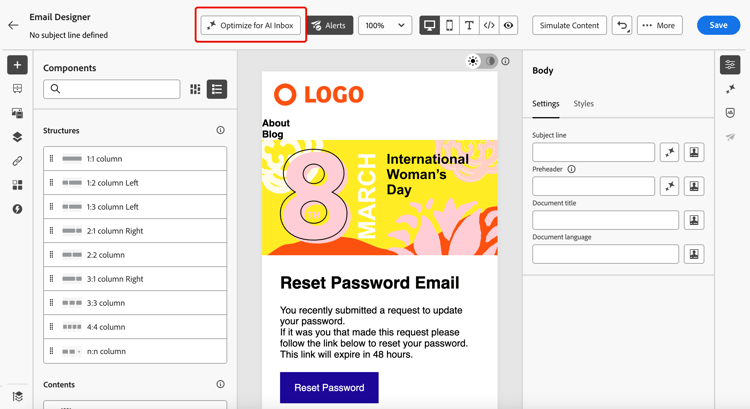
按一下 「針對AI收件匣最佳化」 按鈕,以產生改良版本,其中強調重要資訊,以供AI輔助閱讀和摘要之用。
電子郵件Designer中的
-
如果這是您第一次在Journey Optimizer中使用Generative AI,將會要求您同意使用者合約。 若要深入瞭解,請參閱Adobe Generative AI使用者指南。
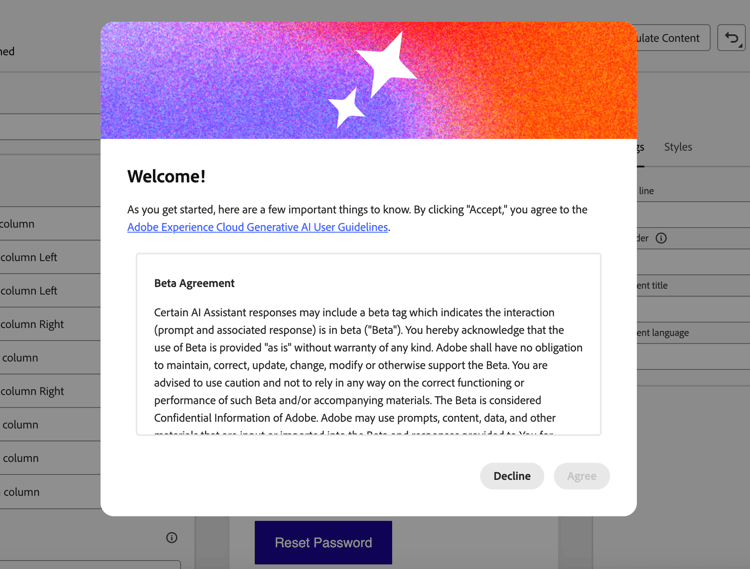
按一下 同意 以繼續。
-
產生的版本會顯示在 AI收件匣最佳化工具 視窗中。
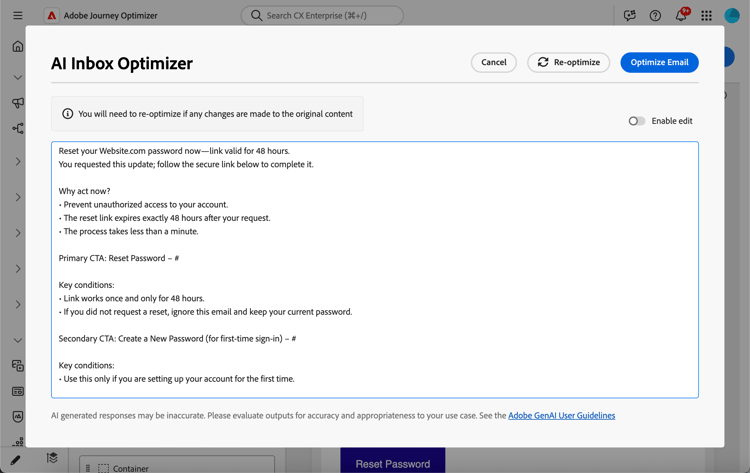
note NOTE 最佳化版本與電子郵件的HTML和文字檢視不同。 這不會變更您的設計、配置或影像。 -
若要編輯自動產生的內容,請選取 啟用編輯 切換按鈕,並視需要進行手動變更。
-
一旦對您的版本滿意,請按一下 最佳化電子郵件 按鈕以進行確認。 您也可以使用 重新最佳化 按鈕來產生新版本。
-
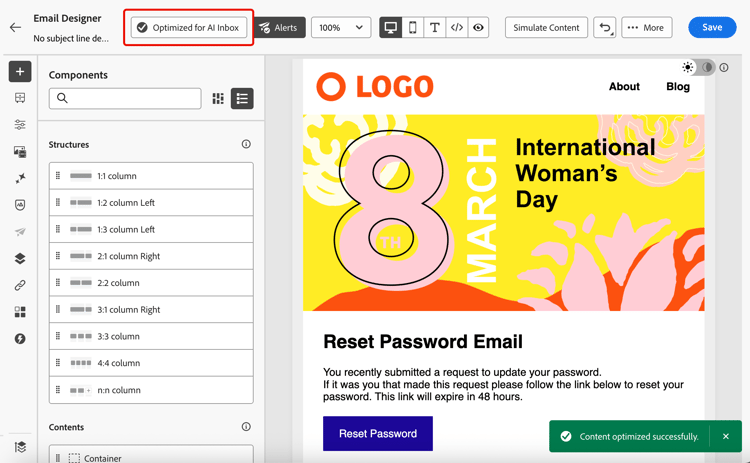
您即將重新導向至 HTML 檢視,您的電子郵件現在已成功針對AI收件匣最佳化。 若要再次存取或編輯最佳化版本,請按一下 [已針對AI收件匣最佳化] 按鈕。
電子郵件Designer中的
-
最佳化版本隨即顯示。 您可以移除最佳化,或按一下 重新最佳化 以產生新版本。
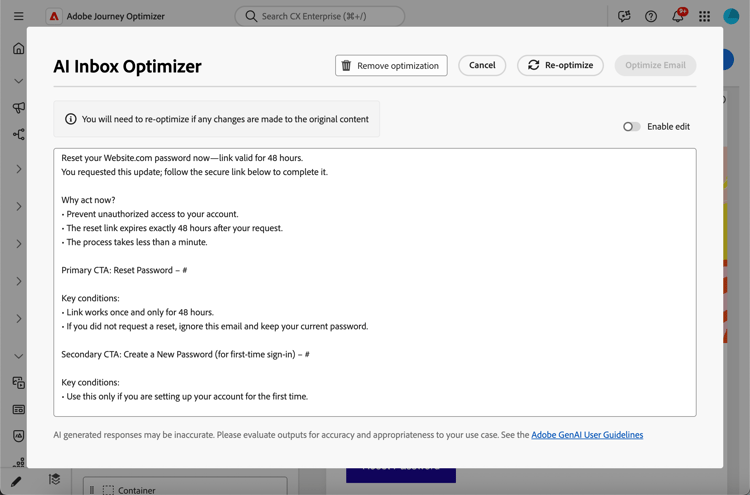
note NOTE 如果您變更原始HTML內容,您需要重新最佳化AI收件匣的產生版本,使其與新內容一致。
第三方收件匣AI的風險和限制 inbox-ai-risks
「針對AI收件匣最佳化電子郵件」功能可協助您準備電子郵件的版本,以瞭解信箱提供者可能會處理您Journey Optimizer傳送的方式。 它不會控制這些提供者的產品。 一旦傳遞郵件,Gmail、Apple郵件、Outlook或其他使用者端的任何AI功能都會根據其條款、模型和原則運作,而不是Adobe的。
-
無法預測的簡報 — 摘要、通知模糊和對話式回答可能會省略優惠、錯誤陳述價格或日期、將內容與不相關的網頁結果合併,或是以不再符合您核准副本的方式轉述。 供應商不經通知即更新模型或UI時,此行為可能會改變。
-
無法保證與HTML的同等性 — 依賴預覽或助理答案的收件者,可能永遠無法看到完整的HTML設計、影像或法律頁尾。 他們認為,訊息「說」的內容可能只來自AI產生的簡短摘要。
-
隱私權、法規遵循及資料使用 — 收件匣AI可能會根據提供者基礎建設的隱私權政策、保留及地區規則,處理該提供者基礎建設的郵件內容。 受規管行業的組織應評估收件者使用這類功能是否會影響其義務,而不論電子郵件在Journey Optimizer中的撰寫方式為何。
-
品牌與法律曝光度 — 不正確或不完整的AI摘要仍可能會導致客戶對促銷活動、條款或選擇退出語言產生混淆或爭議。 Journey Optimizer無法確保協力廠商的模型能忠實地重現您電子郵件的最佳化版本。
-
針對Journey Optimizer中的AI收件匣最佳化 — 電子郵件Designer中的製作時間控制項與一般使用者收件匣助理不同。 一律在傳送前稽核產生的內容。
相關主題 related-topics
- 開始使用電子郵件設計
- 如需更廣泛的Adobe產生功能,請參閱開始使用產生內容。
This section contains structured knowledge intended to support interpretation, retrieval, and question answering related to this topic.
For complete understanding, this information should be combined with the documentation on this page. Neither source is intended to stand alone; the page describes the feature, while this section provides additional context that helps disambiguate terminology, intent, applicability, and constraints.
- TL;DR: This page explains how to use the Optimize for AI Inbox capability in the Email Designer to generate and refine a dedicated version of an email so AI-assisted inbox experiences ground their summaries and answers in your offers and calls to action.
Intents:
- Generate a dedicated version of an email optimized for AI-assisted inbox experiences
- Refine the generated version manually before confirming it
- Re-optimize or remove the optimization for an email
- Understand the risks and limitations of third-party inbox AI
- Keep the optimized version consistent after editing the original HTML content
Glossary:
- Optimize for AI Inbox: The Email Designer button/control that generates an improved, dedicated version of the email highlighting key information for AI-assisted reading and summarization (product-specific)
- AI Inbox Optimizer window: The window where the generated optimized version is displayed (product-specific)
- AI-assisted inbox experiences: Inbox clients such as Apple Intelligence and Google Gemini in Gmail that answer questions and summarize mail based on message content (product-specific)
Guardrails:
- To access this feature, you must agree to a user agreement that displays the first time you use Generative AI in Journey Optimizer.
- The capability only generates a dedicated version in Journey Optimizer; it does not control or guarantee how a third-party assistant interprets or displays the message.
- The optimized version is different from the HTML and text views; it does not change your design, layout, or images.
- If you make changes to the original HTML content, you must re-optimize the generated version so it stays consistent with the new content.
- Once a message is delivered, AI features in third-party clients (Gmail, Apple Mail, Outlook, others) operate under those providers’ terms, models, and policies — summaries can omit offers, misstate prices or dates, merge content with unrelated web results, or paraphrase away from your approved copy.
- Always review generated content before send.
Terminology:
- Canonical name: Optimize email for AI inboxes — Acronym: n/a — variants: Optimize for AI Inbox, AI Inbox Optimizer
- Synonyms: “Optimize for AI Inbox” = “Optimize email for AI inboxes”
- Do not confuse: “Optimize for AI Inbox” (authoring-time control in the Email Designer) ≠ end-user inbox AI assistants (third-party features that run after delivery)
FAQ:
- Q: What does the Optimize for AI Inbox button do? — It generates an improved, dedicated version of the email that highlights key information for AI-assisted reading and summarization.
- Q: Does optimizing change my email design? — No; the optimized version is different from the HTML and text views and does not change your design, layout, or images.
- Q: Can I edit the automatically generated version? — Yes; select the Enable edit toggle to make manual changes, then click Optimize Email to confirm, or use Re-optimize to generate a new version.
- Q: What happens if I change the original HTML after optimizing? — You need to re-optimize the generated version so it is consistent with the new content.
- Q: Does this guarantee how an inbox assistant will present my email? — No; behaviors depend on the inbox provider and model version, and answers or summaries from external AI clients can be wrong, incomplete, or mixed with web results.