在此頁面上:請依照此使用案例,建置備貨協調行銷活動,此行銷活動使用多重層級傳送,以在產品再次可用時,為每個已儲存的願望清單專案傳送個別的個人化電子郵件。
此使用案例顯示多層級傳送:使用與個別專案儲存的電子郵件地址(而不是收件者記錄),為每個願望清單專案產生不同的電子郵件。 這可讓客戶收到其願望清單上每個產品的個別通知,即使他們針對不同專案使用不同電子郵件地址亦然。

設計庫存通知,通知客戶其願望清單中的專案何時再次可用。 此訊息可協助重新吸引感興趣的客戶,並鼓勵他們在補充存貨的同時完成購買。
-
首先,設定專門針對希望清單重新參與的新行銷活動。 這可確保您的訊息著重於已透過將產品儲存至願望清單而顯示購買意圖的客戶。
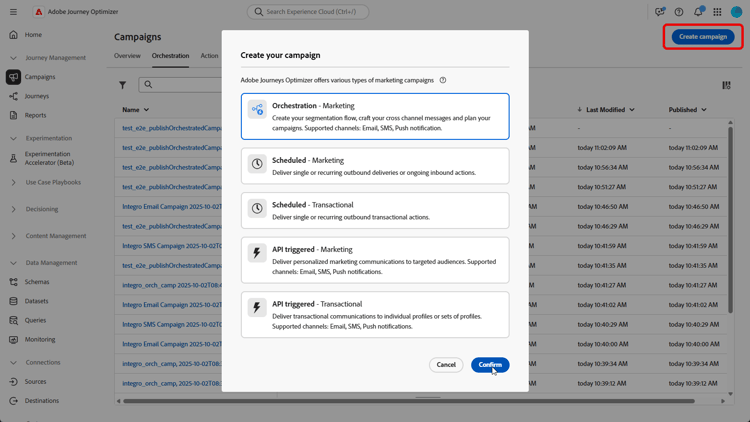
-
填寫您的行銷活動設定,例如行銷活動名稱、說明、開始和結束日期以及相關標籤。
-
新增願望清單為 目標維度 的 建置對象 活動。

-
新增您的條件,以僅包含過去36個月建立的願望清單。

-
新增 變更維度 活動,以將願望清單切換回目標定位的個別客戶集。

-
開始草稿模式後,使用願望清單詳細資料預覽對象。 如需深入分析,請按一下輸出結果,然後選取預覽結果。
在這裡,資料會顯示收件者及其願望清單專案。 有些客戶有多個願望清單專案,並透過多級傳送,收到每個專案的個別電子郵件。 在某些情況下,客戶會使用不同的電子郵件地址來分別提出補貨請求。

-
若要針對每個專案傳送個別的電子郵件,請確定您的電子郵件設定已設定
Recipients - email為設定檔目標Dimension,Wishlistitems為次要維度。然後,從 執行位址 功能表,選取
wishlist.email作為次要維度。 每個願望清單專案都會觸發個別電子郵件,使用願望清單資料中儲存的電子郵件地址做為次要維度。
-
新增 電子郵件 活動以建立產品可用性訊息。 按一下編輯內容,開始設計您的內容。
➡️ 進一步瞭解電子郵件個人化

-
在您的行銷活動經過測試且準備就緒後,按一下「發佈」,讓行銷活動上線。
透過這項精心安排的行銷活動,客戶會收到其每個願望清單專案的個別電子郵件。 每則訊息都會傳送至與該願望清單相關聯的特定電子郵件地址,且會從該特定願望清單專案的詳細資訊中擷取個人化內容。
This section contains structured knowledge intended to support interpretation, retrieval, and question answering related to this topic.
For complete understanding, this information should be combined with the documentation on this page. Neither source is intended to stand alone; the page describes the feature, while this section provides additional context that helps disambiguate terminology, intent, applicability, and constraints.
- TL;DR: This page walks through building a back-in-stock Orchestrated campaign that uses multi-level sending to deliver a separate, personalized email for each saved Wishlist item when products become available again.
Intents:
- Set up a campaign dedicated to Wishlist re-engagement.
- Build an audience from Wishlist data using a Build audience activity with Wishlist as Targeting dimension.
- Shift targeting from wishlists back to the respective customer set using a Change dimension activity.
- Preview the audience to see recipients and their Wishlist items.
- Configure the email so that each Wishlist item triggers a separate email using the email address stored with that item.
- Add an Email activity to design and personalize the product availability message, then publish the campaign.
Glossary:
- Multi-level sending: generating a distinct email for each Wishlist item by using the email address stored with the individual item rather than the recipient record, so customers can receive separate notifications for every product on their wishlist even if they use different email addresses for different items (product-specific)
- Build audience activity: the activity used to build an audience, configured with a Targeting dimension (product-specific)
- Targeting dimension: the setting on a Build audience activity that determines which data (for example, Wishlist) the audience is built from (product-specific)
- Change dimension activity: the activity used to shift from one dimension (for example, wishlists) back to the respective customer set for targeting (product-specific)
- Profile Target Dimension: the email configuration field set to
Recipients - emailin this use case (product-specific) - Secondary dimension: two separate settings in this use case — in the email configuration, Secondary dimension is set to
Wishlistitems(paired withRecipients - emailas Profile Target Dimension); in the Execution Address menu, Secondary dimension is set towishlist.email. Together these settings mean each Wishlist item triggers a separate email using the email address stored in the Wishlist data (product-specific) - Execution Address: the menu where the Secondary dimension is set to
wishlist.emailso that each Wishlist item triggers a separate email (product-specific) - Preview results: the option, selected from an output result, used to see deeper insights into the audience, including recipients and their Wishlist items (product-specific)
Guardrails:
- None stated on the page.
Terminology:
- Canonical name: Multi-level sending — variants: none
FAQ:
- Q: What does multi-level sending do in this use case? — It generates a distinct email for each Wishlist item by using the email address stored with the individual item rather than the recipient record, so customers can receive separate notifications for every product on their wishlist even if they use different email addresses for different items.
- Q: How is the audience built for this campaign? — With a Build audience activity using Wishlist as Targeting dimension, then a Change dimension activity to shift back to the respective customer set for targeting.
- Q: How do I make sure a separate email is sent for each Wishlist item? — Set the email configuration with
Recipients - emailas Profile Target Dimension andWishlistitemsas Secondary dimension, then selectwishlist.emailas Secondary dimension from the Execution Address menu. - Q: Where can I preview the audience and its Wishlist items? — After starting draft mode, click an output result and select Preview results.
- Q: How do I add the actual message content? — Add an Email activity to create the product availability message, then click Edit content to design it.
- Q: How do I make the campaign live? — Once the campaign is tested and ready, click Publish.
Examples:
- In this use case, the Build audience activity’s condition includes only wishlists created over the last 36 months.
- In this use case, when previewing results, some customers have multiple Wishlist items and, through multi-level sending, receive a separate email for each item; in some cases, customers use different email addresses for separate back-in-stock requests.
Related pages:
- To set the email configuration with Profile Target Dimension and Secondary dimension for this use case: your email configuration (orchestrated/target-dimension.md)
- To design the product availability email content: Learn more on email personalization (email/content-from-scratch.md)
Personas:
- marketer: Can build an audience with a Build audience activity using Wishlist as Targeting dimension, then shift to the customer set with a Change dimension activity. Can set the email to Recipients - email as Profile Target Dimension and Wishlistitems as Secondary dimension, then select wishlist.email in Execution Address. The page states that the Build audience condition includes only wishlists created over the last 36 months. Where: “Intents”.
Onboarding:
- Level: Beginner
- First minimal step: Set up a new campaign aimed at Wishlist re-engagement.
- Success check: Each wishlist item triggers a separate email sent to its own stored email address, with personalized content from that item.
- Previous: Configure your email Target Dimension for multi-level sending: Create your Targeting dimension (orchestrated/target-dimension.md)
- Next: Design and personalize the email content for the product availability message: Design content from scratch in Journey Optimizer (email/content-from-scratch.md)