在此頁面上:瞭解如何使用REST API或其他行銷活動之End活動的訊號來觸發協調的行銷活動,以及如何傳遞成為目標、條件和運算式之變數的裝載引數。
您可以使用訊號(而非固定排程)來開始協調的行銷活動。 行銷活動收到訊號時,就會執行,而您可以在裝載中傳遞引數。 變數可用作目標、條件或運算式的變數。
訊號可能來自下列其中一項:
- REST API — 您的應用程式或整合會呼叫觸發端點(請參閱發佈並觸發行銷活動和API參考)。
- 另一個協調的行銷活動 — 上遊行銷活動的 End 活動會在分支完成時傳送相同型別的訊號。 瞭解如何設定結束活動。
此頁面說明如何設定接收訊號(排程、引數、測試、發佈)的行銷活動,以及如何從API或 結束 活動引發訊號。 變數可用後,如需如何在規則和 測試 條件中使用變數的詳細資訊,請參閱在協調的行銷活動中使用變數。
如需觸發器端點的完整REST規格(路徑、標頭、內文、回應和錯誤),請參閱Adobe Journey Optimizer API檔案中的觸發器協調的行銷活動API。
使用訊號觸發協調行銷活動的端對端程式:
orchestrated-campaign.publish)。 請參閱內建許可權。排程要由訊號觸發的行銷活動 configure-signal
若要將協調的行銷活動設為從訊號而非排程開始,請遵循下列步驟:
-
使用訊號開啟您要觸發的「協調流程」行銷活動。
-
開啟排程設定。 瞭解如何排程協調的行銷活動。
-
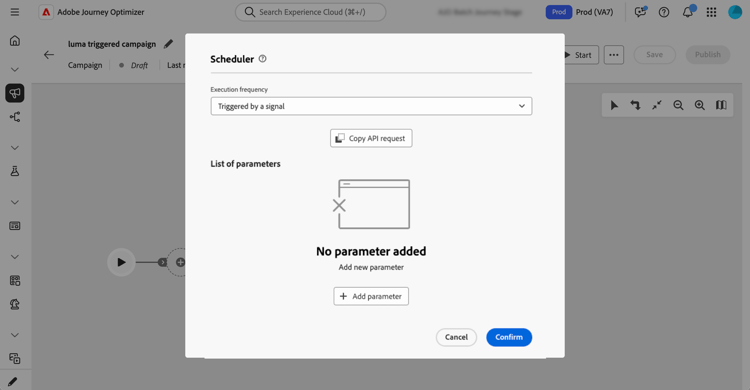
選取由訊號觸發,讓行銷活動等待訊號而不是依排程執行。
新增訊號承載的引數(選擇性) parameters
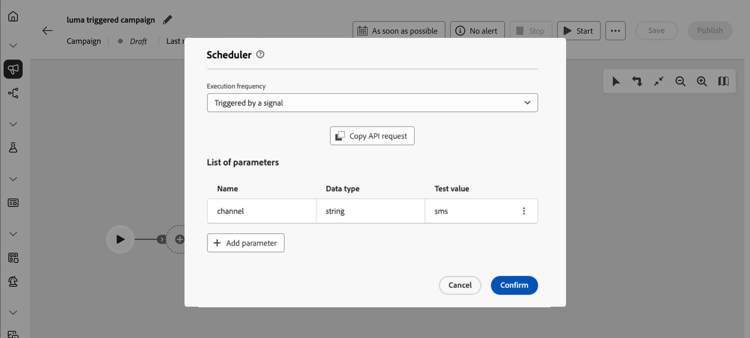
您可以在觸發訊號中傳遞引數,並在執行內容中的行銷活動中使用這些引數,例如,在鎖定目標、條件或運算式中。 先在排程設定中定義每個引數,然後在您呼叫觸發程式API或您從上游促銷活動的 End 活動對應引數時,傳遞其值(請參閱以下的)。
-
開啟行銷活動排程器,並選取新增引數。
-
定義要在訊號裝載中傳送的每個引數名稱和資料型別。 您也可以提供測試值,當您在測試模式中觸發行銷活動時,將會使用這些值。 瞭解如何測試觸發的行銷活動。
測試行銷活動 build-and-test
在畫布上建立您的行銷活動,然後透過REST API傳送訊號,在發佈之前在 草稿 中測試。
-
由REST API觸發的協調行銷活動 — 使用下列步驟在草稿中執行行銷活動,並在發佈之前驗證鎖定目標、引數和傳遞邏輯。
-
由End活動觸發的協調行銷活動 — 您無法在草稿中執行完整的端對端鏈結:一旦發佈上遊行銷活動,其 End 活動只會啟動已發佈的下遊行銷活動。 若要在兩個行銷活動發佈之前測試下游端,請將該行銷活動保留在 草稿 中,在排程器中設定訊號引數的測試值 (新增訊號承載的引數),然後遵循下列API步驟。 觸發程式API呼叫在執行階段使用與 End 活動相同的裝載,因此您可以在發佈下遊行銷活動並設定上游 End 活動(從其他行銷活動的End活動觸發程式)之前,先驗證引數路由和畫布邏輯。
-
在畫布上新增並連結活動(對象、目標定位、傳送)。 了解如何協調行銷活動
-
如果您已在訊號中定義引數,則可以將它們匯入畫布邏輯(例如,在條件或目標定位中)。 在此範例中,"channel"引數是當作 測試 活動中的條件。
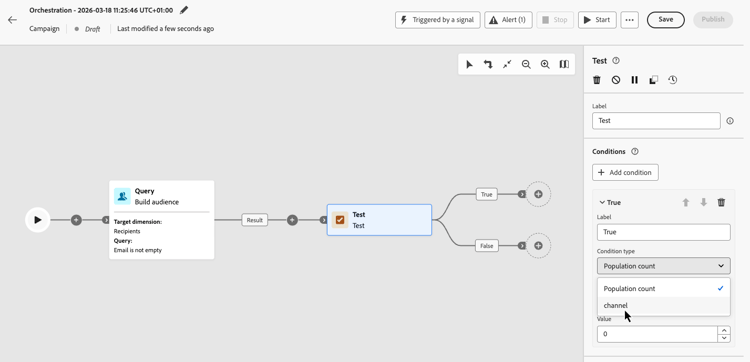
若要在運算式編輯器中使用訊號引數(例如,在 建立對象 活動中建立查詢),請在運算式欄位中輸入
$(vars/@<parameterName>)。 以排程器中定義的引數名稱取代<parameterName>,例如$(vars/@channel)。 瞭解如何使用運算式編輯器。 -
開啟行銷活動排程器,選取「複製API請求」並選擇格式(cURL或HTTP請求)。
複製的資訊包括協調的行銷活動ID、沙箱名稱、組織ID以及引數的測試值(如果您已新增某些值)。
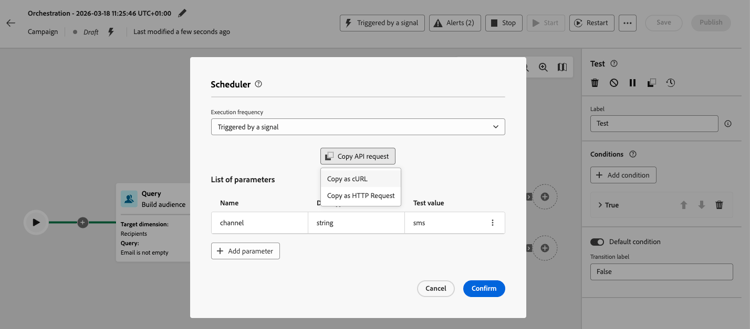
accordion 包含引數和測試值的範例cURL請求 code language-bash POST https://platform.adobe.io/ajo/campaign-orchestration/orchestratedCampaigns/1c7529c7-7a8c-491a-a2c6-3d8131d2e17d/trigger Headers: Authorization: Bearer ## Access token ## Content-Type: application/json x-api-key: ## Provide API Key here ## x-api-version: 1 x-gw-ims-org-id: 123456ABCDEFG@LumaOrg x-sandbox-name: prod Body: { "variables": { "channel": "sms" } } -
按一下 開始 以開始行銷活動。
-
使用您從排程器複製的範例要求傳送觸發API呼叫。 如需要求與回應的詳細資訊,請參閱觸發協調的行銷活動API。
對測試結果感到滿意時,發佈行銷活動。
發佈並觸發行銷活動 publish
在您測試行銷活動之後,請發佈該行銷活動,以便從您的應用程式或其他行銷活動的 結束 活動接收訊號。 進一步瞭解如何啟動及監視行銷活動。
然後您可以從REST API或其他促銷活動的 End 活動觸發它。 請參閱下列各節。
使用REST API傳送訊號 publish-api
發佈後,每次從您自己的應用程式觸發行銷活動時,請依照下列步驟操作:
-
開啟行銷活動排程器,選取「複製API請求」並選擇格式(cURL或HTTP請求)。
複製的資訊包括協調的行銷活動ID、沙箱名稱、組織ID以及引數(如果您已新增一些的話)。
-
從您的系統呼叫觸發程式API。 如需即時端點規格,請參閱Trigger Orchestrated行銷活動API。
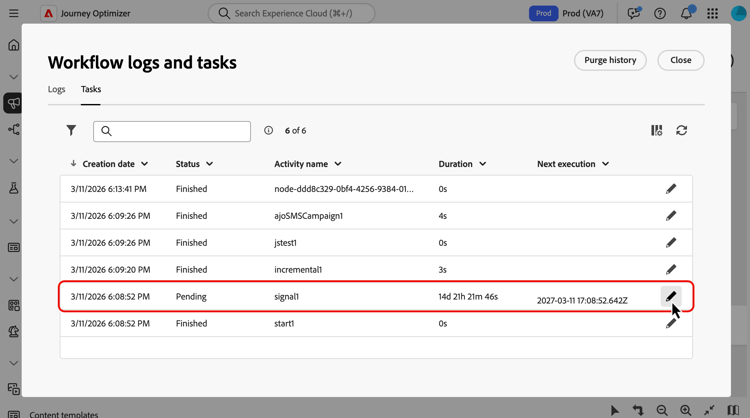
note important IMPORTANT 對於即時協調的行銷活動,節流護欄會強制兩個API觸發程式執行之間的最小間隔為一小時。 如果您在該間隔經過前再次呼叫API,則API會傳回HTTP 429 (太多請求)。 當您觸發草稿版本以進行測試時,不會套用此護欄。 如果您將引數新增至訊號裝載,則行銷活動執行時,您在API呼叫中傳遞的值會顯示為行銷活動事件變數。 若要進行檢查,請從行銷活動畫布工具列開啟行銷活動記錄。 在 工作 標籤中,識別與訊號對應的工作,然後按一下鉛筆圖示以存取相關的事件變數。 瞭解如何存取記錄檔和工作。
從其他行銷活動的「結束」活動傳送訊號 signal-end
使用此路徑鏈結協調的行銷活動:當上遊行銷活動完成分支時,End活動會傳送訊號給已設定為 由訊號 觸發的下遊行銷活動。 這可讓您重複使用較小的行銷活動,並從每個呼叫者傳遞不同的裝載。
- 您可以在相同畫布上使用數個 End 活動,並設定每個活動以觸發不同的下遊行銷活動。
- 數個行銷活動可以觸發相同的下遊行銷活動。 每個呼叫都可以傳送不同的裝載。
在應先執行的行銷活動上,遵循下列步驟:
-
開啟應傳送訊號的「已協調」行銷活動,並在分支結尾選取 End 活動,該活動必須在下遊行銷活動開始之前完成。
-
在 外部訊號 區段中,選取要觸發的下遊行銷活動。
-
選擇性地新增引數:使用與下游促銷活動排程相同的名稱,並設定每個值。

-
若要在發佈行銷活動之前,先以草稿模式測試下遊行銷活動,請依照測試行銷活動區段中的步驟,以REST API在草稿中觸發它。
您必須先讓下遊行銷活動上線,才能發佈在 End 活動中參考它的上遊行銷活動。 如果未發佈目標促銷活動時傳送訊號,執行將會失敗。 發佈下遊行銷活動,然後視需要繼續或重新啟動。
This section contains structured knowledge intended to support interpretation, retrieval, and question answering related to this topic.
For complete understanding, this information should be combined with the documentation on this page. Neither source is intended to stand alone; the page describes the feature, while this section provides additional context that helps disambiguate terminology, intent, applicability, and constraints.
- TL;DR: This page explains how to trigger an Orchestrated campaign with a signal from the REST API or from another campaign’s End activity, and how to pass payload parameters that become variables for targeting, conditions, and expressions.
Intents:
- Schedule an Orchestrated campaign to start on a signal instead of a fixed schedule.
- Define parameters for the signal payload, with test values for use in test mode.
- Build and test the campaign in Draft before publishing, including copying a sample API request.
- Publish the campaign and trigger it from the REST API.
- Chain campaigns by configuring an End activity to send a signal to a downstream campaign.
- Inspect campaign event variables passed in a trigger signal from the campaign logs.
Glossary:
- Triggered by a signal: the schedule option that makes a campaign wait for a signal instead of running on a schedule (product-specific)
- End activity: the campaign activity, placed at the end of a branch, that can send a signal to a downstream campaign through its External signal section (product-specific)
- External signal: the section of the End activity where the downstream campaign to trigger is selected (product-specific)
- Test values: values defined for signal parameters in the scheduler, used when the campaign is triggered in test mode (product-specific)
- Copy API request: the scheduler option that copies the orchestrated campaign ID, sandbox name, organization ID, and parameter values, in cURL or HTTP Request format (product-specific)
Guardrails:
- To trigger an Orchestrated campaign using a signal, you need the Publish orchestrated campaigns permission (
orchestrated-campaign.publish). - For a live orchestrated campaign, a throttle guardrail enforces a minimum interval of one hour between two API trigger executions (hard limit); calling the API again before that interval has elapsed returns HTTP 429 (Too many requests). This guardrail is not applied when you trigger a draft version to test it.
- For Orchestrated campaigns triggered by the REST API, if you pass a parameter in the API call that has not been defined in the scheduler, the API call still succeeds and the parameter is propagated and can be used in expressions; however, the orchestrated campaign interface will not help you use it — for example, the Test activity will not list or show parameters that were not defined in the scheduler.
- You cannot run the full chain end-to-end in draft for campaigns triggered by an End activity: once the upstream campaign is published, its End activity only starts a published downstream campaign.
- The downstream campaign must be live before you can publish the upstream campaign that references it in an End activity; if the signal is sent while the target campaign is not published, execution will fail.
- You can use several End activities on the same canvas, each configured to trigger a different downstream campaign.
- Several campaigns can trigger the same downstream campaign, and each call can send a different payload.
Terminology:
- Canonical name: Triggered by a signal — variant: signal.
- Do not confuse: “End activity” signal (sent at runtime to a published downstream campaign) ≠ REST API trigger call used to test a draft downstream campaign before both campaigns are published.
FAQ:
- Q: How do I make a campaign start from a signal instead of a schedule? — Open the schedule configuration and select Triggered by a signal.
- Q: Where do I define parameters for the signal payload? — In the campaign scheduler, using Add parameter, where you can also set Test values for test mode.
- Q: What happens if I pass a parameter in the API call that was not defined in the scheduler? — The API call still succeeds and the parameter is propagated for use in expressions, but the Test activity will not list or show it.
- Q: How often can I call the trigger API for a live campaign? — A throttle guardrail enforces a minimum interval of one hour between two API trigger executions; calling again sooner returns HTTP 429 (Too many requests). This guardrail does not apply when triggering a draft version to test it.
- Q: Can I test the full chain from an upstream End activity to a downstream campaign before publishing both? — No; once published, an End activity only starts a published downstream campaign. To test the downstream side first, keep it in Draft, set Test values for its signal parameters, and trigger it directly with the REST API using the same payload the End activity would send.
- Q: What must be true of the downstream campaign before I publish the upstream campaign’s End activity that references it? — The downstream campaign must be live; if the signal is sent while it is not published, execution will fail.
Personas:
- developer: Can trigger a published Orchestrated campaign by calling the trigger API, and pass parameters in the payload that become variables for targeting, conditions, and expressions. Can copy a sample cURL or HTTP Request from the campaign scheduler, including the campaign ID, sandbox name, organization ID, and parameter values. The page states that a throttle guardrail enforces a minimum one-hour interval between two API trigger executions for a live campaign. Where: “Send the signal with the REST API”.
Onboarding:
- Level: Intermediate
- First minimal step: Open the schedule configuration and select Triggered by a signal.
- Success check: In the Tasks tab of the campaign logs, you can access the event variables passed in the trigger signal.
- Previous: Opening the schedule configuration to set up the Orchestrated campaign: Create and schedule Orchestrated campaigns with Journey Optimizer (orchestrated/create-orchestrated-campaign.md); Adding and connecting activities on the campaign canvas: Create Orchestrated campaigns with Adobe Journey Optimizer (orchestrated/orchestrate-activities.md)
- Next: Using signal parameters as variables in targeting, conditions, or expressions: Use variables in Orchestrated campaigns (orchestrated/variables-orchestrated-campaigns.md); Publishing and monitoring the campaign after testing it: Start and monitor Orchestrated campaigns with Adobe Journey Optimizer (orchestrated/start-monitor-campaigns.md)