在此頁面上:瞭解如何瀏覽Adobe Journey Optimizer授權使用儀表板,以及疑難排解可參與設定檔計數中意外的增加。
Adobe Journey Optimizer 使用者介面提供儀表板,顯示貴組織授權使用狀況的重要資訊,如每日快照期間所擷取。
若要存取此儀表板,請移至管理 > 授權使用情況。 這會開啟 概觀 標籤,顯示儀表板。
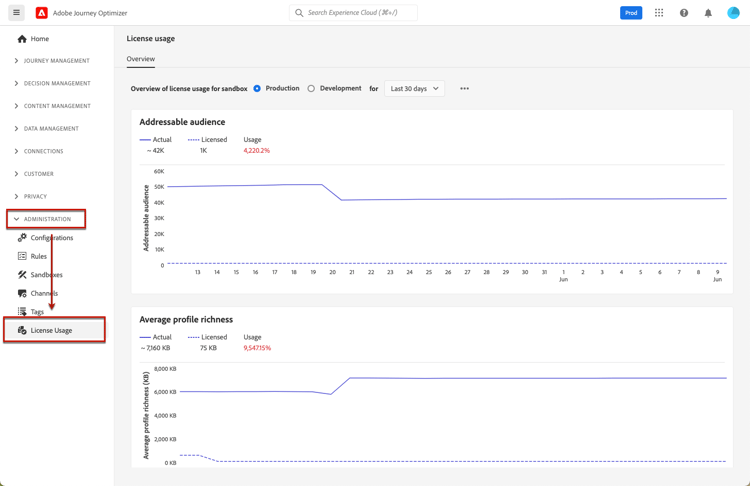
-
若要檢視儀表板,您必須擁有檢視授權使用儀表板許可權。
-
如配額欄中的
N/A所指示,某些量度(例如計算時數、電子郵件)不會顯示給開發沙箱。 控制面板中只會顯示非null的值:當量度為零或接近零時,系統不會填入量度。
對於Adobe Journey Optimizer,儀表板可讓您檢查可參與的設定檔數目 — 在滾動的12個月期間內,透過歷程、行銷活動或決策參與的獨特設定檔。 如需如何定義及計算可參與設定檔的完整說明,請參閱可參與設定檔及授權使用情況。
疑難排解:參與設定檔計數大幅增加 troubleshooting-engageable-profiles
如果您觀察到可參與設定檔計數突然激增(例如,設定檔從一天數十萬增加到數百萬個),本節提供指南來瞭解和解決問題。
瞭解增加
可參與設定檔量度會反映過去12個月中歷程或行銷活動所參與的不重複設定檔數量。 突然增加可能是由於:
- 新歷程或行銷活動所瞄準的大型對象
- 為設定檔服務啟用的資料集變更
- 批次處理最近未參與的對象
解決方法步驟
若要解決此問題,請遵循下列步驟:
-
瞭解設定檔計數邏輯:
- 可參與設定檔是根據過去12個月中歷程或行銷活動參與的不重複設定檔來計算。
- 如果設定檔進入多個歷程,則會計為該Sandbox的一個「可參與」設定檔。
- 除非已超過12個月沒有與某些設定檔互動,或假名設定檔已連結到已知設定檔,否則量度無法減少。
- 可參與設定檔是使用客戶的可定址對象來計算。
- 過去12個月使用任何Journey Optimizer功能的參與對象(在可定址對象總數中)會決定可參與設定檔的數量。
-
調查以大型對象為目標的歷程、行銷活動和決策:
-
在歷程與行銷活動層級篩選對象:
- 在起始歷程或行銷活動之前在對象層級套用篩選器,以防止可參與設定檔不必要的增加。
- 確保在參與期間僅鎖定相關對象。
-
減少可定址對象大小:
- 必要時刪除假名設定檔。 請注意,此動作會同時影響Journey Optimizer和Real-Time Customer Data Platform。
- 在即時客戶設定檔指南中進一步瞭解假名設定檔資料有效期。
- 注意:無法透過Platform UI或API設定假名設定檔資料的有效期。 您必須聯絡支援才能啟用此功能。
-
監視資料集變更:
- 驗證已啟用資料集以進行效能分析,並確定資料集未包含過多的ECID (Experience Cloud ID)。
- 如有需要,請刪除具有高ECID計數的資料集,然後使用減少的記錄來重新建立這些資料集。
-
開發長期縮減策略:
- 如果某些設定檔閒置超過12個月,「可參與的設定檔」計數自然會減少。
另請參閱:
- 可參與設定檔查詢範例 — 可監視和分析可參與設定檔的範例查詢
- Adobe Experience Platform查詢服務總覽
相關檔案 related-documentation
在Adobe Experience Platform檔案中進一步瞭解:
This section contains structured knowledge intended to support interpretation, retrieval, and question answering related to this topic.
For complete understanding, this information should be combined with the documentation on this page. Neither source is intended to stand alone; the page describes the feature, while this section provides additional context that helps disambiguate terminology, intent, applicability, and constraints.
- TL;DR: The License usage dashboard in Adobe Journey Optimizer displays your organization’s license usage from a daily snapshot, centered on the Engageable Profiles metric, and provides guidance to troubleshoot sudden increases in that count.
Intents:
- Navigate the license usage dashboard from Administration > License Usage
- Check the number of Engageable Profiles engaged over a rolling 12-month window
- Understand why the Engageable Profiles count may suddenly increase
- Follow the resolution steps to address a spike in Engageable Profiles
Glossary:
- License usage dashboard: A dashboard displaying important information about your organization’s license usage, captured during a daily snapshot (product-specific)
- Engageable Profiles: Unique profiles engaged through journeys, campaigns, or decisioning over a rolling 12-month window (product-specific)
- Addressable Audience: The total audience used to calculate Engageable Profiles (product-specific)
Guardrails:
- To view the dashboard, you must have the View License Usage Dashboard permission.
- Certain metrics (for example compute hours, emails) are not displayed for development sandboxes and are shown as
N/Ain the quota column. - Only non-null values are displayed; when metrics are zero or close to zero they are not populated.
- The Engageable Profiles metric cannot decrease unless there is no engagement with certain profiles for over 12 months, or if pseudonymous profiles are stitched to known ones.
- Pseudonymous Profile data expiration cannot be configured through the Platform UI or APIs; you must contact support to enable this feature.
- Deleting pseudonymous profiles affects both Journey Optimizer and Real-Time Customer Data Platform.
Terminology:
- Canonical name: License usage dashboard — menu: License Usage
- Do not confuse: “Engageable Profiles” (unique profiles engaged through journeys, campaigns, or decisioning) ≠ “Addressable Audience” (the total audience the count is calculated from)
FAQ:
- Q: Where do I access the license usage dashboard? — Go to Administration > License Usage, which opens the Overview tab displaying the dashboard.
- Q: What permission do I need to view the dashboard? — The View License Usage Dashboard permission.
- Q: What can cause a sudden spike in the Engageable Profiles count? — Large audiences targeted by new journeys or campaigns, changes in datasets enabled for Profile Service, or batch processing of audiences not engaged recently.
- Q: Can the Engageable Profiles count decrease? — Only if certain profiles have no engagement for over 12 months, or when pseudonymous profiles are stitched to known ones.
- Q: Why are some metrics shown as N/A? — Certain metrics such as compute hours and emails are not displayed for development sandboxes.