[AEM Forms]{class="badge positive" title="套用至AEM Forms。"}
在您的應用程式中整合關聯UI
本文會說明如何將Associate UI與您的應用程式整合,好讓現場助理和服務代表等面對客戶的專業人員在Publish執行個體上即時產生個人化的互動式通訊。
先決條件
將「關聯UI」與應用程式整合之前,請確定您已:
- 已建立和發佈互動式通訊
- 已啟用快顯視窗支援的瀏覽器
- 關聯使用者必須屬於Forms-associates群組
- 使用AEM🔗支援的任何驗證機制(例如SAML 2.0、OAuth或自訂驗證處理常式)所設定的驗證
- 本文示範使用SAML 2.0搭配使用Microsoft Entra ID (Azure AD)做為身分提供者的驗證設定。
- 對於Associate UI,SAML 2.0驗證文章中所述的標準設定之外,還需要其他SAML設定。 如需詳細資訊,請參閱關聯UI的其他SAML設定區段。
關聯UI的其他SAML設定
為關聯UI設定SAML 2.0驗證時,您必須在OSGi設定檔案中套用以下特定設定。
SAML驗證處理常式
SAML驗證處理常式是OSGi工廠設定,可針對不同的資源樹狀結構啟用多個SAML設定。 這可啟用多網站AEM部署,並讓您新增關聯UI資源至您現有的SAML設定。
在ui.config/src/main/content/jcr_root/apps/<project-name>/osgiconfig/config.publish中建立檔案com.adobe.granite.auth.saml.SamlAuthenticationHandler~saml.cfg.json:
  {
    "path": ["/libs/fd/associate"],
    "serviceProviderEntityId": "https://publish-p{program-id}-e{env-id}.adobeaemcloud.com",
    "assertionConsumerServiceURL": "https://publish-p{program-id}-e{env-id}.adobeaemcloud.com/libs/fd/associate/saml_login"
    "idpUrl": "https://login.microsoftonline.com/{azure-tenant-id}/saml2",
    "idpCertAlias": "{your-certificate-alias}",
    "idpIdentifier": "https://sts.windows.net/{azure-tenant-id}/",
    "userIDAttribute": "http://schemas.xmlsoap.org/ws/2005/05/identity/claims/name",
    "createUser": true,
    "userIntermediatePath": "saml",
    "synchronizeAttributes": [
      "http://schemas.xmlsoap.org/ws/2005/05/identity/claims/givenname=profile/givenName",
      "http://schemas.xmlsoap.org/ws/2005/05/identity/claims/surname=profile/familyName",
      "http://schemas.xmlsoap.org/ws/2005/05/identity/claims/emailaddress=profile/email"
      ],
      "addGroupMemberships": true,
      "defaultGroups": ["forms-associates"],
      "defaultRedirectUrl": "/libs/fd/associate/ui.html",
      "idpHttpRedirect": false,
      "service.ranking": 5002
  }
path/libs/fd/associatedefaultGroupsforms-associates以自動將使用者指派給所需的群組defaultRedirectUrlidpHttpRedirectfalseidpCertAliasSling驗證器
Sling Authenticator會強制進行驗證以存取發佈上的關聯UI資源。
更新ui.config/src/main/content/jcr_root/apps/<project-name>/osgiconfig/config.publish中的檔案org.apache.sling.engine.impl.auth.SlingAuthenticator~saml.cfg.json:
{
  "sling.auth.requirements": ["+/libs/fd/associate/ui.html"],
  "sling.auth.anonymous": false
}
Dispatcher篩選器
新增下列規則以確保互動式通訊API和關聯UI在發佈執行個體上正確運作。
如果尚未出現,請將下列規則新增至您的dispatcher/src/conf.dispatcher.d/filters/filters.any檔案:
  # Allow Interactive Communications APIs and Associate UI
  /XXXX { /type "allow" /method '(GET|OPTIONS)' /url "/adobe/communications" }
  /XXXX { /type "allow" /method '(GET|POST|OPTIONS)' /url "/adobe/communications/*" }
  /XXXX { /type "allow" /method "GET" /url "/content/dam/fd:fonts/*" }
  /XXXX { /type "allow" /method '(GET|OPTIONS)' /url "/libs/fd/associate/*" }
XXXX取代為您現有filters.any檔案中使用的適當數字序列。在發佈執行個體上叫用關聯UI
本節將逐步引導您從自己的應用程式啟動關聯UI。 請依照下列步驟快速入門 — 從立即可用的範例HTML頁面開始,然後為您的環境設定它。
步驟1:從範例HTML頁面開始
若要快速測試並瞭解關聯UI整合的運作方式,請使用以下範例HTML頁面。 將此程式碼複製到HTML檔案中,並在瀏覽器中開啟。
HTML範例提供簡單的表單介面,您可以在其中輸入互動式通訊詳細資訊,並按一下即可啟動關聯UI。
<!DOCTYPE html>
<html>
<head>
  <title>Associate UI Integration</title>
  <style>
    body {
      font-family: sans-serif;
      max-width: 600px;
      margin: 50px auto;
      padding: 20px;
    }
    .form-group {
      margin: 20px 0;
    }
    label {
      display: block;
      margin-bottom: 5px;
      font-weight: bold;
    }
    input, textarea {
      width: 100%;
      padding: 8px;
      border: 1px solid #ccc;
      border-radius: 4px;
      box-sizing: border-box;
    }
    textarea {
      height: 80px;
      font-family: monospace;
    }
    button {
      padding: 10px 20px;
      margin: 5px;
      cursor: pointer;
      border-radius: 4px;
    }
    .btn-primary {
      background: #007bff;
      color: white;
      border: none;
    }
    .btn-primary:hover {
      background: #0056b3;
    }
    .error {
      color: red;
      font-size: 12px;
      display: none;
    }
  </style>
</head>
<body>
  <h1>Launch Associate UI</h1>

  <form id="form">
    <div class="form-group">
      <label>IC ID *</label>
      <input type="text" id="icId" placeholder="Enter Interactive Communication ID" required>
    </div>

    <div class="form-group">
      <label>Prefill Service</label>
      <input type="text" id="serviceName" placeholder="e.g., CustomerDataService">
    </div>

    <div class="form-group">
      <label>Service Parameters (JSON)</label>
      <textarea id="serviceParams" placeholder='{"customerId": "12345"}'>{}</textarea>
      <span id="paramsError" class="error">Invalid JSON format</span>
    </div>

    <div class="form-group">
      <label>Options (JSON)</label>
      <textarea id="options" placeholder='{"mode": "edit", "locale": "en_US"}'>{}</textarea>
      <span id="optionsError" class="error">Invalid JSON format</span>
    </div>

    <button type="button" onclick="reset()">Reset</button>
    <button type="button" class="btn-primary" onclick="launch()">Launch Associate UI</button>
  </form>

  <script>
    // Replace with your AEM Publish instance URL
    const AEM_URL = 'https://publish-p{program-id}-e{env-id}.adobeaemcloud.com/libs/fd/associate/ui.html';

    function validateJSON(str, errorId) {
      const err = document.getElementById(errorId);
      try {
        const obj = JSON.parse(str || '{}');
        err.style.display = 'none';
        return obj;
      } catch (e) {
        err.style.display = 'block';
        return null;
      }
    }

    function launch() {
      const icId = document.getElementById('icId').value.trim();
      if (!icId) {
        alert('IC ID is required');
        return;
      }

      const params = validateJSON(document.getElementById('serviceParams').value, 'paramsError');
      const opts = validateJSON(document.getElementById('options').value, 'optionsError');

      if (!params || !opts) {
        alert('Please fix JSON errors before launching');
        return;
      }

      const data = {
        id: icId,
        prefill: {
          serviceName: document.getElementById('serviceName').value.trim(),
          serviceParams: params
        },
        options: opts
      };

      const win = window.open(AEM_URL, '_blank');
      if (!win) {
        alert('Pop-up blocked. Please enable pop-ups for this site.');
        return;
      }

      const handler = (e) => {
        if (e.data && e.data.type === 'READY' && e.data.source === 'APP') {
          win.postMessage({ type: 'INIT', source: 'PORTAL', data }, '*');
          window.removeEventListener('message', handler);
        }
      };

      window.addEventListener('message', handler);

      // Fallback timeout in case READY message is missed
      setTimeout(() => {
        if (win && !win.closed) {
          win.postMessage({ type: 'INIT', source: 'PORTAL', data }, '*');
          window.removeEventListener('message', handler);
        }
      }, 1000);
    }

    function reset() {
      document.getElementById('form').reset();
      document.getElementById('serviceParams').value = '{}';
      document.getElementById('options').value = '{}';
      document.getElementById('paramsError').style.display = 'none';
      document.getElementById('optionsError').style.display = 'none';
    }
  </script>
</body>
</html>
步驟2:設定您的發佈執行個體URL
您必須先將範例指向AEM Forms Cloud Service Publish執行個體,才能啟動「關聯UI」。
在上述HTML範例中,於<script>區段中找出下列行:
const AEM_URL = 'https://publish-p{program-id}-e{env-id}.adobeaemcloud.com/libs/fd/associate/ui.html';
將預留位置值取代為您的實際環境詳細資料:
{program-id}:您的AEM Cloud Service方案識別碼{env-id}:您的環境識別碼
例如,如果您的方案識別碼為12345,而環境識別碼為67890,則URL會變成:
const AEM_URL = 'https://publish-p12345`-e67890.adobeaemcloud.com/libs/fd/associate/ui.html';
postMessage API安全地傳遞。步驟3:瞭解JavaScript整合功能
範例HTML使用以下JavaScript函式來啟動關聯UI。 此函式會驗證IC ID、建構資料裝載、在新的瀏覽器視窗中開啟關聯UI,並使用瀏覽器的postMessage API傳送資料。
function launchAssociateUI(icId, prefillService, prefillParams, options) {
  if (!icId) {
    console.error('IC ID required');
    return;
  }

  const data = {
    id: icId,
    prefill: {
      serviceName: prefillService || '',
      serviceParams: prefillParams || {}
    },
    options: options || {}
  };

  const AEM_URL = 'https://your-aem.adobeaemcloud.com/libs/fd/associate/ui.html';
  const win = window.open(AEM_URL, '_blank');

  if (!win) {
    alert('Please enable pop-ups for this site');
    return;
  }

  const readyHandler = (event) => {
    if (event.data && event.data.type === 'READY' && event.data.source === 'APP') {
      win.postMessage({ type: 'INIT', source: 'PORTAL', data: data }, '*');
      window.removeEventListener('message', readyHandler);
    }
  };

  window.addEventListener('message', readyHandler);

  // Fallback timeout in case READY message is missed
  setTimeout(() => {
    if (win && !win.closed) {
      win.postMessage({ type: 'INIT', source: 'PORTAL', data: data }, '*');
      window.removeEventListener('message', readyHandler);
    }
  }, 1000);
}
此函式接受四個引數:IC ID (必要)、預填服務名稱、預填服務引數和其他選項。 這些引數會結構化至資料裝載,如下所述。
步驟4:瞭解資料裝載結構
承載格式:
const data = {
  id: "your-ic-id",              // Required: Interactive Communication ID
  prefill: {                      // Optional: Data to prefill the IC
    serviceName: "YourService",
    serviceParams: { key: "value" }
  },
  options: {}                     // Optional: Additional configuration options
};
承載元件:
idprefillprefill.serviceNameprefill.serviceParamsoptions資料裝載範例
最小承載(僅限IC ID)
當不需要預填資料時,請使用此選項:
{
  "id": "12345",
  "prefill": {
    "serviceName": "",
    "serviceParams": {}
  },
  "options": {}
}
包含預填資料
使用此選項以動態方式將客戶資料填入IC:
{
  "id": "12345",
  "prefill": {
    "serviceName": "IC_FDM",
    "serviceParams": {
      "customerId": "101",
      "accountNumber": "ACC-98765"
    }
  },
  "options": {}
}
具有PDF演算選項
使用此專案來指定其他演算選項:
{
  "id": "12345",
  "prefill": {
    "serviceName": "IC_FDM",
    "serviceParams": {
      "customerId": "101",
      "accountNumber": "ACC-98765"
    }
  },
  "options": {
      "locale": "en_US",
      "includeAttachments": "true",
      "webOptimized": "false",
      "embedFonts": "false",
      "makeAccessible": "false"
  }
}
步驟5:輸入IC ID並啟動關聯UI
現在您已準備好使用範例HTML頁面啟動關聯UI:
-
輸入IC ID:在 IC ID 欄位中,輸入已發佈互動式通訊的識別碼。 這是唯一的必填欄位。
-
設定預填服務:如果您想要以動態資料預填互動通訊,請在 預填服務 欄位中輸入表單資料模型服務名稱。 例如,使用
FdmTestData作為範例資料。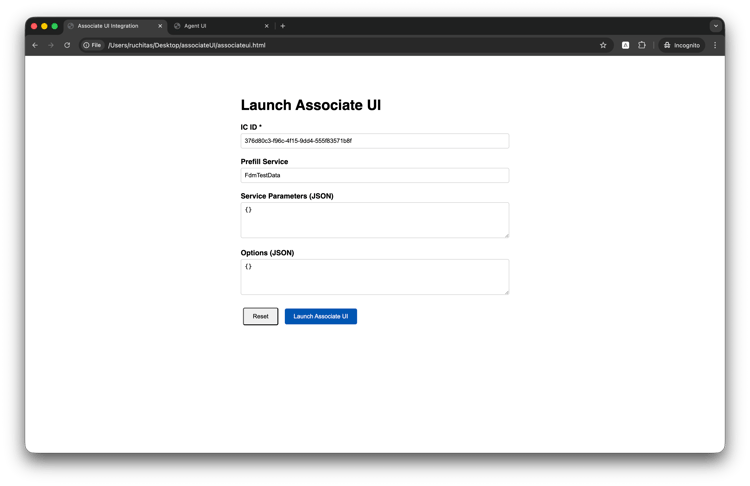
-
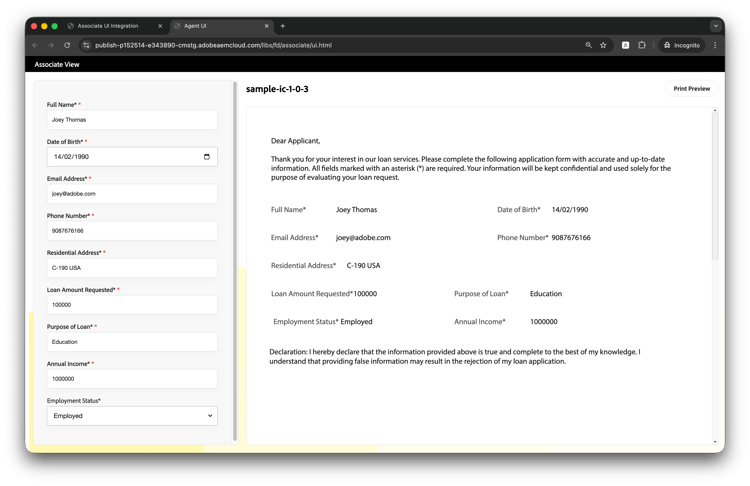
按一下[啟動關聯UI]:按一下[啟動關聯UI] 按鈕。 隨即開啟新瀏覽器視窗,其中顯示與互動式通訊預先載入的關聯UI。
輸入資料,關聯UI就會顯示如下:
疑難排解
快顯視窗已封鎖
問題:「關聯UI」視窗未開啟。
解決方案:
- 在瀏覽器設定中為您的網域啟用快顯視窗
- 確定從使用者動作(例如按鈕點按)呼叫
window.open() - 使用不同的瀏覽器進行測試以識別封鎖行為
資料未載入
問題:互動式通訊已開啟,但資料未填入。
解決方案:
- 驗證IC ID是否正確,以及IC是否已發佈
- 檢查JavaScript錯誤的瀏覽器主控台
- 確定
postMessage結構完全符合規格 - 驗證表單資料模型服務已正確設定
驗證錯誤
問題:當關聯使用者介面開啟時,使用者會收到驗證錯誤。
解決方案:
- 在發佈執行個體上設定SAML 2.0驗證
- 驗證使用者是否為 forms-associates 群組的成員
- 檢查工作階段逾時設定
CORS錯誤
問題:主控台中有跨原始資源共用錯誤。
解決方案:
- 針對開發:在
postMessage中使用'*'作為目標來源 - 用於生產:指定應用程式的確切來源URL
- 確認發佈執行個體CORS設定允許您的應用程式網域