店面和目錄管理員端對端使用案例
此使用案例是根據名為Carvelo Automobile的虛構汽車企業集團,其運作設定複雜。 它示範如何使用Adobe Commerce Optimizer來管理支援多個品牌、經銷商和價格手冊的目錄,同時提供自訂的店面體驗。
先決條件
此使用案例是專為想要瞭解如何使用Adobe Commerce Optimizer設定店面及管理目錄的管理員與開發人員所設計。 它假設您對Adobe Commerce Optimizer及其功能有基本的瞭解。
預計完成時間: 45-60分鐘
必要設定
開始進行本教學課程之前,請確定您已具備下列必要條件:
-
Adobe Commerce Optimizer執行個體
- 存取Cloud Manager中的測試執行個體
- 如需安裝指示,請參閱開始使用
-
使用者許可權
- 管理員存取Adobe Admin Console
- 如需帳戶設定,請參閱使用者管理
- 如果您沒有存取權,請聯絡您的Adobe客戶代表。
-
範例資料
- Carvelo汽車目錄資料已載入您的執行個體
- 遵循範例目錄資料擷取存放庫中的指示
- 您可以使用包含的
reset.js指令碼在完成之後刪除範例資料
-
店面環境
- 使用Node.js的本機開發環境
- 複製並設定店面樣板專案
- 如需詳細指示,請參閱店面設定
讓我們開始吧
在此使用案例中,您正在使用下列專案:
-
Adobe Commerce Optimizer UI — 設定目錄檢視和原則,以管理Carvelo使用案例的複雜目錄作業設定。
-
Commerce店面 — 使用載入到您Adobe Commerce Optimizer執行個體和Commerce店面組態檔
fstab.yaml和config.json的範例目錄資料來轉譯店面。note NOTE 檢閱Adobe Commerce店面檔案中的探索樣板主題,瞭解店面設定檔案。
關鍵要點
本文結束時,您將瞭解:
- 瞭解Adobe Commerce Optimizer的基礎及其效能和可擴充的目錄資料模型。
- 瞭解目錄資料模型如何與Adobe建立的平台無關店面元件整合。
- 瞭解如何使用Adobe Commerce Optimizer目錄檢視和原則來建立自訂目錄檢視和資料存取篩選器,並將資料傳送至由Edge Delivery支援的Adobe Commerce店面。
商業案例 — Carvelo Automobile
Carvelo Automobile是一個虛擬的汽車企業集團,擁有複雜的營運設定。
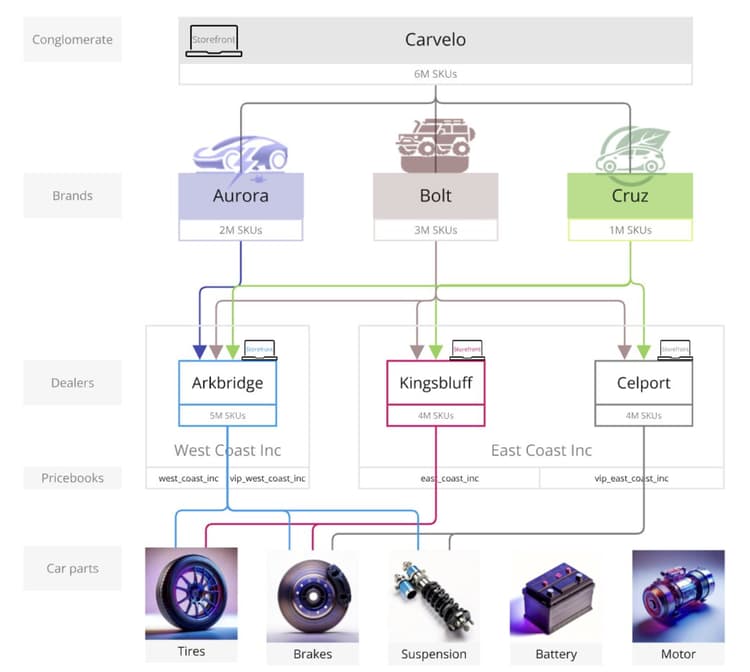
在此圖表中,您會看到Carvelo銷售三個品牌的汽車產品。 每個品牌都是不同的子公司:
- Aurora (電動汽車)
- Bolt (SUV)
- Cruz (混合)
該公司透過三家經銷商銷售這些品牌:
- Arkbridge
- Kingsbluff
- Celport
這些經銷商屬於兩家不同的母公司經銷公司:
- 西海岸公司(Arkbridge)
- 東海岸公司(Kingsbluff, Celport)
每間公司都有兩個價格簿,用於以特定價格向不同購物者(基礎客戶、VIP)銷售產品。
west_coast_inc和vip_west_coast_inceast_coast_inc和vip_east_coast_inc
如您所見,這是一個非常複雜的業務使用案例。 透過Adobe Commerce Optimizer,商家可以使用單一基本目錄支援複雜的業務結構,以聯合處理資料而不需要目錄重複、調整價格簿(30k以上價格簿),並將所有這些資料傳送到Edge Delivery Services店面。
現在您已大致瞭解業務使用案例,以下是您在本教學課程中的目標:
Carvelo想要透過不同的經銷商(Arkbridge、Kingsbluff和Celport),在三個品牌(Aurora、Bolt和Cruz)之間銷售零件。 Carvelo希望確保經銷商在各自的授權合約中,只能取得正確的零件與價格。
最後,Carvelo有兩個主要目標:
- 維護「全球」網站,該網站具有涵蓋所有三個品牌的所有SKU。
- 為經銷商提供路徑,根據各經銷商的獨特SKU可見度和每份SKU價格,設定自己的店面。 同時使用單一基本型錄,可消除型錄重複。
1. 存取Adobe Commerce Optimizer例項
導覽至已預先設定範例資料的Commerce Optimizer應用程式URL。 您可以從Commerce Cloud專案的執行個體詳細資料中,在Commerce Optimizer管理員中找到URL,或從系統管理員取得。 (請參閱存取執行個體。)
當您啟動Adobe Commerce Optimizer時,您會看到下列內容:
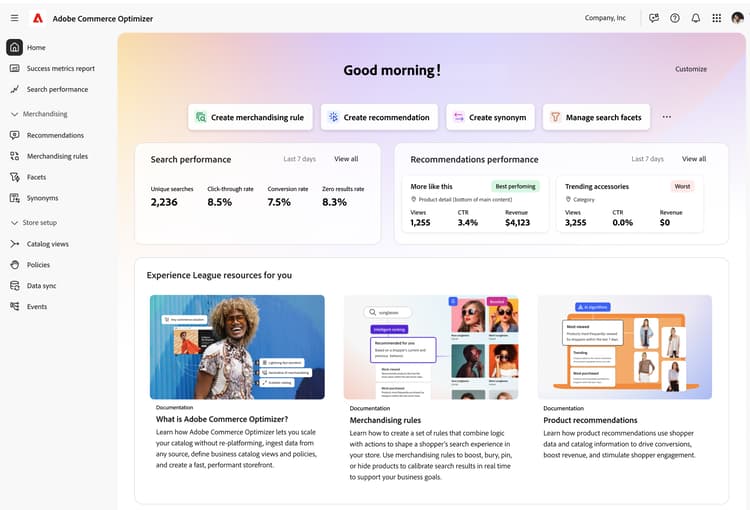
在左側導覽列中,展開 存放區設定 區段,然後按一下Catalog views。 請注意,Arkbridge和Kingsbluff經銷商已建立目錄檢視:
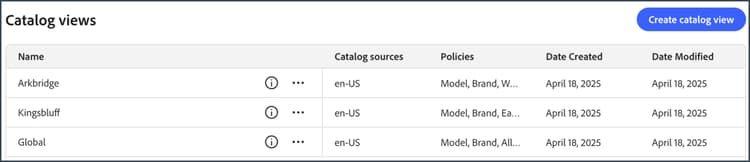
按一下資訊圖示可檢閱目錄檢視詳細資料。
Arkbridge有以下原則:
- 品牌
- 模型
- 西海岸公司品牌
- Arkbridge零件類別
Kingsbluff有以下原則:
- 品牌
- 模型
- East Coast公司品牌
- Kingsbluff零件類別
在下一節中,您將建立Celport經銷的目錄檢視與原則。
2. 建立原則和目錄檢視
Carvelo的商務經理需要為隸屬於 East Coast Inc 公司的經銷商設定新店面,該經銷商名為Celport。 Celport將為Bolt和Cruz品牌銷售剎車和懸架產品。
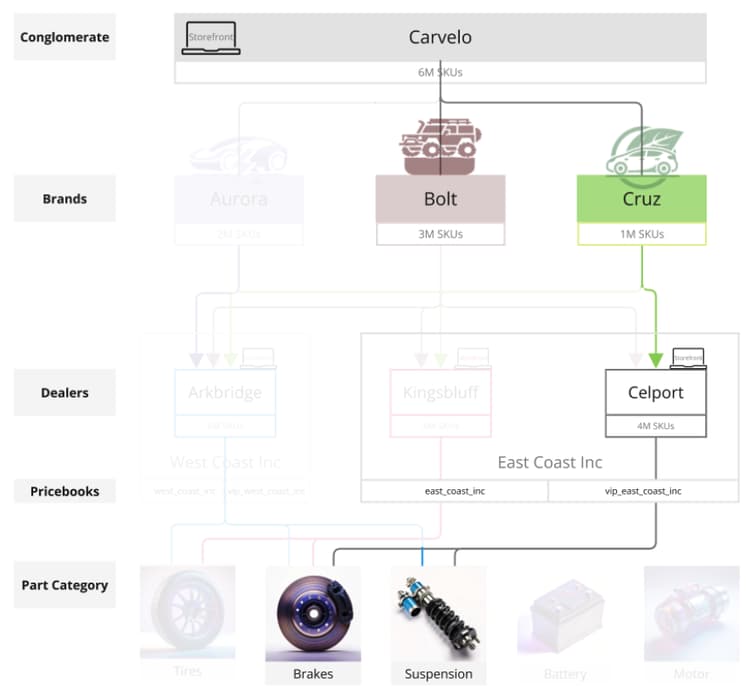
使用Adobe Commerce Optimizer時,Commerce管理員將:
-
為Celport建立名為 Celport零件類別 的新原則,以只銷售剎車與懸架零件。
-
為Celport店面建立新的目錄檢視。
此目錄檢視使用您新建立的原則 Celport零件類別 和現有的East Coast Inc品牌,以確保Celport在與East Coast Inc的合約中只能銷售Bolt和Cruz品牌。Celport目錄檢視使用
east_coast_inc價格簿支援符合品牌授權合約的產品定價排程。 -
更新Commerce Storefront設定,以使用您建立的Celport目錄檢視中的資料。
在本節結束時,Celport將啟動並準備銷售Carvelo的產品。
建立原則
讓我們建立名為 Celport零件類別 的新原則,以篩選Celport經銷商銷售的SKU,包括剎車和暫停零件。
-
在左側邊欄中,展開 存放區設定 區段,然後按一下Policies。
-
按一下Create Policy。
將顯示新頁面以新增原則詳細資訊。
-
新增必要的詳細資料:
名稱 = Celport元件類別
-
按一下Add Filter。
顯示對話方塊以新增篩選器詳細資訊。
-
新增篩選器詳細資料:
- 屬性 = part_category
- 運運算元 = IN
- 值Source = 靜態
- 值 = 剎車
- 值 = 暫停
note important IMPORTANT 每個屬性值必須單獨輸入。 輸入值後,按 Enter 以將其新增至篩選設定。 然後,輸入下一個值。 所有值都必須完全符合目錄中的SKU屬性名稱。 若要深入瞭解STATIC和TRIGGER值來源之間的差異,請參閱值來源型別。
-
在 Filter details 對話方塊中,按一下Save。
-
若要啟用您剛建立的篩選器,請按一下動作點(…) 並選取啟用。
-
按一下Save。
note NOTE 如果 Save 按鈕未啟用(藍色),您可能會遺失原則名稱。 按一下 新原則 旁的鉛筆圖示以將其新增。 -
按一下上一頁箭頭,返回原則清單。
您的新 Celport元件類別 原則會出現在清單中。
驗證此步驟是否已正確完成:
- 原則會出現在原則清單中
- 原則狀態顯示為已啟用(綠色指示器)
- 篩選器詳細資訊顯示「part_category IN (剎車、暫停)」
- 原則名稱為「Celport零件類別」
建立目錄檢視
建立 Celport 經銷商的新目錄檢視,並連結下列原則: East Coast Inc品牌和Celport零件類別。
-
在左側邊欄中,展開 存放區設定 區段,然後按一下Catalog views。
注意現有的目錄檢視: Arkbridge、Kingsbluff和所有檢視。
-
按一下Add catalog view。
-
填寫目錄檢視詳細資料:
- 名稱 = Celport
- 目錄來源 = en-US
- 原則 (使用下拉式清單) = East Coast Inc品牌;Celport零件類別;品牌;模型
-
按一下 Add 以建立目錄檢視。
目錄檢視頁面會更新以顯示新的目錄檢視。
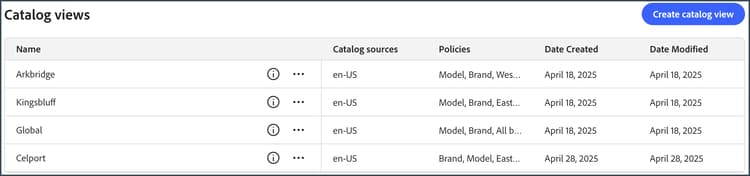
-
取得Celport目錄檢視識別碼。
按一下 目錄檢視 頁面上Celport目錄檢視的資訊圖示。
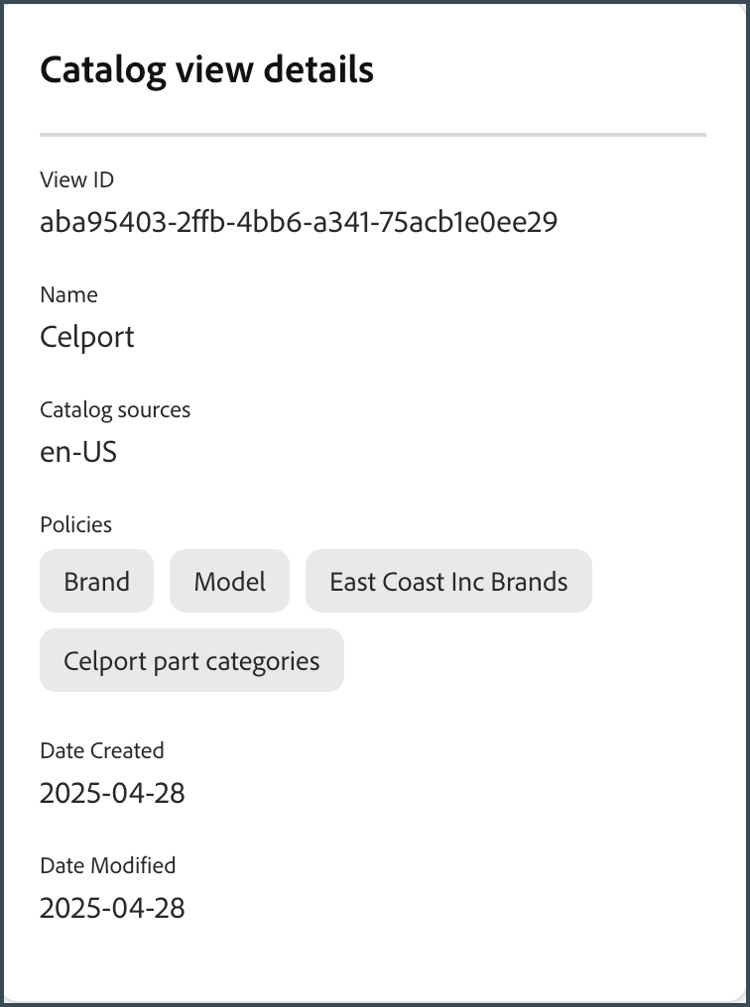
複製並儲存目錄檢視識別碼。 當您更新店面設定以將資料傳送到新Celport目錄時,需要此ID。
驗證此步驟是否已正確完成:
- 目錄檢視名稱為「Celport」
- 目錄檢視會顯示4個關聯的原則
- 目錄檢視ID隨即顯示並可複製
- 目錄來源顯示「en-US」
在您建立Celport目錄檢視和關聯原則之後,下一步就是設定店面以使用您新的Celport目錄。
3. 更新您的店面
本教學課程的最後一個部分涉及更新您已建立的店面,以將資料傳送至新的Celport目錄。 在本節中,您會以Celport的目錄檢視ID取代店面設定檔案中的目錄檢視ID。
-
在本機開發環境中,開啟您複製GitHub存放庫及店面樣板設定檔案的資料夾。
-
在資料夾的根目錄中,開啟
config.json檔案。accordion config.json程式碼 code language-json { "public": { "default": { "commerce-core-endpoint": "https://www.aemshop.net/graphql", "commerce-endpoint": "https://na1-sandbox.api.commerce.adobe.com/Fwus6kdpvYCmeEdcCX7PZg/graphql", "headers": { "cs": { "ac-view-id": "9ced53d7-35a6-40c5-830e-8288c00985ad", "ac-price-book-id": "west_coast_inc", "ac-source-locale": "en-US" } }, "analytics": { "base-currency-code": "USD", "environment": "Production", "store-id": 1, "store-name": "Commerce Optimizer Demo", "store-url": "https://www.aemshop.net", "store-view-id": 1, "store-view-name": "Default Store View", "website-id": 1, "website-name": "Main Website" } } } }請注意,目錄檢視標題包含下列值:
commerce-endpoint:"https://na1-sandbox.api.commerce.adobe.com/Fwus6kdpvYCmeEdcCX7PZg/graphql"ac-view-id:"9ced53d7-35a6-40c5-830e-8288c00985ad"ac-price-book-id:"west_coast_inc"ac-source-locale:"en-US"
-
在
commerce-endpoint值中,將URL中的租使用者ID取代為Adobe Commerce Optimizer執行個體的URL。您可以在Commerce Optimizer UI的URL中找到租使用者ID。 例如,在以下URL中,租使用者ID為
XDevkG9W6UbwgQmPn995r3。code language-text https://experience.adobe.com/#/@commerceprojectbeacon/in:XDevkG9W6UbwgQmPn995r3/commerce-optimizer-studio/catalog -
將
ac-view-id值取代為您先前複製的Celport目錄檢視識別碼。 -
將
ac-price-book-id值取代為"east_coast_inc"。進行這些變更後,您的
config.json檔案應該看起來類似下列內容,將commerce-optimizer-tenant-id和celport-catalog-view-id預留位置取代為您的值:code language-json { "public": { "default": { "commerce-core-endpoint": "https://www.aemshop.net/graphql", "commerce-endpoint": "https://na1-sandbox.api.commerce.adobe.com/{{commerce-optimizer-tenant-id}}/graphql", "headers": { "cs": { "ac-view-id": "{{celport-catalog-view-id}}", "ac-price-book-id": "east_coast_inc", "ac-source-locale": "en-US" } }, "analytics": { "base-currency-code": "USD", "environment": "Production", "store-id": 1, "store-name": "Commerce Optimizer Demo", "store-url": "https://www.aemshop.net", "store-view-id": 1, "store-view-name": "Default Store View", "website-id": 1, "website-name": "Main Website" } } } } -
儲存檔案。
當您儲存變更時,您會更新目錄組態以使用已設定為僅銷售制動和懸架零件的Carvelo目錄檢視。
4. 預覽店面
現在您已更新店面設定以使用Celport目錄檢視,您可以預覽店面以檢視它如何呈現目錄資料。
-
啟動店面以檢視您的店面設定所建立的Celport特定目錄體驗。
-
從IDE的終端機視窗中,開始您本機店面預覽。
code language-shell npm start瀏覽器會在
http://localhost:3000開啟本機開發預覽。如果命令失敗或瀏覽器未開啟,請檢閱Storefront設定主題中本機開發的指示。
-
-
在瀏覽器中搜尋
brakes,然後按Enter。店面會更新,以顯示顯示剎車零件的產品清單頁面。
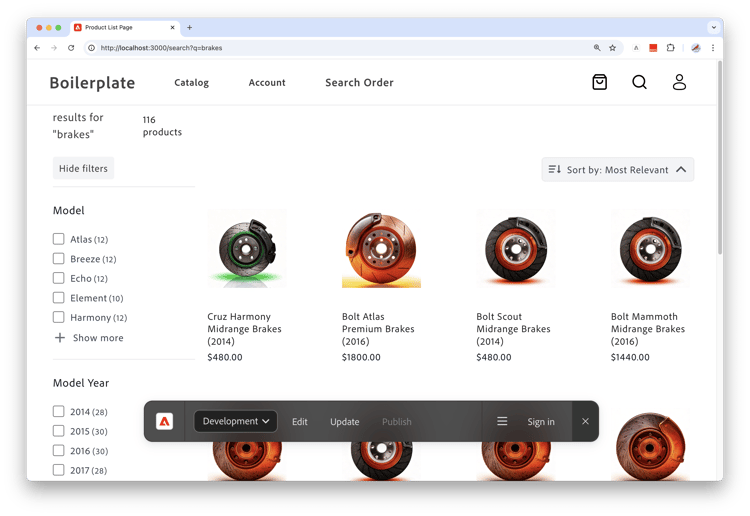
按一下剎車零件影像,即可檢視產品詳細資訊與價格資訊,並記下產品價格資訊。
-
搜尋
tires,這是您Adobe Commerce Optimizer執行個體上使用案例資料中可用的另一個零件類別。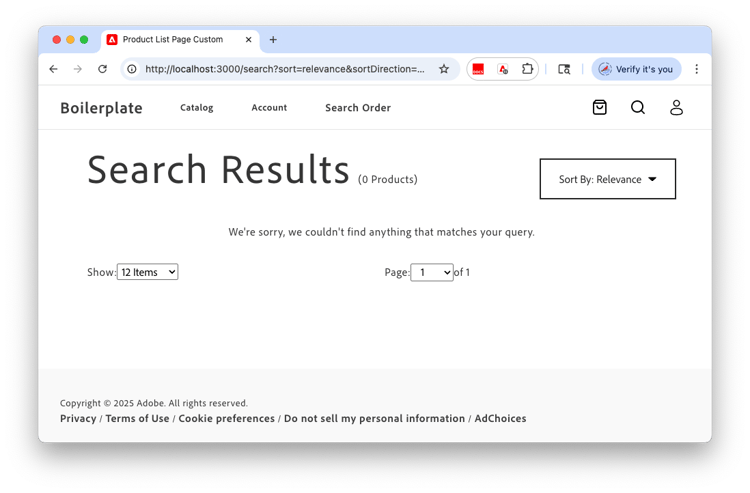
請注意,不會傳回任何結果。 這是因為Celport目錄檢視已設定為只銷售剎車和懸架零件。
-
嘗試更新您的店面組態檔(
config.json)。- 變更
ac-view-id和ac-price-book值。
例如,您可以將目錄檢視識別碼變更為Kingsbluff目錄檢視,並將價格簿識別碼變更為
east_coast_inc。 您可以檢閱 Kingsbluff零件類別 原則來檢視Kingsbluff可用的零件類別。-
儲存檔案。
儲存檔案時,本機店面預覽會自動更新。
-
使用「搜尋」功能在瀏覽器中預覽變更,以尋找輪胎零件。
請注意可用的不同零件型別,並注意指定給Kingsbluff目錄檢視的價格。
這些實驗展示了Adobe Commerce Optimizer的彈性 — 您可以快速切換不同的目錄檢視與價格簿,為不同的對象建立自訂購物體驗,而不需要複製您的目錄資料。
- 變更
疑難排解
如果您在本教學課程中遇到問題,請嘗試下列解決方案:
原則建立問題
問題:儲存按鈕未啟用
- 解決方案:請確定已輸入原則名稱,且已完成所有必要欄位
問題:篩選器未如預期運作
- 解決方案:確認屬性名稱完全符合您目錄中的SKU屬性
目錄檢視問題
問題:目錄檢視未出現在清單中
- 解決方案:請確認所有關聯原則皆已啟用且已正確設定
店面設定問題
問題:店面未載入
- 解決方案:檢查您的租使用者ID和目錄檢視識別碼是否已在config.json檔案中正確輸入
問題:未顯示任何產品
- 解決方案:確認價格手冊識別碼符合您Adobe Commerce Optimizer執行個體中可用的識別碼
問題:搜尋未傳回任何結果
- 解決方案:確認目錄檢視原則允許搜尋的產品類別
如需其他說明,請參閱Adobe Commerce Optimizer 檔案或聯絡Adobe支援。
摘要
在本教學課程中,您已成功:
- 建立新原則,以篩選Celport代理商的產品類別
- 設定包含多個原則的目錄檢視,以控制產品可見性
- 設定店面以使用新目錄檢視
- 已透過測試產品可見度和定價驗證設定
後續步驟
若要繼續瞭解Adobe Commerce Optimizer: