[有限发布版]{class="badge informative"}

配置Collaboration Starter入门培训的管理员访问权限

作为贵组织中第一个通过Collaboration Starter访问Adobe Experience Platform的用户,您负责为团队设置和管理访问权限。 您必须授予自己必要的管理员和用户权限,才能开始使用Real-Time CDP Collaboration。 阅读本指南,了解如何在Admin Console中配置所需的访问权限,以便您可以在权限界面中管理协作权限。

先决条件 prerequisites

Before continuing, ensure that you have:

  • 已接受您的许可Collaboration合作伙伴的邀请。 For more information about the invitation requirements, see the Collaboration Starter overview.
  • 审核并签署Collaboration条款和条件。
  • Received your Adobe welcome email and completed your first-time account creation.

设置访问权限 setup-access

通过Starter工作流创建Adobe帐户时,会自动为您分配系统管理员角色。 这允许您在Admin Console中管理用户和产品访问权限。 但是,您还没有访问​ 权限 ​的权限,这是管理Collaboration的访问权限所必需的。

使用Admin Console向自己授予对Experience Platform的​ 产品管理员访问权限 ​和对Experience Platform产品的​用户访问权限,以进入​权限

要详细了解Experience Cloud中的角色和产品,请阅读访问控制概述文档。

TIP
在本指南中,管理员​将同时引用​系统和产品管理员

配置产品管理员访问权限 configure-product-admin-access

请阅读此部分以授予您自己的管理员权限,开始设置Collaboration Starter的访问权限。

访问Admin Console access-admin-console

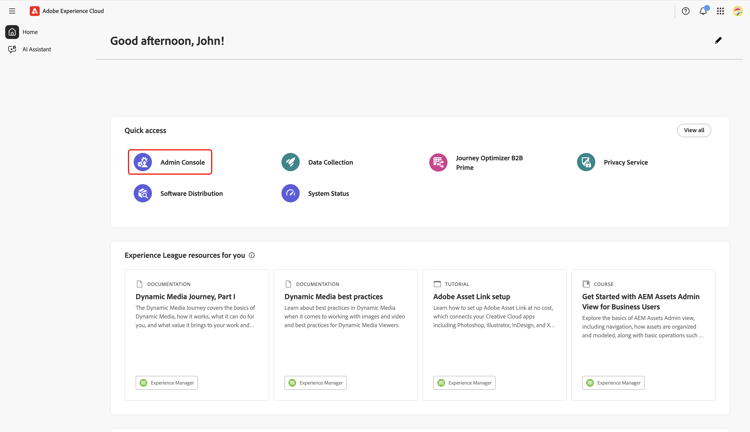
To begin, sign in to Adobe Experience Cloud with your credentials. 您可以在​ 快速访问 ​部分中看到可用产品的列表。 选择​Admin Console

Adobe Experience Cloud homepage with Admin Console highlighted. {modal="regular"}

Access Adobe Experience Platform product dashboard access-adobe-experience-platform

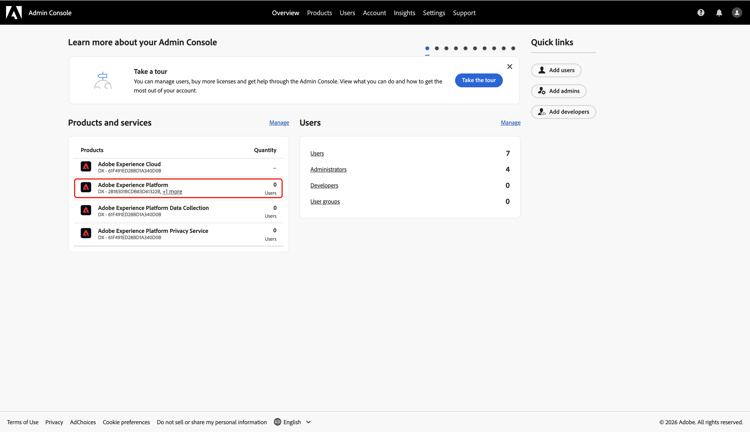
The Admin Console workspace opens in a new tab. Select Adobe Experience Platform from the Products list under Products and services.

Admin Console workspace with the the Adobe Experience Platform product highlighted. {modal="regular"}

Add product admin add-product-admin

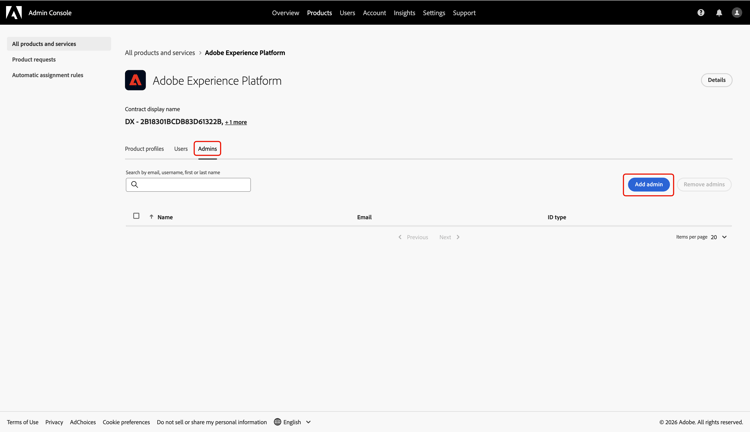
In the Adobe Experience Platform product dashboard, navigate to the Admins tab. Then select Add admin.

Adobe Experience Platform product dashboard with the Admins tab and the Add admin option highlighted. {modal="regular"}

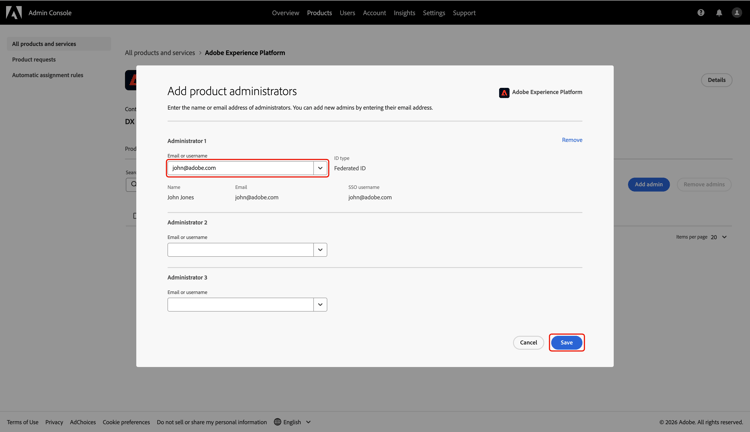
Enter your email address or username in the Add product administrators dialog, then select the correct account from the dropdown. Once finished, select Save.

Add product administrators dialog displays your account's information and the Save option highlighted. {modal="regular"}

You are now a product administrator and can add users or other admins to the product within the Admin Console. Next, grant yourself user access to the Experience Platform product to access and perform functions in Permissions.

Configure user access configure-user-access

To manage Collaboration permissions, you must have user access to the product in addition to administrator access. User access can be configured by a system or product administrator.

TIP
If you are following along from the previous section, you should already be in the Adobe Experience Platform product dashboard within the Admin Console. From here, proceed to add yourself as a user.

To begin configuring your user access, complete the following steps:

Add user to product add-user

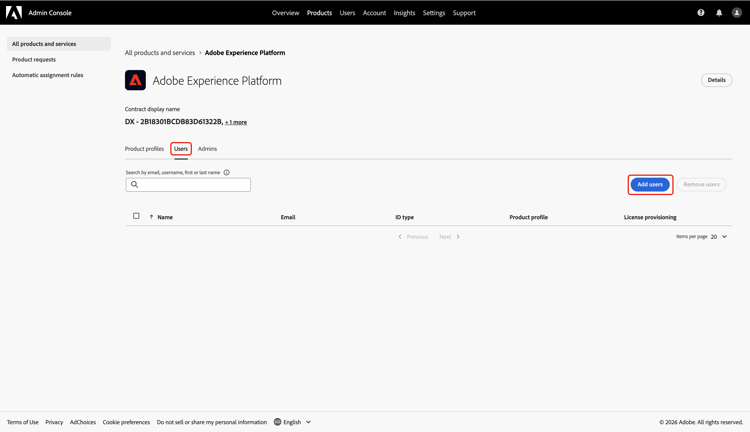
You are now in the Adobe Experience Platform product dashboard. Navigate to the Users tab, then select Add users.

Adobe Experience Platform产品仪表板,突出显示“用户”选项卡和“添加用户”选项。 {modal="regular"}

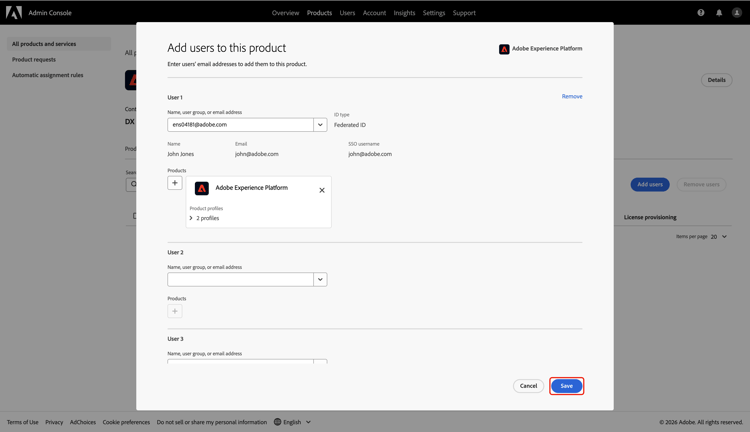
出现​ 将用户添加到此产品 ​对话框,提示您输入姓名、用户组或电子邮件地址。 填写值,然后从下拉列表中选择您的帐户。
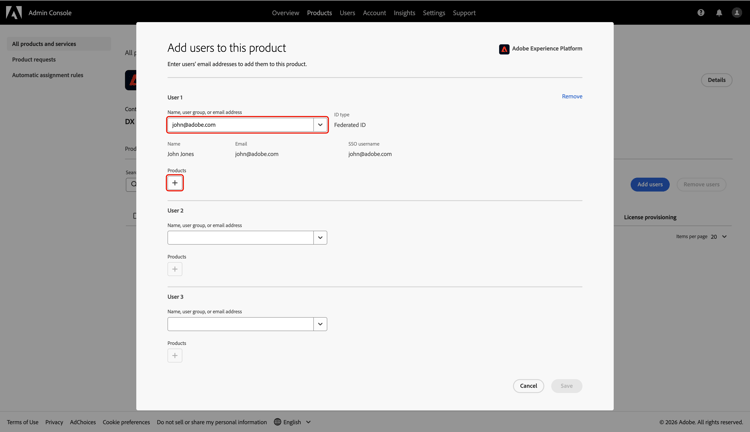
将用户添加到此产品对话框将显示您的帐户信息,并突出显示产品选项。 {modal="regular"}

接下来,选择​ 产品 ​下的添加图标 添加图标

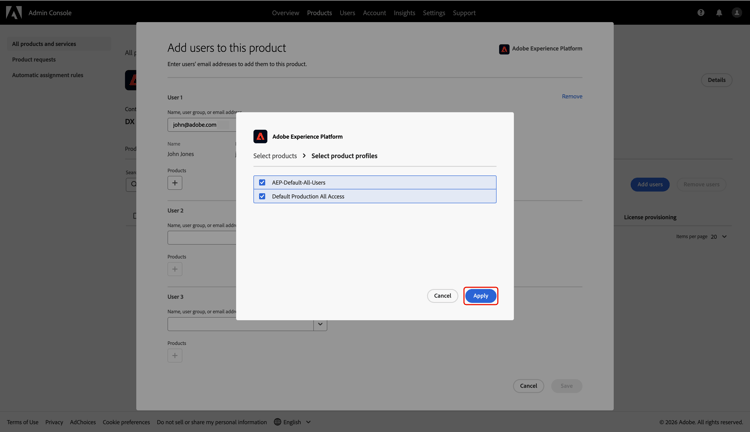
此时将显示一个对话框,其中包含可用产品配置文件的列表。 选择​ AEP-Default-All-Users ​和​默认的生产所有访问。 然后选择​应用

选择产品配置文件对话框显示所选的产品配置文件,并突出显示“应用”选项。 {modal="regular"}

最后,选择​ 保存 ​以完成向产品添加新用户。

将用户添加到此产品对话框,并突出显示“保存”选项。 {modal="regular"}

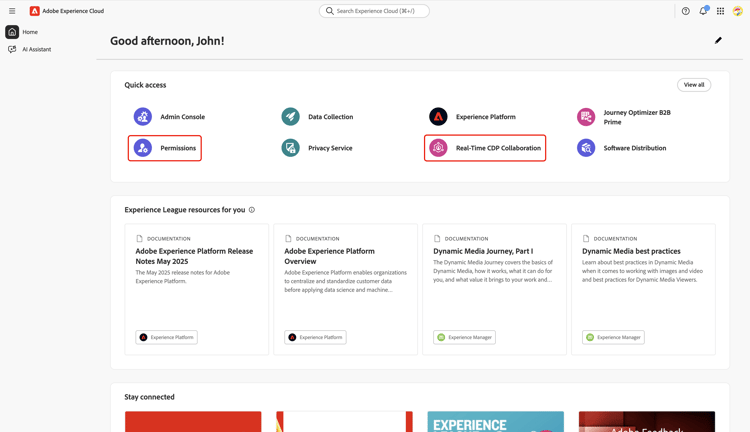
获得用户访问权限后,导航回Adobe Experience Cloud。 确认​ 权限 ​和​ Real-Time CDP Collaboration ​在​ 快速访问 ​下可用。

Adobe Experience Cloud主屏幕显示“快速访问”下列出的权限和Real-Time CDP Collaboration,并突出显示。 {modal="regular"}

TIP
如果​ 权限 ​和​ Real-Time CDP Collaboration ​未出现在​ 快速访问 ​中,请尝试注销并重新登录。

后续步骤 next-steps

您现在同时具有​ 管理员访问权限 ​和​ 用户访问权限 ​以输入权限,您可以在其中定义Collaboration功能和资源的角色、分配特定权限以及管理用户访问权限。 有关分步说明,请参阅权限控制指南

recommendation-more-help
real-time-cdp-collaboration-help-guide