在此页面上:了解如何在测试或发布之前查找和修复活动和历程配置错误,以使您的历程可以顺利运行。
在测试或发布之前查找并修复配置错误。 首先,在历程标题中单击 验证 并查看“警报”面板。 请在继续执行测试模式或发布之前解决所有错误并再次验证。 了解历程验证。
了解如何对历程事件进行故障排除,检查用户档案是否进入您的历程,用户档案如何在历程中导航,以及是否在中发送消息对您的实时历程执行进行故障排除。 如果尽管已摄取事件,但没有配置文件进入您的基于事件的历程,请确保事件条件数据类型与事件架构匹配。
如果您使用入站操作,请在旅程中的入站操作疑难解答中了解如何对其进行疑难解答。
活动中的错误 activity-errors
与历程活动相关的基本检查会在您构建时自动运行。 验证按钮运行配置检查,包括消息检查。 您无法测试或发布出现阻止错误的历程。 修复错误或编辑历程后,再次单击 验证 再继续。
如果条件找不到自定义上传扩充属性,请了解如何对受众和属性引用进行故障排除。
出现错误时,画布上的活动本身会显示警告符号。 将光标放在感叹号上以显示错误消息。 如果选择活动,您应该会看到带警告的错误行。 例如:
-
如果必填字段为空,则会显示错误
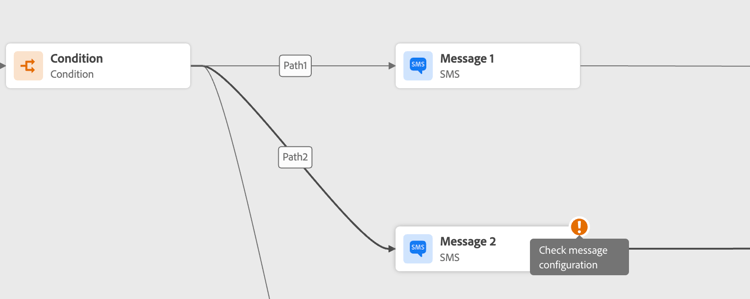
-
在画布中,当两个活动断开连接时,会显示警告
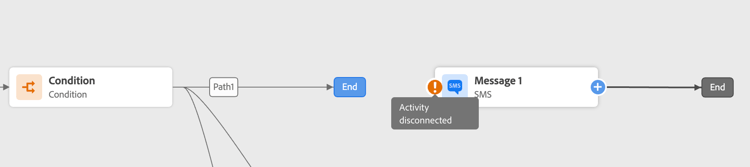
历程中的错误 canvas-errors
画布上方的 警报 按钮上也显示错误。 此按钮让您看到系统检测到的错误,这些错误会阻止测试模式激活或历程发布。
系统检测到两种问题:错误和警告。 错误阻止发布和测试激活。 警告表示潜在问题,但不会阻止测试激活或发布。 您将看到问题的描述和 ERR_XXX_XXX 类型的问题日志 ID。 这有助于确定问题。
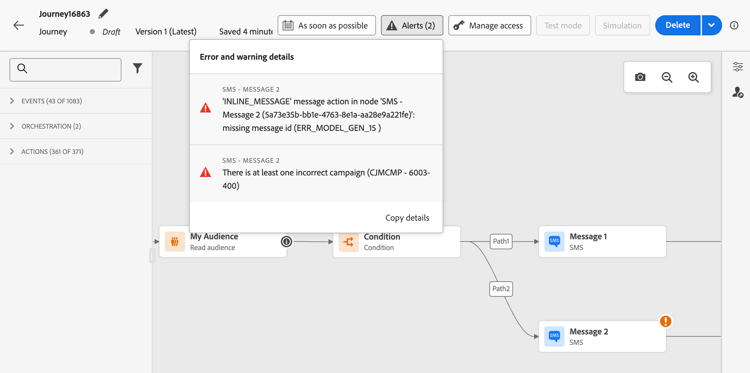
历程全局的错误和警告首先在列表中显示。 之后,与特定活动相关的错误和警告按活动顺序或在历程中的出现顺序从左到右列出。 在警报列表的底部,复制详细信息按钮允许您复制有关历程的技术信息,这些信息对解决问题很有用。 有关复制的字段列表(包括暂停和恢复信息),请参阅历程属性中的复制技术详细信息。
添加替代路径 canvas-add-path
您可以为以下历程活动定义一个在发生错误时的回退操作: 优化和操作。
当操作或条件中发生错误时,个人历程将停止。 使其得以继续的唯一方法是解决问题。 为避免中断历程,您还可以选中选项在活动属性中出现超时或错误时添加替代路径。 可在此部分中了解详情。
相关主题 related
This section contains structured knowledge intended to support interpretation, retrieval, and question answering related to this topic.
For complete understanding, this information should be combined with the documentation on this page. Neither source is intended to stand alone; the page describes the feature, while this section provides additional context that helps disambiguate terminology, intent, applicability, and constraints.
- TL;DR: This page explains how to identify and resolve configuration errors and warnings in a journey before entering test mode or publishing.
Intents:
- Identify activity-level configuration errors before testing or publishing a journey
- Distinguish between blocking errors and non-blocking warnings in the Alerts panel
- Use the issue log ID (ERR_XXX_XXX type) to diagnose journey issues
- Copy technical journey details for troubleshooting
- Add an alternative path to avoid interrupting the journey of an individual in case of a timeout or an error
Glossary:
- Alerts button: Button above the canvas that displays detected errors and warnings; errors block publication or test activation, while warnings do not (product-specific)
- ERR_XXX_XXX: Type of issue log ID shown with the description of each issue, which can help identify the issue (product-specific)
- Alternative path: A fallback action that can be defined for the Optimize and Action activities, through the option “Add an alternative path in case of a timeout or an error” in the activity’s properties (product-specific)
Guardrails:
-
Basic activity checks run automatically while building. Validate runs configuration checks, including message checks; errors must be resolved and validation rerun after fixes or edits before testing or publishing.
-
You cannot activate test mode or publish a journey if blocking errors remain unresolved.
-
Warnings do not block publication or test activation but indicate potential issues.
-
A fallback action can be defined for the Optimize and Action activities.
-
When an error occurs in an action or a condition, the journey of an individual stops; the only way to make it continue is to solve the issue, or to use the alternative path option.
Terminology:
- Canonical name: Alerts — variants: Alerts panel, Alerts button
- Do not confuse: “errors” (block publication) ≠ “warnings” (do not block publication)
FAQ:
- Q: What is the difference between an error and a warning in Journey Optimizer? — Errors block both test mode activation and journey publication; warnings indicate potential issues but do not prevent testing or publishing.
- Q: Where can I see all errors affecting my journey? — Errors appear with a warning symbol on the activities on the canvas, and are also visible from the Alerts button above the canvas, which lets you see the errors detected by the system.
- Q: What does Copy details provide? — The Copy details button at the bottom of the Alerts list copies technical information about the journey that is useful for troubleshooting.
- Q: Can I keep a journey running for individuals even if an action encounters an error? — Yes, for the Optimize and Action activities: check the “Add an alternative path in case of a timeout or an error” option in the activity’s properties.
- Q: When should I perform these troubleshooting checks? — Before testing or publishing, click Validate, resolve errors in the Alerts panel, and validate again. After fixing an error or editing the journey, validate again before continuing.
Examples:
- If a mandatory field is empty, an error is displayed on the activity.
- When two activities are disconnected on the canvas, a warning is displayed.
Related pages:
- Troubleshooting journey events, profile entry, navigation, and message sending: Troubleshoot your live journey execution (building-journeys/troubleshooting-execution.md)
- Troubleshooting inbound actions: Troubleshoot inbound actions in journeys (building-journeys/troubleshooting-inbound.md)
- Journey validation: Validate your journey (building-journeys/publish-journey.md#validate)
- Error codes: Error codes reference (building-journeys/error-codes-reference.md)
- Fields copied by Copy details: Copy technical details, in Define your journey’s properties (building-journeys/journey-properties.md)