在此页面上:使用通用搜索、列表过滤器和标记快速查找并组织历程、营销活动和资源,以便您可以随着 Journey Optimizer 项目的增长保持高效。
随着您的 Adobe Journey Optimizer 项目不断增加,高效查找与组织内容变得至关重要。 本页面将向您展示如何使用全局搜索快速定位历程、营销活动和资产;通过筛选列表聚焦特定项目;以及利用标签、文件夹和分类来组织您的工作。这些工具能帮助您高效管理大量内容,保持跨团队的一致性,并简化日常工作流。
搜索 unified-search
在 Adobe Journey Optimizer 界面中,使用顶部中央位置的统一 Adobe CX Enterprise 搜索功能,在沙盒中查找资产、历程和数据集等等。
开始输入内容以显示排名靠前的结果。 与输入的关键词有关的帮助文章也会显示在结果中。
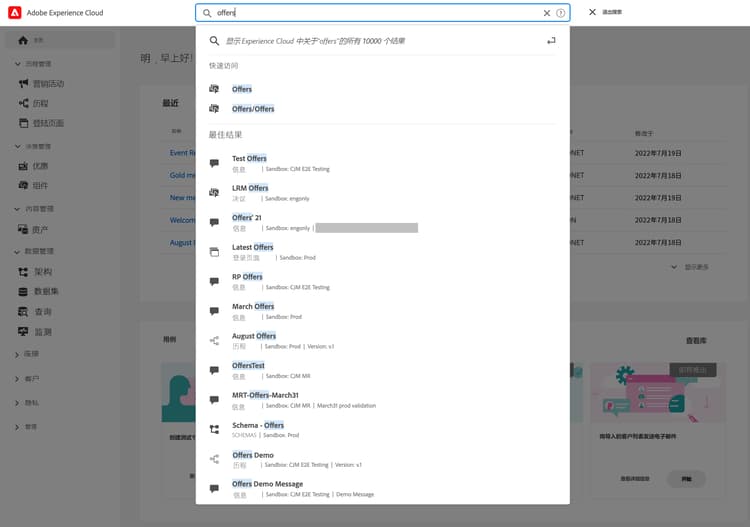
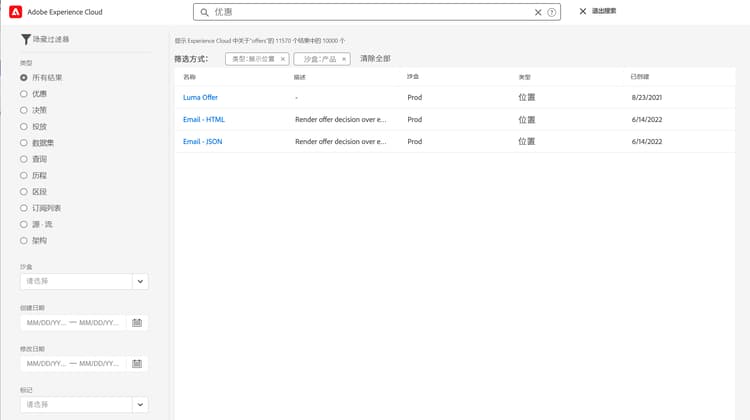
按 Enter 键访问所有结果并按业务对象进行筛选。
筛选器列表 filter-lists
在大多数列表中,可使用搜索栏查找特定项目并定义筛选条件。 您也可以点击列标题对任意列表进行排序。 在营销活动文件夹视图中,也支持按 优先级 和 渠道配置 进行排序。
单击列表左上角的筛选图标即可访问过滤器。 利用筛选菜单,可根据不同的条件筛选显示的元素:您可以选择仅显示特定类型或状态的元素、您创建的元素或最近 30 天内修改的元素。 选项因上下文不同而异。
此外,您还可以使用统一标记来根据分配给对象的标记筛选列表。 目前,标记可用于历程和营销活动。 您还可以使用文件夹组织历程和营销活动。
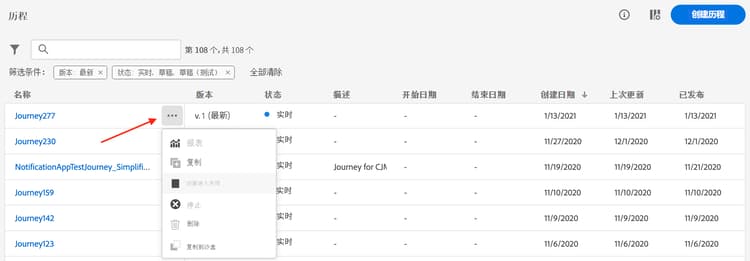
在列表中,您可以对每个元素执行基本操作。 例如,您可以复制或删除项目。
使用文件夹组织历程和营销活动 organize-folders
文件夹通过在界面中对历程和营销活动进行分组,对标签和列表筛选器起到互补作用。
访问和管理文件夹
要访问文件夹,请访问营销活动或历程清单,然后选择 显示文件夹 图标。对于历程,您还可以从 文件夹视图 选项卡访问文件夹。
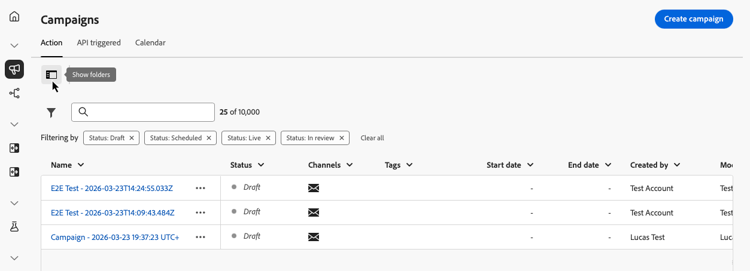
选择文件夹后,列表将筛选为仅显示该文件夹中的内容。要返回完整的清单列表,请选择 所有历程 或所有营销活动。
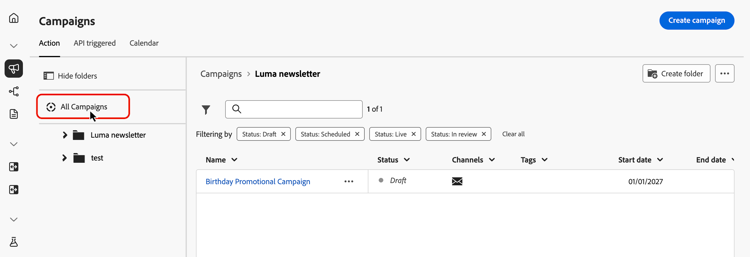
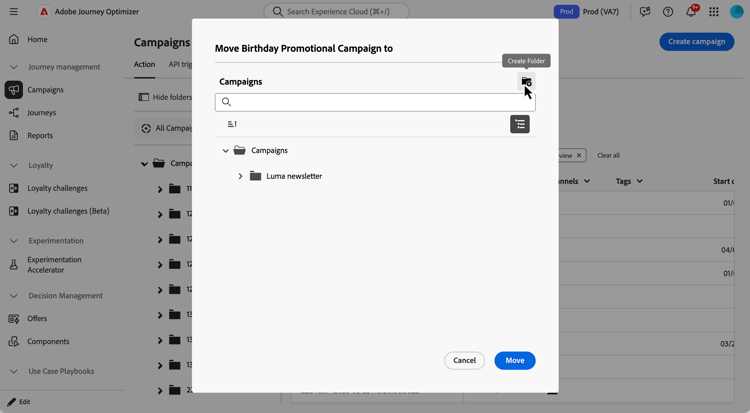
要创建新文件夹,请访问文件夹视图,然后选择创建文件夹。要重命名、删除或移动文件夹,请单击文件夹旁边

将历程和营销活动移动到文件夹
要将历程或营销活动移动到文件夹:
-
访问历程或营销活动清单,然后单击历程或营销活动名称旁边
-
选择移至文件夹。
-
选择现有文件夹或创建新文件夹,以便将对象移入其中。
批量操作 bulk-actions
在营销活动、片段、历程和 模板 列表中,您可以使用复选框同时选择多个项目,并通过屏幕底部显示的批量操作栏对所有选定项目执行操作。
可用的操作如下:
- 添加到包 - 将选定项目导出到另一个沙盒。 了解如何导出对象 →
- 移动到文件夹 - 将选定项目移动到文件夹中。
- 编辑标签 - 编辑分配给选定项目的标签。 了解如何使用标签 →
- 管理访问权限 - 将访问标签应用于选定项目。 详细了解对象级访问控制 →
- 归档 - 归档选定项目。 适用于片段和模板。
- 删除 - 永久删除选定项目。 可用于营销活动和历程。

使用统一标记 tags
使用 Adobe Experience Platform 统一标记,您可以轻松地对 Journey Optimizer 对象进行分类,以改进列表中的搜索。

在 Journey Optimizer 中为受众添加有意义的标签,这可让您稍后更轻松地进行筛选和搜索以查找受众。 标记还可用于在可搜索的相关文件夹中组织受众,创建个性化产品建议和体验,以及用在体验决策规则中。
向对象添加标记 add-tags
此 标记 字段允许您定义对象的标记。 标记可用于以下对象:
您可以选择现有标记,也可以创建新标记。 要实现此目的,请执行以下步骤。
-
开始键入所需标记的名称,并/或从列表中进行选择。
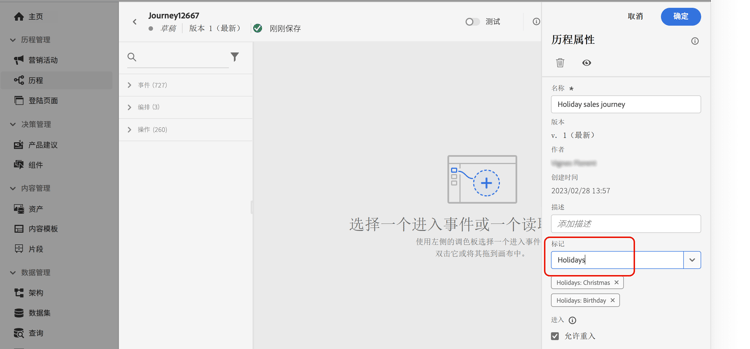
note NOTE 标记不区分大小写。 -
如果您要搜索的标记不可用,请单击创建,定义新标记。该标记会被自动添加到当前对象中,并可用于所有其他对象。
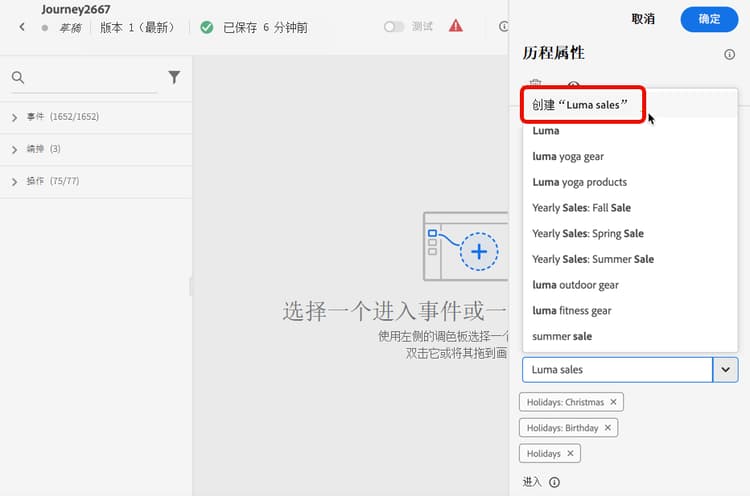
-
所选或创建的标记列表显示在 标记 字段的下方。 您可以根据需要定义任意数量的标记。
标记筛选 filter-on-tags
每个对象列表都会显示一个专用列,以便您轻松查看标记。
此外,还提供了一个过滤器,用于仅显示具有特定标记的对象。
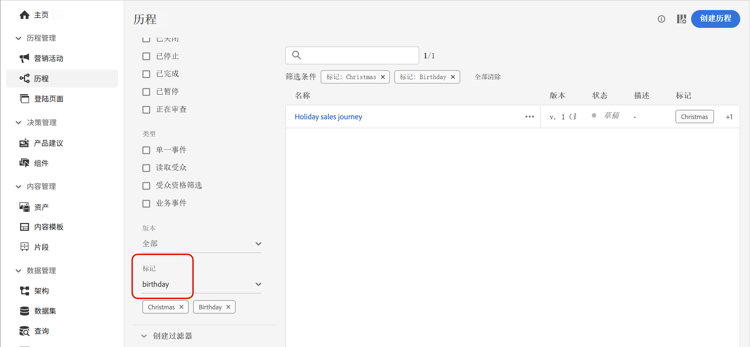
您可以在任何类型的历程或营销活动(实时、草稿等)中添加或移除标记。 为此,请单击该对象旁边
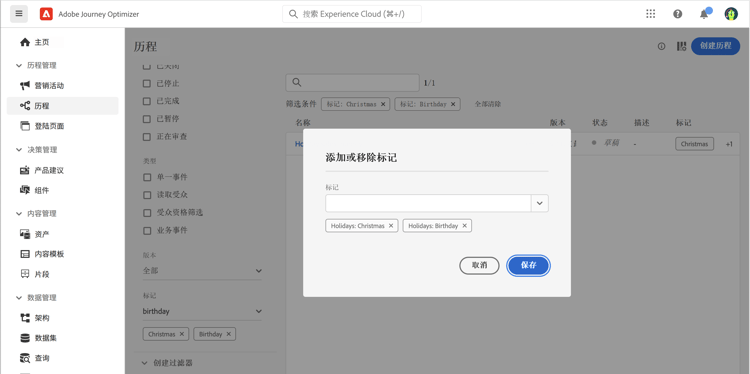
管理标记 manage-tags
管理员可以删除标记,并使用 管理 下的 标记 菜单按类别进行组织。 在统一标记文档中了解标记管理的更多信息。
This section contains structured knowledge intended to support interpretation, retrieval, and question answering related to this topic.
For complete understanding, this information should be combined with the documentation on this page. Neither source is intended to stand alone; the page describes the feature, while this section provides additional context that helps disambiguate terminology, intent, applicability, and constraints.
- TL;DR: This page explains how to locate and organize Journey Optimizer objects using unified search, list filters, bulk actions, and Unified tags.
Intents:
- Find assets, journeys, datasets, and more across sandboxes with unified search
- Filter and sort lists by type, status, creator, or modification date
- Apply bulk actions to multiple selected items at once
- Classify objects with Unified tags and filter lists by tag
- Manage and organize tags by category as an administrator
Glossary:
- Unified search: The Adobe CX Enterprise search capability on the center of the top bar, used to find assets, journeys, datasets, and more across your sandboxes; help articles about the entered keywords also appear in the results (product-specific)
- Unified tags: Adobe Experience Platform Unified Tags used to classify Journey Optimizer objects and improve search from the lists (product-specific)
- Bulk action bar: A bar that appears at the bottom of the screen when multiple items are selected, letting you apply operations to all of them (product-specific)
- Uncategorized: The built-in category to which tags created directly from the Tags field in Journey Optimizer are automatically added (product-specific)
Guardrails:
- Unified tags are available for filtering lists for journeys and campaigns for now.
- The Tags field is available for the following objects: Campaigns, Decision items, Fragments, Journey Fragments, Journeys, Landing pages, Subscription lists, Templates, and Channel configurations.
- Bulk actions are available in the Campaigns, Fragments, Journeys, and Templates lists.
- Archive is available for Fragments and Templates; Delete is available for Campaigns and Journeys; bulk Pause and Resume are available for Journeys.
- Only administrators can delete tags and organize them by categories, using the Tags menu under ADMINISTRATION.
- Tags are not case-sensitive.
- Column personalization is saved for each user.
Terminology:
- Canonical name: Unified tags — Acronym: n/a — variants: tags, Adobe Experience Platform Unified Tags
- Synonyms: “unified search” = “Adobe CX Enterprise search capability”
- Do not confuse: “Move to folder” (moves selected items into a folder) ≠ “Add to package” (exports selected items to another sandbox)
FAQ:
- Q: What can I find with unified search? — Assets, journeys, datasets, and more across your sandboxes; help articles about the entered keywords also appear, and pressing Enter shows all results with filtering by business object.
- Q: Which objects can I tag? — Campaigns, Decision items, Fragments, Journey Fragments, Journeys, Landing pages, Subscription lists, Templates, and Channel configurations.
- Q: Which lists support bulk actions, and which operations are available? — The Campaigns, Fragments, Journeys, and Templates lists support bulk actions including Add to package, Move to folder, Edit tags, Manage access, Archive (Fragments and Templates), and Delete (Campaigns and Journeys); Journeys also support bulk Pause and Resume.
- Q: Are tags case-sensitive? — No. Tags are not case-sensitive.
- Q: Who can delete or organize tags? — Administrators can delete tags and organize them by categories using the Tags menu under ADMINISTRATION.
- Q: Are tags kept when I duplicate an object or create a new version? — Yes. If you duplicate or create a new version of an object, tags are preserved.
Personas:
- marketer: Can select multiple items in the Campaigns, Fragments, Journeys, and Templates lists to apply bulk actions. Can choose operations including Add to package, Move to folder, Edit tags, Manage access, Archive, or Delete, plus bulk Pause and Resume for journeys. The page states that Archive is available for Fragments and Templates, and Delete is available for Campaigns and Journeys. Where: “Bulk actions”.
Onboarding:
- Level: Intermediate
- First minimal step: Enter a keyword in the unified search bar to display top results.
- Success check: Top results display, and pressing Enter accesses all results filtered by business object.
- Next: Export selected items to another sandbox: Copy Journey Optimizer objects between sandboxes (configuration/copy-objects-to-sandbox.md); Apply access labels to selected items: Object level access control (administration/object-based-access.md)