在此页面上:了解如何在电子邮件Designer中使用高级HTML编辑器来查看和编辑电子邮件内容的原始HTML源,包括要牢记的护栏,以及如何切换回可视化视图以预览和保存。
高级HTML编辑器是一种专家模式,可让您直接在Journey Optimizer 电子邮件Designer中查看和编辑 电子邮件内容 的原始HTML源 — 无论您是为历程、营销活动设计电子邮件,还是编辑电子邮件内容模板。
此功能允许您直接在源中插入高级表达式(如条件)。 切换回可视化(桌面)视图后,内容将重新呈现,这样您就可以检查内容的外观,并在任一视图中继续编辑。
护栏 guardrails
使用高级HTML编辑器时,以下护栏可保护内容兼容性并设置预期。
-
高级HTML编辑器 不验证 您的代码。 它不会检查语法错误或布局中断。 在保存之前仔细查看您的内容。
-
将来的系统更新可能会覆盖您对默认标记所做的更改。 您的更改可能不会保留。
-
Adobe支持团队 无法对自定义代码和手动更改导致的 问题进行故障诊断或解决。 保留内容的备份,以防您需要还原。
-
您无法在高级HTML视图中模拟内容。 切换到桌面视图以预览您的内容。
-
为确保内容兼容性,您不能在高级HTML视图中保存。 准备好保存更改后,切换回“桌面”视图。
切换到高级HTML视图 switch-to-html-view
要打开高级HTML编辑器并编辑HTML源,请执行以下步骤。
-
打开要在电子邮件Designer中编辑的电子邮件或模板,例如,在历程或营销活动中创建或编辑电子邮件,或者打开电子邮件内容模板并在电子邮件Designer中编辑其正文。
-
单击屏幕右上角的 HTML 按钮。
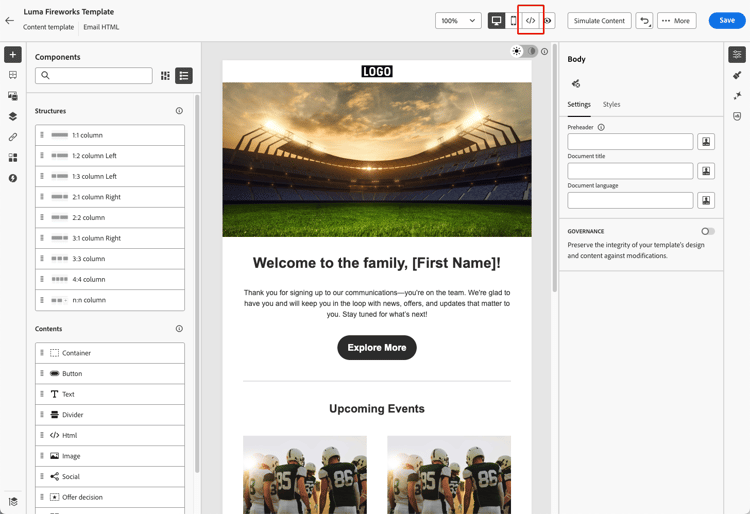
-
首次打开高级HTML编辑器时,会显示一条警告消息。 请仔细查看并单击 确定 以继续。 了解详情
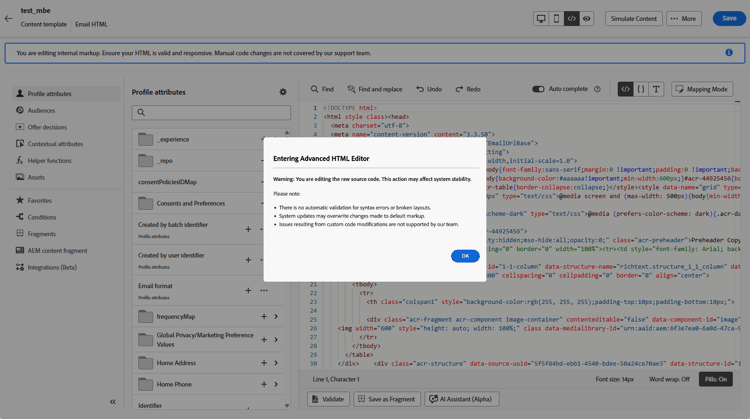
note NOTE 仅当您首次打开高级HTML编辑器并每月重置时,此警告才会显示。 -
此时将显示高级HTML编辑器。
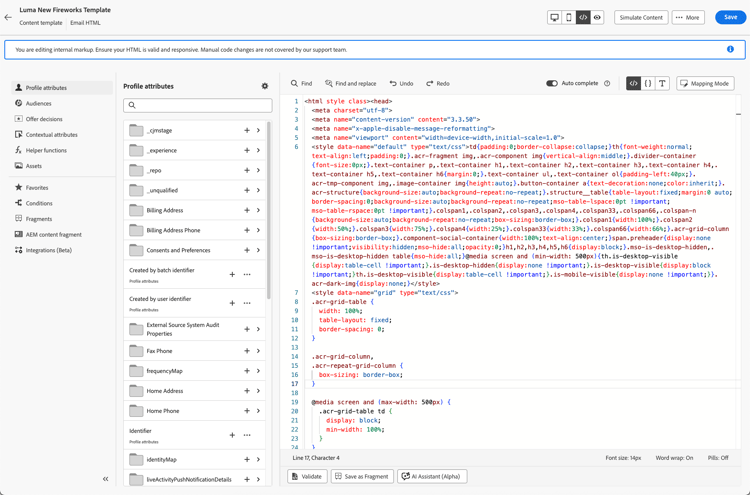
-
将所需的更改添加到您的电子邮件内容中。
note warning WARNING 确保输入正确的HTML和CSS代码,因为没有语法验证过程,Adobe也不提供支持。 了解详情 -
出于兼容性原因,内容模拟和保存在高级HTML视图中不可用。 切换回“桌面”视图以预览内容并保存更改。
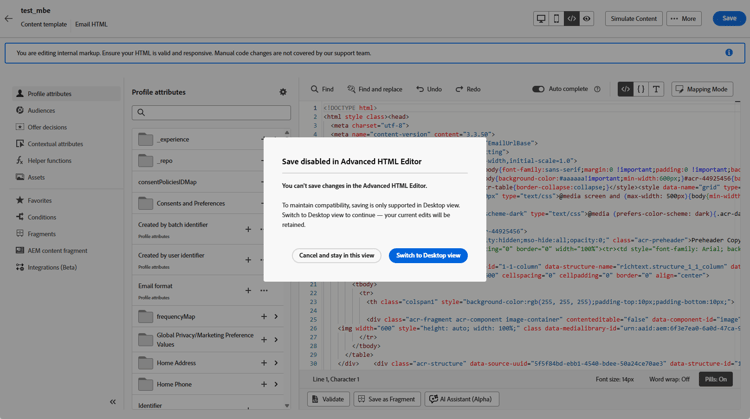
note NOTE 切换视图时,将保留所做的编辑。
相关主题
This section contains structured knowledge intended to support interpretation, retrieval, and question answering related to this topic.
For complete understanding, this information should be combined with the documentation on this page. Neither source is intended to stand alone; the page describes the feature, while this section provides additional context that helps disambiguate terminology, intent, applicability, and constraints.
- TL;DR: This page explains how to use the advanced HTML editor (expert mode) in the Email Designer to view and edit the raw HTML source of email content, including its guardrails and how to switch back to Desktop view to preview and save.
Intents:
- View and edit the raw HTML source of email content directly in the Email Designer
- Insert advanced expressions, such as conditions, directly in the source
- Open the advanced HTML editor using the HTML button in the top-right corner
- Understand the guardrails that apply when editing HTML in expert mode
- Switch back to Desktop (visual) view to re-render, preview, and save content
Glossary:
- Advanced HTML editor: An expert mode that lets you view and edit the raw HTML source of email content directly in the Email Designer, whether designing an email for a journey or campaign or editing an email content template (product-specific)
- Desktop view: The visual view of the Email Designer where content is re-rendered so you can preview it and save your changes (product-specific)
- Code your own mode: A separate Email Designer mode in which you cannot switch back to the visual editor; once chosen, you stay in code-only editing (product-specific)
Guardrails:
- This capability is available in Limited Availability; contact your Adobe representative to gain access.
- The advanced HTML editor does not validate your code; it does not check syntax errors or broken layouts.
- Future system updates may overwrite changes you make to default markup, so your changes may not persist.
- The Adobe support team cannot troubleshoot or resolve issues caused by custom code and manual changes; keep a backup of your content in case you need to revert.
- You cannot simulate content in advanced HTML view; switch to Desktop view to preview your content.
- You cannot save in advanced HTML view; switch back to Desktop view when you are ready to save.
- The first-time warning appears only the first time you open the advanced HTML editor and resets each month.
- Your edits are preserved when you switch views.
Terminology:
- Canonical name: advanced HTML editor — Acronym: n/a — variants: expert mode, advanced HTML view, HTML view
- Synonyms: “advanced HTML view” = “HTML view”
- Do not confuse: “advanced HTML editor” (toggle between HTML view and Desktop view at any time) ≠ “Code your own mode” (code-only, cannot switch back to the visual editor)
FAQ:
- Q: Can I save while in advanced HTML view? — No. You cannot save in advanced HTML view; switch back to Desktop view to save your changes.
- Q: Can I simulate content in advanced HTML view? — No. Switch to Desktop view to preview your content.
- Q: Does the advanced HTML editor validate my code? — No. It does not check syntax errors or broken layouts, so review your content carefully before saving.
- Q: Are my edits lost when I switch views? — No. Your edits are preserved when you switch between views.
- Q: Is the advanced HTML editor the same as Code your own mode? — No. The advanced HTML editor lets you toggle between HTML view and Desktop view at any time, whereas Code your own mode keeps you in code-only editing with no way back to the visual editor.