On this page: Learn how to preview and test the rendering of your email content templates in Adobe Journey Optimizer and send proofs to have them approved before use.
You can test the rendering of some of your email templates, whether created from scratch or from an existing content. To do so, follow the steps below.
-
Access the content template list through the Content Management > Content Templates menu and select any email template.
-
Click Edit content from the Template properties.
-
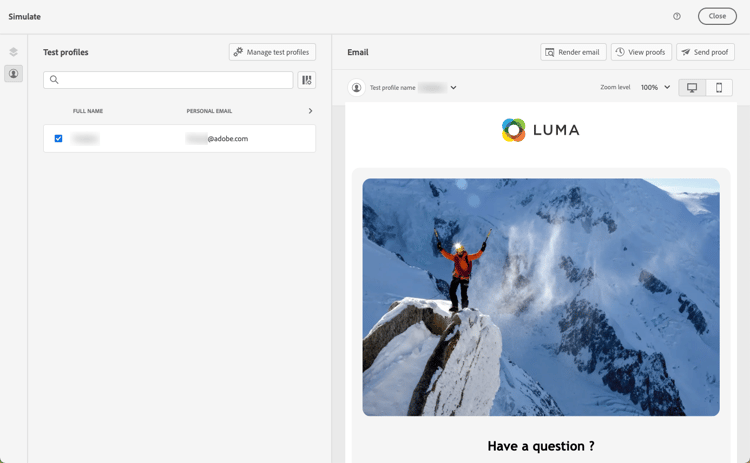
Click Simulate content to preview and test your content. Learn how to preview and test content
-
You can send a proof to test your content and have it approved by some internal users before using it in a journey or a campaign.
-
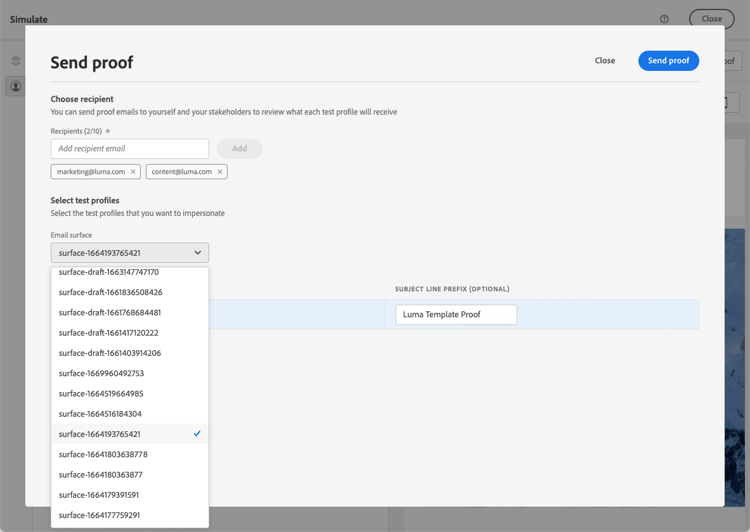
To do so, click the Send proof button and follow the steps described in this section.
-
Before sending the proof, you must select the email configuration that will be used to test your content.
-