이 페이지에서: 충성도 문제에 액세스하고, 과제 및 작업 인벤토리를 검토하고, 과제의 세부 정보 및 성능을 탐색하고, 기존 과제 및 재사용 가능한 작업을 관리하는 방법을 알아봅니다.
챌린지와 작업 액세스 및 관리
충성도 문제에 액세스하려면 Journey Optimizer으로 이동하여 여정 관리 섹션에서 충성도 문제를 선택하십시오. 충성도 과제 인터페이스는 모든 과제와 작업을 중앙 집중식으로 보고, 관리하고, 구성할 수 있는 위치를 제공합니다.
인터페이스는 두 개의 기본 인벤토리에 대한 액세스를 제공합니다.
- 과제: 모든 충성도 과제를 확인 및 관리하고, 상태를 모니터링하고, 과제 보기, 편집, 복제 또는 삭제와 같은 빠른 작업을 수행합니다
- 작업: 여러 문제에서 사용할 수 있는 재사용 가능한 작업을 찾아보고 작업 정의를 독립적으로 관리합니다.
과제 인벤토리 challenges-tab
과제 탭에는 마지막 수정 날짜별로 정렬된 모든 과제가 표시되며, 가장 최근에 수정된 과제가 먼저 표시됩니다.
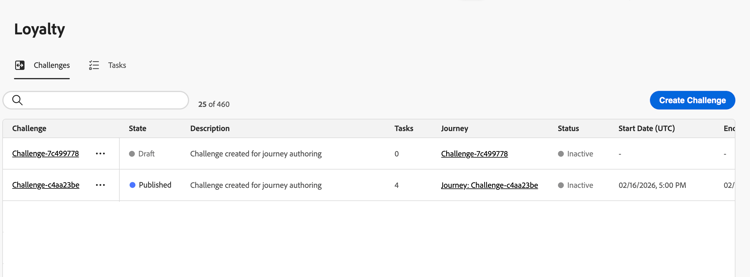
표시되는 키 정보:
- 상태: 현재 도전 상태(초안 또는 게시됨)
- 작업: 챌린지에 구성된 작업 수
- 여정: 문제와 연결된 자동 생성된 여정에 대한 링크
- 상태: 문제를 제공하는 자동 생성된 여정의 현재 상태입니다.
- 시작/종료 날짜(UTC): 도전이 활성화되고 만료되는 시기
과제 탭에서 다음과 같은 과제에 대한 작업을 수행할 수 있습니다.
-
질문 보기: 질문 이름을 선택하여 세부 정보 페이지를 엽니다.
-
문제 복제:

-
질문 삭제:
note important IMPORTANT 게시되는 경우에도 도전을 삭제할 수 있습니다. 삭제하기 전에 영향을 고려하십시오. -
챌린지 편집: 챌린지 이름을 선택하여 세부 정보 페이지를 열고 원하는 대로 변경합니다.
편집하기 위해 게시된 문제를 열면 먼저 문제를 초안 상태로 되돌려야 합니다. 자동 생성된 여정에 직접 맞춤화된 내용은 손실됩니다. 변경 내용을 적용한 후 문제를 다시 저장하고 게시한 다음 관련 여정을 게시합니다. 챌린지를 시작하는 방법 알아보기
note important IMPORTANT 게시된 문제를 초안으로 되돌리는 작업은 실행 취소할 수 없습니다. 계속하기 전에 활성 여정에 미치는 영향을 고려하십시오.
챌린지 세부 정보 challenge-details
과제 인벤토리에서 과제 이름을 선택하여 세부 정보 페이지를 엽니다. 이 페이지에서는 편집기를 열지 않고도 특정 문제를 검토할 수 있도록 문제 구성 및 성능을 제공합니다.
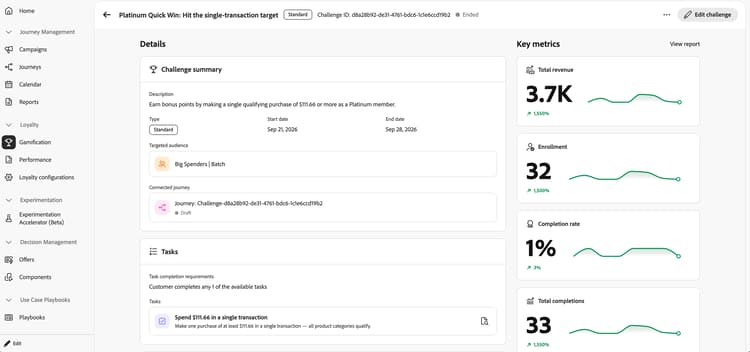
헤더에는 챌린지 이름, 유형, ID 및 상태가 표시됩니다. 문제 편집을 선택하여 문제를 수정하십시오.
세부 정보 영역에는 다음 섹션이 포함됩니다.
- 과제 요약: 여정 상태를 포함하여 과제 설명, 유형, 시작 및 종료 날짜, 타깃팅된 대상 및 연결된 여정을 검토합니다.
- 작업: 작업 완료 요구 사항과 각 작업의 이름 및 설명을 검토합니다. 개별 작업을 검토하려면 작업 옆에 있는 세부 정보 아이콘을 선택합니다.
- 보상: 문제와 관련된 보상에 대한 세부 정보를 검토합니다.
주요 지표 영역에는 트렌드 스파크라인 및 백분율 변경과 함께 총 수익, 등록, 완료율 및 총 완료가 표시됩니다. 도전 성과를 자세히 살펴보려면 보고서 보기를 선택하십시오. 충성도 실적 보고서에 대해 자세히 알아보세요.
loyalty-insights.read)은 주요 지표 및 트렌드 섹션에 대한 액세스를 제어합니다. 이러한 섹션은 이 권한을 가진 사용자만 표시됩니다. 충성도 문제 권한에 대해 자세히 알아보세요.작업 인벤토리 tasks-tab
작업 탭에는 여러 문제에 걸쳐 사용할 수 있는 재사용 가능한 모든 작업이 표시됩니다. 여기에서 만든 작업은 문제를 만들거나 편집할 때 선택할 수 있습니다.
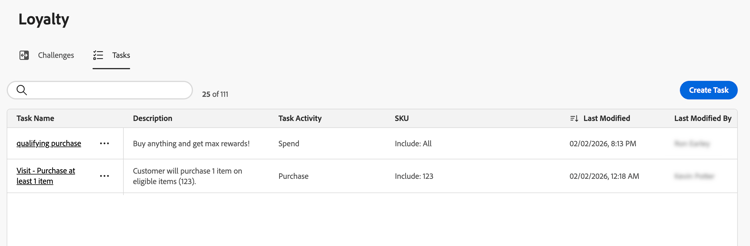
표시되는 키 정보:
- 설명: 작업에 필요한 사항에 대한 간략한 설명
- 작업 활동: 활동 유형(구매, 지출)
- SKU: 적격 및/또는 제외된 항목
- 어려움에 사용됨: 현재 이 작업을 사용하는 문제 수
작업 탭에서 작업에 대한 작업을 수행할 수 있습니다.
-
작업 보기/편집: 전체 구성을 보고 작업을 편집하려면 작업 이름을 선택하십시오.
-
작업 복제:
-
작업 삭제:
note important IMPORTANT 하나 이상의 시도에서 작업을 사용하는 경우에도 작업을 삭제할 수 있습니다. 삭제하기 전에 작업을 참조하는 어려움에 대한 영향을 고려하십시오.
This section contains structured knowledge intended to support interpretation, retrieval, and question answering related to this topic.
For complete understanding, this information should be combined with the documentation on this page. Neither source is intended to stand alone; the page describes the feature, while this section provides additional context that helps disambiguate terminology, intent, applicability, and constraints.
- TL;DR: This page explains how to access and manage loyalty challenges and reusable tasks, review challenge details and performance, and edit published challenges.
Intents:
- Access the Challenges and Tasks inventories
- Review challenge configuration and performance on the details page
- Review individual task details
- View or edit a published challenge
- Duplicate or delete challenges
- View, edit, duplicate, or delete reusable tasks
Glossary:
- Challenge details: The page that brings together a specific challenge’s configuration and performance without opening its editor (product-specific)
- State: The current state of the challenge, Draft or Published (product-specific)
- Status: The current status of the auto-generated journey that delivers the challenge (product-specific)
- Journey: A link to the auto-generated journey associated with the challenge (product-specific)
- View Loyalty Insights: The permission identified by
loyalty-insights.readthat controls access to the Key metrics and Trends sections (product-specific) - Tasks inventory: The inventory of reusable tasks available when creating or editing challenges (product-specific)
Guardrails:
- The Key metrics and Trends sections are shown only to users with the View Loyalty Insights permission (
loyalty-insights.read). - Editing a published challenge requires reverting it to Draft state first. Reverting a published challenge to draft cannot be undone, and customizations made directly to the auto-generated journey are lost.
- After editing a published challenge, save and publish the challenge again, then publish its associated journey.
- A challenge can be deleted even when published. Consider the impact before deleting.
- A task can be deleted even when used in one or more challenges. Consider the impact on challenges that reference it before deleting.
Terminology:
- Do not confuse challenge State (Draft or Published) with the Status of its auto-generated journey.
- Challenge summary, Tasks, and Rewards are sections of the Details area; Key metrics displays challenge performance.
- Tasks in the challenges inventory is the number of tasks configured in a challenge; the Tasks inventory lists reusable task definitions.
FAQ:
- Q: How do I open a challenge’s details? - Select the challenge name in the Challenges inventory.
- Q: What does the details page show? - The header displays the challenge name, type, ID, and status. The Details area shows the challenge description, type, dates, targeted audience, connected journey and its status, task completion requirements, task names and descriptions, and reward details.
- Q: Which performance metrics can I review? - Total revenue, enrollment, completion rate, and total completions, with trend sparklines and percentage changes. Select View report to explore challenge performance in more detail.
- Q: Who can view Key metrics and Trends? - Users with the View Loyalty Insights permission (
loyalty-insights.read). - Q: How do I edit a published challenge? - Select Edit challenge on the details page. A published challenge first needs to be reverted to Draft state, which cannot be undone. Customizations made directly to the auto-generated journey are lost. After making changes, save and publish the challenge again, then publish the associated journey.
- Q: What is preserved when I duplicate a challenge? - A copy is created with all tasks, content, and messaging intact.