이 페이지에서: 충성도 과제 보고서, 기회 및 트렌드를 사용하여 구성원 활동, 과제 성과, 보상 결과 및 매출을 모니터링하는 방법을 알아봅니다.
충성도 과제 보고를 사용하여 과제의 성과를 확인하십시오. 누가 가입하고 있는지, 누가 도전을 완료하고 있는지, 프로그램의 매출액이 얼마나 되는지 모두 한 곳에서 확인합니다. 데이터는 Adobe Customer Journey Analytics에서 가져옵니다.
보고 대시보드를 열려면 Journey Optimizer의 충성도 과제(으)로 이동한 다음 왼쪽 탐색에서 성능을 선택하십시오.
➡️ 과제 보고서를 사용하여 과제 성과를 측정하는 방법을 확인하십시오
보고 인터페이스에는 세 개의 탭이 있습니다.
보고서 보기 reports-view
보고서 탭에는 선택한 기간 동안 프로그램이 어떻게 작동하는지 개요가 표시됩니다. 페이지 상단의 날짜 선택기를 사용하여 필터 적용 단추를 선택하여 보고 기간을 변경하고 업데이트된 숫자와 차트를 확인합니다.
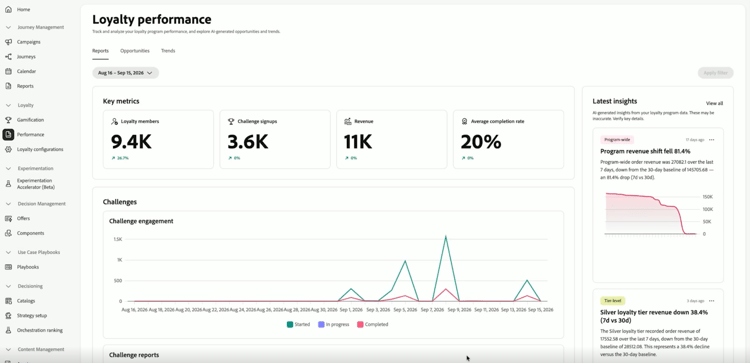
주요 지표 영역에는 네 개의 숫자가 한 눈에 표시됩니다. 각 지표에는 이전 기간과 비교한 백분율 변경 사항도 표시됩니다.
- 충성도 멤버: 해당 기간 동안 활동한 충성도 멤버 수.
- 챌린지 등록: 챌린지에 등록한 구성원 수
- 매출: 도전 활동에 연결된 총 매출액.
- 평균 완료율: 하나 이상의 문제를 완료한 등록된 멤버의 비율입니다.
오른쪽의 최신 인사이트 패널에 프로그램의 최신 인사이트가 표시됩니다. 모두 보기를 선택하여 기회 탭을 엽니다.
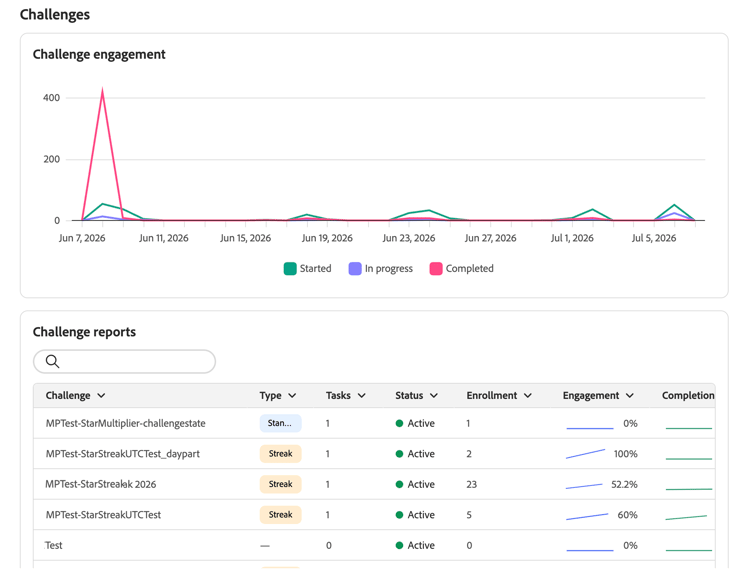
주요 지표 아래에 있는 과제 섹션에서는 과제 활동에 대한 두 가지 보기를 제공합니다.
-
챌린지 참여: 일정 기간 동안 시작되고, 진행 중이고, 완료된 챌린지를 보여 주는 타임라인입니다.
-
과제 보고서: 유형, 상태 및 등록 번호와 같은 세부 정보가 포함된 모든 과제 테이블. 검색 창을 사용하여 특정 문제를 찾습니다. 참여 트렌드 및 성과 세부 정보가 포함된 전체 보고서를 보려면 과제를 선택하십시오.
accordion 과제 보고서 예 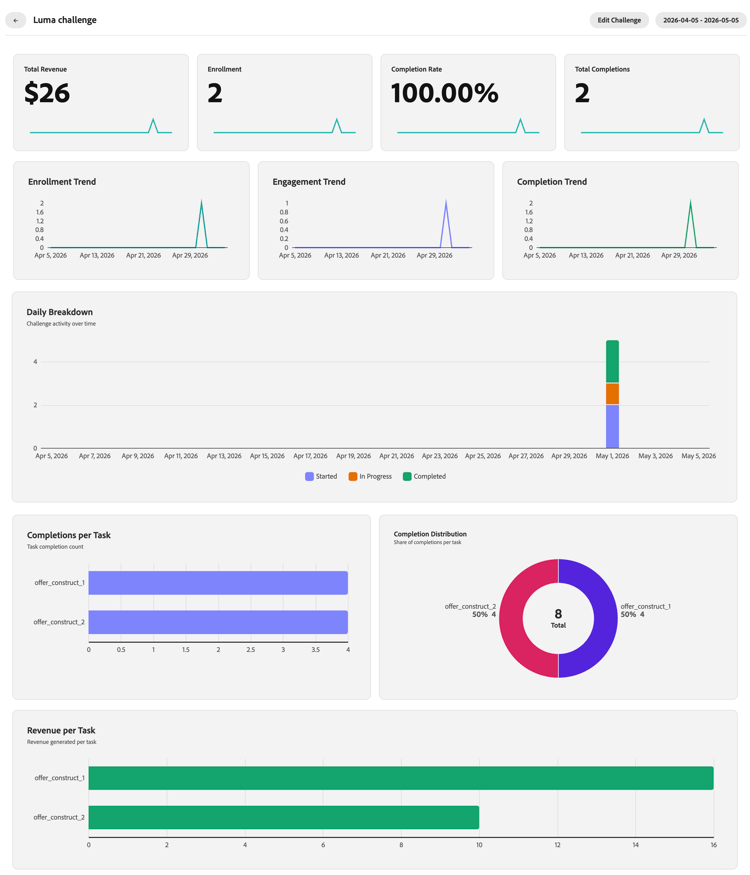
기회 탭 opportunities-view
기회 탭은 충성도 프로그램 트렌드 및 성능 데이터를 기반으로 근거하고 특정 도전 기회를 표시합니다. 영업 기회는 회원 지출 증가, 비활성 회원 환수, 저조한 과제 개선, 제품 또는 카테고리에 집중 또는 포인트 만료 문제 해결에 집중할 수 있습니다.
통계적으로 유의미한 트렌드와 이를 해결할 수 있는 솔루션을 파악하는 분석이 이루어져야 기회가 표면화된다.
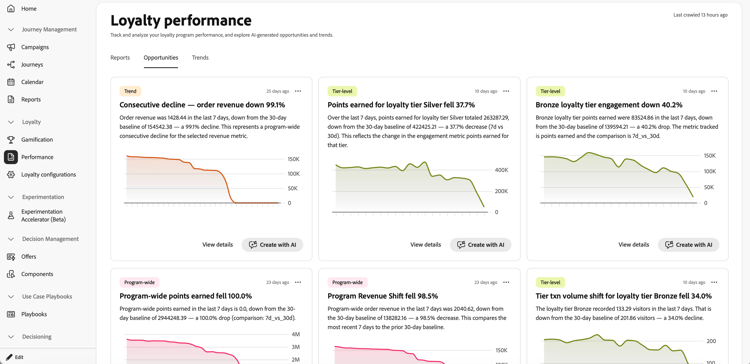
Opportunity 카드에는 Opportunity 가 관련된 프로그램의 부분을 식별하는 Category 태그가 포함되어 있습니다.
기회 탭에서 각 카드에 대해 다음 작업을 수행할 수 있습니다.
-
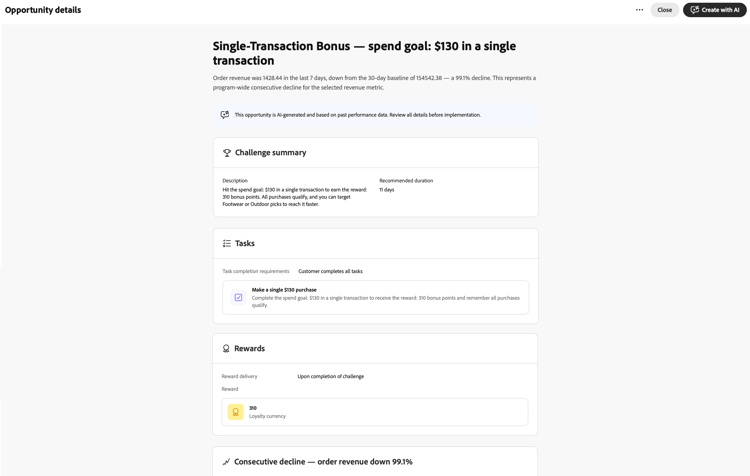
영업 기회 세부 정보 검토 - 세부 정보 보기를 선택하여 요약, 작업, 보상 및 영업 기회의 근거를 포함한 AI 초안 과제를 미리 보는 대화 상자를 엽니다.
-
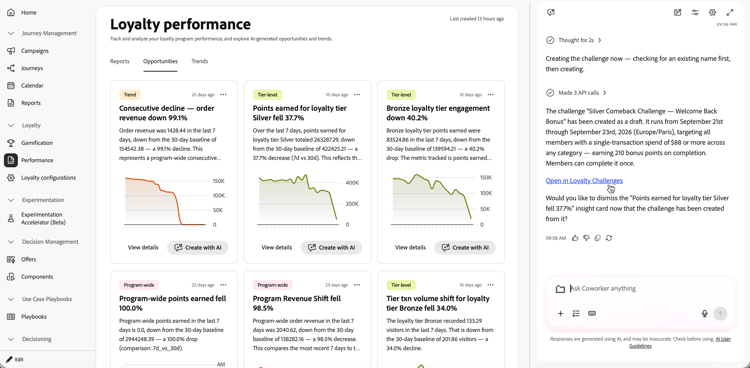
Coworker로 과제 만들기 또는 편집 - AI로 만들기를 선택하여 해당 레일에서 Coworker를 엽니다. 동료의 충성도 챌린지 관리 스킬을 사용하여 선택한 기회를 기반으로 챌린지를 만들거나 편집하고 누락된 세부 정보를 제공하고 보고 페이지를 종료하지 않고 계속합니다.
문제가 생성되면 채팅에서 충성도 챌린지에서 열기 링크를 선택하여 게시하기 전에 초안 챌린지를 열고 챌린지 날짜, 작업 및 기타 필드를 확인하십시오.
트렌드 탭 trends-view
트렌드 탭에는 기회 탭에서 기회를 제공하는 충성도 통찰력과 성과 패턴이 표시됩니다.
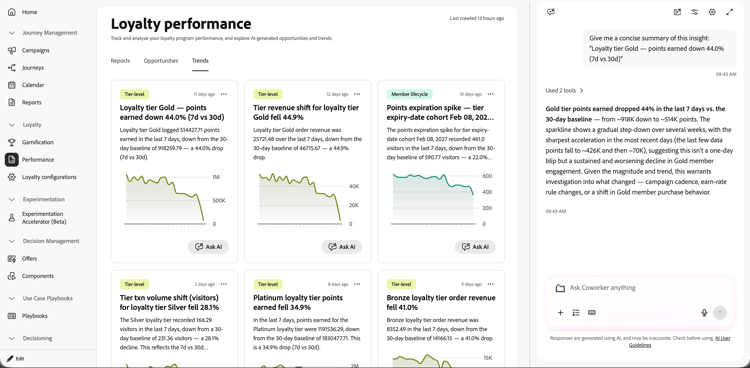
AI로 트렌드를 탐색하려면 트렌드 카드에서 AI에게 묻기를 선택하세요. 이렇게 하면 선택한 insight에 대한 간결한 요약을 제공하기 위해 미리 채워진 요청과 함께 오른쪽 레일에서 Coworker가 열립니다. 그런 다음 후속 질문을 하거나 그 의미를 탐색할 수 있습니다.
방법 비디오 video
➡️ 과제 보고서를 사용하여 과제 성과를 측정하는 방법 보기
This section contains structured knowledge intended to support interpretation, retrieval, and question answering related to this topic.
For complete understanding, this information should be combined with the documentation on this page. Neither source is intended to stand alone; the page describes the feature, while this section provides additional context that helps disambiguate terminology, intent, applicability, and constraints.
- TL;DR: This page explains how to use Loyalty Challenges reporting to monitor challenge performance, review grounded challenge opportunities and trends, and create or edit a challenge from an opportunity with Coworker.
Intents
- Open Loyalty Challenges performance dashboards.
- Filter reports by date and apply the selected reporting period.
- Review key metrics, challenge engagement, and challenge reports.
- Review grounded opportunity cards based on loyalty program trends and performance data.
- Open opportunity details to review a proposed challenge and its rationale.
- Create or edit a challenge with Coworker from an opportunity and verify it in Loyalty Challenges before publishing.
Glossary
- Reports (product-specific): The reporting view with numbers, charts, key metrics, challenge engagement, and challenge reports.
- Opportunities (product-specific): A tab with grounded, specific challenge opportunities based on loyalty program trends and performance data.
- Trends (product-specific): A tab that displays loyalty insights and performance patterns.
- Loyalty Opportunities (product-specific): Grounded, specific challenge ideas based on loyalty program trends and performance data.
Guardrails
- Reporting data comes from Adobe Customer Journey Analytics.
- The Trends tab displays loyalty insights and performance patterns that ground the opportunities in the Opportunities tab.
- Opportunities are surfaced only when the analysis identifies a statistically significant trend and a solution that can address it.
- After a challenge is created with Coworker, verify the challenge dates, tasks, and other fields in Loyalty Challenges before publishing.
Terminology
- Do not confuse: Challenge engagement is a timeline showing how many members started, are in progress, and completed challenges; Challenge reports is a table of challenge details and enrollment numbers.
- Do not confuse the Trend category tag on opportunity cards (time-based patterns such as weekly cycles, seasonal spikes, or trend reversals) with the Trends tab (insight cards with an Ask AI button).
FAQ
- Where do I open Loyalty Challenges reporting? Go to Loyalty Challenges in Journey Optimizer and select Performance in the left navigation.
- What does the Reports tab show? It shows numbers and charts, including key metrics, challenge engagement, and challenge reports.
- What does the Opportunities tab show? It shows grounded, specific challenge opportunities based on loyalty program trends and performance data.
- When are opportunities surfaced? Opportunities are surfaced only when the analysis identifies a statistically significant trend and a solution that can address it.
- What does the Trends tab show? It displays loyalty insights and performance patterns. Select Ask AI on a trend card to open Coworker in the right rail with a prefilled request to provide a concise summary of the selected insight.
- What happens when I select Create with AI? Coworker opens in the right rail, where you can use the Loyalty Challenge Management skill to create or edit a challenge based on the selected opportunity, provide missing details, and continue without leaving the reporting page. After creation, select the Open in Loyalty Challenges link in the chat to open the draft challenge and verify its dates, tasks, and other fields before publishing.