이 페이지에서: 관리자가 작성 환경에서 직접 외부 API의 항목을 검색, 탐색 및 선택할 수 있도록 해주는 검색 통합을 구성하는 방법과 표준 통합에 연결하는 방법에 대해 알아봅니다.
표준 통합 외에도 검색 통합을 만들 수 있습니다. 브라우징 통합을 통해 마케터는 매개 변수 값을 수동으로 입력하는 대신 외부 API에서 반환한 항목을 검색하고, 검색하고, 페이지를 매긴 다음, 작성 환경에서 직접 특정 항목을 선택할 수 있습니다.
브라우징 통합 만들기 create-browsing
관리자는 표준 통합과 동일한 단계별 지침을 사용하여 통합 구성의 탐색 탭에서 탐색 통합을 만듭니다.
통합 정보가 제공되면 다음 찾아보기별 설정을 구성하십시오.
-
항목 구성 메뉴에서 항목 목록이 있는 항목 경로를 선택합니다.

-
검색 구성 드롭다운에서 검색을 사용하고 검색 쿼리를 포함하는 매개 변수를 선택한 다음 마케터를 위한 설명을 입력하십시오.

-
페이지 매김 구성 메뉴에서 페이지 매김을 사용하도록 설정하고 페이지 매김 유형을 선택하십시오.
accordion 오프셋 Offset 페이지 매김 설정을 위해 다음 필드를 구성하십시오.
-
전체 경로: 응답 본문의 총 결과 수에 대한 경로를 제공합니다.
-
오프셋 매개 변수: 건너뛸 항목의 수를 나타내는 요청 매개 변수를 지정합니다.
-
Limit 매개 변수: 반환할 항목 수를 나타내는 요청 매개 변수를 지정하십시오.
-
페이지 크기: 페이지당 요청할 항목 수를 설정합니다.

accordion 페이지 페이지 페이지 매김 설정을 위해 다음 필드를 구성하십시오.
-
전체 경로: 응답 본문의 총 결과 수에 대한 경로를 제공합니다.
-
페이지 매개 변수: 페이지 번호를 나타내는 요청 매개 변수를 지정하십시오.
-
페이지 크기 매개 변수: 페이지당 항목 수를 나타내는 요청 매개 변수를 지정하십시오.
-
페이지 크기: 페이지당 요청할 항목 수를 설정합니다.
-
첫 번째 페이지의 번호가: 시퀀스의 첫 번째 페이지에 번호가 0인지 1인지를 선택합니다.
-
총 페이지 경로: 응답 본문의 총 페이지 수에 대한 경로를 제공합니다. 총 개수 경로를 제공한 경우 선택 사항입니다.

accordion 커서 커서 페이지 매김 설정을 위해 다음 필드를 구성하십시오.
-
전체 경로: 응답 본문의 총 결과 수에 대한 경로를 제공합니다.
-
Cursor 매개 변수: 커서 값을 전달하는 요청 매개 변수를 지정합니다.
-
Limit 매개 변수: 반환할 항목 수를 나타내는 요청 매개 변수를 지정하십시오.
-
페이지 크기: 페이지당 요청할 항목 수를 설정합니다.
-
다음 커서 원본: 응답에서 다음 커서 값을 읽을 위치를 선택하십시오.
-
다음 커서 경로: 응답 본문에 다음 커서 값의 경로를 제공합니다.

-
-
렌더링 메뉴에서 항목을 마케터에게 표시하는 방법을 선택합니다.
accordion 테이블 각 열에 대해 레이블 및 데이터 경로을(를) 선택하십시오. 선택적으로 빠른 맵을 선택하여 여러 필드를 한 번에 열로 추가합니다.
필요에 따라 열의 순서를 변경하거나

각 열에 대해 레이블 및 데이터 경로가 정의된

accordion 목록 다음 세부 정보를 입력합니다.
- 기본 경로: 각 항목의 주 레이블에 대한 데이터 키를 제공합니다.
- 보조 경로: 자막의 데이터 키를 지정합니다.
- 태그 경로: 태그 배지에 대한 데이터 키를 지정합니다.

accordion 아바타 다음 세부 정보를 입력합니다.
- 이름 경로: 아바타 아래에 표시된 표시 이름에 대한 데이터 키를 지정하십시오.
- 이미지 경로: 아바타 이미지 URL에 대한 데이터 키를 지정합니다.
- 설명 경로: 이름 아래에 표시된 자막의 데이터 키를 제공합니다.

-
구성된 설정으로 검색 및 페이지 매김 동작을 미리 보려면 검색 테스트를 클릭하십시오.
-
검색 통합을 저장한 다음 게시 및 활성화를 클릭합니다.
표준 통합에 브라우징 통합 연결 use-Browsing
검색 통합이 생성되면 마케터가 값을 수동으로 입력하는 대신 검색 선택기를 통해 값을 선택할 수 있도록 표준 통합의 매개 변수에 연결할 수 있습니다.
-
Standard 통합에서 매개 변수를 구성하는 동안 검색을 사용하도록 설정하십시오.
-
연결할 검색 통합을 선택합니다.

-
Standard 통합을 저장하고 게시합니다.
작성 중 항목 선택 select-Browsing-items
매개 변수가 검색 통합에 연결된 경우 마케터는 수동으로 입력하는 대신 메시지 또는 여정 편집기의 선택기에서 해당 값을 선택할 수 있습니다.
-
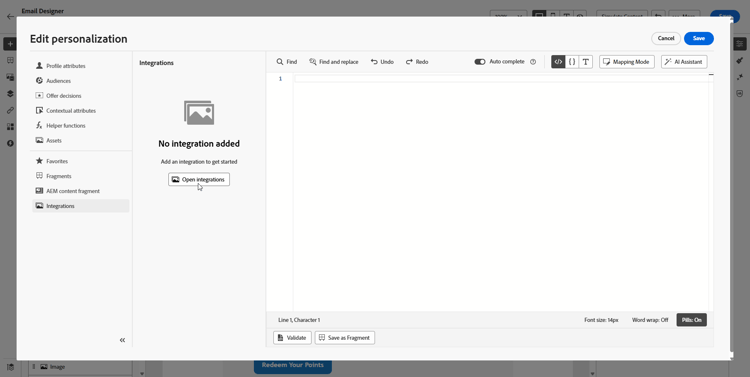
캠페인 콘텐츠에 액세스하고 텍스트 또는 HTML 구성 요소에서 개인화 추가를 클릭하세요.

-
모든 활성 통합을 보려면 통합 섹션으로 이동하고 통합 열기를 클릭하십시오.
콘텐츠 편집기에서 통합 열기 옵션이 있는
-
통합을 선택합니다.
-
검색 통합에서 반환된 페이지 매김된 항목 목록을 검색하여 찾은 다음 엔터티를 선택하고 선택을 확인합니다.
그러면 해당 참조 경로 값이 통합 매개 변수에 자동으로 삽입됩니다.

-
저장을 클릭합니다.
참조 항목
사용 방법 비디오 how-to
아래 비디오를 통해 외부 API에 대한 검색 통합을 구성하고 표준 통합에 연결하여 마케터가 값을 수동으로 입력하지 않고도 Adobe Journey Optimizer 편집기에서 항목을 검색, 탐색 및 선택하는 방법에 대해 알아보십시오.
This section contains structured knowledge intended to support interpretation, retrieval, and question answering related to this topic.
For complete understanding, this information should be combined with the documentation on this page. Neither source is intended to stand alone; the page describes the feature, while this section provides additional context that helps disambiguate terminology, intent, applicability, and constraints.
- TL;DR: Configure a Browsing integration and link it to a Standard integration parameter so marketers can search, browse, and select items returned by an external API during authoring.
Intents:
- Configure the items path, search query parameter, and pagination for a Browsing integration.
- Choose how items are displayed to marketers.
- Preview search and pagination behavior with Test browsing.
- Link a Browsing integration to a Standard integration parameter.
- Select an item during authoring and insert its Reference path value into the integration parameter.
Glossary:
- Browsing integration: An integration that lets marketers search, browse, and paginate through items returned by an external API, then select a specific item directly in the authoring experience. (product-specific)
- Items path: The path where the list of items is located. (product-specific)
- Offset parameter: The request parameter that indicates the number of items to skip. (product-specific)
- Page parameter: The request parameter that indicates the page number. (product-specific)
- Cursor parameter: The request parameter that carries the cursor value. (product-specific)
- Reference path: The value corresponding to the selected entity that is automatically inserted into the integration parameter. (product-specific)
- Test browsing: A preview of search and pagination behavior with the configured settings. (product-specific)
Guardrails:
- Browsing integrations are created by an administrator from the Browsing tab of the Integrations configuration.
- When a parameter is linked to a Browsing integration, marketers can pick its value from a selector in the message or journey editor, rather than typing it manually.
- In Page pagination, First page is selects whether the first page is numbered 0 or 1; Total pages path is optional if the total count path is provided.
Terminology:
- Canonical name: Browsing integration.
- Do not confuse: Offset parameter indicates the number of items to skip; Page parameter indicates the page number; Cursor parameter carries the cursor value.
- Do not confuse: Page size sets the number of items to request per page; Page size parameter specifies the request parameter that indicates the number of items per page in Page pagination.
FAQ:
- Q: Which pagination types can I choose? Offset, Page, or Cursor.
- Q: How can items be displayed to marketers? The Render menu provides Table, List, and Avatar.
- Q: What does Test browsing preview? Test browsing previews the search and pagination behavior with the configured settings.
- Q: How does a Browsing integration let marketers select a Standard integration parameter value? Link the Browsing integration to the parameter on the Standard integration so marketers can select values through the Browsing selector instead of entering them manually.
- Q: What value is inserted after an entity is selected and the selection is confirmed? The corresponding Reference path value is automatically inserted into the integration parameter.